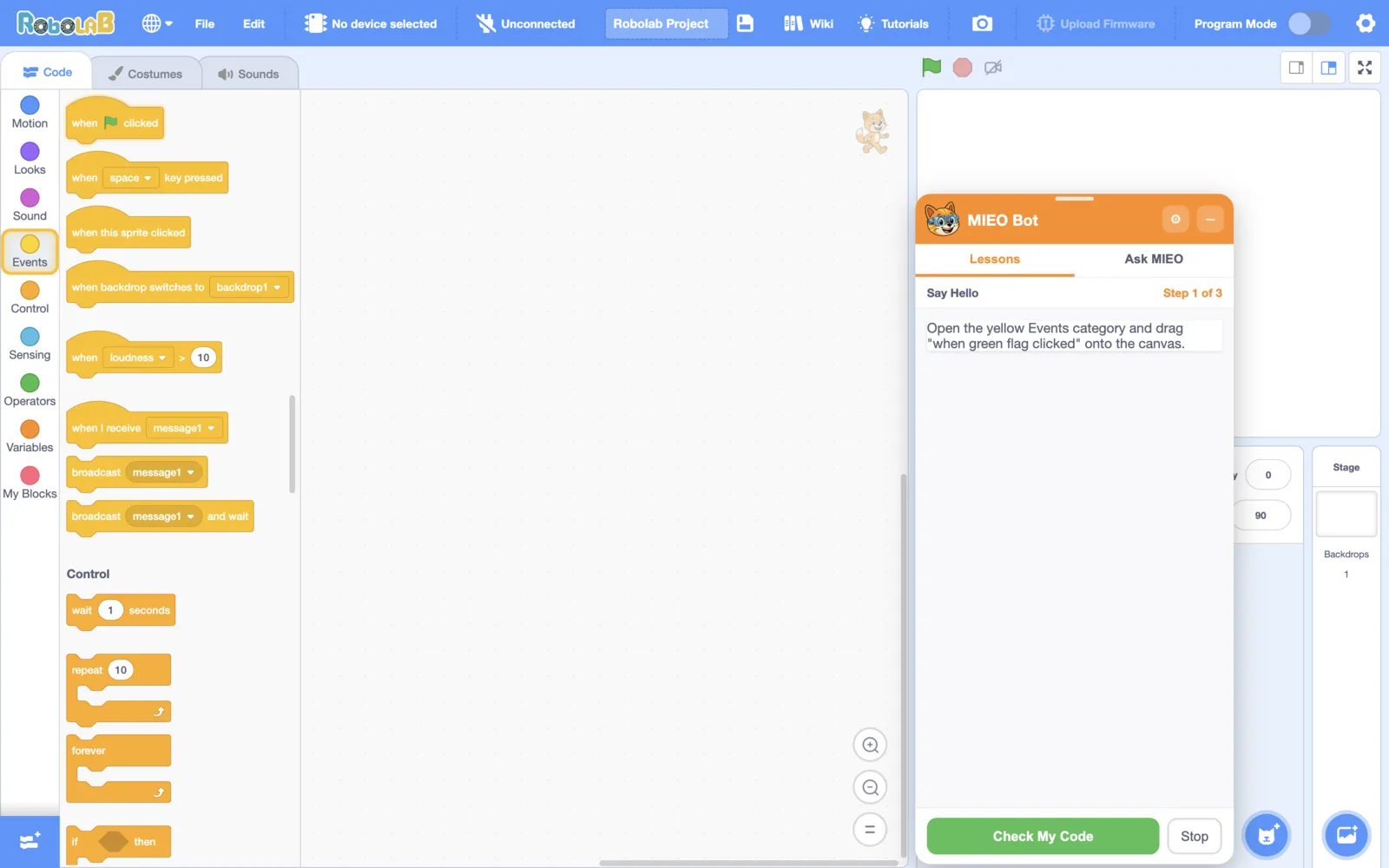
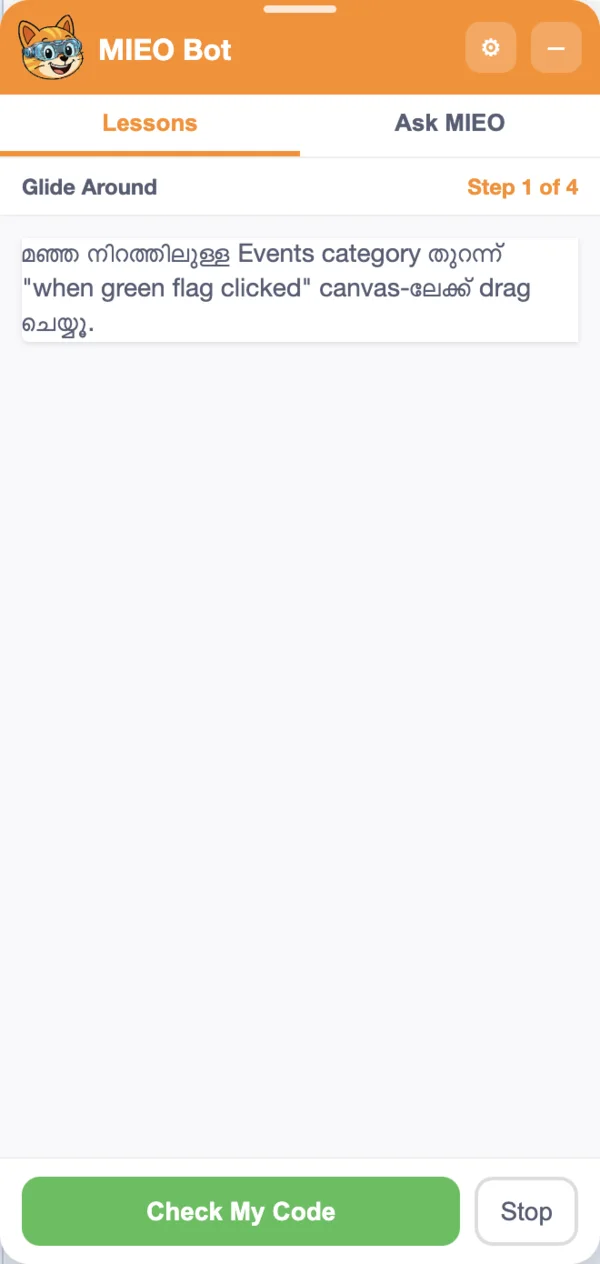
MIEO Bot lives inside Robolab. It teaches step-by-step lessons, checks your blocks as you build, gives hints when you get stuck and explains any block you show it, all on your own computer.
Runs on your computer
No internet needed
No account
Robolab with MIEO Bot
guided lessons
125guided lessons
blocks explained
283blocks explained
skill levels
4skill levels
languages
2languages
What MIEO Bot Does
A friendly helper that sits beside the editor, made for children who are new to block coding.
Teaches lessons
Pick a project and MIEO walks you through it one step at a time, checking your blocks after every change.
Checks your code
Stuck? Press Check My Code. MIEO tells you exactly what's missing and makes the right category and block glow.
Explains any block
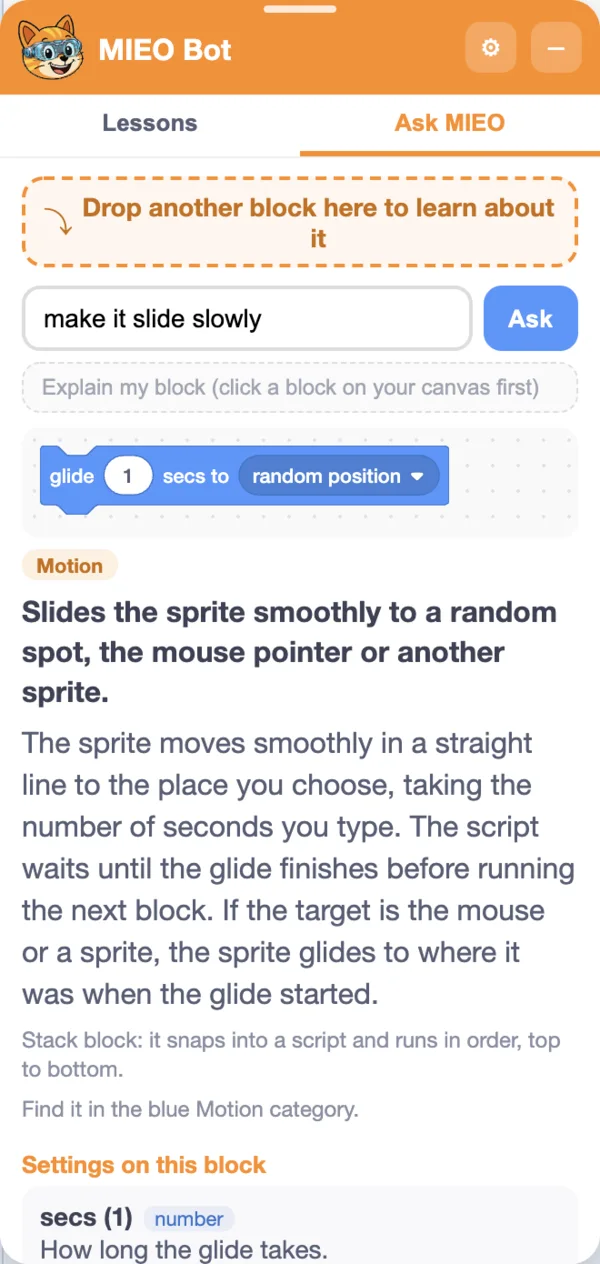
Drop a block on MIEO, or type a few of its words, for a full guide: what it does, every setting, an example and ideas.
Knows the Mieo board
Lessons and block guides cover Scratch, 13 extensions such as Face Sense and Speech Sense, and the Mieo board's own blocks.
How a Lesson Works
Each step asks for one new block, and MIEO checks your work as you build.
1
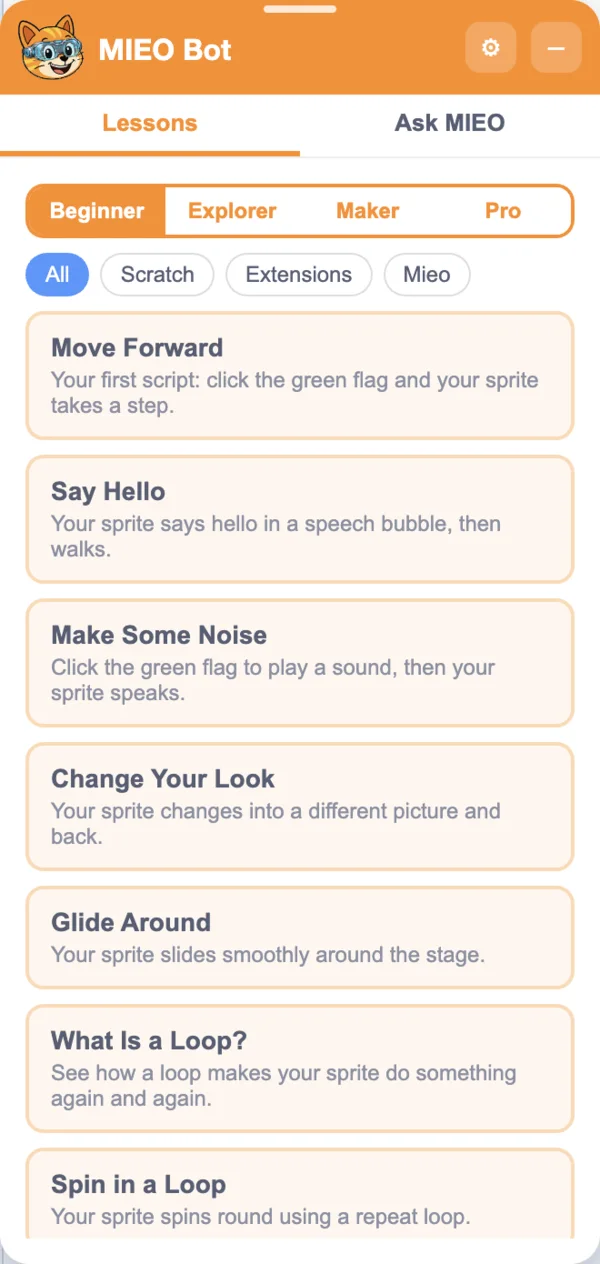
Pick a lesson
Choose a level, then Scratch, Extensions or Mieo. A tick shows the lessons you've finished.
2
MIEO shows you where to look
It names the block you need, opens the way to its category and makes the block glow in the block list.
3
Build, and MIEO checks
About a second after you stop moving blocks, MIEO checks your work. When the step is done, it cheers and moves on.
4
Stuck? Ask for a hint
Press Check My Code at any time and MIEO tells you exactly what to fix.
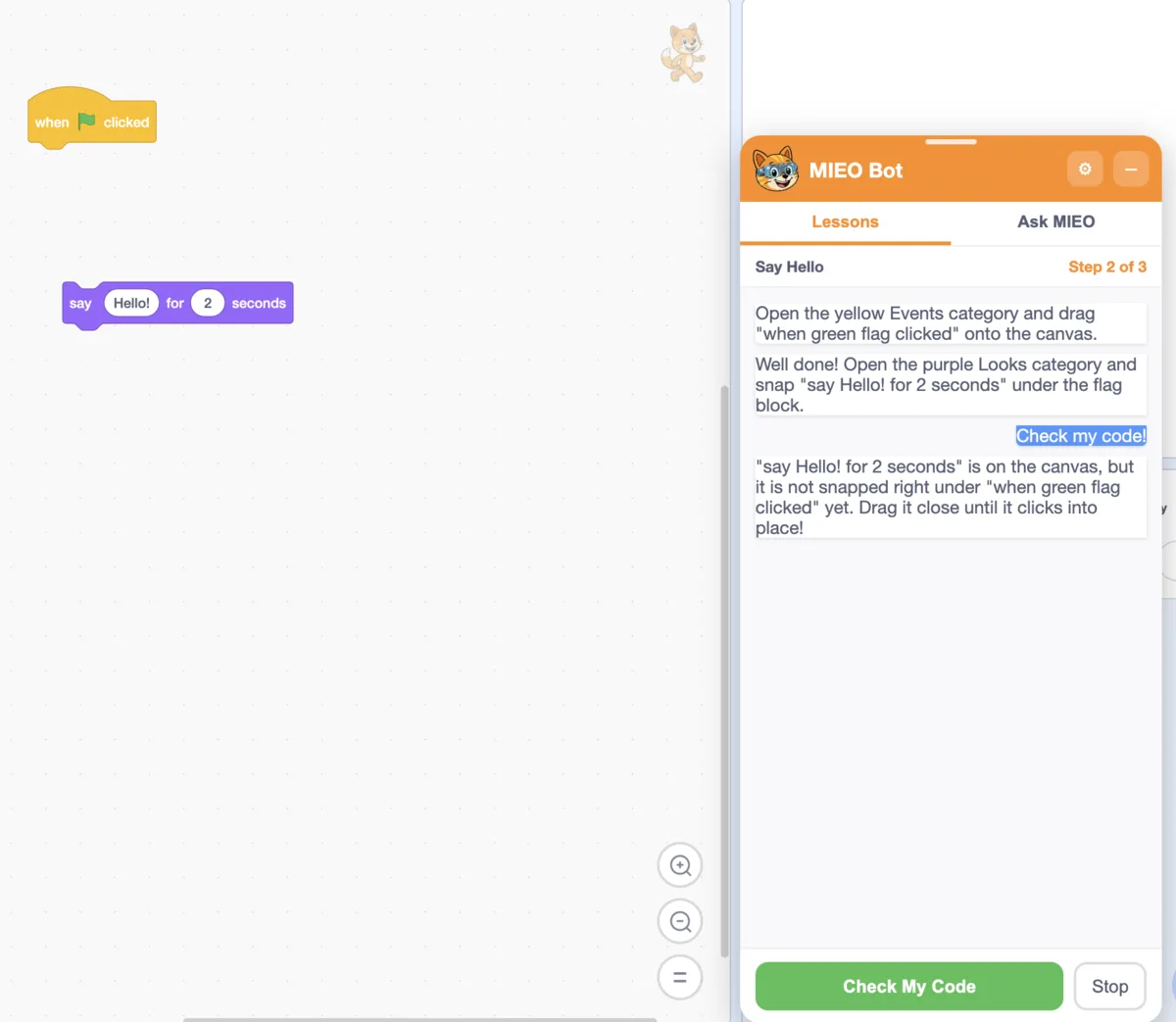
MIEOOpen the yellow Events category and drag “when green flag clicked” onto the canvas.
MIEOWell done! Open the purple Looks category and snap “say Hello! for 2 seconds” under the flag block.
YouCheck my code!
MIEO“say Hello! for 2 seconds” is on the canvas, but it is not snapped right under “when green flag clicked” yet. Drag it close until it clicks into place!
Check My Code
What MIEO notices and what it tells you
MIEO notices
It tells you
The starting block is missing
Which hat block to drag out, such as “when green flag clicked”, and which category it's in.
A block isn't on the canvas
Which category to open, which block to drag, and where it goes: under a block, inside a loop or in the “else” part.
The block is there but not attached
That it's on the canvas but not snapped in yet, so drag it closer until it clicks.
A different block is in that spot
Which block it sees, which one belongs there, and to swap them.
A round or hexagon space needs filling
Which block to drop into which space, such as the hexagon space of an “if”.
A dropdown is set wrongly
Which choice to pick, and for variables, to make the variable first.
MIEO lets you be creative: extra blocks are fine, and so are your own numbers and words. It only checks the choices that matter to the step.
125 Lessons in Four Levels
From your first Scratch block to AI projects and driving the Mieo robot.
Beginner31Explorer37Maker38Pro19
34 lessons
Scratch basics
Only the standard blocks, from your first script to full games.
Move Forward
Say Hello
Catch Me! Score Game
Maze Escape
Space Shooter
Jumping Platformer
56 lessons
AI and creative extensions
Face, Object, Body, Speech, Scan and Vision Sense, plus Music, Pen, Video Sensing, Text to Speech and Translate.
Scan a Code and Say It
Mood Mirror
Smile Detector
Voice-Controlled Sprite
Arms Up Dance
People Counter
19 lessons
The Mieo robot
Faces, sounds, driving and sensors on the Mieo board.
Hello, Mieo!
Blinking Face
Drive a Square
Touch Piano
Line Follower
Stop Before the Wall
Colour Mixer
16 lessons
Mieo with AI
The robot reacts to what the camera sees and what you say.
Smile Mirror
Wave to Say Hi
Hands Up to Drive
Robot Guard Dog
Voice-Controlled Robot
Code Card Driver
All 125 Lessons
Every lesson in MIEO Bot, with what it needs and how many steps it has. Mieo robot lessons that match one of our projects link to it, so you can build the full robot once MIEO has shown you how.
Type
Level
125 lessons
Move Forward
Beginner
Your first script: click the green flag and your sprite takes a step.
Nothing extra2 steps
Say Hello
Beginner
Your sprite says hello in a speech bubble, then walks.
Nothing extra3 steps
Make Some Noise
Beginner
Click the green flag to play a sound, then your sprite speaks.
Nothing extra3 steps
Change Your Look
Beginner
Your sprite changes into a different picture and back.
Nothing extra4 steps
Glide Around
Beginner
Your sprite slides smoothly around the stage.
Nothing extra4 steps
What Is a Loop?
Beginner
See how a loop makes your sprite do something again and again.
Nothing extra4 steps
Spin in a Loop
Beginner
Your sprite spins round using a repeat loop.
Nothing extra3 steps
Rainbow Spinner
Beginner
Your sprite spins and changes colour without stopping.
Nothing extra4 steps
Press a Key
Beginner
Press the space key to make your sprite walk.
Nothing extra3 steps
What Is an If?
Beginner
Your sprite flies up only while you hold the space key.
Nothing extra5 steps
Arrow Key Control
Explorer
Steer your sprite with the four arrow keys.
Nothing extra8 steps
Walking Animation
Explorer
Your sprite walks by changing pictures as it moves.
Nothing extra5 steps
Walk to the Edge
Explorer
Your sprite walks until it touches the edge, then says so.
Nothing extra6 steps
Bounce Off the Edges
Explorer
Your sprite zooms back and forth, bouncing off the edges.
Nothing extra5 steps
Touch Detector
Explorer
Your sprite talks when the mouse pointer touches it.
Nothing extra5 steps
If or Else?
Explorer
Your sprite changes colour when the mouse touches it and goes back when it does not.
Nothing extra6 steps
Send a Message
Explorer
One script sends a message, and another script starts when it hears it.
Nothing extra4 steps
Change the Scene
Explorer
Add two backdrops first, then change the scene with the space key.
Nothing extra6 steps
What Is Your Name?
Explorer
Your sprite asks your name and says hello to you.
Nothing extra5 steps
Click Counter
Explorer
A variable counts how many times you click your sprite.
Nothing extra6 steps
Keyboard Piano
Maker
Turn your keyboard into a piano that plays sounds.
Nothing extra6 steps
Catch Me! Score Game
Maker
Touch the jumping sprite with your mouse to score points.
Nothing extra7 steps
Quiz Time
Maker
Your sprite asks a question and tells you if you are right.
Nothing extra7 steps
Countdown Timer
Maker
Count down from 10 to 0 and shout when time is up.
Nothing extra8 steps
Clone Party
Maker
Fill the stage with spinning, colourful copies of your sprite.
Nothing extra8 steps
Maze Escape
Maker
Paint a maze backdrop with coloured walls first, then lead your sprite through it with the mouse.
Nothing extra8 steps
Catch the Falling Apple
Maker
Add a Bowl sprite and an Apple sprite first, then catch the falling apple with the bowl.
Nothing extra8 steps
Guess the Number
Maker
Your sprite picks a secret number and keeps asking until you guess it.
Nothing extra8 steps
Two-Sprite Story
Pro
Add two sprites and two backdrops first, then tell a story where the sprites take turns.
Nothing extra7 steps
Shopping List
Pro
Ask for things to buy, keep them in a list and count them.
Nothing extra8 steps
Dodge with Lives
Pro
Add a Player sprite and a Rock sprite first, then steer with the mouse; every bump on the rock costs a life.
Nothing extra8 steps
My Own Jump Block
Pro
Make your own "jump" block and choose how high it jumps each time.
Nothing extra8 steps
Space Shooter
Pro
Add a Rocket sprite and a Laser sprite first, put the laser on the rocket, and press space to fire.
Nothing extra8 steps
Jumping Platformer
Pro
Paint a ground in one colour first; your sprite falls, lands on it and jumps with the up arrow.
Nothing extra8 steps
Drum Beat Loop
Beginner
Make a drum beat that plays again and again.
Music5 steps
Draw a Square
Beginner
Use the pen and a repeat loop to draw a square.
Pen6 steps
Talking Sprite
Beginner
Click your sprite and it talks out loud.
Text to Speech4 steps
Talk to Your Sprite
Beginner
Say hello to your sprite and it answers you.
Speech Sense4 steps
Scan a Code and Say It
Beginner
Show a printed square code to the camera and your sprite reads it out.
Scan Sense6 steps
What's in the Picture?
Beginner
Hold something up to the camera and your sprite names what it sees.
Vision Sense6 steps
Mood Mirror
Beginner
Your sprite tells you which face you are making: happy, sad, angry or surprised.
Face Sense6 steps
Face Counter
Beginner
Your sprite counts how many faces the camera can see. Bring your friends!
Face Sense7 steps
Count My Things
Beginner
Hold things up to the camera and your sprite counts them. You count too!
Object Sense7 steps
Zoom Buddy
Beginner
Walk towards the camera and your sprite grows; step back and it shrinks.
Object Sense6 steps
Card Puppet
Beginner
Your sprite sticks to a code card and follows it around. You need a square code: ask your teacher to print one, or show one on a phone.
Scan Sense7 steps
Magic Spell Cards
Beginner
Show the big card and your sprite grows; show the small card and it shrinks. You need two codes that say big and small.
Scan Sense8 steps
Read My Sign
Beginner
Write one big word on paper, show it to the camera, and your sprite reads it.
Vision Sense6 steps
Air Drums
Beginner
Pick a drum sprite like Drum or Drums Tabla, then hit it in the air with your hand.
Video Sensing7 steps
Sing Do Re Mi
Beginner
Press space and your sprite sings Do, Re, Mi and shows each note.
Music7 steps
Wave Hello
Explorer
Wave at your sprite and it waves back.
Video Sensing6 steps
Hello in Other Languages
Explorer
Click your sprite and it says hello in two other languages.
Translate5 steps
Follow My Face
Explorer
Your sprite moves to wherever your face is.
Face Sense7 steps
What Is This?
Explorer
Hold something up next to you, click your sprite and it names the two things it sees.
Object Sense8 steps
Nose Pointer
Explorer
Make your sprite follow your nose using the camera.
Body Sense7 steps
Magic Hat
Explorer
A hat sits on your forehead and moves with you. Choose or paint a hat sprite first.
Face Sense7 steps
Chomp Monster
Explorer
Open your mouth wide and your sprite chomps along with you.
Face Sense8 steps
Tidy-Up Checker
Explorer
Your sprite checks your desk and asks you to put the bottle away. You need a bottle.
Object Sense8 steps
Banana Song
Explorer
Show a banana to the camera and your sprite sings and dances. You need a banana (a picture of one can work too).
Object Sense8 steps
Code Racer
Explorer
Hold up the go card and your sprite races; hide it and the sprite stops. You need a code that says go.
Scan Sense8 steps
Secret Agent Door
Explorer
Only the secret agent card gets a welcome. You need a code that says agent.
Scan Sense8 steps
Peekaboo!
Explorer
Hide from the camera and pop back, and your sprite plays peekaboo with you.
Body Sense8 steps
Voice Pet
Explorer
Pick a pet sprite like Puppy, then say jump or speak and your pet does it.
Speech Sense8 steps
Music Box Dancer
Explorer
Pick the Ballerina sprite, and she dances to a music box tune that never stops.
Music7 steps
Rainbow Star
Explorer
Draw a big rainbow star pattern with one small loop.
Pen8 steps
Keyboard Band
Maker
Play piano and drum with your keyboard, and click the sprite to play faster.
Music8 steps
Pop the Balloon
Maker
Pick a balloon sprite, then pop it with your hand to score points.
Video Sensing6 steps
Parrot Repeats You
Maker
Type anything and your sprite says it back out loud.
Text to Speech7 steps
My Own Translator
Maker
Type anything and your sprite says it in another language.
Translate6 steps
Smile Detector
Maker
Your sprite cheers when you smile.
Face Sense8 steps
Voice-Controlled Sprite
Maker
Move your sprite by saying "left" and "right".
Speech Sense7 steps
Secret Card Reader
Maker
Write a big secret word on a card, show it to the camera, and your sprite changes its costume.
Vision Sense7 steps
Who Is It?
Maker
Teach your sprite your face, and it says your name whenever it sees you.
Face Sense8 steps
Show Me a Cup!
Maker
Your sprite asks for a cup and waits until you show one. You need a cup.
Object Sense8 steps
Code Quiz
Maker
Your sprite asks a sum and you answer by showing a code. You need a code that says 5.
Scan Sense8 steps
Simon Says: Hands Up!
Maker
Play Simon says: your sprite waits until you really raise your right hand, then cheers.
Body Sense8 steps
Find It Fast!
Maker
Your sprite asks for a cup, and you have 3 seconds to show one to the camera.
Vision Sense8 steps
Magic Spell Words
Maker
Say the magic words grow and shrink to change your sprite's size.
Speech Sense8 steps
Bubble Pop
Maker
Pick a round sprite like Balloon1 or Ball, then wave at it to pop it and watch it come back.
Video Sensing8 steps
Mouse Paint
Maker
Hold the space key and move your mouse to paint on the stage.
Pen8 steps
Stay Awake Alarm
Maker
Studying late? Close your eyes and your sprite wakes you up with a sound.
Face Sense8 steps
Voice Quiz
Maker
Your sprite asks a question, you answer out loud, and it gives you a point when you are right.
Speech Sense8 steps
Magic Wand
Maker
Your hand becomes a magic wand: the sprite follows your wrist and sparkles with colour.
Body Sense8 steps
Homework Reader
Maker
Hold up a page of big printed words and your sprite reads them, then counts what it found.
Vision Sense5 steps
Growing Spiral
Pro
Draw a spiral that grows bigger as it turns.
Pen9 steps
People Counter
Pro
Your sprite warns you when more than 2 people are in front of the camera.
Object Sense8 steps
Arms Up Dance
Pro
Raise your right arm high and your sprite dances.
Body Sense8 steps
Code Treasure Hunt
Pro
Hide printed codes that say gold around the room, then find them to score points.
Scan Sense8 steps
Face Puppet
Pro
Your sprite becomes a puppet on your face: it follows you around and grows when you come closer.
Face Sense9 steps
Fruit Shop Till
Pro
Run a fruit shop: show bananas and apples to the camera and your sprite works out the price.
Object Sense12 steps
Code Steering Wheel
Pro
Hold a printed code like a steering wheel: tilt it and your sprite turns and drives.
Scan Sense9 steps
Hello, Mieo!
Beginner
Your first Mieo program: it smiles, sings and dances every time it switches on.
All 283 blocks in Robolab, including every Mieo and extension block, come with a full guide: what the block does, what every setting means, a “Try this” example drawn as real blocks, ideas to build, tips, similar blocks and the lessons that use it.
Drag and drop
Drop any block on MIEO, from the block list or your own code. It goes back where it came from.
Type a question
Type a block's words or what you want to do, like “glide” or “make it slide slowly”.
Explain my block
Click a block in your code, then press Explain my block.
English + Malayalam
Learn in Malayalam Too
Switch on English + Malayalam explanations and MIEO explains everything in Malayalam: lesson steps, hints, praise and what each block and setting does.
Everything you need to find on screen stays in English, exactly as the editor shows it: block names, categories and buttons. Common coding words like block, sprite and loop stay in English too, the way they're said in Kerala computer classes.
പർപ്പിൾ നിറത്തിലുള്ള Looks category തുറന്ന് "say Hello! for 2 seconds" flag block-ന് താഴെ snap ചെയ്യൂ.
Local AI, Private by Design
MIEO Bot runs entirely inside Robolab on your own computer. It needs no internet connection and no account, and sends nothing anywhere.
Runs on your computer
MIEO Bot is part of Robolab and does all its work on the computer you're using.
No internet needed
Lessons, hints and block guides all work offline, in the classroom or at home.
No account
There's nothing to sign up for and no password to remember.
Sends nothing anywhere
Your code and your questions never leave the computer.
A Whole Class at Its Own Pace
MIEO Bot is made for children who are new to block coding, with enough projects to keep confident coders busy too. Every child gets their own patient helper, so teachers can spend their time where it's needed most.
Get the Coding App!
The free Scratch-like coding app for Windows, macOS and Linux.
 Local AI · New in Robolab 1.0.11