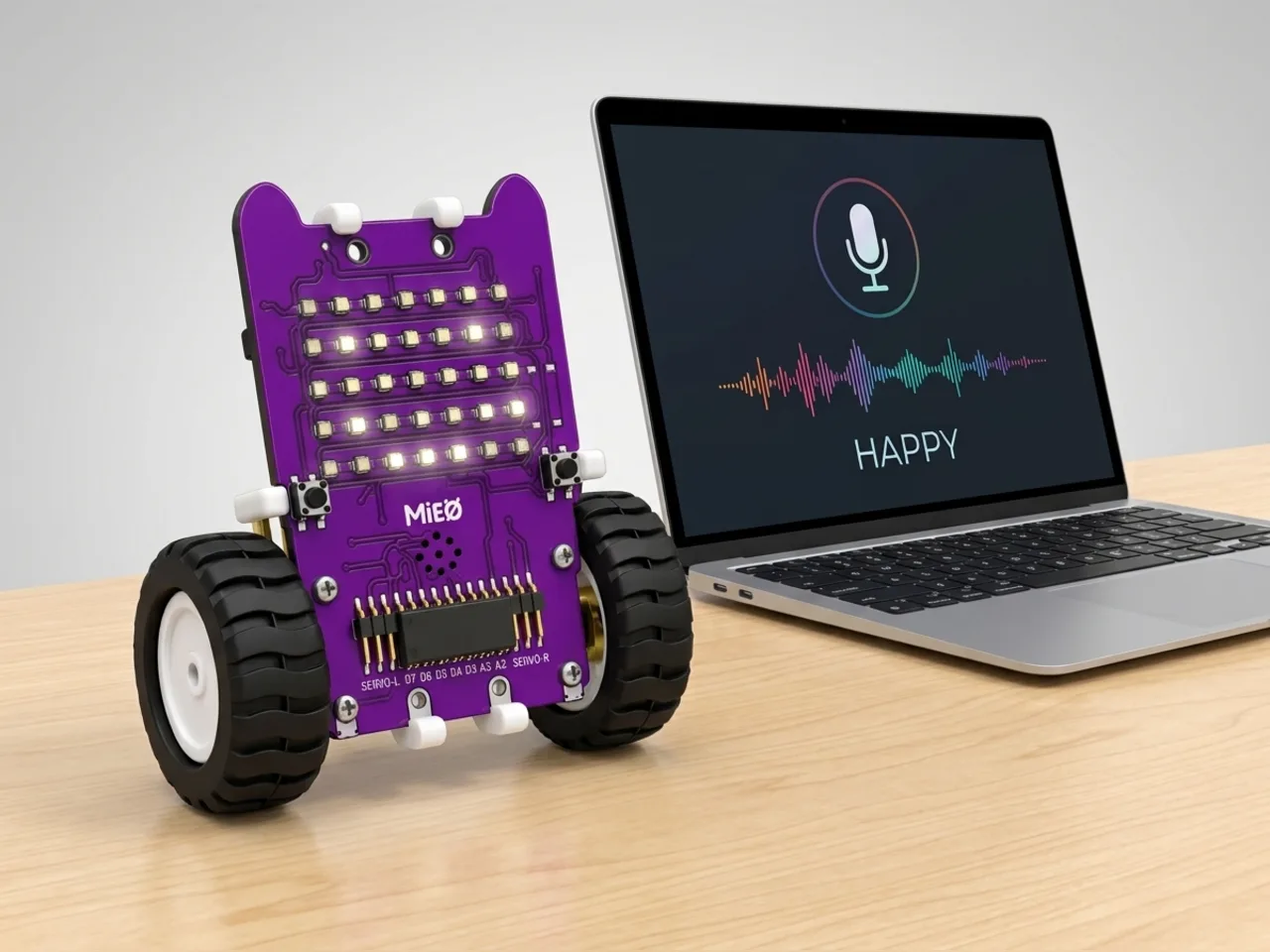
Speech-Controlled Robot
Say a word and MIEO answers with a face and a sound
What you'll build
With Speech Sense, MIEO can understand spoken words. The listening happens on your computer, with no internet needed, and nothing you say leaves the computer. In this project you teach MIEO four words. Say one and MIEO answers straight away with a matching face and sound. There's nothing new to build: MIEO stays connected to the computer and reacts live.
What you'll learn
- What speech recognition is: turning spoken words into text a program can check
- Why a short list of words makes recognition more reliable
- How a “when someone says” block starts a script for each word
- How Arena mode lets the computer and MIEO work together live
You'll need
- Mieo board
- Battery
- 3D-printed mountings
- Screws and screwdriver
- A USB cable, or Bluetooth on your computer
- The Robolab app (free)
- A microphone (most laptops have one built in)
Stay safe
- Ask an adult to help with the small screws.
- The camera and microphone stay on your computer. Nothing MIEO sees or hears is sent anywhere.
Build it
- Fit the battery to the Mieo board if it isn't there already, and switch MIEO on.
- Connect MIEO to your computer with a USB cable or over Bluetooth.
- Check that your computer's microphone works. Most laptops have one built in, and a headset works too.
- Find a quiet spot. Background noise makes it harder for Speech Sense to hear you.
Code it

Want MIEO Bot to guide you?
Robolab's built-in tutor has a lesson on the same idea, “Say a Face”. Open MIEO Bot in Robolab, pick Explorer, then Mieo, and it shows you the blocks one at a time and checks your work as you go.
About MIEO Bot's lessons- Choose Mieo as your device, connect to it and set the switch at the top right to Arena, so the program runs on your computer.
- Click the extensions button at the bottom left and add Speech Sense.
- Build the start script: “when green flag clicked”, “only listen for the words happy, sad, sleep, party”, “turn listening on” and “show neutral”.
- For each word, add a “when someone says” block with the word typed in, then a face and a sound. For party, use “show party pattern until done”.
- End each word script with “forget heard words”, so MIEO is ready to hear the same word again.
- Click the green flag. The first time, your computer may ask to use the microphone, so say yes.
Arena mode: the program runs on your computer and talks to MIEO live over USB or Bluetooth, so keep MIEO switched on and connected.
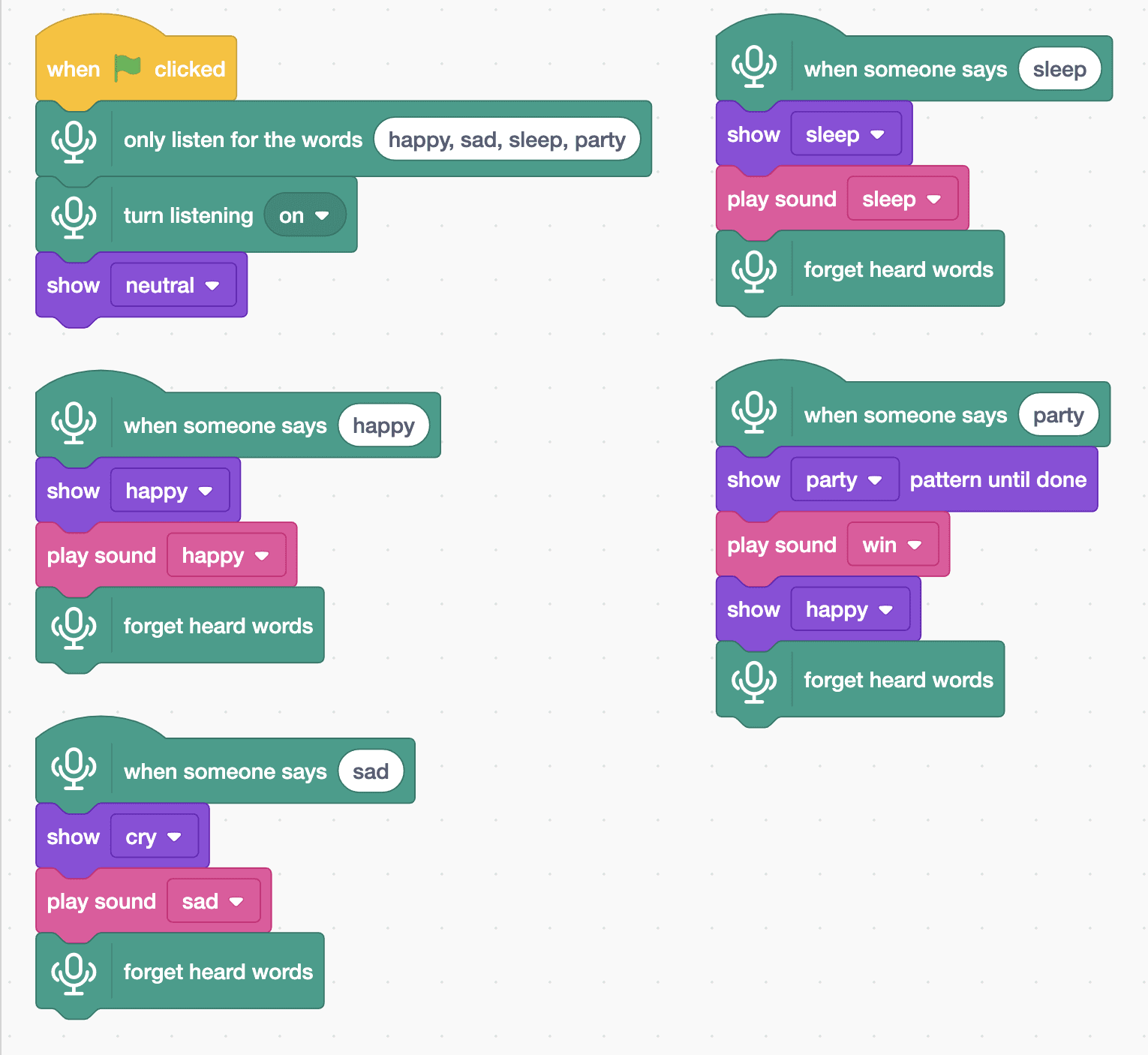
when green flag clicked
only listen for the words (happy, sad, sleep, party)
turn listening [on v]
show [neutral v]

when someone says (happy)
show [happy v]
play sound [happy v]
forget heard words

when someone says (sad)
show [cry v]
play sound [sad v]
forget heard words

when someone says (sleep)
show [sleep v]
play sound [sleep v]
forget heard words

when someone says (party)
show [party v] pattern until done
play sound [win v]
show [happy v]
forget heard wordsTest it
Click the green flag and MIEO shows its neutral face. Say “happy” clearly and MIEO smiles and plays its happy sound. “Sad” makes it cry, “sleep” sends it to sleep, and “party” plays a party light show before MIEO smiles again.
If it doesn't work
- MIEO doesn't react? Check that you clicked the green flag, that MIEO is connected and that your microphone isn't muted.
- It mixes up words? Words that sound different work best. Keep the word list short and say each word on its own.
- It reacts once but never again? Check that every word script ends with “forget heard words”.
Make it your own
- Easy: add a fifth word, like “love”, that shows the heart face. Add it to the word list too.
- Medium: make “party” play a tune with “play tone of note” blocks instead of the win sound.
- Hard: make a voice-controlled light show where “rainbow”, “wave” and “chase” each start a different pattern.