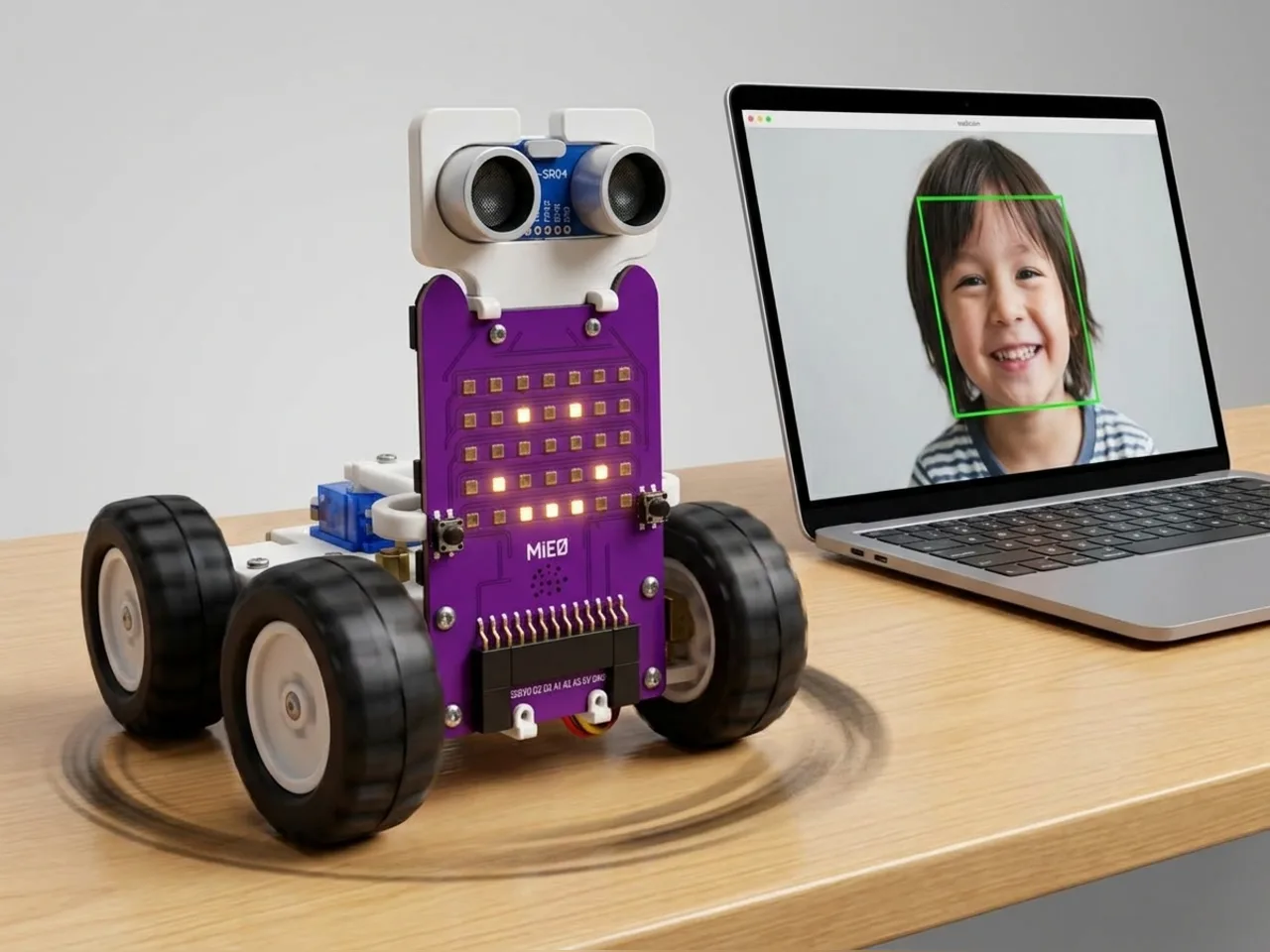
Emotion-Responsive Robot
Smile or frown and MIEO reacts with a face, sound and move
What you'll build
A good companion notices how you feel and reacts. In this project MIEO watches your face through the computer's webcam with Face Sense. Smile and MIEO lights up, plays its happy sound and spins round with joy. Look sad and it cries and backs away slowly. Look surprised and it jumps forward and back with a chirp. Face Sense runs on your computer with no internet, and each reaction mixes a face, a sound and a move.
What you'll learn
- Using a sensor reading to choose between several reactions
- Asking a yes-or-no question with “is expression on face 1 … ?”
- Putting a face, a sound and a move together into one reaction
- Pausing after a reaction so the robot doesn't repeat itself too fast
You'll need
- Mieo board
- Two N20 motors and their wheels
- Battery
- 3D-printed mountings
- Caster wheel
- Screws and screwdriver
- A webcam; most laptops have one built in
- A computer with Bluetooth
- The Robolab app (free)
- A webcam (most laptops have one built in)
Stay safe
- Ask an adult to help with the small screws.
- Lift MIEO's wheels off the table before you upload a driving program, so it can't drive off the edge.
- The camera and microphone stay on your computer. Nothing MIEO sees or hears is sent anywhere.
Build it
- Build MIEO with both N20 motors, their wheels, the caster wheel and the battery, as in Switch Motor Start.
- Put MIEO on the table beside your computer, with space around it to spin, away from the edge.
- Switch MIEO on and connect it to your computer over Bluetooth. Sit facing the webcam in good light.
Code it

Want MIEO Bot to guide you?
Robolab's built-in tutor has a lesson on the same idea, “Mood Robot”. Open MIEO Bot in Robolab, pick Maker, then Mieo, and it shows you the blocks one at a time and checks your work as you go.
About MIEO Bot's lessons- Open Robolab, choose Mieo, connect and set the switch at the top right to Arena. Add the Face Sense extension.
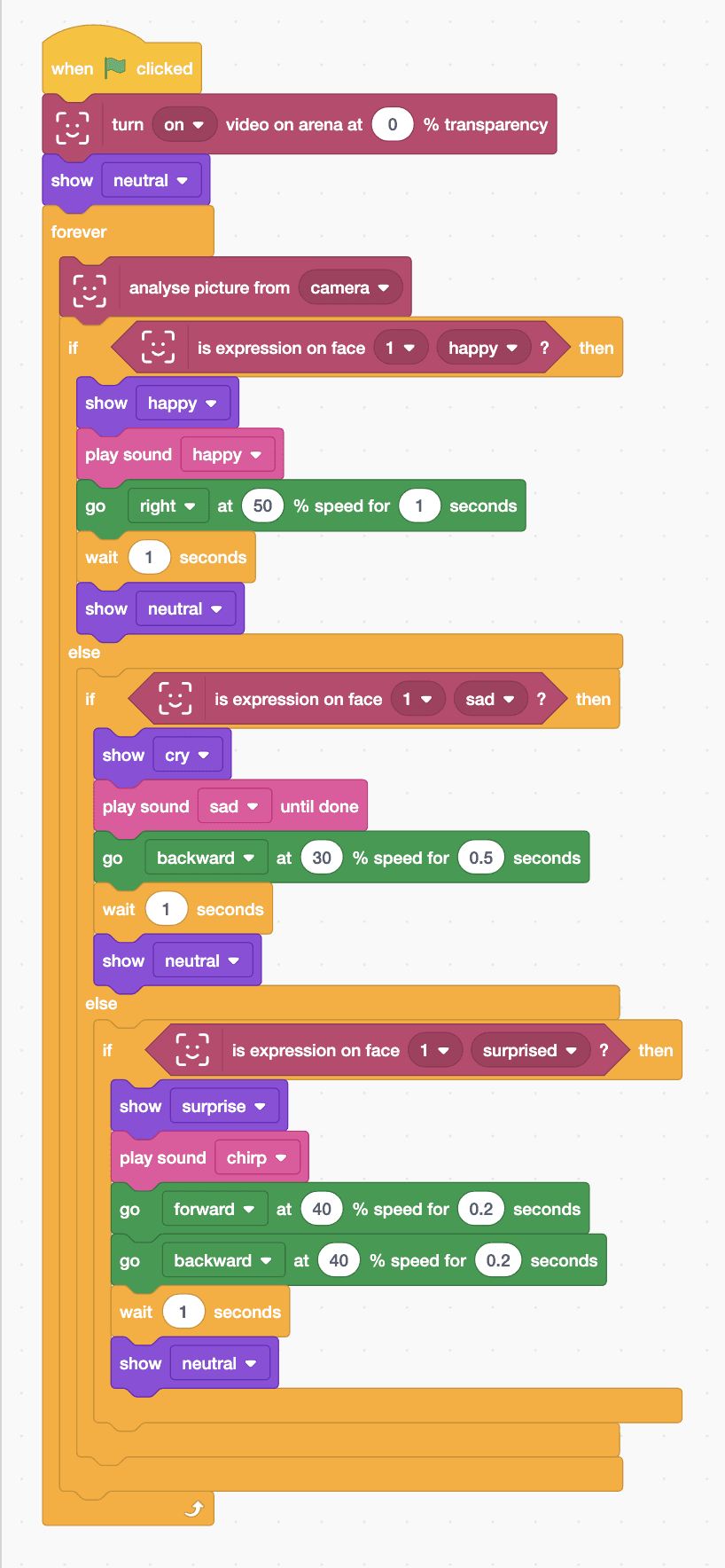
- Start with “when green flag clicked”, “turn on video on arena at 0 % transparency” and “show neutral”, then add a “forever” loop with “analyse picture from camera” inside.
- Add “if … else” with “is expression on face 1 happy ?”. Happy: “show happy”, “play sound happy” and “go right at 50 % speed for 1 seconds”.
- In its else part, add “if … else” with “is expression on face 1 sad ?”. Sad: “show cry”, “play sound sad until done” and “go backward at 30 % speed for 0.5 seconds”.
- In that else part, add “if … then” with “is expression on face 1 surprised ?”. Surprised: “show surprise”, “play sound chirp”, then forward and backward at 40 % for 0.2 seconds each.
- End each reaction with “wait 1 seconds” and “show neutral”.
- Click the green flag, allow the camera, and show MIEO how you feel.
Arena mode: the program runs on your computer and talks to MIEO live over USB or Bluetooth, so keep MIEO switched on and connected.
when green flag clicked
turn [on v] video on arena at (0) % transparency
show [neutral v]
forever
  analyse picture from [camera v]
  if <is expression on face [1 v] [happy v] ?> then
    show [happy v]
    play sound [happy v]
    go [right v] at (50) % speed for (1) seconds
    wait (1) seconds
    show [neutral v]
  else
    if <is expression on face [1 v] [sad v] ?> then
      show [cry v]
      play sound [sad v] until done
      go [backward v] at (30) % speed for (0.5) seconds
      wait (1) seconds
      show [neutral v]
    else
      if <is expression on face [1 v] [surprised v] ?> then
        show [surprise v]
        play sound [chirp v]
        go [forward v] at (40) % speed for (0.2) seconds
        go [backward v] at (40) % speed for (0.2) seconds
        wait (1) seconds
        show [neutral v]
      end
    end
  end
endTest it
Click the green flag and your camera picture appears on the stage. Keep a calm face and MIEO stays neutral. Smile widely and MIEO smiles, plays its happy sound and spins round. Frown and it cries and backs away a little. Open your eyes and mouth wide and it chirps and jumps forward and back. After each reaction it waits a second and goes back to neutral.
If it doesn't work
- MIEO never reacts? Check the camera picture shows your whole face, in good light and not too far away.
- Sad is hard to trigger? Make a big, slow frown with the corners of your mouth turned right down.
- MIEO spins off the table? Give it more space, or make the happy spin shorter, such as 0.5 seconds.
Make it your own
- Easy: change the moves: maybe a happy wiggle instead of a spin.
- Medium: add a reaction for angry, such as MIEO turning away from you.
- Hard: make MIEO react to two people at once, using face 1 and face 2.