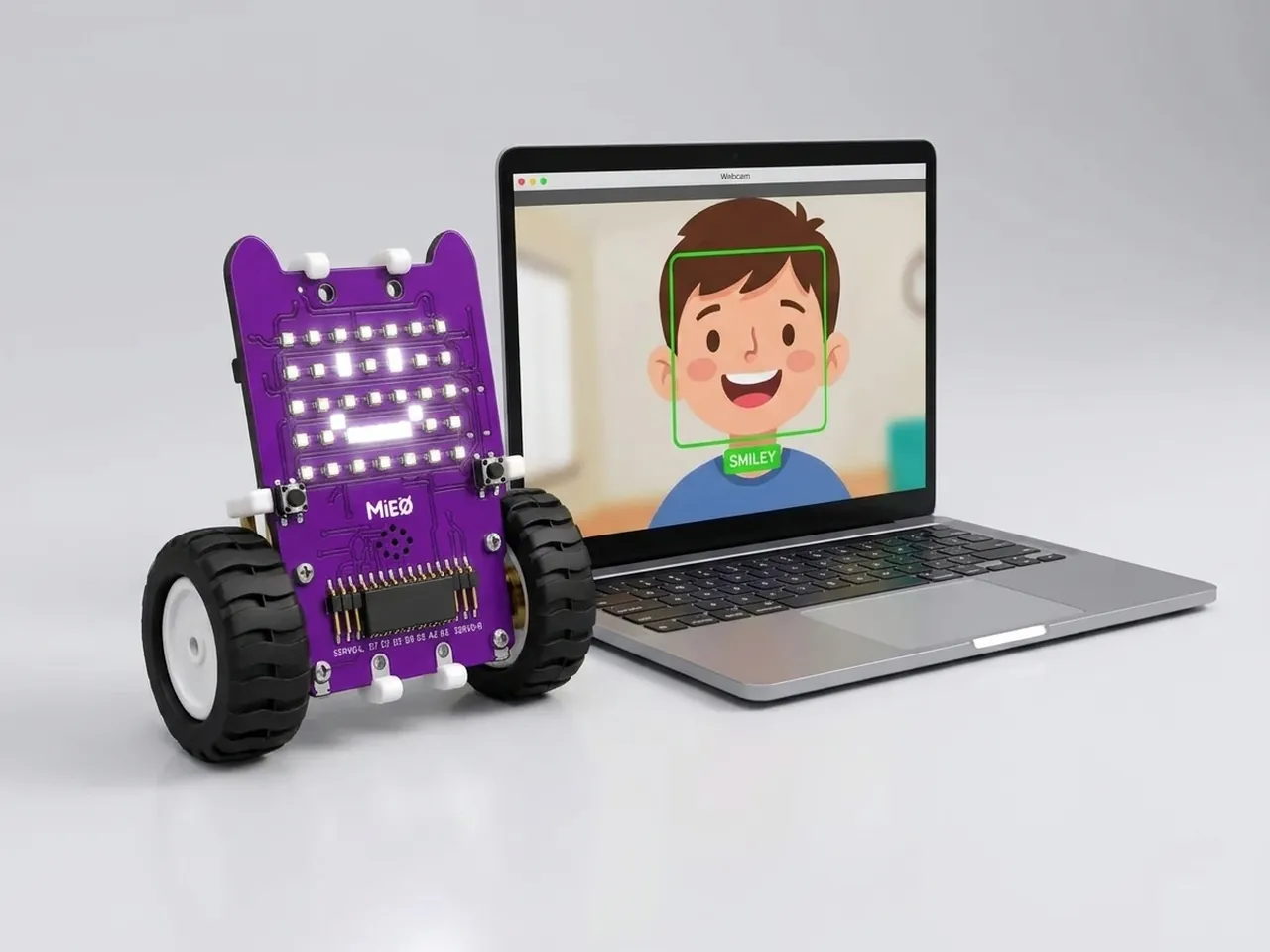
Facial Expression Detection Robot
MIEO names the expression on your face
What you'll build
Smile at your computer's webcam and MIEO smiles back; look surprised and MIEO looks surprised too. Face Sense finds your face in the camera picture and works out its expression: happy, sad, angry, surprised or neutral. It runs on your computer, with no internet, and the pictures never leave it. MIEO says the expression's name on the stage and shows a matching face. To keep the Bluetooth link quiet, MIEO only changes its face when your expression changes.
What you'll learn
- How a computer can find a face and read its expression
- Looking at one camera picture at a time, many times a second
- Remembering the last answer, so MIEO only changes when something changes
- Matching each expression to a face with “if” blocks
You'll need
- Mieo board
- Battery
- 3D-printed mountings
- Screws and screwdriver
- A webcam; most laptops have one built in
- A USB cable, or Bluetooth on your computer
- The Robolab app (free)
- A webcam (most laptops have one built in)
Stay safe
- Ask an adult to help with the small screws.
- The camera and microphone stay on your computer. Nothing MIEO sees or hears is sent anywhere.
Build it
- Fit the battery to the Mieo board if it isn't there already, and switch MIEO on.
- Connect MIEO to your computer with a USB cable or over Bluetooth, and stand it beside the screen.
- Sit facing the webcam in a well-lit room. Light from in front of you works better than a window behind you.
Code it

Want MIEO Bot to guide you?
Robolab's built-in tutor has a lesson on the same idea, “Smile Mirror”. Open MIEO Bot in Robolab, pick Beginner, then Mieo, and it shows you the blocks one at a time and checks your work as you go.
About MIEO Bot's lessons- Open Robolab, choose Mieo, connect and set the switch at the top right to Arena. Add the Face Sense extension, and make two variables, mood and last.
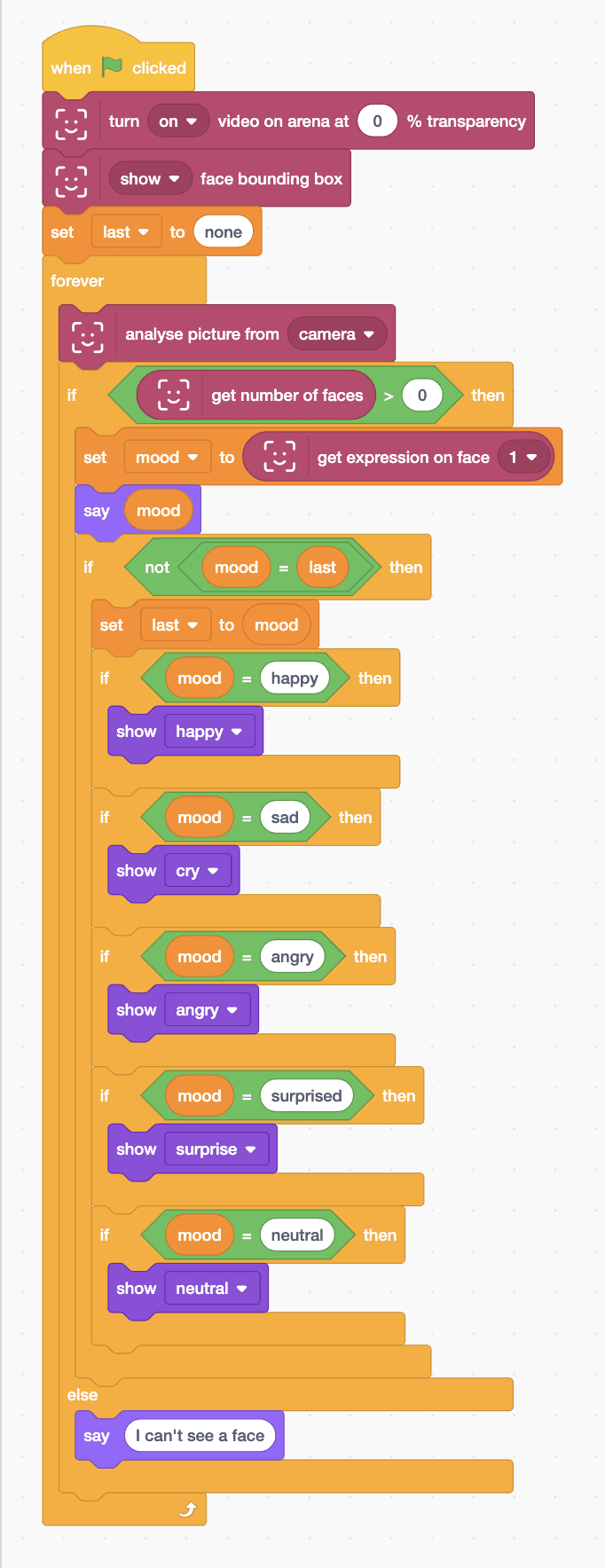
- Start with “when green flag clicked”, “turn on video on arena at 0 % transparency”, “show face bounding box” and “set last to none”.
- Add a “forever” loop. Its first block is “analyse picture from camera”, which looks at one picture and finds the faces in it.
- Add “if … else” with “get number of faces > 0”. In the else part, add “say I can't see a face”.
- In the top part, add “set mood to (get expression on face 1)” and “say (mood)”.
- Then add “if not mood = last then”. Inside it, add “set last to (mood)” and five if blocks: happy shows happy, sad shows cry, angry shows angry, surprised shows surprise and neutral shows neutral.
- Click the green flag and allow the camera if asked. Pull different faces!
Arena mode: the program runs on your computer and talks to MIEO live over USB or Bluetooth, so keep MIEO switched on and connected.
when green flag clicked
turn [on v] video on arena at (0) % transparency
[show v] face bounding box
set [last v] to (none)
forever
  analyse picture from [camera v]
  if <(get number of faces) > (0)> then
    set [mood v] to (get expression on face [1 v])
    say (mood)
    if <not <(mood) = (last)>> then
      set [last v] to (mood)
      if <(mood) = (happy)> then
        show [happy v]
      end
      if <(mood) = (sad)> then
        show [cry v]
      end
      if <(mood) = (angry)> then
        show [angry v]
      end
      if <(mood) = (surprised)> then
        show [surprise v]
      end
      if <(mood) = (neutral)> then
        show [neutral v]
      end
    end
  else
    say (I can't see a face)
  end
endTest it
Click the green flag. The camera picture fills the stage with a box round your face, and the Mieo sprite says your expression, such as “neutral”. Smile widely: the sprite says “happy” and MIEO's display smiles. Frown, look cross or open your eyes and mouth wide, and MIEO shows cry, angry or surprise. Move out of the picture and the sprite says “I can't see a face”.
If it doesn't work
- No box round your face? Face the camera in good light, and check the camera is allowed in your computer's settings.
- It always says neutral? Make your expressions bigger: a wide smile, a deep frown or raised eyebrows with an open mouth.
- MIEO's face lags behind? It only changes when your expression changes, so hold each expression for a moment.
Make it your own
- Easy: play a different sound for each expression as well as showing a face.
- Medium: use “is expression on face 1 winking?” to make MIEO wink back with a matrix picture you paint.
- Hard: count how many times each expression appears in a minute, using a variable for each one.