Touch-Controlled Display
Each touch pad shows a different face or light pattern
What you'll build
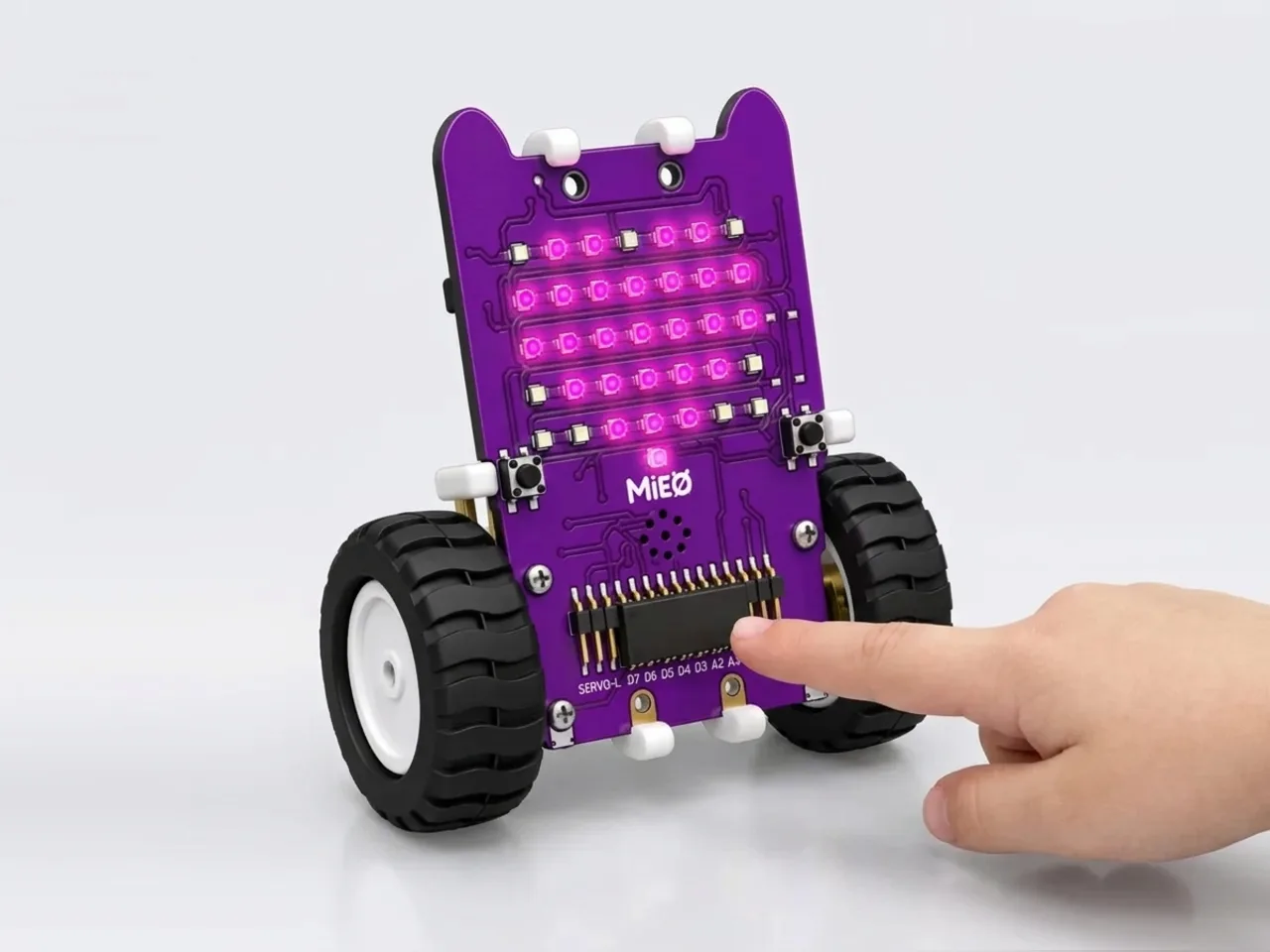
Each of MIEO's four touch pads gets a picture of its own. T1 shows a smile, T2 a heart, T3 starts a disco light show and T4 shows a rainbow that you paint yourself with the “show matrix as” block. MIEO's display is a grid of 35 lights, 7 across and 5 down. By the end of this project you'll know how to put any picture you like on it.
What you'll learn
- Giving each touch pad its own job with if blocks
- The difference between a face, a light pattern and a picture you paint
- How the display is a grid of 35 lights, 7 across and 5 down
- Why a picture stays on the display until something else is drawn
You'll need
- Mieo board
- Battery
- 3D-printed mountings
- Screws and screwdriver
- A USB cable, or Bluetooth on your computer
- The Robolab app (free)
Stay safe
- Ask an adult to help with the small screws.
Build it
- Fit the battery into its 3D-printed mounting on the back of the Mieo board and fix it in place with the screws. If you built Happy Face Display, your MIEO is ready.
- Connect the battery to the board as shown in your kit's build guide, then switch MIEO on.
- Connect MIEO to your computer with a USB cable, or turn on Bluetooth on your computer so Robolab can find it.
Code it

Want MIEO Bot to guide you?
Robolab's built-in tutor has a lesson on the same idea, “Touch Pet”. Open MIEO Bot in Robolab, pick Explorer, then Mieo, and it shows you the blocks one at a time and checks your work as you go.
About MIEO Bot's lessons- Open Robolab, choose Mieo, connect and set the switch at the top right to Upload.
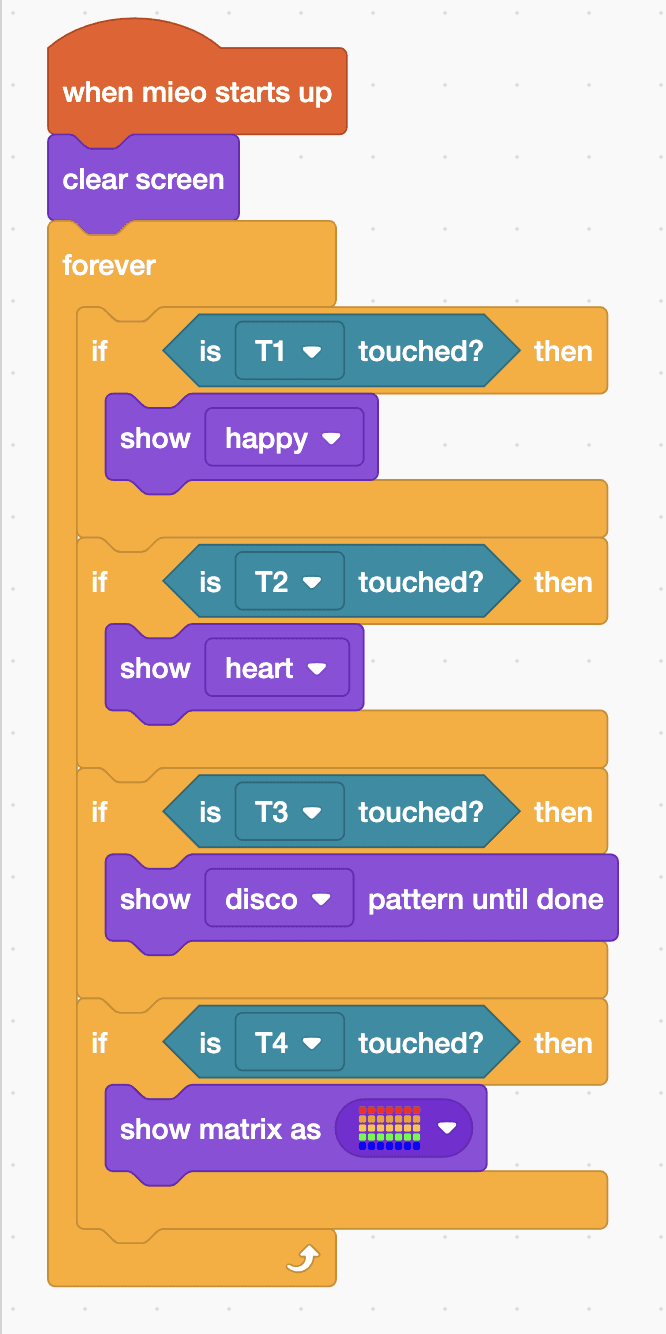
- Start with “when mieo starts up” and “clear screen”, then add a “forever” loop.
- Inside the loop, add “if is T1 touched? then” with “show happy” inside, and “if is T2 touched? then” with “show heart” inside.
- Add “if is T3 touched? then” with “show disco pattern until done” inside. A pattern plays for about three seconds, and “until done” lets it finish before the loop checks the pads again.
- Add “if is T4 touched? then” with “show matrix as” inside. Click the grid in the block to open the painter, then paint the top row red, the next orange, then yellow, green and blue.
- Upload, then touch each pad in turn.
Upload mode: Robolab turns your blocks into MicroPython and sends them to MIEO over USB or Bluetooth. MIEO then runs the program by itself, even after you unplug it.
when mieo starts up
clear screen
forever
  if <is [T1 v] touched?> then
    show [happy v]
  end
  if <is [T2 v] touched?> then
    show [heart v]
  end
  if <is [T3 v] touched?> then
    show [disco v] pattern until done
  end
  if <is [T4 v] touched?> then
    show matrix as (picture)
  end
endSee the MicroPython
# generated by Robolab
import mieo

mieo.clearscreen()
while True:
  if mieo.touched('T1'):
    mieo.showemotion('happy')
  if mieo.touched('T2'):
    mieo.showemotion('heart')
  if mieo.touched('T3'):
    mieo.showpatternuntildone('disco')
  if mieo.touched('T4'):
    mieo.showmatrix('33333338888888222222277777776666666')
Test it
After the upload the display is dark. Touch T1 for a smile and T2 for a heart; each one stays until you touch another pad. T3 sets off about three seconds of disco lights, and then the display goes dark again. T4 shows your rainbow, red along the top and blue along the bottom.
If it doesn't work
- The rainbow comes out in columns instead of rows? The top row of the painter is the top row of lights, so paint each row in one colour.
- The disco lights keep restarting while you hold T3? Use “show disco pattern until done”, not “show disco pattern”, inside the loop.
- A pad does nothing? Touch it with a dry fingertip, and check that the switch at the top right says Upload.
Make it your own
- Easy: change the faces, and try the rainbow or wave pattern instead of disco.
- Medium: paint your own picture for T4, such as a house, a smiley or the first letter of your name.
- Hard: make T4 show a different painted picture each time you touch it, counting the touches with a variable as in Emoji Changer.
What to build next
First input
Sensor-Triggered Display
MIEO's display lights up when a sensor notices something
First input
Hot Potato Game
Pass MIEO round until it sounds the alarm: whoever holds it is out
First movement
Touch Steering Robot
Steer MIEO left and right with its touch pads