Sensor-Triggered Display
MIEO's display lights up when a sensor notices something
What you'll build
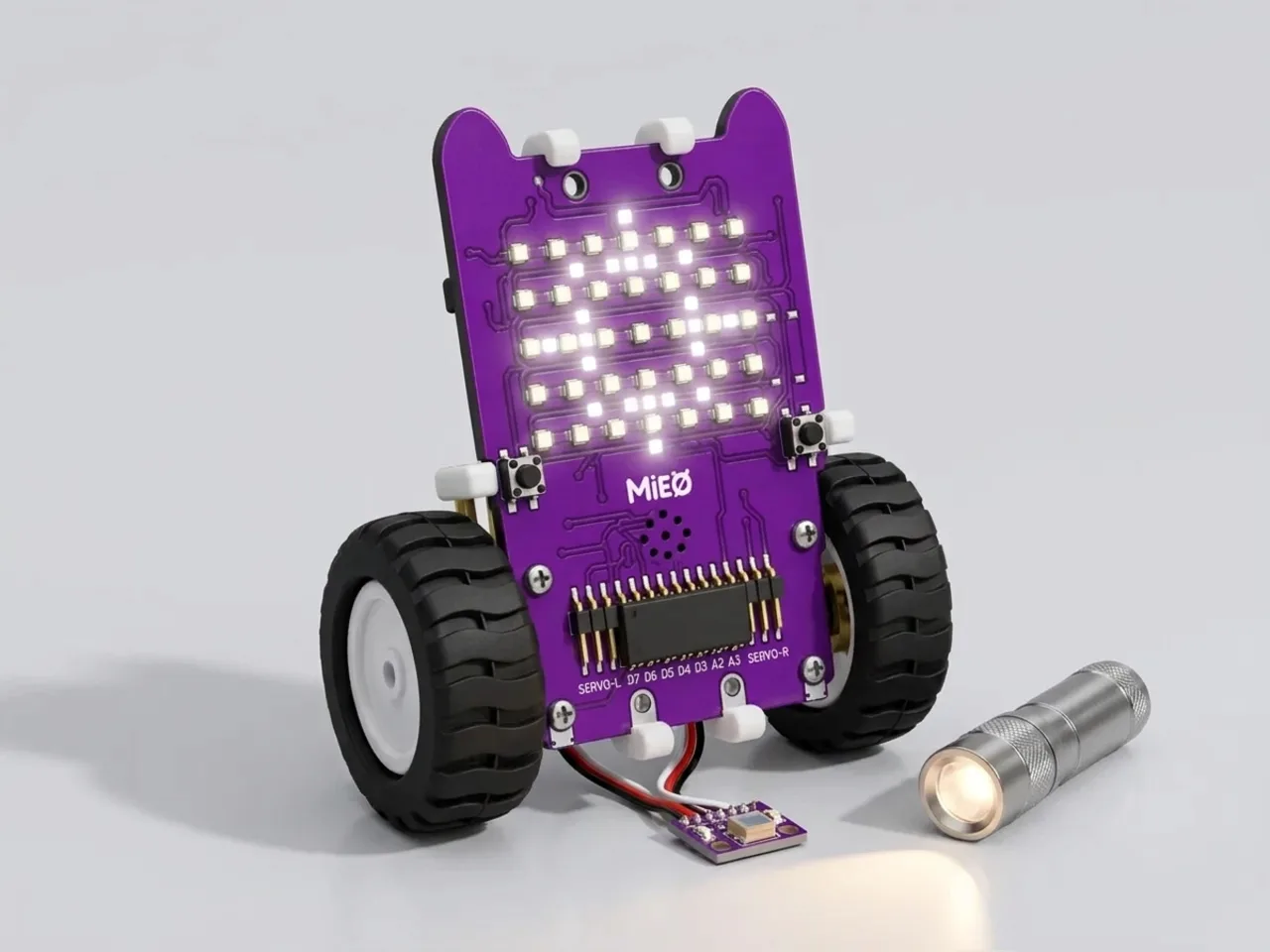
MIEO has spare connectors for plugging in extra sensors. In this project you connect a light sensor and teach MIEO to tell light from dark. Shine a torch on the sensor and MIEO's display lights up with a yellow sun. Take the torch away and MIEO goes to sleep. First you'll measure the sensor yourself and choose the number where dark turns into light. That number is called a threshold, and almost every robot sensor needs one.
What you'll learn
- Reading a number from a sensor
- Choosing a threshold between light and dark
- Doing one thing or another with “if … else”
- Measuring live in Arena mode before you upload
You'll need
- Mieo board
- Battery
- 3D-printed mountings
- Screws and screwdriver
- A light sensor module and its cable, which are not in the MIEO kit
- A torch
- A USB cable, or Bluetooth on your computer
- The Robolab app (free)
Stay safe
- Ask an adult to help with the small screws.
- Plug extra parts only into the connector this page names. Wiring a part to the wrong connector can damage it for good.
Build it
- Fit the battery into its 3D-printed mounting on the back of the Mieo board and fix it in place with the screws.
- With MIEO switched off, plug the light sensor into connector A1. Match each of the sensor's wires to the pin with the same label next to A1: signal, power and ground. Ask an adult to check it before you switch on.
- Switch MIEO on and connect it to your computer with a USB cable, or turn on Bluetooth so Robolab can find it.
Code it

Want MIEO Bot to guide you?
Robolab's built-in tutor has a lesson on the same idea, “Hand Detector”. Open MIEO Bot in Robolab, pick Explorer, then Mieo, and it shows you the blocks one at a time and checks your work as you go.
About MIEO Bot's lessons- Open Robolab, choose Mieo and connect. To measure first, set the switch at the top right to Arena. Find “read analog sensor light / photoresistor at A1” in Sense, check its menus say light / photoresistor and A1, and click it: a bubble shows a number between 0 and 4095.
- Click it again with the torch shining on the sensor, then again with your hand covering it. Pick a number halfway between the two. This page uses 2000.
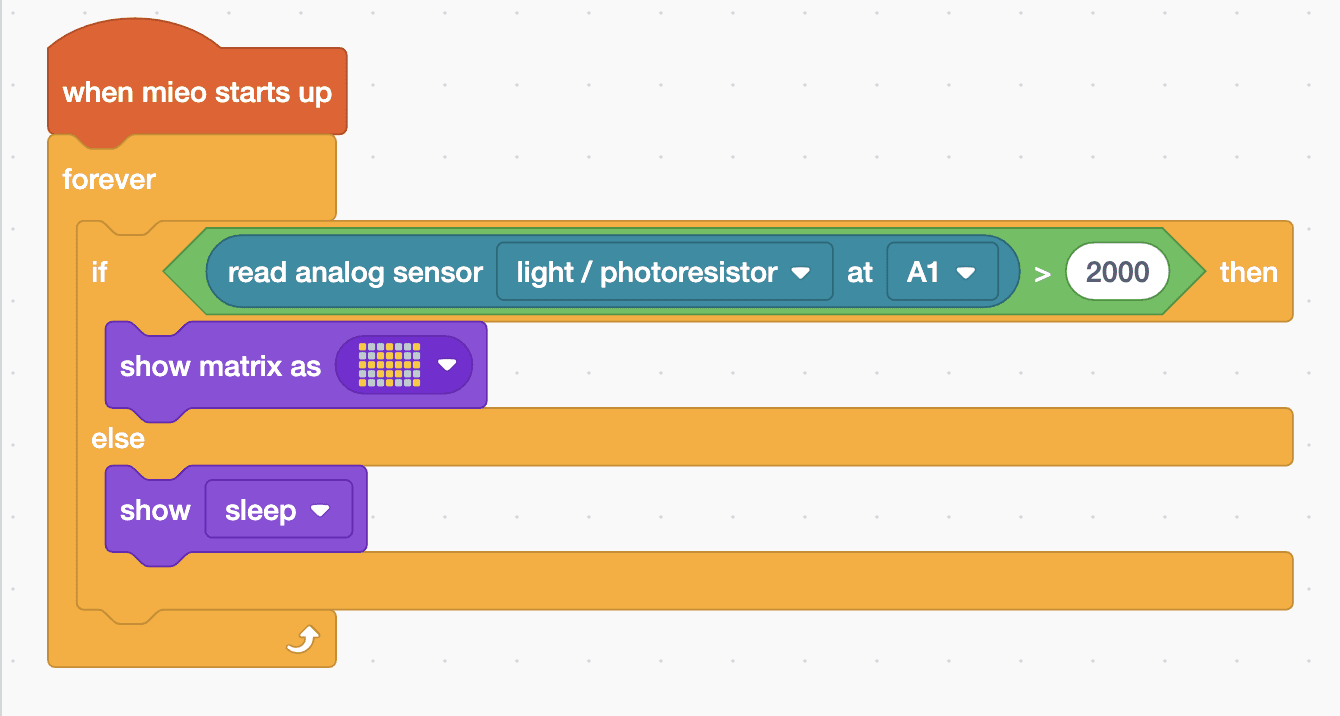
- Set the switch to Upload. Start with “when mieo starts up” and add a “forever” loop.
- Inside the loop, add “if … else”. For its condition, put a “>” block with the “read analog sensor” block on the left and 2000 on the right.
- In the top part, add “show matrix as” and paint a yellow sun: a cross in the middle with a ray at each corner. In the bottom part, add “show sleep”.
- Upload, then shine the torch on the sensor.
Upload mode: Robolab turns your blocks into MicroPython and sends them to MIEO over USB or Bluetooth. MIEO then runs the program by itself, even after you unplug it.
when mieo starts up
forever
  if <(read analog sensor [light / photoresistor v] at [A1 v]) > (2000)> then
    show matrix as (picture)
  else
    show [sleep v]
  end
endSee the MicroPython
# generated by Robolab
import mieo

while True:
  if mieo.analogsensor('A1') > 2000:
    mieo.showmatrix('20020020022200222222200222002002002')
  else:
    mieo.showemotion('sleep')
Test it
After the upload MIEO shows its sleeping face. Shine the torch on the sensor and the yellow sun lights up straight away. Move the torch away and MIEO falls asleep again. If your room is very bright, MIEO may wake up without the torch: the room is already brighter than your threshold, so choose a bigger number.
If it doesn't work
- MIEO wakes up in the dark and sleeps in the light? Some light sensors give a smaller number in bright light. Swap the “>” for a “<”.
- The number never changes when you measure? Switch MIEO off and check the sensor is plugged into A1 with each wire on the pin of the same name.
- The sun flickers on and off? Your light is right on the threshold. Move the torch closer, or change 2000 a little.
Make it your own
- Easy: paint a different picture for light, or pick another face for dark.
- Medium: add a middle level that shows a cloud, using a second “if … else” and a second threshold.
- Hard: make MIEO play a sound only at the moment it wakes up, using a variable to remember whether it was asleep.