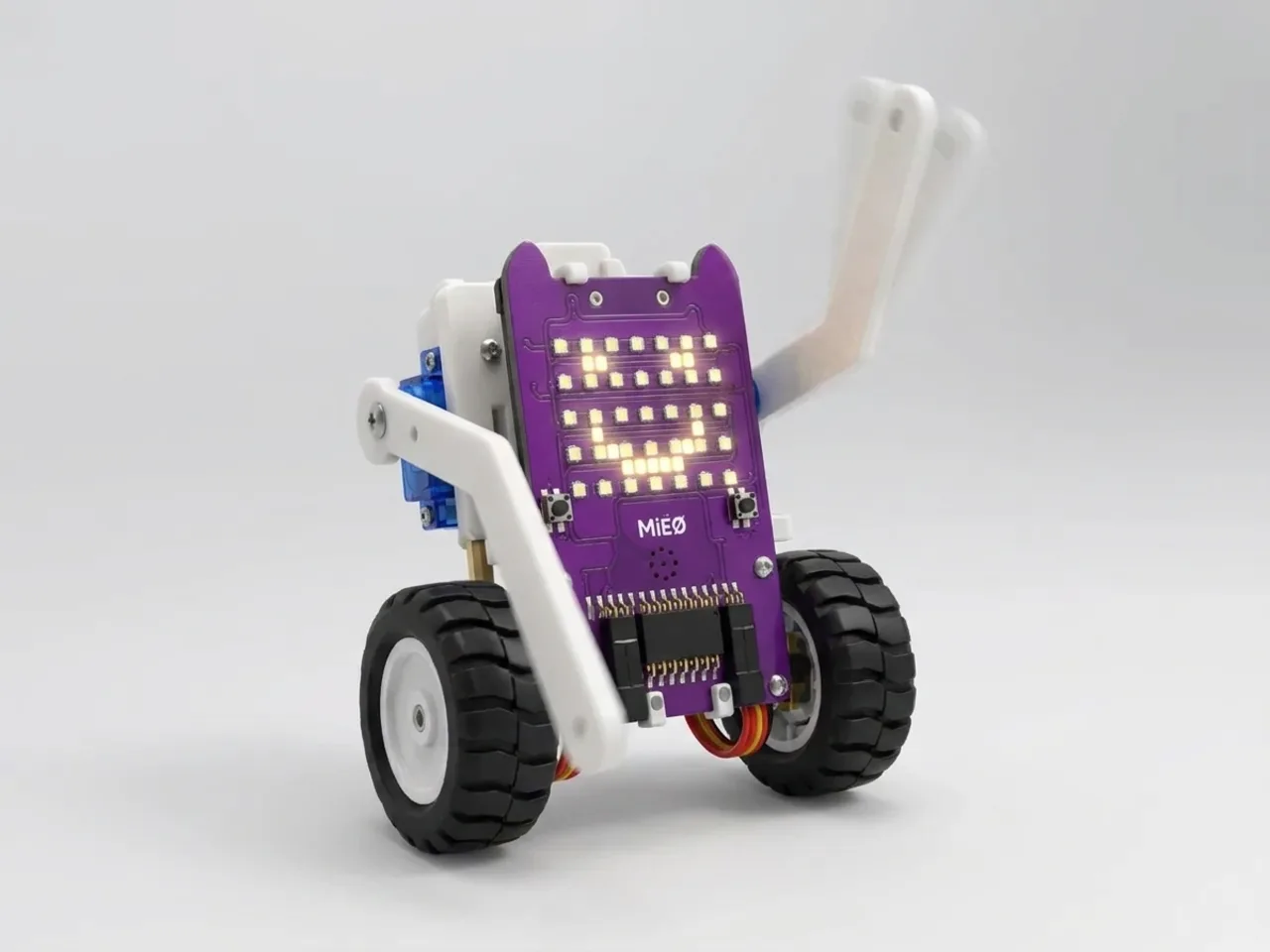
Servo Waving Hand
Add an arm on a servo and make MIEO wave hello
What you'll build
A servo is a motor that doesn't spin round and round. It turns to the exact angle you ask for, anywhere from 0 to 180 degrees, and holds it there. In this project you fix a card arm to a servo on the side of MIEO. Press the L button and MIEO smiles, plays a happy sound and waves its arm three times, then puts it down again, ready for the next hello.
What you'll learn
- How a servo turns to an exact angle and holds it there
- Making a movement out of a list of angles
- Repeating a movement with “repeat”
- Why short waits give a servo time to finish moving
You'll need
- Mieo board
- Battery
- 3D-printed mountings
- Screws and screwdriver
- A servo motor, from the MIEO kit
- Card, scissors and tape to make the arm
- A USB cable, or Bluetooth on your computer
- The Robolab app (free)
Stay safe
- Ask an adult to help with the small screws.
- Plug extra parts only into the connector this page names. Wiring a part to the wrong connector can damage it for good.
Build it
- Fit the battery into its 3D-printed mounting on the back of the Mieo board and fix it in place with the screws.
- With MIEO switched off, plug the servo into connector S1, the right way round. Check the wire colours against your kit's build guide.
- Tape the servo to the side of MIEO with its shaft pointing outwards.
- Cut an arm with a hand at the end out of card. Don't fix it on yet: upload the program once first, so the servo turns to its resting angle.
- Push the servo's horn onto the shaft and tape the card arm to it, pointing straight down.
Code it
- Open Robolab, choose Mieo, connect and set the switch at the top right to Upload.
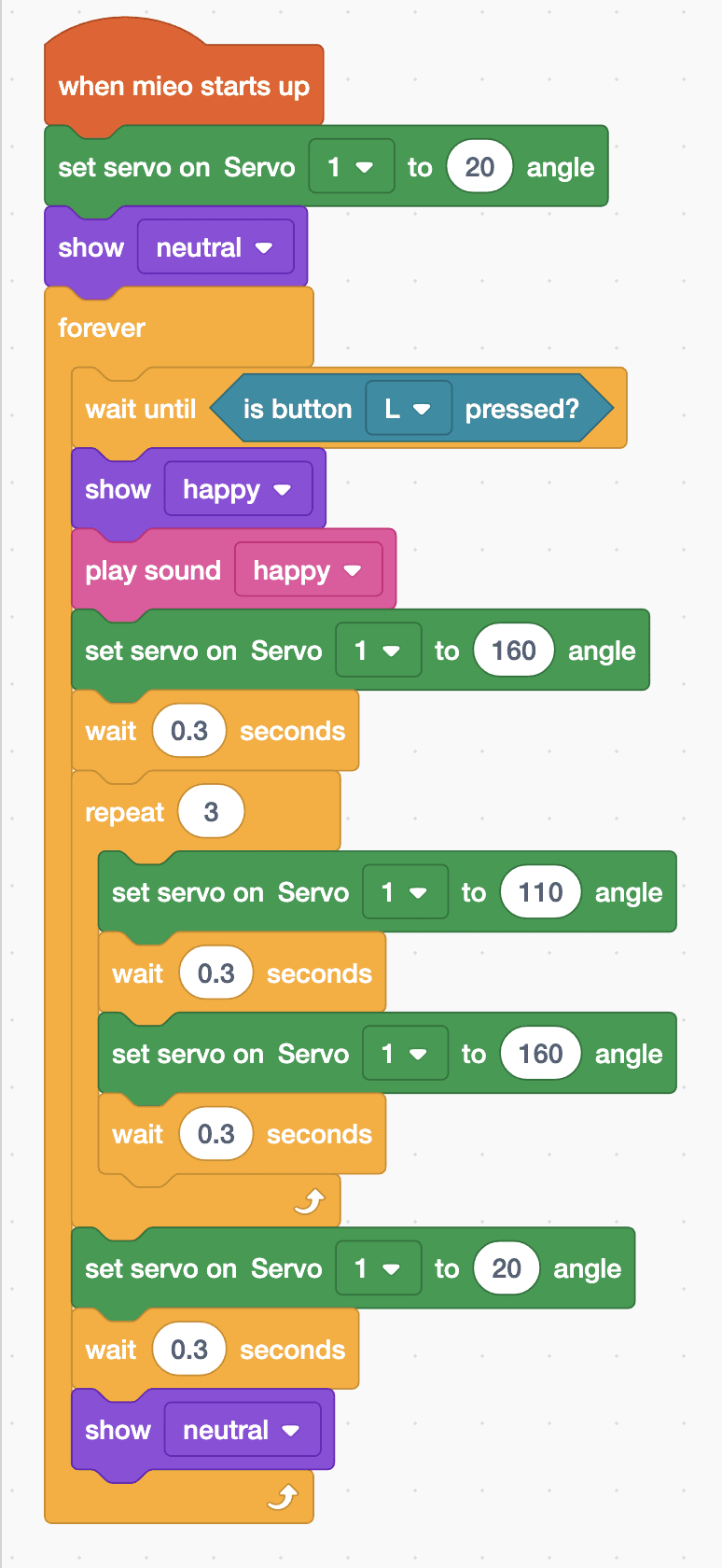
- Start with “when mieo starts up”. From Robot, add “set servo on Servo 1 to 20 angle” to put the arm down, then “show neutral”.
- Add a “forever” loop with “wait until is button L pressed?” as its first block.
- Then add “show happy”, “play sound happy”, “set servo on Servo 1 to 160 angle” to raise the arm high, and “wait 0.3 seconds”.
- Add “repeat 3” with four blocks inside: servo to 110, wait 0.3 seconds, servo to 160, wait 0.3 seconds. That's the wave.
- After the repeat, put the arm down with servo to 20, wait 0.3 seconds and “show neutral”. Upload, then press L.
Upload mode: Robolab turns your blocks into MicroPython and sends them to MIEO over USB or Bluetooth. MIEO then runs the program by itself, even after you unplug it.
when mieo starts up
set servo on Servo [1 v] to (20) angle
show [neutral v]
forever
  wait until <is button [L v] pressed?>
  show [happy v]
  play sound [happy v]
  set servo on Servo [1 v] to (160) angle
  wait (0.3) seconds
  repeat (3)
    set servo on Servo [1 v] to (110) angle
    wait (0.3) seconds
    set servo on Servo [1 v] to (160) angle
    wait (0.3) seconds
  end
  set servo on Servo [1 v] to (20) angle
  wait (0.3) seconds
  show [neutral v]
endSee the MicroPython
# generated by Robolab
import mieo

mieo.setservo('S1', 20)
mieo.showemotion('neutral')
while True:
  while not mieo.button('L'):
     pass
  mieo.showemotion('happy')
  mieo.playsound('happy')
  mieo.setservo('S1', 160)
  mieo.sleep(0.3 * 1000)
  for count in range(3):
    mieo.setservo('S1', 110)
    mieo.sleep(0.3 * 1000)
    mieo.setservo('S1', 160)
    mieo.sleep(0.3 * 1000)
  mieo.setservo('S1', 20)
  mieo.sleep(0.3 * 1000)
  mieo.showemotion('neutral')
Test it
After the first upload the servo turns to 20 degrees and stays there: that's when you fix the arm pointing down. Press L and MIEO smiles and plays its happy sound while the arm swings up, waves three times and comes back down. Press L again for another hello.
If it doesn't work
- The arm points the wrong way? Take it off, upload again so the servo goes back to 20, and fix the arm pointing down.
- The servo buzzes or shakes? It may be pushing against something. Make sure the arm can swing freely, or use a smaller angle than 160.
- The servo doesn't move? Check that it is plugged into S1 the right way round, and that your blocks say Servo 1.
Make it your own
- Easy: wave faster by changing every wait to 0.2, or wave five times instead of three.
- Medium: if you have a second servo, plug it into S2 and give MIEO a second arm that waves at the same time.
- Hard: make R do a slow salute: raise the arm a little at a time with a repeat, using a variable for the angle.