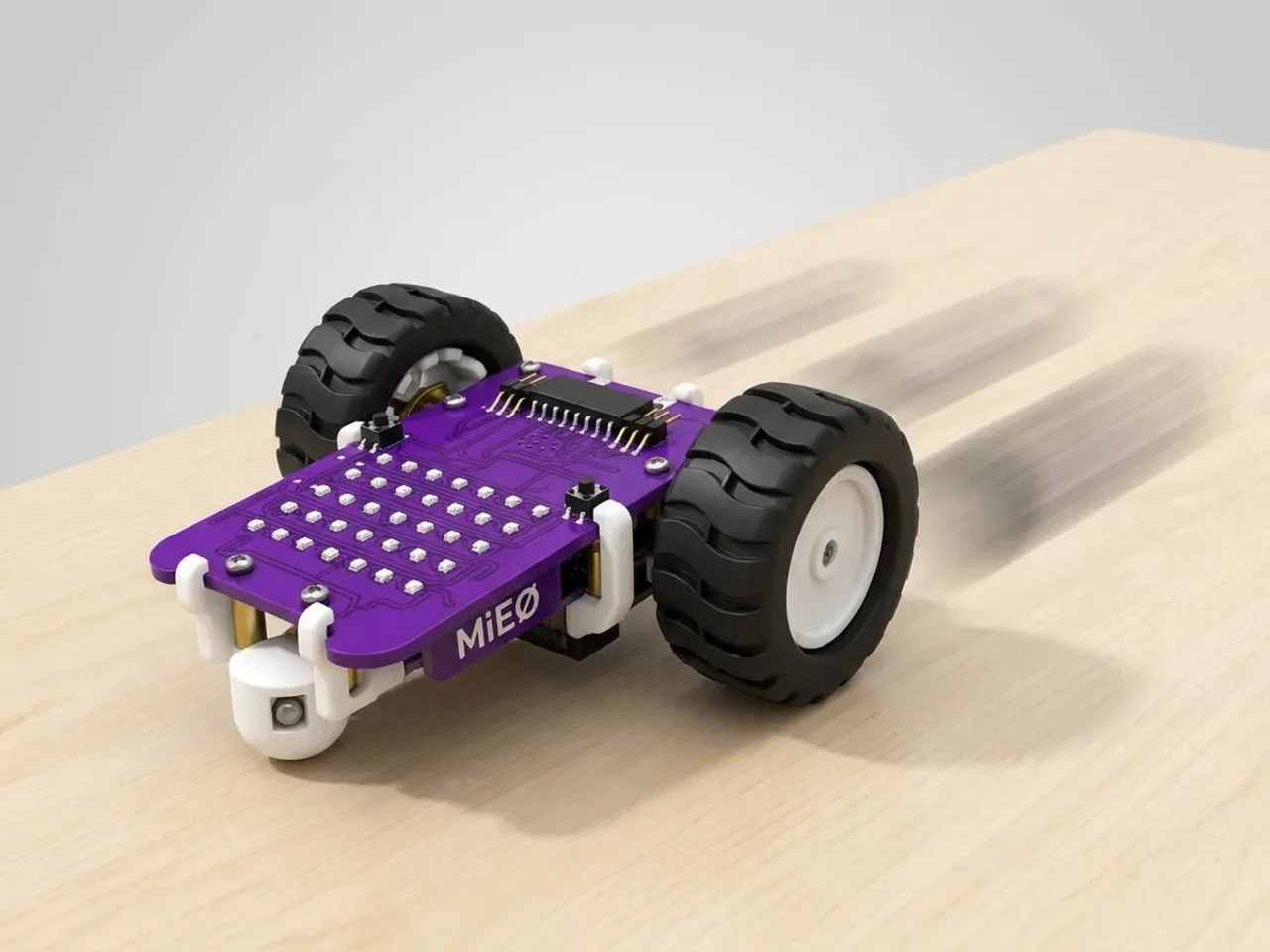
Motor Speed Control
Make MIEO drive slow, medium and fast
What you'll build
How fast should a robot go? Fast is fun, but slow is easier to control. In this project MIEO drives forward three times, at 30 % speed, then 60 %, then 90 %, scrolling each speed on its display before it sets off, and then drives back. Here's what the number really means: MIEO switches each motor on and off twenty thousand times a second, and the speed is how much of that time the motor is switched on.
What you'll learn
- What a speed percentage means for a motor
- Keeping a number in a variable and changing it
- Putting a variable into a block's gap
- Repeating a set of blocks with “repeat 3”
You'll need
- Mieo board
- Two N20 motors and their wheels
- Battery
- 3D-printed mountings
- Caster wheel
- Screws and screwdriver
- A USB cable, or Bluetooth on your computer
- The Robolab app (free)
Stay safe
- Ask an adult to help with the small screws.
- Lift MIEO's wheels off the table before you upload a driving program, so it can't drive off the edge.
Build it
- Build MIEO with both N20 motors, their wheels, the caster wheel and the battery, as in Switch Motor Start.
- Clear a straight path on the floor about two metres long, and mark the start with a piece of tape.
- Connect MIEO to your computer with a USB cable, or turn on Bluetooth on your computer so Robolab can find it.
Code it
- Open Robolab, choose Mieo, connect and set the switch at the top right to Upload. In the Variables group, click “Make a Variable” and name it speed.
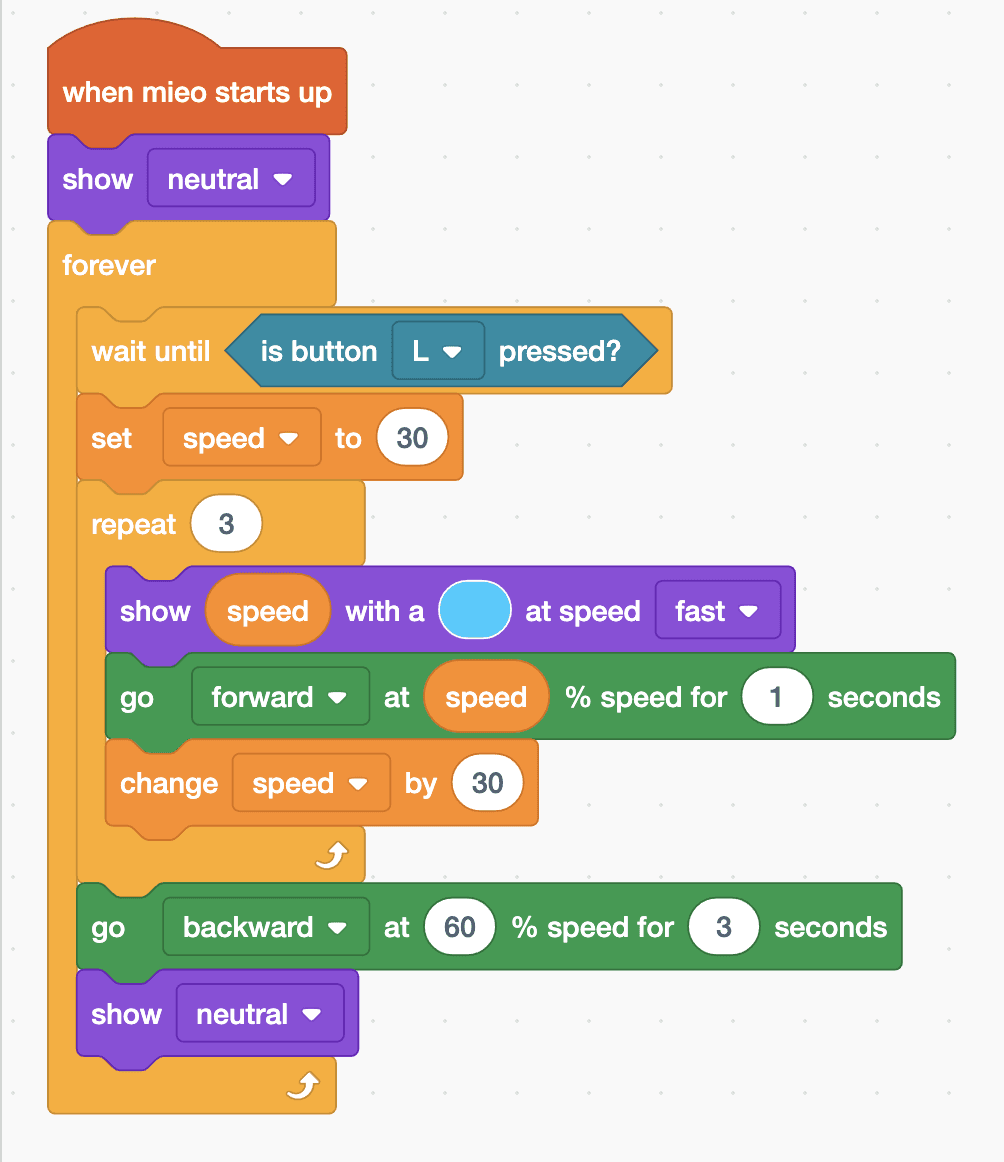
- Start with “when mieo starts up”, “show neutral” and a “forever” loop. Inside the loop, add “wait until is button L pressed?” and “set speed to 30”.
- Add “repeat 3”. Inside it, add “show … with a … at speed fast” from Display and drop the speed variable into its text gap, so MIEO shows the number.
- Still inside the repeat, add “go forward at … % speed for 1 seconds” with the speed variable in its gap, then “change speed by 30”.
- After the repeat, add “go backward at 60 % speed for 3 seconds” to bring MIEO back, then “show neutral”.
- Lift the wheels and upload. Then put MIEO on the start mark and press L.
Upload mode: Robolab turns your blocks into MicroPython and sends them to MIEO over USB or Bluetooth. MIEO then runs the program by itself, even after you unplug it.
when mieo starts up
show [neutral v]
forever
  wait until <is button [L v] pressed?>
  set [speed v] to (30)
  repeat (3)
    show (speed) with a (#0CF) at speed [fast v]
    go [forward v] at (speed) % speed for (1) seconds
    change [speed v] by (30)
  end
  go [backward v] at (60) % speed for (3) seconds
  show [neutral v]
endSee the MicroPython
# generated by Robolab
import mieo

speed = 0

mieo.showemotion('neutral')
while True:
  while not mieo.button('L'):
     pass
  speed = 30
  for count in range(3):
    mieo.showtext(speed, '#00CCFF', 'fast')
    mieo.run('forward', speed)
    mieo.sleep(1 * 1000)
    mieo.stoprobot()
    speed += 30
  mieo.run('backward', 60)
  mieo.sleep(3 * 1000)
  mieo.stoprobot()
  mieo.showemotion('neutral')
Test it
Press L. MIEO scrolls 30 and creeps forward for a second, scrolls 60 and goes faster, then scrolls 90 and zooms along. After the third run it drives backwards for three seconds, back towards the start mark. Press L to do it all again.
If it doesn't work
- MIEO doesn't move at 30 %? Small motors need a little push to get going. Start at 40 and change by 25 instead.
- It drives at the same speed every time? The speed variable must be in the gap of the go forward block, and “change speed by 30” must be inside the repeat.
- The numbers take a long time to scroll? Check that the speed menu in the show block says fast.
Make it your own
- Easy: start at 20 and change by 20 with “repeat 5”, so MIEO tries five speeds.
- Medium: measure how far MIEO goes at each speed with a tape measure. Does twice the speed go twice as far?
- Hard: use R to slow down and L to speed up, changing the speed by 10 with each press and showing the new speed every time.