Distance Alert System
Show green, yellow or red as something gets closer
What you'll build
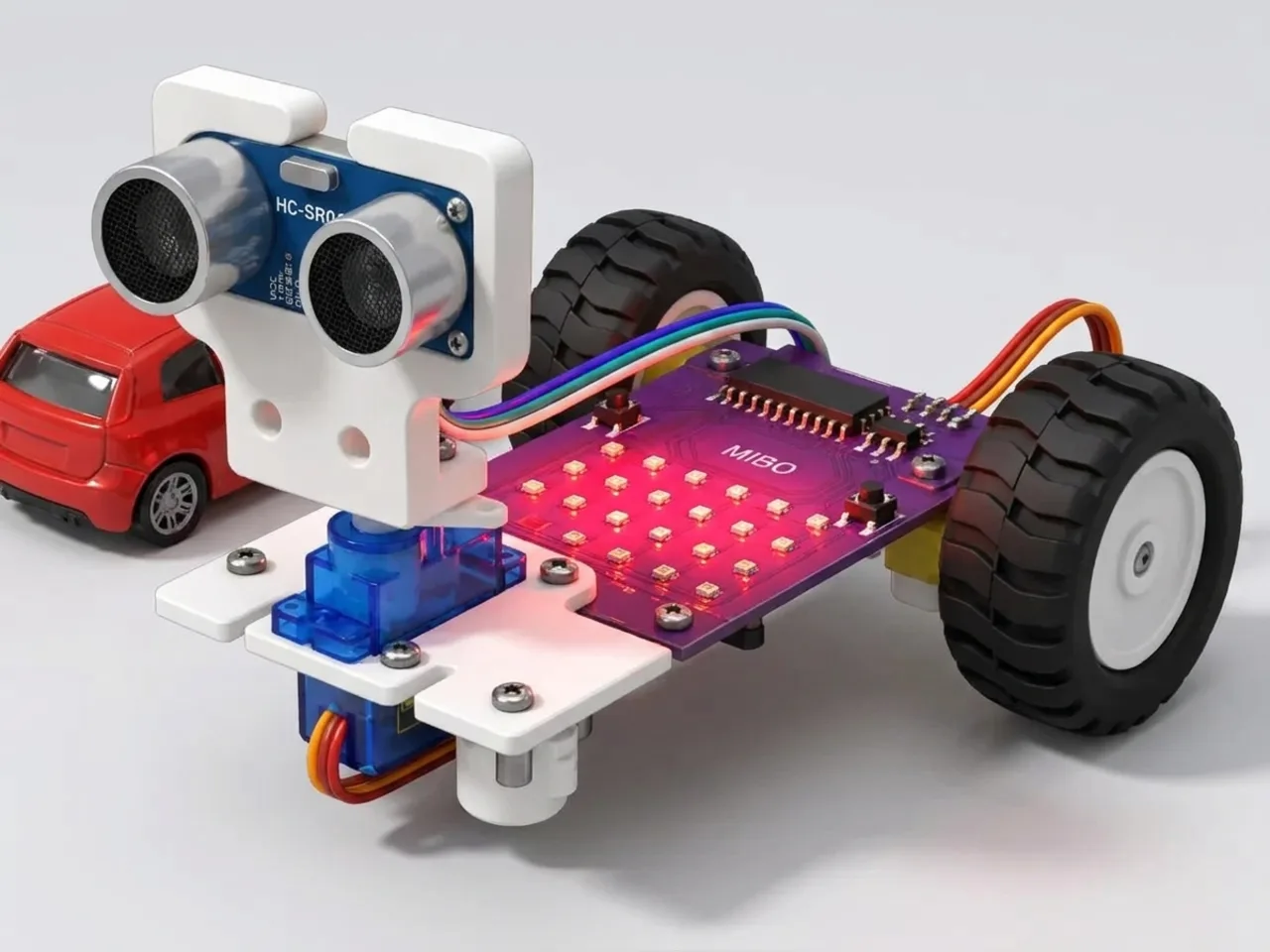
In this project MIEO's whole display becomes a warning light. When nothing is near, it glows green. When something comes within 40 cm it turns yellow, and closer than 15 cm it goes red and beeps. Real machines use alerts like this, from cars that warn about a wall to factory robots that slow down when a person walks too close. You'll split distances into zones and give each zone its own colour.
What you'll learn
- Splitting a measurement into zones with “if … else”
- Checking two things at once with “and”
- Reading the sensor once, so every check uses the same number
- Filling the display with one colour using “show matrix as”
You'll need
- Mieo board
- Battery
- 3D-printed mountings
- Screws and screwdriver
- Ultrasonic distance sensor and its cable
- A USB cable, or Bluetooth on your computer
- The Robolab app (free)
Stay safe
- Ask an adult to help with the small screws.
- Plug extra parts only into the connector this page names. Wiring a part to the wrong connector can damage it for good.
Build it
- Fit the battery into its 3D-printed mounting on the back of the Mieo board and fix it in place with the screws.
- With MIEO switched off, plug in the ultrasonic distance sensor: its Echo pin goes to D1, its Trig pin to D2, and its power and ground pins to the matching pins, as your kit's build guide shows.
- Stand MIEO on the table with the sensor facing out across the room, then switch it on and connect it to your computer.
Code it
- Open Robolab, choose Mieo, connect and set the switch at the top right to Upload. Make a variable called distance.
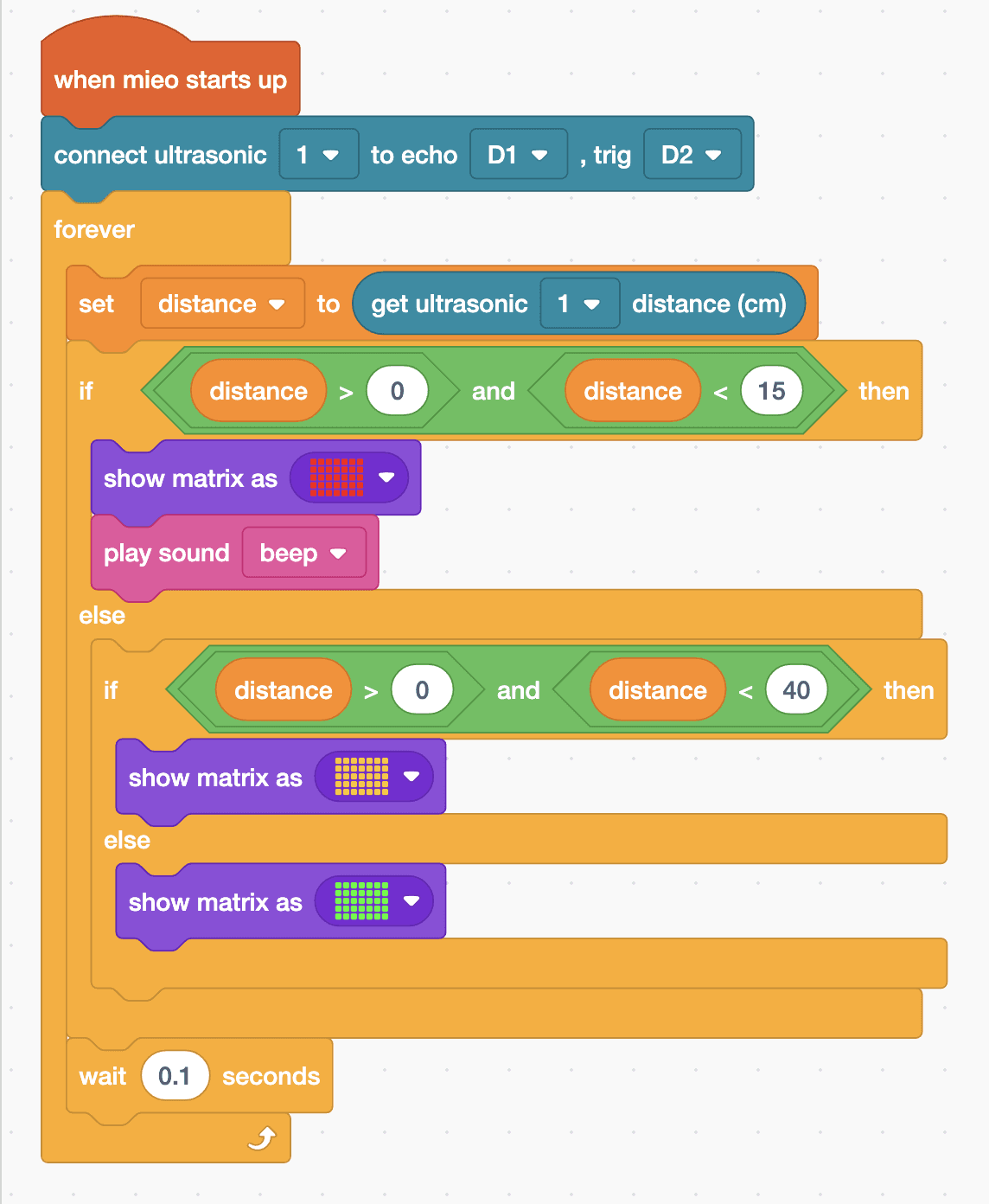
- Start with “when mieo starts up” and “connect ultrasonic 1 to echo D1 , trig D2”, then add a “forever” loop with “set distance to (get ultrasonic 1 distance (cm))” inside.
- Add “if … else” with “distance > 0 and distance < 15” as its condition. In the top part, add “show matrix as” painted all red, and “play sound beep”.
- In the else part, add another “if … else” with “distance > 0 and distance < 40”. Its top part shows the matrix painted all yellow, and its else part shows it all green.
- After the if blocks, still inside the loop, add “wait 0.1 seconds”.
- Upload, then walk a toy car or your hand towards the sensor.
Upload mode: Robolab turns your blocks into MicroPython and sends them to MIEO over USB or Bluetooth. MIEO then runs the program by itself, even after you unplug it.
when mieo starts up
connect ultrasonic [1 v] to echo [D1 v] , trig [D2 v]
forever
  set [distance v] to (get ultrasonic [1 v] distance (cm))
  if <<(distance) > (0)> and <(distance) < (15)>> then
    show matrix as (picture)
    play sound [beep v]
  else
    if <<(distance) > (0)> and <(distance) < (40)>> then
      show matrix as (picture)
    else
      show matrix as (picture)
    end
  end
  wait (0.1) seconds
endSee the MicroPython
# generated by Robolab
import mieo

distance = 0

mieo.connectultrasonic(1, 'D1', 'D2')
while True:
  distance = mieo.ultrasonic(1)
  if distance > 0 and distance < 15:
    mieo.showmatrix('33333333333333333333333333333333333')
    mieo.playsound('beep')
  else:
    if distance > 0 and distance < 40:
      mieo.showmatrix('22222222222222222222222222222222222')
    else:
      mieo.showmatrix('77777777777777777777777777777777777')
  mieo.sleep(0.1 * 1000)
Test it
With nothing near the sensor, the display glows green. Move something to within about 40 cm and it turns yellow. Closer than 15 cm, it turns red and MIEO beeps over and over until you move away. Take the object away completely and the display goes back to green.
If it doesn't work
- Always green? Check that Echo is in D1 and Trig in D2, and that the connect block comes before the loop.
- It turns yellow with nothing there? A wall or a person may be within 40 cm. Point MIEO at open space or make the zone smaller.
- The colours flicker between two zones? The object is right on a boundary. Move it a little, or make the zones further apart.
Make it your own
- Easy: change the zone sizes, such as 10 cm for red and 30 cm for yellow.
- Medium: add a fourth zone, orange, between yellow and red, with another “if … else”.
- Hard: instead of filling the display, light up more rows the closer something gets, like a bar chart.
What to build next
Sensing
Line Sensor Response System
MIEO reacts when its line sensors see black or white
Self-driving
Line Follower Robot
Follow the black line on the line follower chart by itself
Self-driving
Line Follow with Stop Detection
Follow the line and stop when something is in the way