Line Follow with Stop Detection
Follow the line and stop when something is in the way
What you'll build
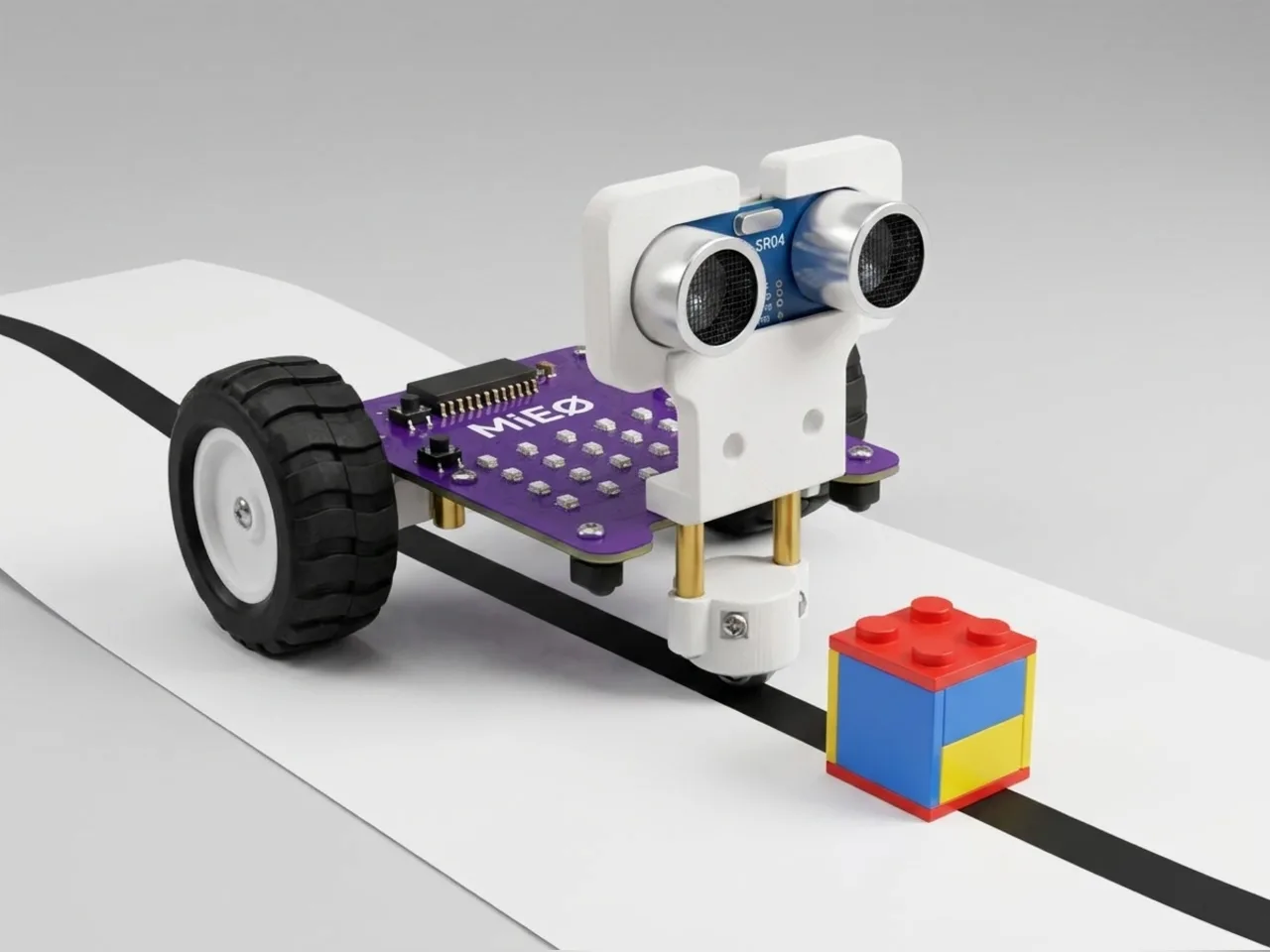
A robot that follows a line is clever. A robot that follows a line and also notices when something is in its path is safer. In this project MIEO uses two kinds of sensor at once. Its line sensors keep it on the track, and its ultrasonic sensor watches the way ahead. Put a block on the track and MIEO stops, looks surprised and beeps until the path is clear, then carries on by itself.
What you'll learn
- Using two different sensors in one program
- Deciding which job comes first: safety before following the line
- How “do line following” steers one small step at a time
- Why slowing down helps when a loop has more to do
You'll need
- Mieo board
- Two N20 motors and their wheels
- Battery
- 3D-printed mountings
- Caster wheel
- Screws and screwdriver
- Ultrasonic distance sensor and its cable
- Line follower chart
- A USB cable, or Bluetooth on your computer
- The Robolab app (free)
Stay safe
- Ask an adult to help with the small screws.
- Lift MIEO's wheels off the table before you upload a driving program, so it can't drive off the edge.
- Plug extra parts only into the connector this page names. Wiring a part to the wrong connector can damage it for good.
Build it
- Build MIEO with both N20 motors, their wheels, the caster wheel and the battery, as in the Line Follower Robot.
- With MIEO switched off, plug in the ultrasonic distance sensor: its Echo pin goes to D1, its Trig pin to D2, and its power and ground pins to the matching pins, as your kit's build guide shows.
- Fix the sensor at the front, facing forward along the track.
- Lay the line follower chart flat, switch MIEO on and connect it to your computer.
Code it
- Open Robolab, choose Mieo, connect and set the switch at the top right to Upload. Make a variable called distance.
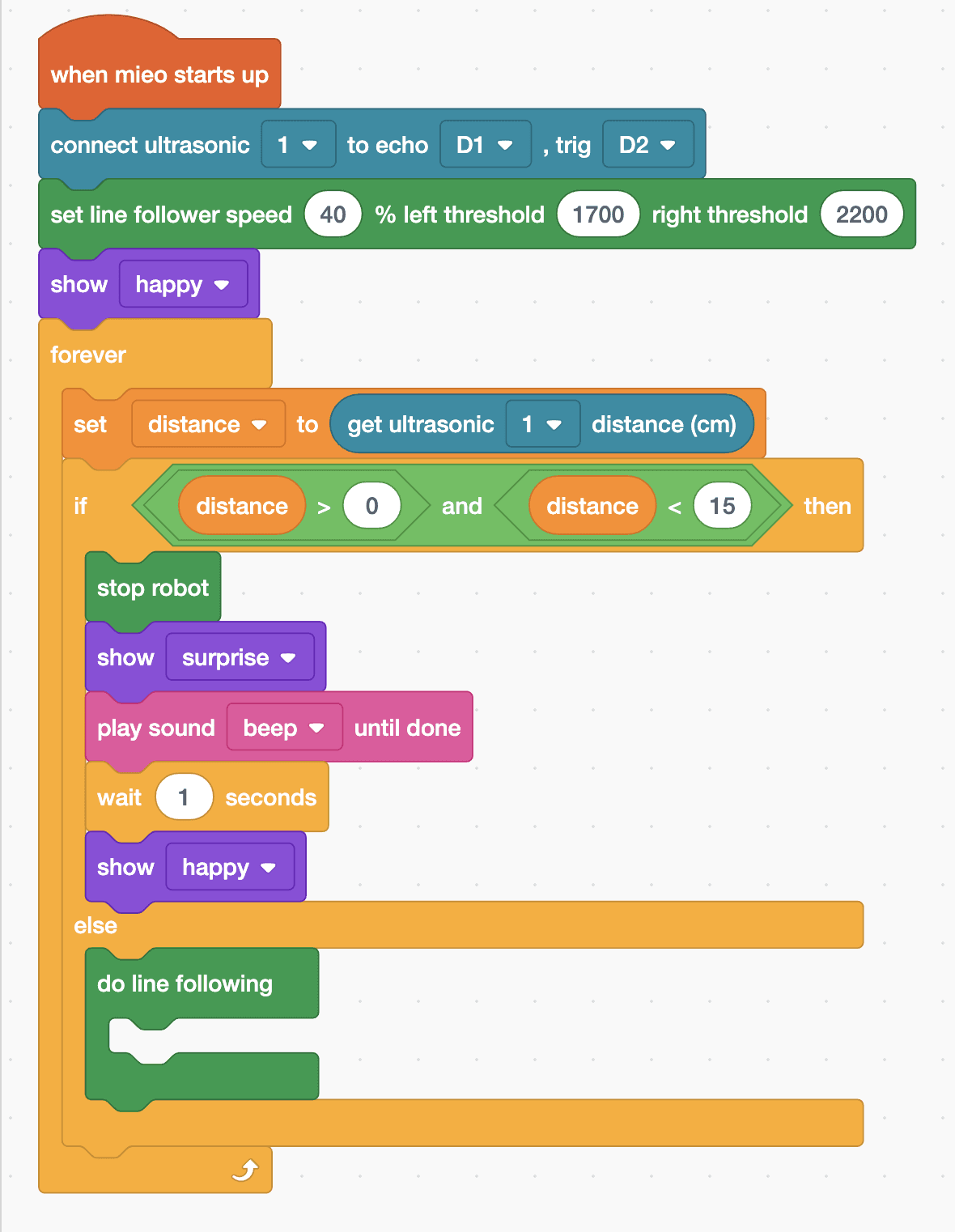
- Start with “when mieo starts up”, “connect ultrasonic 1 to echo D1 , trig D2” and “set line follower speed 40 % left threshold 1700 right threshold 2200”, then “show happy”.
- Add a “forever” loop with “set distance to (get ultrasonic 1 distance (cm))” inside.
- Add “if … else” with “distance > 0 and distance < 15” as its condition. In the top part, add “stop robot”, “show surprise”, “play sound beep until done”, “wait 1 seconds” and “show happy”.
- In the else part, add “do line following”. Leave its own gap empty.
- Lift the wheels and upload, then put MIEO on the chart with the line between its sensors. Place a small box on the track ahead of it.
Upload mode: Robolab turns your blocks into MicroPython and sends them to MIEO over USB or Bluetooth. MIEO then runs the program by itself, even after you unplug it.
when mieo starts up
connect ultrasonic [1 v] to echo [D1 v] , trig [D2 v]
set line follower speed (40) % left threshold (1700) right threshold (2200)
show [happy v]
forever
  set [distance v] to (get ultrasonic [1 v] distance (cm))
  if <<(distance) > (0)> and <(distance) < (15)>> then
    stop robot
    show [surprise v]
    play sound [beep v] until done
    wait (1) seconds
    show [happy v]
  else
    do line following
    end
  end
endSee the MicroPython
# generated by Robolab
import mieo

distance = 0

mieo.connectultrasonic(1, 'D1', 'D2')
mieo.initializelinefollower(1700, 2200, speed=40)
mieo.showemotion('happy')
while True:
  distance = mieo.ultrasonic(1)
  if distance > 0 and distance < 15:
    mieo.stoprobot()
    mieo.showemotion('surprise')
    mieo.playsounduntildone('beep')
    mieo.sleep(1 * 1000)
    mieo.showemotion('happy')
  else:
    mieo.followlinestep()
    if mieo.atlinecross():
      pass
Test it
MIEO smiles and follows the black line around the chart. When it comes within about 15 cm of the box, it stops, looks surprised and beeps, and then beeps again every second or so while the box is still there. Lift the box away and MIEO smiles and carries on along the line.
If it doesn't work
- MIEO wobbles off the line? Checking the distance sensor takes time, so the steering happens less often. Lower the speed from 40 to 30.
- It stops even with nothing ahead? The sensor may be seeing the edge of the table or a wall. Point it along the track and away from walls.
- It ignores the line? Check the thresholds as in the Line Follower Robot: measure each sensor over black and over white in Arena mode.
Make it your own
- Easy: change 15 to 25 so MIEO stops further back from the box.
- Medium: count how many times MIEO had to stop, using a variable, and show the number on the display when you press L.
- Hard: instead of waiting, make MIEO turn round and follow the line back the other way when something blocks it.