Table Edge Guard
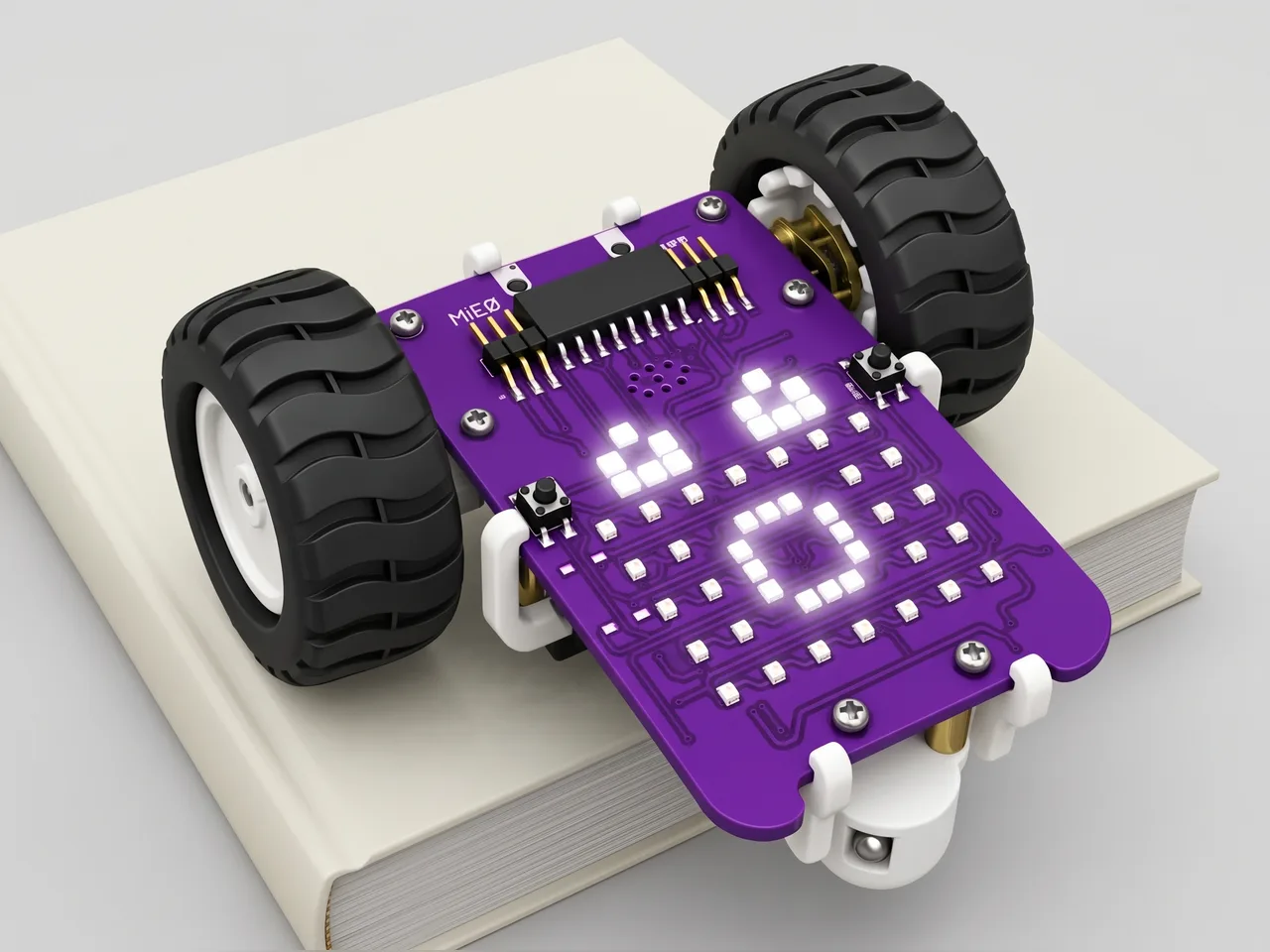
MIEO drives on a big book and backs away from every edge
What you'll build
Robot vacuum cleaners don't fall down the stairs, because sensors underneath keep checking that the floor is still there. In this project you give MIEO the same trick. Its two IR sensors point down and see the light surface it is driving on. The moment either sensor finds nothing below it, MIEO stops, looks surprised, backs away and turns to try another way. You'll test it on a big book on the floor, so the drop is tiny and nothing can get hurt.
What you'll learn
- How IR sensors notice whether there is a surface underneath
- Joining two sensor checks with “and”
- Using “if … else” to choose between driving on and escaping
- Testing a robot safely before you trust it
You'll need
- Mieo board
- Two N20 motors and their wheels
- Battery
- 3D-printed mountings
- Caster wheel
- Screws and screwdriver
- A big hardback book, or a low box with a light-coloured top
- A USB cable, or Bluetooth on your computer
- The Robolab app (free)
Stay safe
- Ask an adult to help with the small screws.
- Lift MIEO's wheels off the table before you upload a driving program, so it can't drive off the edge.
Build it
- Build MIEO with both N20 motors, their wheels, the caster wheel and the battery, as in Switch Motor Start.
- Check that the two IR sensors under the front of the board face straight down, just above the surface.
- Lay a big hardback book flat on the floor, light side up. It's your test table: if MIEO gets it wrong, it only drops a few centimetres. Never test on a real table.
- Connect MIEO to your computer with a USB cable, or turn on Bluetooth on your computer so Robolab can find it.
Code it

Want MIEO Bot to guide you?
Robolab's built-in tutor has a lesson on the same idea, “Table Edge Guard”. Open MIEO Bot in Robolab, pick Maker, then Mieo, and it shows you the blocks one at a time and checks your work as you go.
About MIEO Bot's lessons- Open Robolab, choose Mieo and connect. To measure, set the switch to Arena, hold MIEO on the book and click “get value of IR-L” in Sense, then hold it with the sensors just past the edge and click again. Do the same for IR-R. Pick a number between the two readings; this page uses 2000.
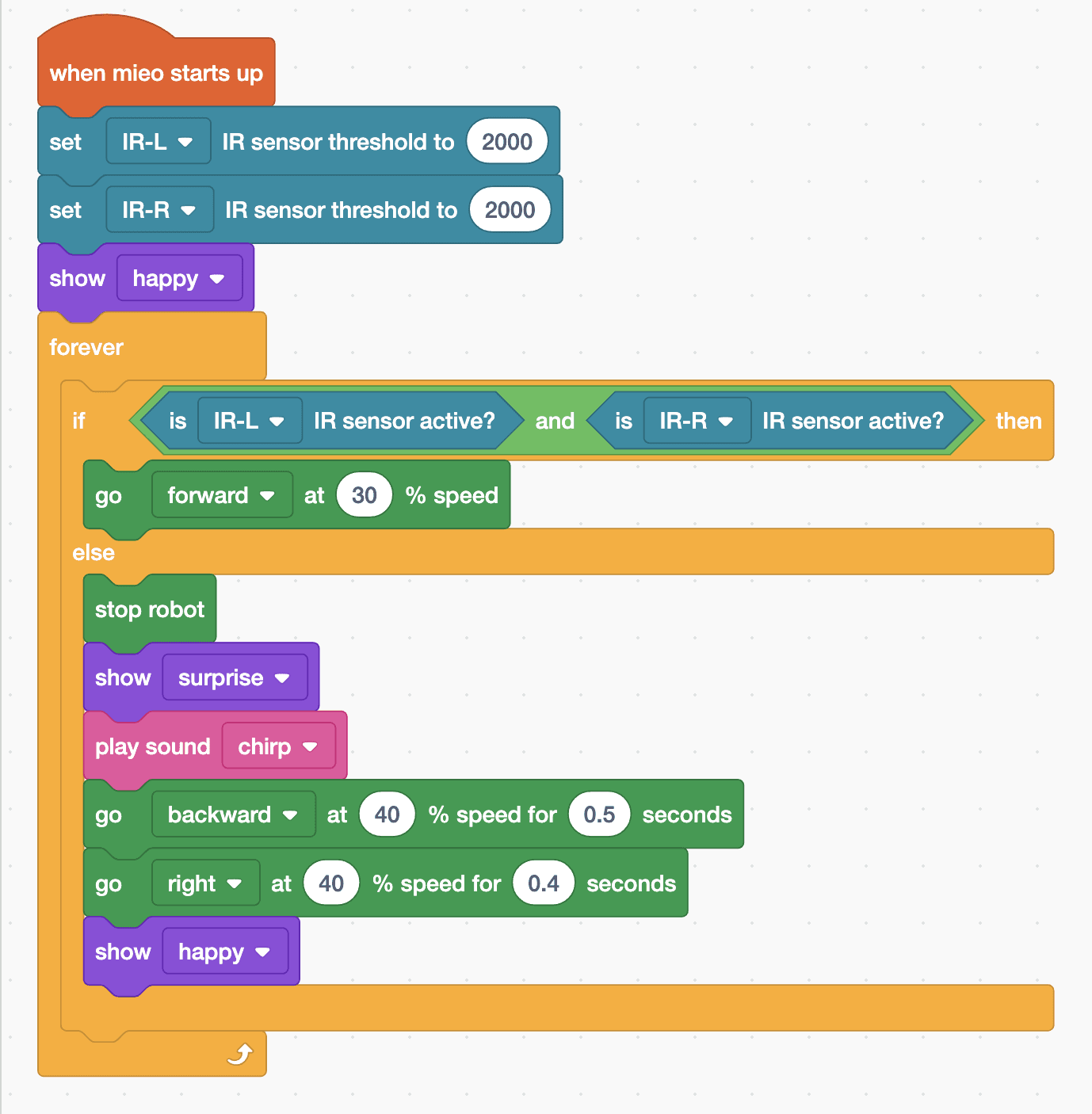
- Set the switch to Upload. Start with “when mieo starts up”, “set IR-L IR sensor threshold to 2000”, “set IR-R IR sensor threshold to 2000” and “show happy”.
- Add a “forever” loop with “if … else” inside. Its condition is “is IR-L IR sensor active?” and “is IR-R IR sensor active?”, joined by the green “and” block. Active means the sensor sees a surface.
- In the top part, put “go forward at 30 % speed”. Slow is safer, because MIEO needs a moment to notice the edge.
- In the else part, add “stop robot”, “show surprise” and “play sound chirp”, then “go backward at 40 % speed for 0.5 seconds” and “go right at 40 % speed for 0.4 seconds”. Finish with “show happy”.
- Upload, unplug the cable, put MIEO in the middle of the book and switch it on.
Upload mode: Robolab turns your blocks into MicroPython and sends them to MIEO over USB or Bluetooth. MIEO then runs the program by itself, even after you unplug it.
when mieo starts up
set [IR-L v] IR sensor threshold to (2000)
set [IR-R v] IR sensor threshold to (2000)
show [happy v]
forever
  if <<is [IR-L v] IR sensor active?> and <is [IR-R v] IR sensor active?>> then
    go [forward v] at (30) % speed
  else
    stop robot
    show [surprise v]
    play sound [chirp v]
    go [backward v] at (40) % speed for (0.5) seconds
    go [right v] at (40) % speed for (0.4) seconds
    show [happy v]
  end
endSee the MicroPython
# generated by Robolab
import mieo

mieo.setirthreshold('IR-L', 2000)
mieo.setirthreshold('IR-R', 2000)
mieo.showemotion('happy')
while True:
  if mieo.iractive('IR-L') and mieo.iractive('IR-R'):
    mieo.run('forward', 30)
  else:
    mieo.stoprobot()
    mieo.showemotion('surprise')
    mieo.playsound('chirp')
    mieo.run('backward', 40)
    mieo.sleep(0.5 * 1000)
    mieo.stoprobot()
    mieo.run('right', 40)
    mieo.sleep(0.4 * 1000)
    mieo.stoprobot()
    mieo.showemotion('happy')
Test it
MIEO smiles and creeps forward across the book. When its front reaches the edge, it stops at once, looks surprised, chirps, backs up a little and turns right before setting off again. Left on the book, it keeps exploring without ever driving off.
If it doesn't work
- MIEO drives straight off the edge? Catch it, then measure the sensors again and choose a threshold halfway between the book and the edge readings.
- MIEO stops in the middle of the book? A dark cover or a black line looks just like an edge. Use a light-coloured book, or lay white paper on top.
- It stops at the edge but wobbles there? Make the backward move longer, such as 0.8 seconds, before it turns.
Make it your own
- Easy: try speeds of 20, 30 and 40. Which is the fastest that still stops in time?
- Medium: turn away from the side that found the edge. MIEO's sensors are plugged in the other way round from their names, so IR-R is the one on the left: if IR-R loses the surface, turn right; if IR-L does, turn left.
- Hard: count the edges MIEO finds with a variable, and after five, stop and show heart: the book has been explored.