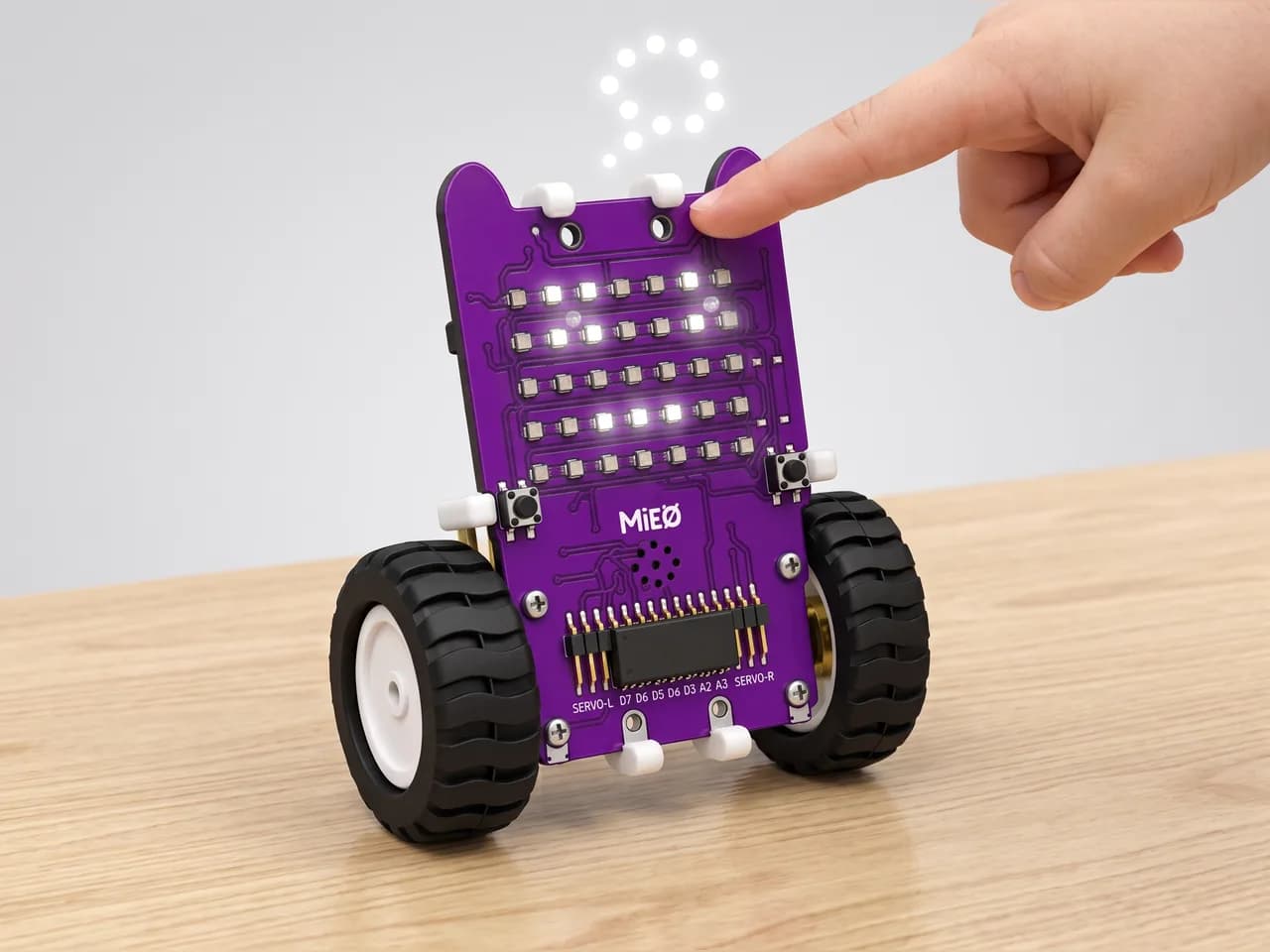
Magic Answer Ball
Ask a question, press L, and MIEO thinks before it answers
What you'll build
Ask MIEO a yes-or-no question, like “Will it rain tomorrow?” or “Should we have pizza tonight?”, then press its L button. MIEO plays a thinking animation while it ponders, and then it answers: a smile and a happy sound for yes, a crying face and a sad sound for no, or a shy face and a chirp for maybe. Of course MIEO doesn't really know. It picks an answer at random, just like a fortune-telling ball. Along the way you'll learn how a program keeps a number in a variable and chooses what to do with it.
What you'll learn
- Keeping a random number in a variable
- Checking a variable with “=” to choose an answer
- Putting one “if … else” inside another to pick one of three
- Using an animation that finishes before the program carries on
You'll need
- Mieo board
- Battery
- 3D-printed mountings
- Screws and screwdriver
- A USB cable, or Bluetooth on your computer
- The Robolab app (free)
Stay safe
- Ask an adult to help with the small screws.
Build it
- Fit the battery into its 3D-printed mounting on the back of the Mieo board and fix it in place with the screws.
- Connect the battery to the board as shown in your kit's build guide, then switch MIEO on.
- Connect MIEO to your computer with a USB cable, or turn on Bluetooth on your computer so Robolab can find it.
Code it

Want MIEO Bot to guide you?
Robolab's built-in tutor has a lesson on the same idea, “Magic Answer Ball”. Open MIEO Bot in Robolab, pick Maker, then Mieo, and it shows you the blocks one at a time and checks your work as you go.
About MIEO Bot's lessons- Open Robolab, choose Mieo, connect and set the switch at the top right to Arena. In Variables, make a variable called answer.
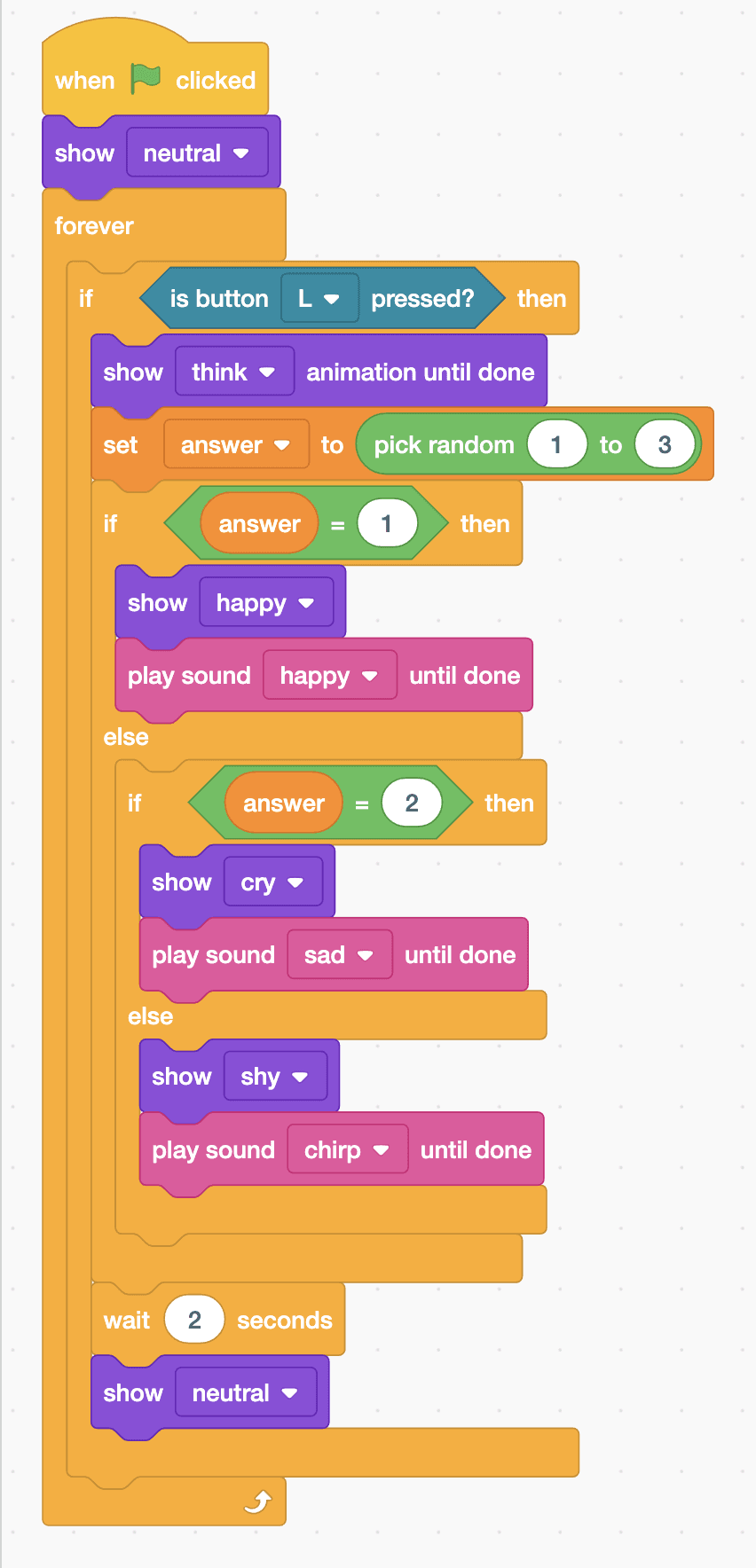
- Start with “when green flag clicked” and “show neutral”, then add a “forever” loop with “if … then” inside. Its condition is “is button L pressed?”.
- Inside the if, add “show think animation until done”, then “set answer to” with “pick random 1 to 3” in its slot. 1 means yes, 2 means no and 3 means maybe.
- Add “if … else” with “answer = 1”. For yes, put “show happy” and “play sound happy until done” in its top part.
- In its else part, add another “if … else” with “answer = 2”. For no: “show cry” and “play sound sad until done”. For maybe, in the last else: “show shy” and “play sound chirp until done”.
- After the answers, still inside the first if, add “wait 2 seconds” and “show neutral”, ready for the next question.
- Click the green flag, ask a question and press L.
Arena mode: the program runs on your computer and talks to MIEO live over USB or Bluetooth, so keep MIEO switched on and connected.
when green flag clicked
show [neutral v]
forever
  if <is button [L v] pressed?> then
    show [think v] animation until done
    set [answer v] to (pick random (1) to (3))
    if <(answer) = (1)> then
      show [happy v]
      play sound [happy v] until done
    else
      if <(answer) = (2)> then
        show [cry v]
        play sound [sad v] until done
      else
        show [shy v]
        play sound [chirp v] until done
      end
    end
    wait (2) seconds
    show [neutral v]
  end
endTest it
MIEO shows a calm face. Ask a question and press L: the thinking animation plays, then MIEO answers with a smile and a happy sound, a crying face and a sad sound, or a shy face and a chirp. Two seconds later it's calm again. Press L a few more times: the answers change at random.
If it doesn't work
- It always gives the same answer? Check that “pick random 1 to 3” is inside “set answer to”, and that each check uses the answer variable.
- It never says maybe? The maybe face goes in the very last else part, under the check for 2.
- Nothing happens when you press L? Check that MIEO is connected, the switch says Arena, and you clicked the green flag.
Make it your own
- Easy: choose your own faces and sounds for each answer, such as heart for yes.
- Medium: add a fourth answer, “ask me later”, with “pick random 1 to 4” and one more check.
- Hard: make yes come up more often than no: pick a number from 1 to 10, and answer yes for anything up to 6.