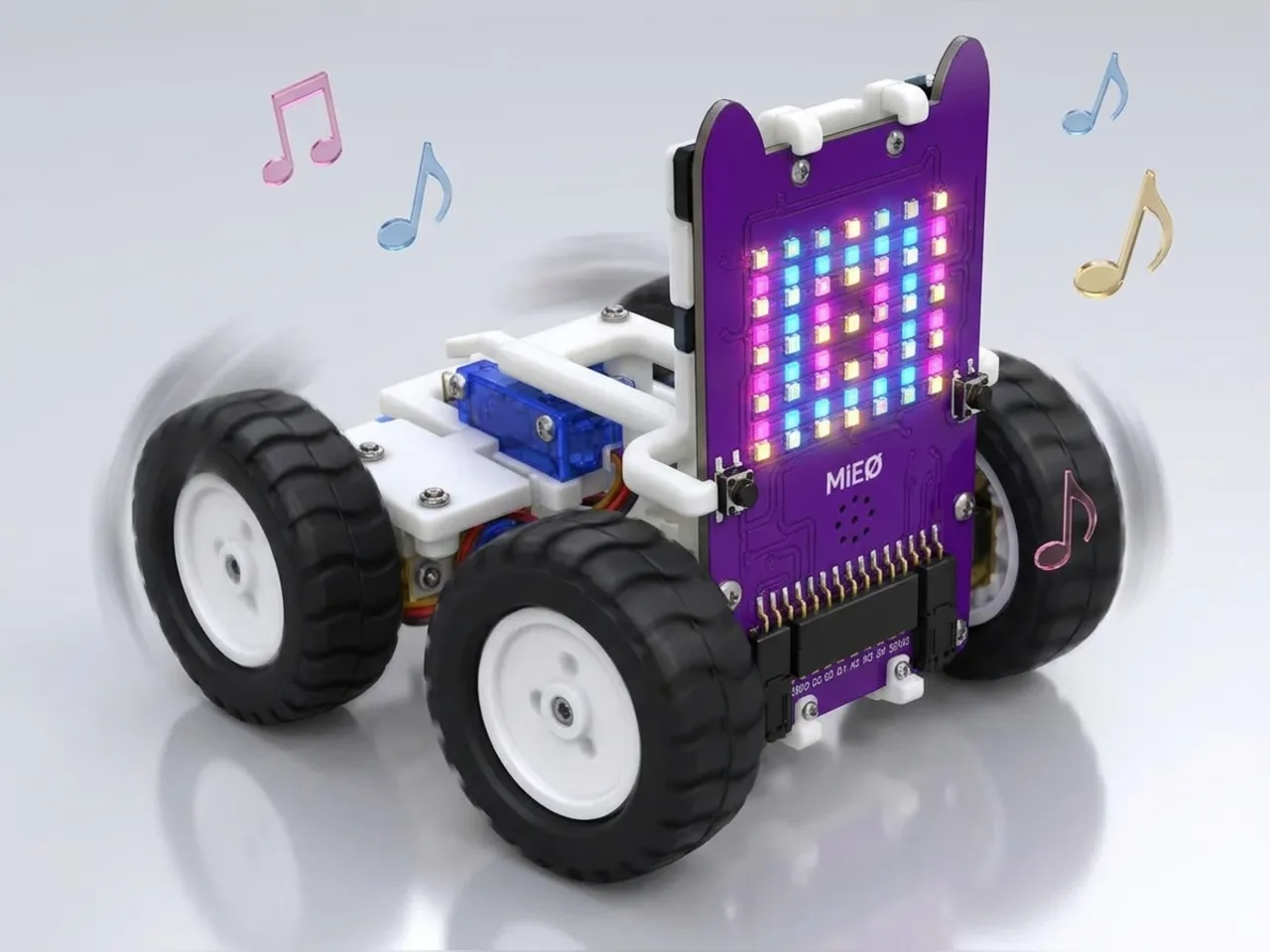
Dancing Robot
Dance to a tune with moves, faces and light patterns
What you'll build
A good dance is lights, sound and moves all happening together. In this project MIEO performs a three-part routine: a wiggle, a spin and a shuffle, each with its own light show and sound. The secret is that some blocks start something and carry straight on. A light pattern keeps flashing and a sound keeps playing while the wheels move, so MIEO can do three things at once with blocks that run one after another.
What you'll learn
- Blocks that start something and carry straight on, like “show … pattern” and “play sound”
- Blocks that wait until they're done, like “go … for … seconds”
- Planning a routine in parts, then putting the parts in order
- Timing moves so they fit the length of a light show
You'll need
- Mieo board
- Two N20 motors and their wheels
- Battery
- 3D-printed mountings
- Caster wheel
- Screws and screwdriver
- Dancing Robot parts, from the Mieo Pro kit
- A USB cable, or Bluetooth on your computer
- The Robolab app (free)
Stay safe
- Ask an adult to help with the small screws.
- Lift MIEO's wheels off the table before you upload a driving program, so it can't drive off the edge.
Build it
- Build the Dancing Robot from your Mieo Pro kit, with both N20 motors, their wheels, the caster wheel and the battery, as the Mieo Pro build guide shows. Its display stands up like a face.
- Clear a dance floor about a metre across, away from table edges.
- Switch MIEO on and connect it to your computer with a USB cable or Bluetooth.
Code it

Want MIEO Bot to guide you?
Robolab's built-in tutor has a lesson on the same idea, “Dance Party Robot”. Open MIEO Bot in Robolab, pick Beginner, then Mieo, and it shows you the blocks one at a time and checks your work as you go.
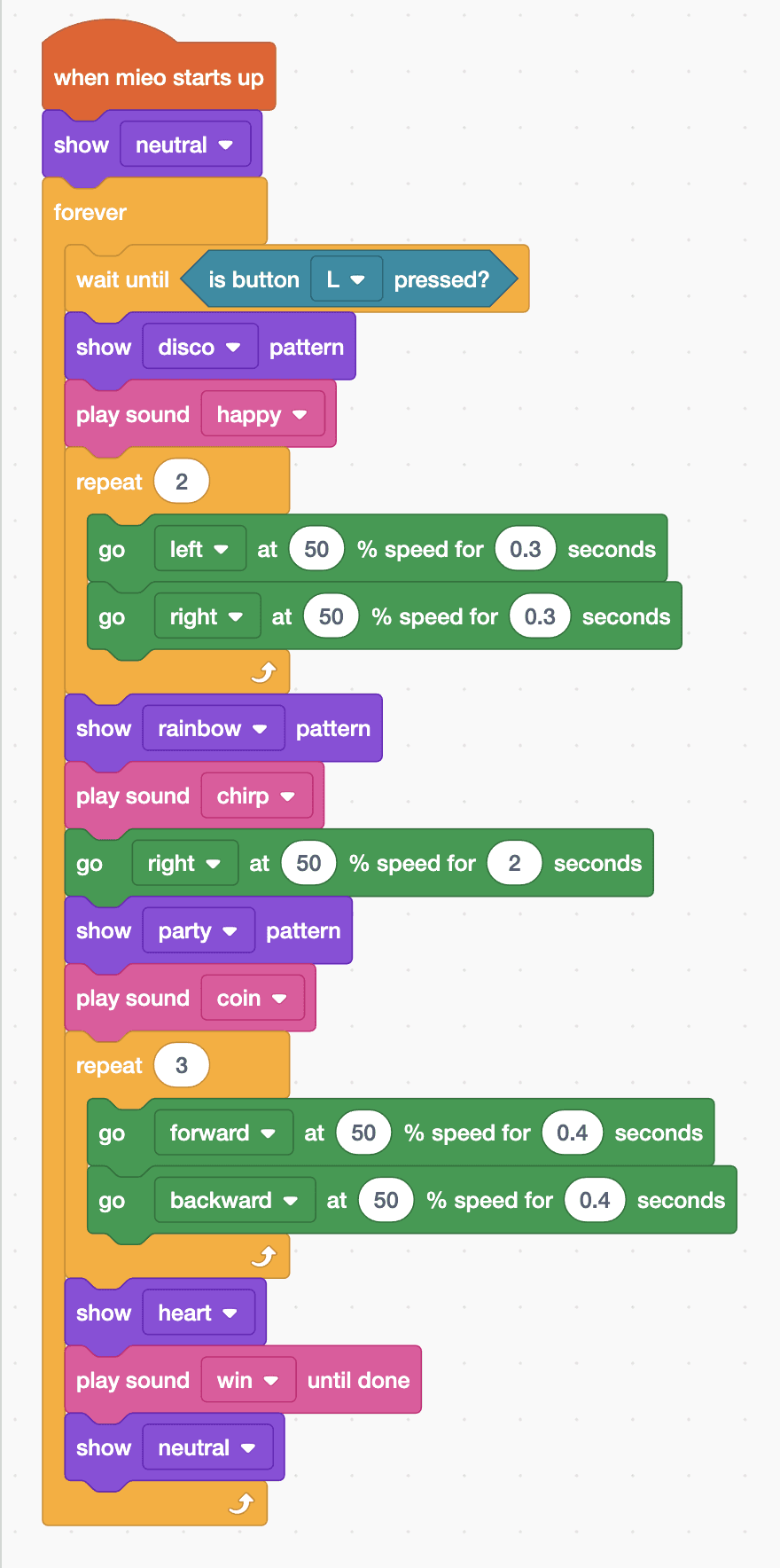
About MIEO Bot's lessons- Open Robolab, choose Mieo, connect and set the switch at the top right to Upload. Start with “when mieo starts up” and “show neutral”, then add a “forever” loop with “wait until is button L pressed?” inside.
- Part 1, the wiggle: “show disco pattern” and “play sound happy”, then “repeat 2” with “go left at 50 % speed for 0.3 seconds” and “go right at 50 % speed for 0.3 seconds” inside.
- Part 2, the spin: “show rainbow pattern”, “play sound chirp” and “go right at 50 % speed for 2 seconds”.
- Part 3, the shuffle: “show party pattern”, “play sound coin”, then “repeat 3” with “go forward at 50 % speed for 0.4 seconds” and “go backward at 50 % speed for 0.4 seconds” inside.
- The finish: “show heart” and “play sound win until done”, then “show neutral”, still inside the forever loop.
- Lift the wheels and upload. Put MIEO in the middle of the dance floor and press L.
Upload mode: Robolab turns your blocks into MicroPython and sends them to MIEO over USB or Bluetooth. MIEO then runs the program by itself, even after you unplug it.
when mieo starts up
show [neutral v]
forever
  wait until <is button [L v] pressed?>
  show [disco v] pattern
  play sound [happy v]
  repeat (2)
    go [left v] at (50) % speed for (0.3) seconds
    go [right v] at (50) % speed for (0.3) seconds
  end
  show [rainbow v] pattern
  play sound [chirp v]
  go [right v] at (50) % speed for (2) seconds
  show [party v] pattern
  play sound [coin v]
  repeat (3)
    go [forward v] at (50) % speed for (0.4) seconds
    go [backward v] at (50) % speed for (0.4) seconds
  end
  show [heart v]
  play sound [win v] until done
  show [neutral v]
endSee the MicroPython
# generated by Robolab
import mieo

mieo.showemotion('neutral')
while True:
  while not mieo.button('L'):
     pass
  mieo.showpattern('disco')
  mieo.playsound('happy')
  for count in range(2):
    mieo.run('left', 50)
    mieo.sleep(0.3 * 1000)
    mieo.stoprobot()
    mieo.run('right', 50)
    mieo.sleep(0.3 * 1000)
    mieo.stoprobot()
  mieo.showpattern('rainbow')
  mieo.playsound('chirp')
  mieo.run('right', 50)
  mieo.sleep(2 * 1000)
  mieo.stoprobot()
  mieo.showpattern('party')
  mieo.playsound('coin')
  for count in range(3):
    mieo.run('forward', 50)
    mieo.sleep(0.4 * 1000)
    mieo.stoprobot()
    mieo.run('backward', 50)
    mieo.sleep(0.4 * 1000)
    mieo.stoprobot()
  mieo.showemotion('heart')
  mieo.playsounduntildone('win')
  mieo.showemotion('neutral')
Test it
Press L and the show begins. MIEO wiggles left and right twice under flashing disco lights, then spins on the spot while a rainbow runs across its display, then shuffles forward and back three times with party lights. It finishes with a heart and its win sound, then waits for the next press.
If it doesn't work
- The lights stop before a move ends? Each pattern plays for about three seconds. Make the moves shorter, or start another pattern part way through.
- MIEO waits for a light show to finish before moving? Use “show … pattern”, not “show … pattern until done”.
- It drifts across the floor during the shuffle? Make the forward and backward times exactly the same.
Make it your own
- Easy: swap the patterns and sounds around to make your own mix.
- Medium: add a fourth part to the routine, such as a slow spin the other way with the wave pattern.
- Hard: put each part of the dance on its own touch pad, so you can play the routine live like a DJ.