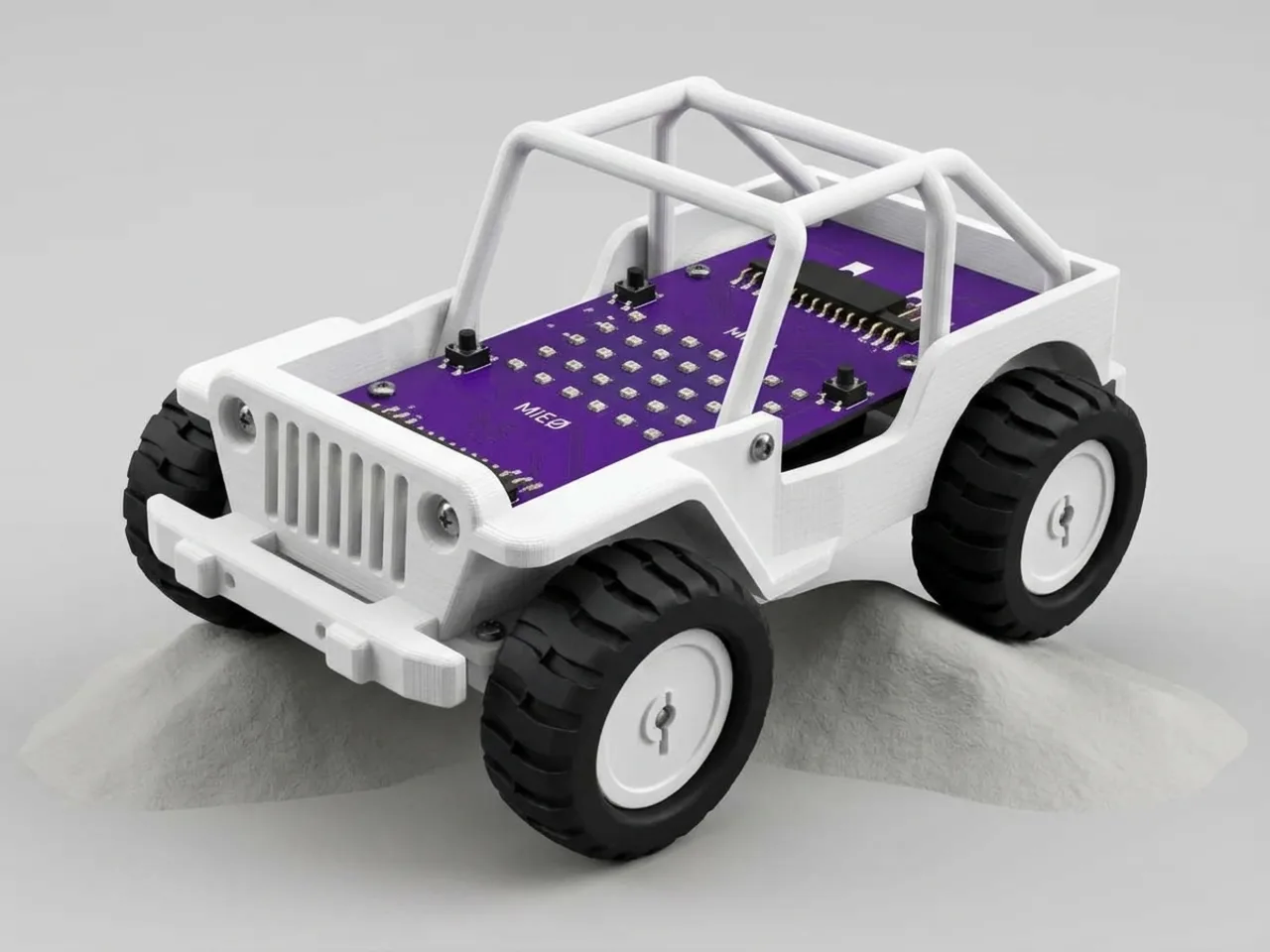
Bluetooth Controlled Jeep
Build a four-wheel jeep and drive it from your keyboard
What you'll build
Build a sturdy jeep from the Mieo Pro kit and drive it with your computer keyboard as the controller. Like a real car, it has gears: press 1 for a slow crawl, 2 for cruising and 3 for full speed, and the display shows which gear you're in as a bar that grows from green to red. The arrow keys drive and space sounds the horn. The gear lives in a variable, so changing gear changes one number that every driving block uses.
What you'll learn
- Using one variable to set the speed of several blocks
- Changing a variable from different scripts with “when key pressed”
- Showing a setting on the display so the driver can see it
- How Arena mode drives MIEO live over Bluetooth
You'll need
- Mieo board
- Two N20 motors and their wheels
- Battery
- 3D-printed mountings
- Screws and screwdriver
- Jeep body and wheel parts, from the Mieo Pro kit
- A computer with Bluetooth
- The Robolab app (free)
Stay safe
- Ask an adult to help with the small screws.
- Lift MIEO's wheels off the table before you upload a driving program, so it can't drive off the edge.
Build it
- Build the jeep from your Mieo Pro kit, with both N20 motors, their wheels and the battery, as the Mieo Pro build guide shows.
- Fit the jeep's body panels so the display can still be seen from above.
- Clear a driving area on the floor, away from stairs and table edges.
- Switch the jeep on and turn on Bluetooth on your computer.
Code it
- Open Robolab, choose Mieo, click the connection button and pick your MIEO from the Bluetooth list. Set the switch at the top right to Arena, and make a variable called speed.
- Start with “when green flag clicked”, “set speed to 40” and “show matrix as” with only the bottom row painted green: first gear.
- Add a “forever” loop with a chain of “if … else” blocks: up arrow does “go forward at (speed) % speed”, down arrow does “go backward at (speed) % speed”, left and right do “go left” and “go right” at 50 %, and the last else does “stop robot”. Drop the speed variable into the gaps.
- Add three gear scripts. “when 1 key pressed”: set speed to 40 and show the green bar. “when 2 key pressed”: set speed to 70 and show three yellow rows. “when 3 key pressed”: set speed to 100 and paint every row red.
- Add the horn: “when space key pressed” and “play sound beep”.
- Click the green flag, then click once on the stage so Robolab hears your keys.
Arena mode: the program runs on your computer and talks to MIEO live over USB or Bluetooth, so keep MIEO switched on and connected.
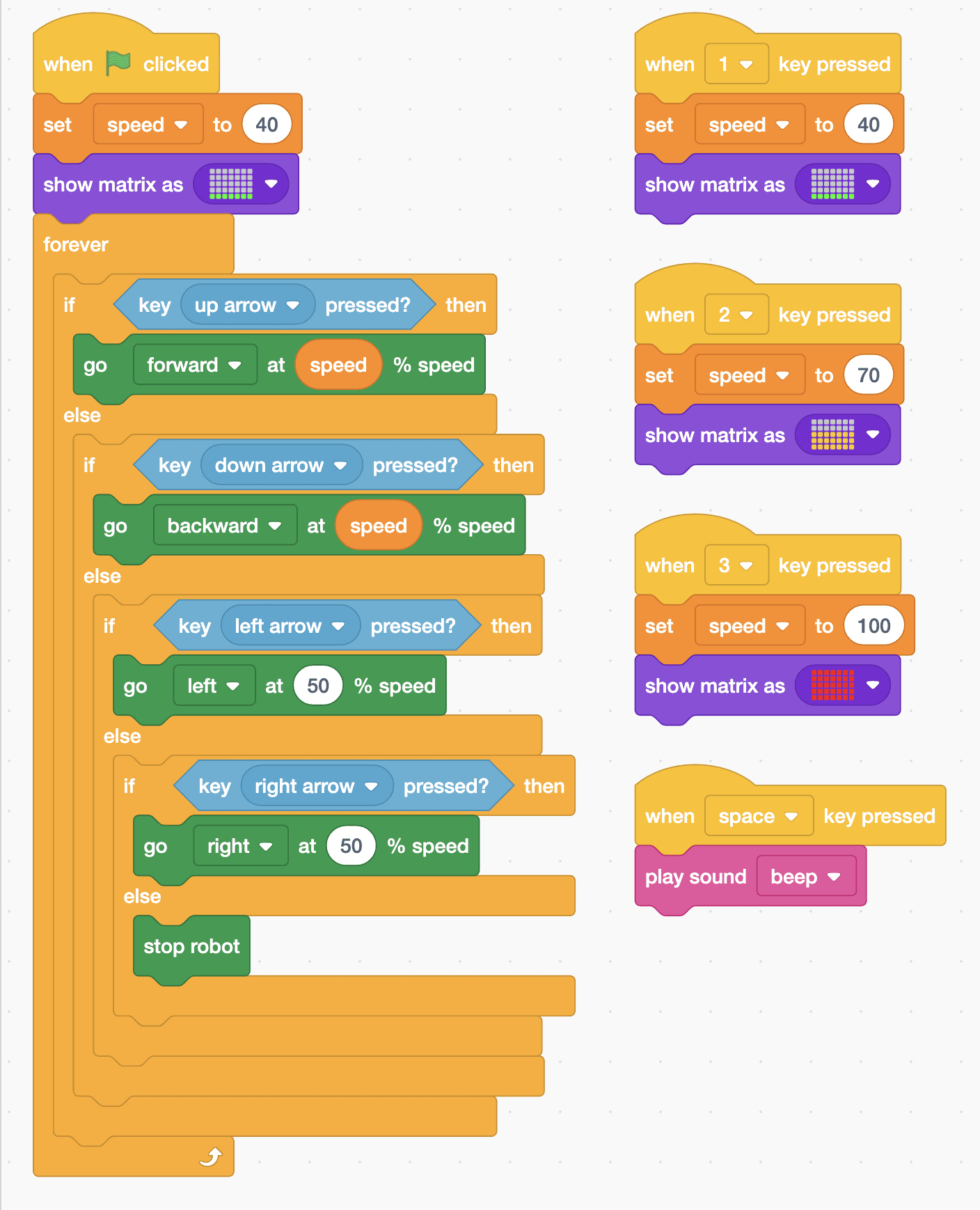
when green flag clicked
set [speed v] to (40)
show matrix as (picture)
forever
  if <key [up arrow v] pressed?> then
    go [forward v] at (speed) % speed
  else
    if <key [down arrow v] pressed?> then
      go [backward v] at (speed) % speed
    else
      if <key [left arrow v] pressed?> then
        go [left v] at (50) % speed
      else
        if <key [right arrow v] pressed?> then
          go [right v] at (50) % speed
        else
          stop robot
        end
      end
    end
  end
end

when [1 v] key pressed
set [speed v] to (40)
show matrix as (picture)

when [2 v] key pressed
set [speed v] to (70)
show matrix as (picture)

when [3 v] key pressed
set [speed v] to (100)
show matrix as (picture)

when [space v] key pressed
play sound [beep v]Test it
Click the green flag: the display shows one green row, for first gear. Hold the up arrow and the jeep crawls forward. Press 2 and three yellow rows light up, and the jeep drives faster; press 3 and the whole display turns red for full speed. The down arrow reverses at the same speed, left and right spin it, letting go stops it, and space beeps the horn.
If it doesn't work
- Changing gear makes no difference? The speed variable must be in the gaps of the forward and backward blocks, not a typed number.
- The keys do nothing? Click once on the stage, so Robolab is listening to the keyboard.
- The jeep struggles to move in first gear? Some builds are heavier. Make first gear 50 instead of 40.
Make it your own
- Easy: change the speeds of the three gears, or add a fourth gear on the 4 key.
- Medium: make the turns use the speed variable too, so turning is gentle in first gear and quick in third.
- Hard: add headlights: when h is pressed, light the top row white, and press it again to turn them off.
What to build next
Remote control
Gamepad Controlled Robot
Drive with W, A, S and D like a gamepad, using your keyboard
Robot arms
Remote Servo Arm
Raise and lower a servo arm with your keyboard
Robot arms
Gripper Pick-and-Place Robot
Pick up a block, carry it and put it down in one sequence