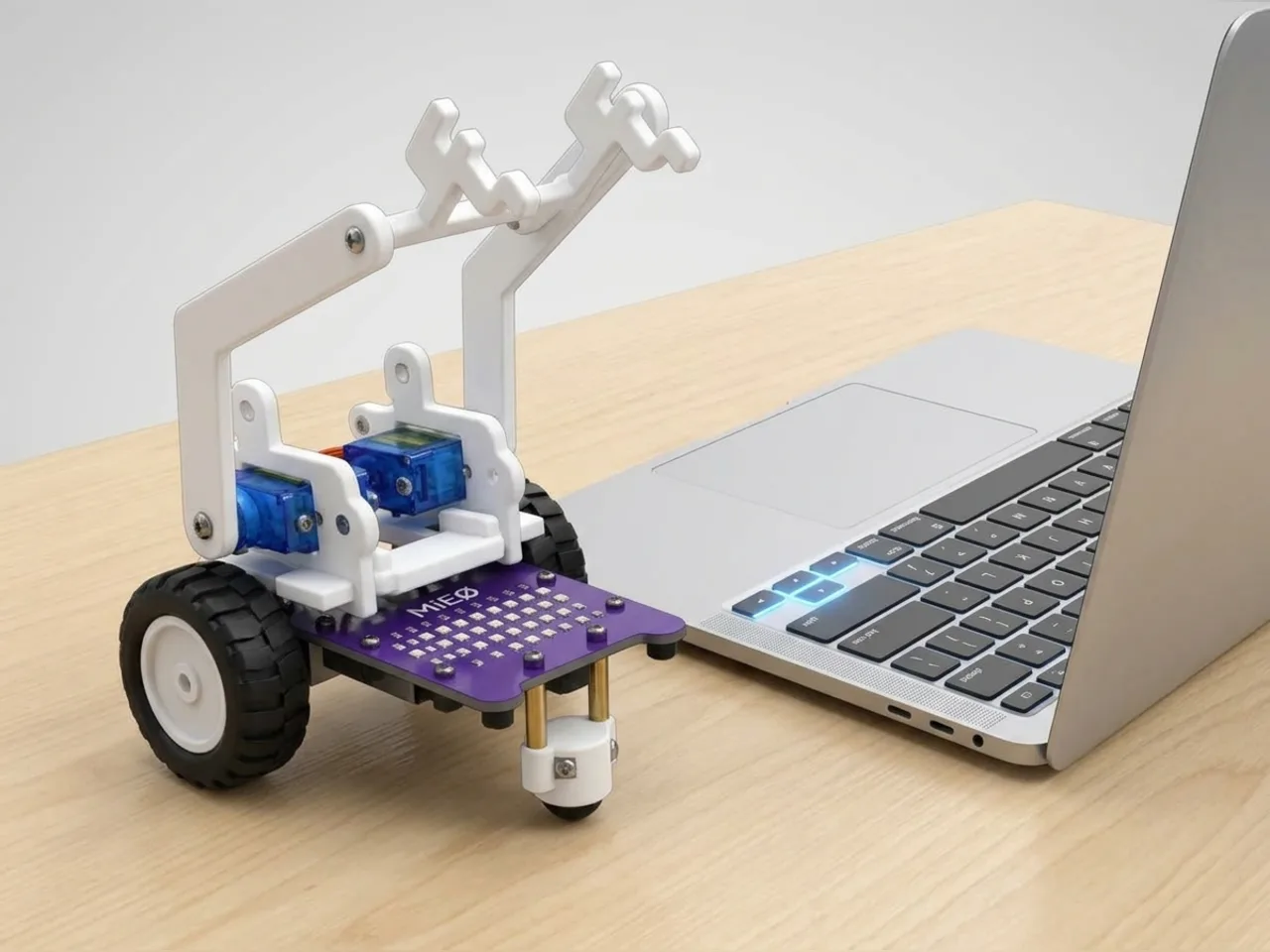
Remote Servo Arm
Raise and lower a servo arm with your keyboard
What you'll build
Robot arms in factories are often driven by a person with a controller before they're programmed to work alone. In this project you do the same, with your computer keyboard as the controller. Hold the up arrow and MIEO's arm rises a few degrees at a time; hold the down arrow and it lowers. Press H to send it home. The program also keeps the arm inside safe limits, so it can never be told to push against itself.
What you'll learn
- Keeping a servo's angle in a variable and changing it a little at a time
- Setting safe limits with “and”, so a part can't be pushed too far
- Showing a live reading on screen with “say”
- Controlling a robot arm live in Arena mode
You'll need
- Mieo board
- Battery
- 3D-printed mountings
- Screws and screwdriver
- A servo motor, from the MIEO kit
- Robot arm parts, from the Mieo Pro kit
- A computer with Bluetooth
- The Robolab app (free)
Stay safe
- Ask an adult to help with the small screws.
- Plug extra parts only into the connector this page names. Wiring a part to the wrong connector can damage it for good.
Build it
- Build the robot arm from your Mieo Pro kit as the Mieo Pro build guide shows, with the servo at the arm's shoulder.
- With MIEO switched off, plug the servo into connector S1, the right way round.
- Switch MIEO on and connect it to your computer over Bluetooth. Then run the program once before fixing the arm to the servo, so the servo is at 90: fit the arm sticking straight out.
Code it
- Open Robolab, choose Mieo, connect over Bluetooth and set the switch at the top right to Arena. Make a variable called angle.
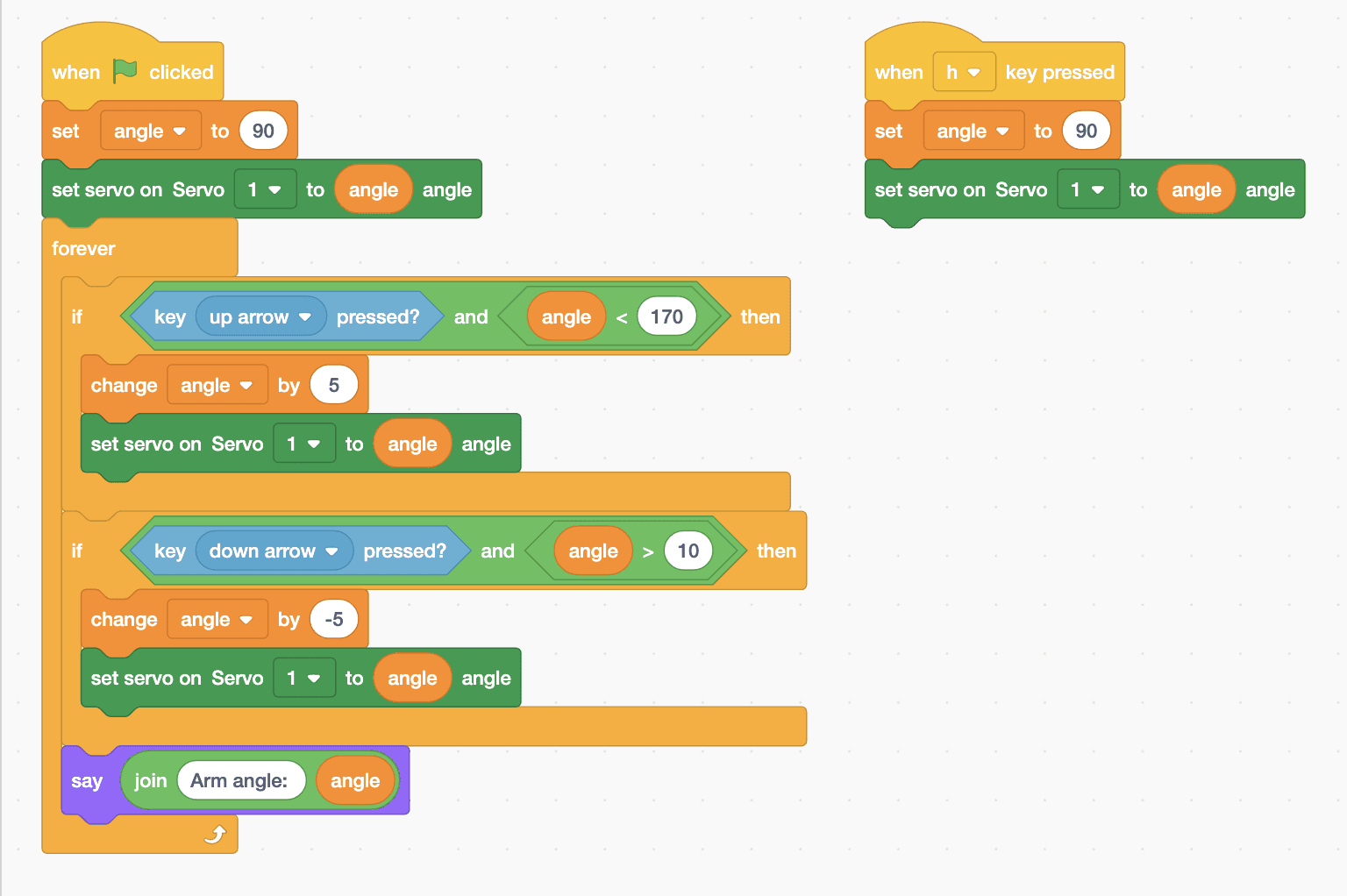
- Start with “when green flag clicked”, “set angle to 90” and “set servo on Servo 1 to (angle) angle”, with the angle variable dropped into the gap.
- Add a “forever” loop. Inside it, add “if … then” with “key up arrow pressed? and angle < 170” as its condition, and “change angle by 5” and “set servo on Servo 1 to (angle) angle” inside.
- Add a second “if … then” for “key down arrow pressed? and angle > 10”, with “change angle by -5” and the same servo block.
- Still in the loop, add “say” from Looks with “join Arm angle: (angle)” in it, so the angle shows on the stage.
- Add a second script: “when h key pressed”, “set angle to 90” and the servo block, to send the arm home.
- Click the green flag, click once on the stage, and use the arrow keys.
Arena mode: the program runs on your computer and talks to MIEO live over USB or Bluetooth, so keep MIEO switched on and connected.
when green flag clicked
set [angle v] to (90)
set servo on Servo [1 v] to (angle) angle
forever
  if <<key [up arrow v] pressed?> and <(angle) < (170)>> then
    change [angle v] by (5)
    set servo on Servo [1 v] to (angle) angle
  end
  if <<key [down arrow v] pressed?> and <(angle) > (10)>> then
    change [angle v] by (-5)
    set servo on Servo [1 v] to (angle) angle
  end
  say (join (Arm angle:) (angle))
end

when [h v] key pressed
set [angle v] to (90)
set servo on Servo [1 v] to (angle) angleTest it
Click the green flag and the arm moves to 90 degrees, sticking straight out, while the Mieo sprite on the stage says “Arm angle: 90”. Hold the up arrow and the arm rises smoothly, 5 degrees at a time, stopping at 170. Hold the down arrow and it lowers, stopping at 10. Press H and it swings straight back to 90.
If it doesn't work
- The arm moves the wrong way for each key? Swap the 5 and the -5, or fit the arm the other way round on the servo.
- The arm jerks instead of moving smoothly? Use a smaller step, such as 3 and -3.
- The servo buzzes at one end? It's pushing against the arm's frame. Change 170 or 10 to stop it a little earlier.
Make it your own
- Easy: add more home positions on other keys, such as T for straight up.
- Medium: make the arm move faster while the space bar is held as well, with a step of 10 instead of 5.
- Hard: record a move: press R to remember the current angle in a list, then P to play every remembered angle back in order.
What to build next
Robot arms
Gripper Pick-and-Place Robot
Pick up a block, carry it and put it down in one sequence
Robot arms
Warehouse Picker Robot
Follow a line to a shelf, pick up a box and bring it back
Robot arms
Automated Pick-and-Place System
Grab an object automatically when the sensor sees it