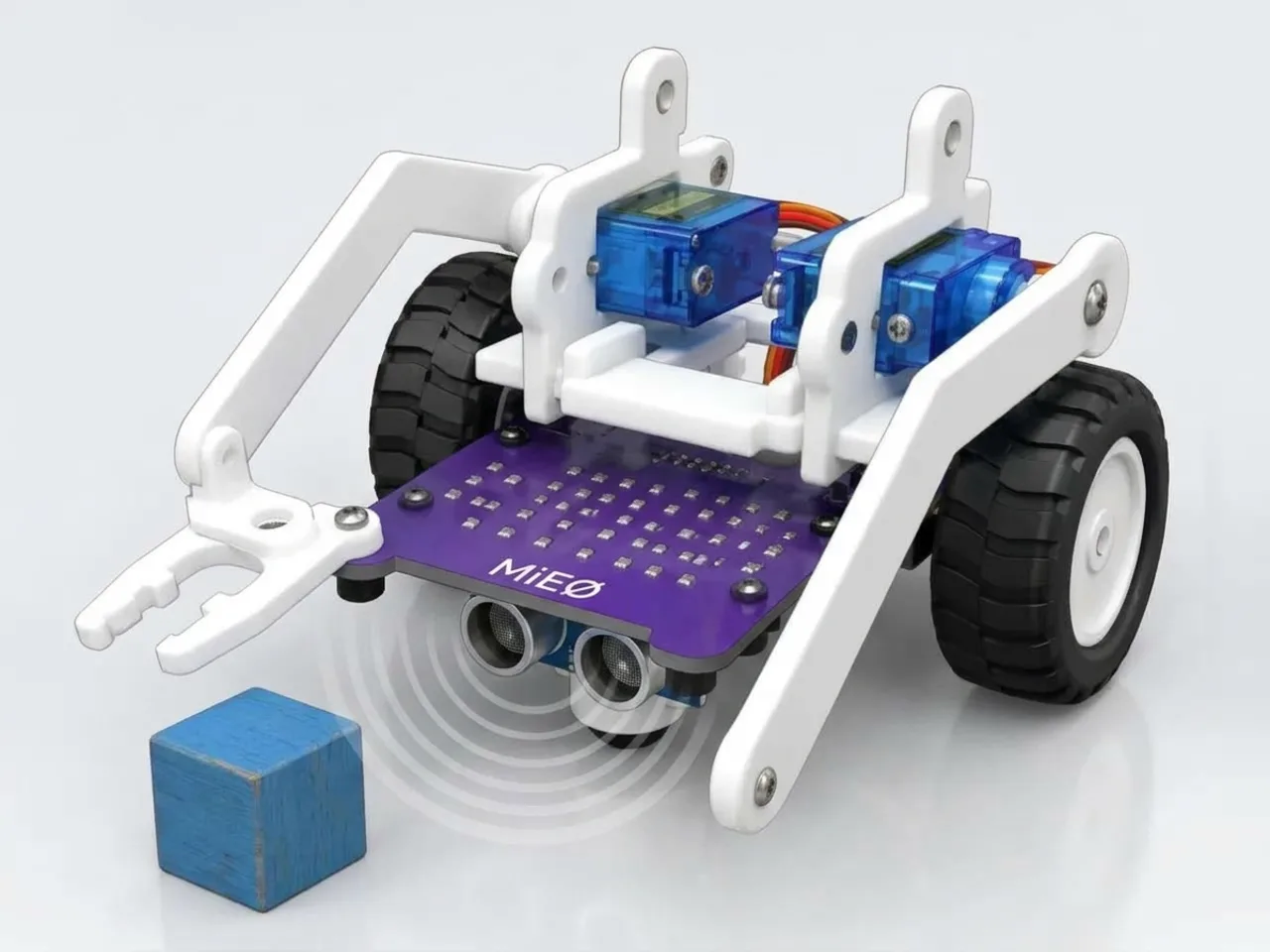
Automated Pick-and-Place System
Grab an object automatically when the sensor sees it
What you'll build
In the Gripper Pick-and-Place Robot, you pressed a button to start every pick. In a factory, nobody presses a button: a sensor notices when a part arrives, and the robot gets to work. In this project MIEO watches the space in front of its gripper with the ultrasonic sensor. Put a block there and MIEO waits a moment for your hand to move away, then picks the block up, turns, puts it down to one side and turns back, ready for the next one.
What you'll learn
- Starting a job automatically when a sensor sees something
- Waiting a moment before moving, so a person's hand is out of the way
- Reusing a sequence of steps: pick, turn, place, turn back
- Why factory robots check that a part is really there before they grab
You'll need
- Mieo board
- Two N20 motors and their wheels
- Battery
- 3D-printed mountings
- Caster wheel
- Screws and screwdriver
- Ultrasonic distance sensor and its cable
- Two servo motors, from the MIEO kit
- Gripper arm parts, from the Mieo Pro kit
- A small block, such as a toy brick
- A USB cable, or Bluetooth on your computer
- The Robolab app (free)
Stay safe
- Ask an adult to help with the small screws.
- Lift MIEO's wheels off the table before you upload a driving program, so it can't drive off the edge.
- Plug extra parts only into the connector this page names. Wiring a part to the wrong connector can damage it for good.
Build it
- Build the gripper robot as in the Gripper Pick-and-Place Robot, with the gripper servo in S1 and the arm servo in S2.
- With MIEO switched off, plug in the ultrasonic distance sensor: its Echo pin goes to D1, its Trig pin to D2, and its power and ground pins to the matching pins.
- Fix the sensor low at the front, under the gripper, so it looks at the spot where the block will sit.
- Switch MIEO on and connect it to your computer.
Code it
- Open Robolab, choose Mieo, connect and set the switch at the top right to Upload. Make a variable called distance.
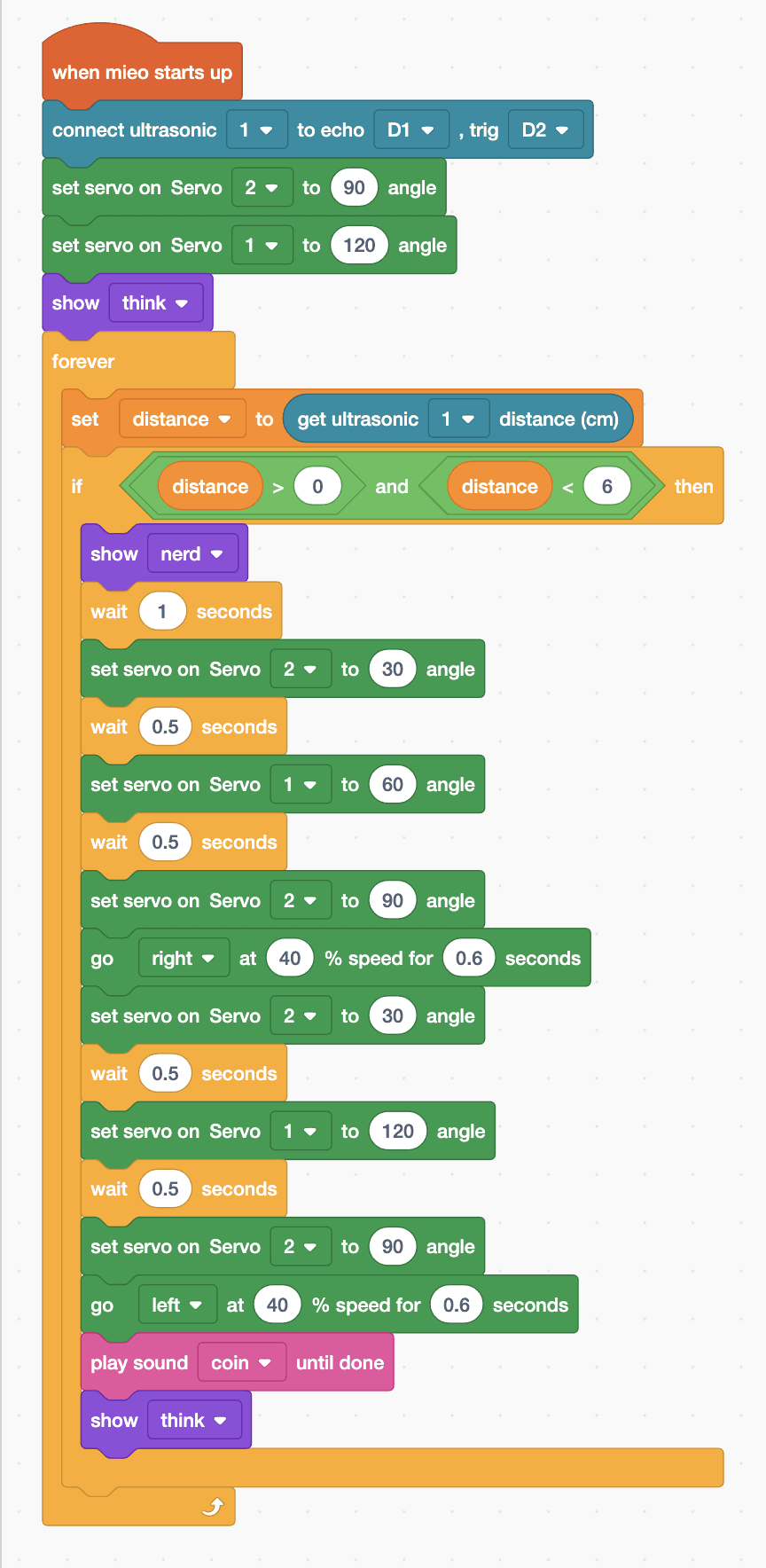
- Start with “when mieo starts up”, “connect ultrasonic 1 to echo D1 , trig D2”, arm up (Servo 2 to 90), gripper open (Servo 1 to 120) and “show think”.
- Add a “forever” loop with “set distance to (get ultrasonic 1 distance (cm))” inside, then “if … then” with “distance > 0 and distance < 6”.
- Inside the if: “show nerd” and “wait 1 seconds”, to give your hand time to move away.
- Pick: arm down (Servo 2 to 30), wait 0.5 seconds, close the gripper (Servo 1 to 60), wait 0.5 seconds, arm up (Servo 2 to 90).
- Place: “go right at 40 % speed for 0.6 seconds”, arm down, wait, open the gripper, wait, arm up, then “go left at 40 % speed for 0.6 seconds” to turn back.
- Finish with “play sound coin until done” and “show think”. Lift the wheels, upload, then put a block in front of the gripper.
Upload mode: Robolab turns your blocks into MicroPython and sends them to MIEO over USB or Bluetooth. MIEO then runs the program by itself, even after you unplug it.
when mieo starts up
connect ultrasonic [1 v] to echo [D1 v] , trig [D2 v]
set servo on Servo [2 v] to (90) angle
set servo on Servo [1 v] to (120) angle
show [think v]
forever
  set [distance v] to (get ultrasonic [1 v] distance (cm))
  if <<(distance) > (0)> and <(distance) < (6)>> then
    show [nerd v]
    wait (1) seconds
    set servo on Servo [2 v] to (30) angle
    wait (0.5) seconds
    set servo on Servo [1 v] to (60) angle
    wait (0.5) seconds
    set servo on Servo [2 v] to (90) angle
    go [right v] at (40) % speed for (0.6) seconds
    set servo on Servo [2 v] to (30) angle
    wait (0.5) seconds
    set servo on Servo [1 v] to (120) angle
    wait (0.5) seconds
    set servo on Servo [2 v] to (90) angle
    go [left v] at (40) % speed for (0.6) seconds
    play sound [coin v] until done
    show [think v]
  end
endSee the MicroPython
# generated by Robolab
import mieo

distance = 0

mieo.connectultrasonic(1, 'D1', 'D2')
mieo.setservo('S2', 90)
mieo.setservo('S1', 120)
mieo.showemotion('think')
while True:
  distance = mieo.ultrasonic(1)
  if distance > 0 and distance < 6:
    mieo.showemotion('nerd')
    mieo.sleep(1 * 1000)
    mieo.setservo('S2', 30)
    mieo.sleep(0.5 * 1000)
    mieo.setservo('S1', 60)
    mieo.sleep(0.5 * 1000)
    mieo.setservo('S2', 90)
    mieo.run('right', 40)
    mieo.sleep(0.6 * 1000)
    mieo.stoprobot()
    mieo.setservo('S2', 30)
    mieo.sleep(0.5 * 1000)
    mieo.setservo('S1', 120)
    mieo.sleep(0.5 * 1000)
    mieo.setservo('S2', 90)
    mieo.run('left', 40)
    mieo.sleep(0.6 * 1000)
    mieo.stoprobot()
    mieo.playsounduntildone('coin')
    mieo.showemotion('think')
Test it
After the upload the arm lifts, the gripper opens and MIEO looks thoughtful. Put a block on the spot in front of the gripper and take your hand away. MIEO shows its nerd face, waits a second, lowers the arm, grips the block and lifts it. It turns to the right, puts the block down, turns back to face the spot and plays its coin sound, ready for the next block.
If it doesn't work
- Nothing happens when you put the block down? The sensor must point at the block. Check it is low enough, and that Echo is in D1 and Trig in D2.
- MIEO grabs at your hand? Make the wait longer than 1 second, or slide the block in with a ruler instead of your hand.
- It picks up the block it has just put down? Make the turns longer so the block lands well away from the spot.
Make it your own
- Easy: change the faces and sound so MIEO shows how it feels about each block.
- Medium: count the blocks MIEO has moved in a variable and stop after five, with a celebration.
- Hard: put blocks down on alternate sides: right for the first, left for the next, and so on.