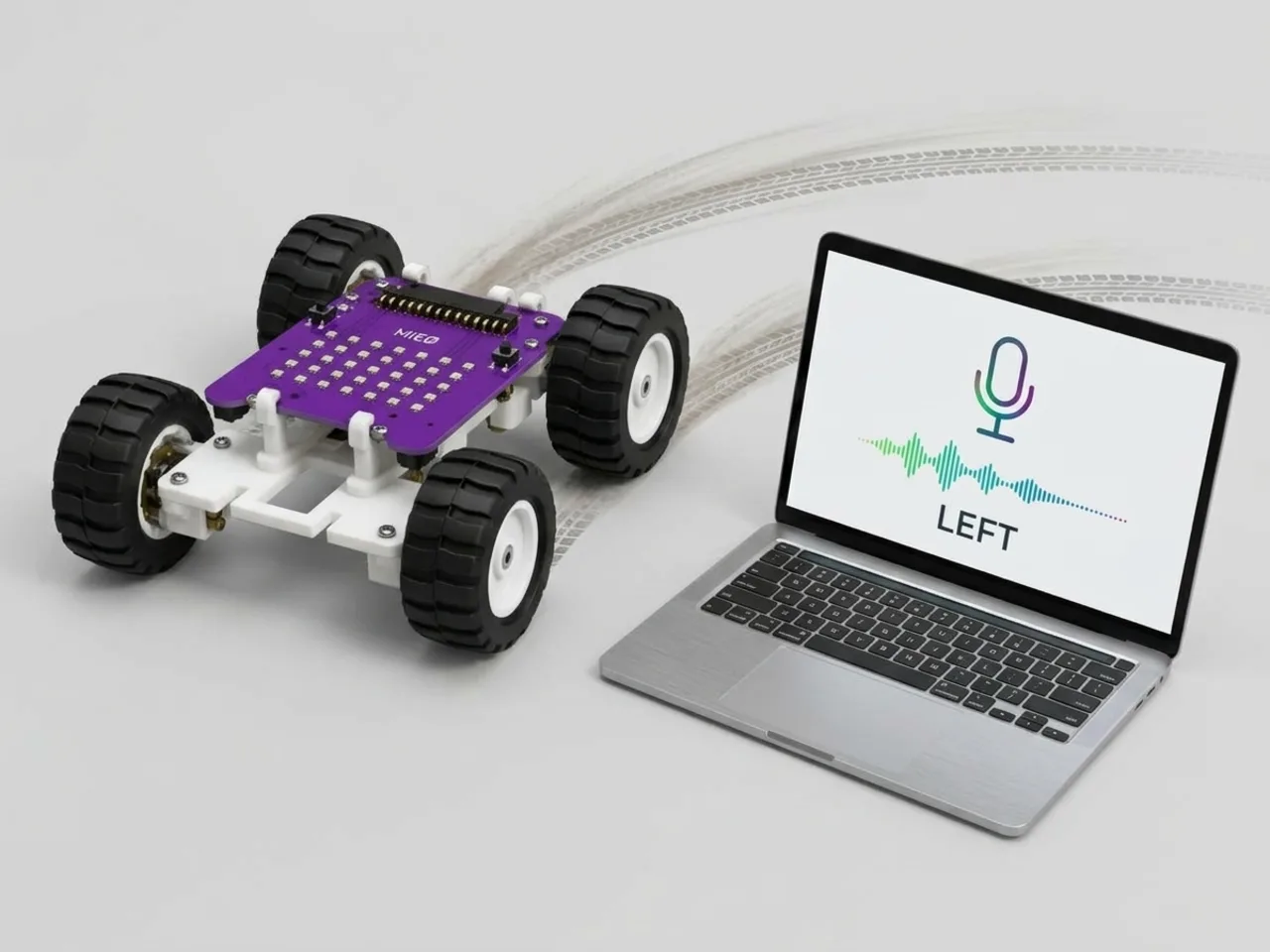
Voice Controlled Car
Say go, stop, left or right to steer MIEO
What you'll build
This is Touch Steering Robot again, but with your voice instead of the touch pads. Say “go” and the car drives off; say “left” or “right” and it turns, then carries on; say “stop” and it stops. Speech Sense listens through your computer's microphone and understands the words on the computer itself, with no internet, so nothing you say leaves the room. The space bar is an emergency stop, in case the car can't hear you.
What you'll learn
- How a voice command can replace a button or a touch pad
- Why a short list of words makes speech recognition more reliable
- Starting a different script for each word with “when someone says”
- Why a robot needs a stop that always works, even if it can't hear you
You'll need
- Mieo board
- Two N20 motors and their wheels
- Battery
- 3D-printed mountings
- Caster wheel
- Screws and screwdriver
- Self-driving robot parts, from the Mieo Pro kit
- A computer with Bluetooth and a microphone
- The Robolab app (free)
- A microphone (most laptops have one built in)
Stay safe
- Ask an adult to help with the small screws.
- Lift MIEO's wheels off the table before you upload a driving program, so it can't drive off the edge.
- The camera and microphone stay on your computer. Nothing MIEO sees or hears is sent anywhere.
Build it
- Build the car from your Mieo Pro kit, with both N20 motors, their wheels, the caster wheel and the battery, as the Mieo Pro build guide shows.
- Clear a driving area on the floor, away from stairs and table edges.
- Check your computer's microphone works, and find a quiet room: background noise makes words harder to hear.
- Switch the car on and turn on Bluetooth on your computer.
Code it

Want MIEO Bot to guide you?
Robolab's built-in tutor has a lesson on the same idea, “Voice-Controlled Robot”. Open MIEO Bot in Robolab, pick Pro, then Mieo, and it shows you the blocks one at a time and checks your work as you go.
About MIEO Bot's lessons- Open Robolab, choose Mieo, connect over Bluetooth and set the switch at the top right to Arena. Click the extensions button at the bottom left and add Speech Sense.
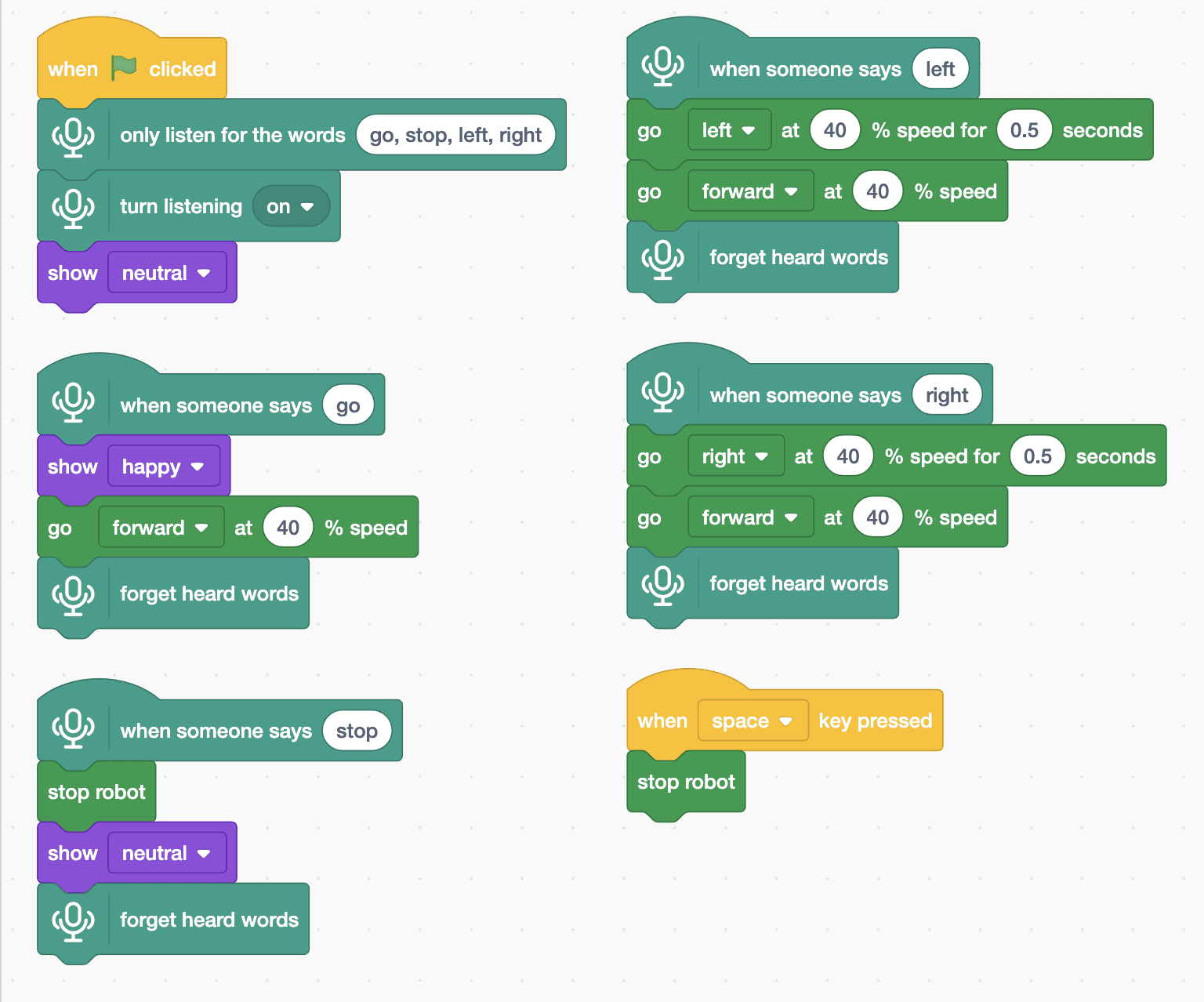
- Start with “when green flag clicked”, “only listen for the words go, stop, left, right”, “turn listening on” and “show neutral”.
- Add “when someone says go” with “show happy” and “go forward at 40 % speed”, then “forget heard words” so the word can be heard again.
- Add “when someone says stop” with “stop robot”, “show neutral” and “forget heard words”.
- Add “when someone says left” with “go left at 40 % speed for 0.5 seconds”, “go forward at 40 % speed” and “forget heard words”. Do the same for right.
- Add the emergency stop: “when space key pressed” and “stop robot”.
- Click the green flag, say yes if your computer asks to use the microphone, and say “go”.
Arena mode: the program runs on your computer and talks to MIEO live over USB or Bluetooth, so keep MIEO switched on and connected.
when green flag clicked
only listen for the words (go, stop, left, right)
turn listening [on v]
show [neutral v]

when someone says (go)
show [happy v]
go [forward v] at (40) % speed
forget heard words

when someone says (stop)
stop robot
show [neutral v]
forget heard words

when someone says (left)
go [left v] at (40) % speed for (0.5) seconds
go [forward v] at (40) % speed
forget heard words

when someone says (right)
go [right v] at (40) % speed for (0.5) seconds
go [forward v] at (40) % speed
forget heard words

when [space v] key pressed
stop robotTest it
Click the green flag and the car shows a calm face. Say “go” clearly and it smiles and drives forward. Say “left” and it turns left for half a second, then drives on; “right” does the same the other way. Say “stop” and it stops. Press space at any time and it stops straight away.
If it doesn't work
- It doesn't react to your voice? Check the microphone is allowed in your computer's settings, and speak clearly towards it.
- It mixes up words? Say each word on its own with a short pause. “Go” and “stop” sound different enough, but mumbling can blur them.
- It turns too much or too little? Change the 0.5 seconds in the left and right scripts.
Make it your own
- Easy: add the word “back” so the car reverses.
- Medium: add “faster” and “slower” words that change a speed variable used by the go script.
- Hard: drive the car round a course of cups using only your voice, and time yourself.