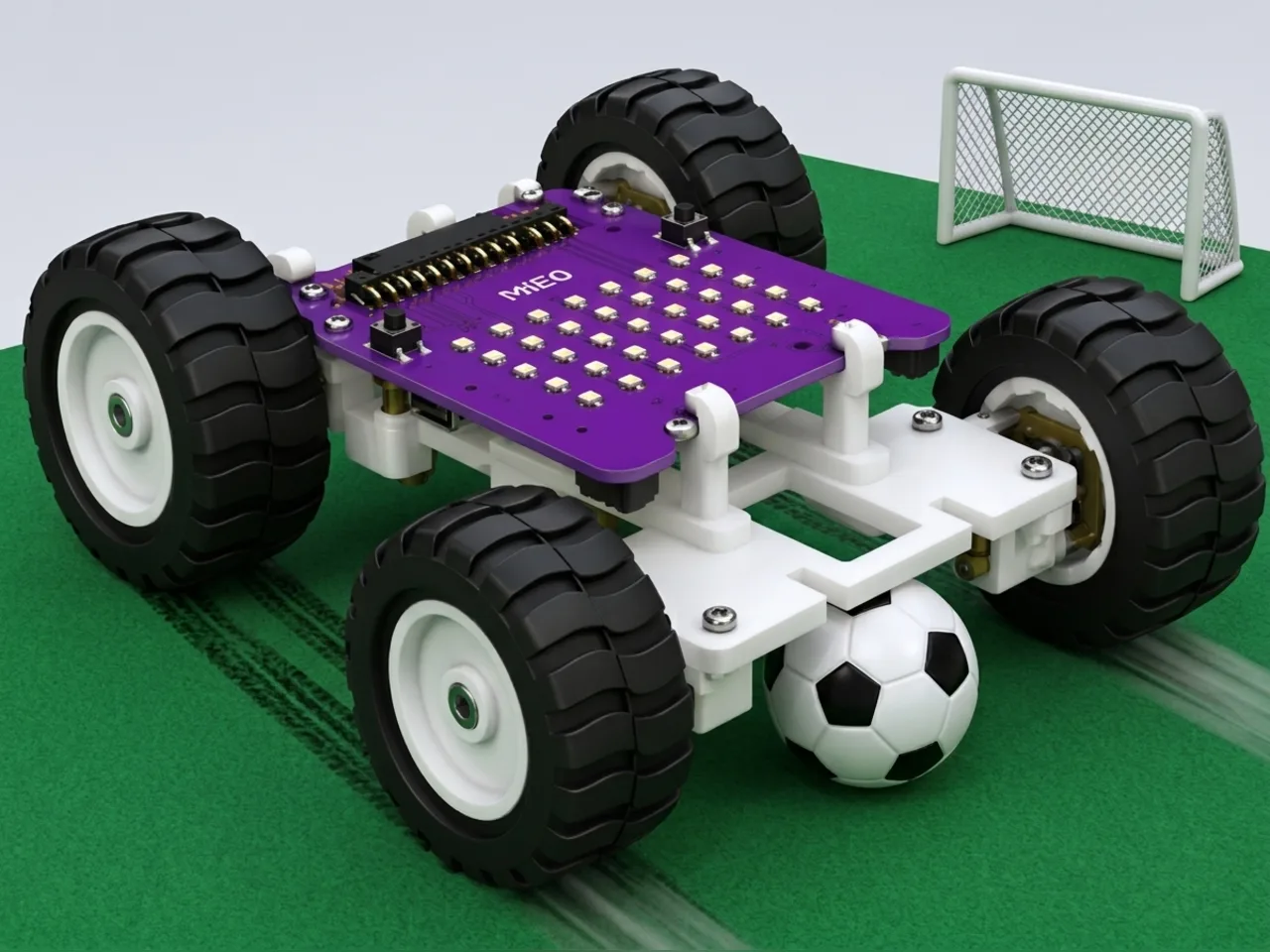
Robot Soccer
Score goals by pushing a ball, driven from your keyboard
What you'll build
Robot soccer is played by two teams of robots pushing a ball into the other team's goal. In this project your Mieo Pro rover is the player and your computer keyboard is the controller. The arrow keys drive, and holding the space bar sprints at full speed for a powerful shot. When you score, press G: MIEO celebrates with party lights and a fanfare, and the stage keeps the score. Find a friend with another MIEO and play a match.
What you'll learn
- Driving precisely with the keyboard over Bluetooth
- Giving one key priority over the others with the order of “if … else” checks
- Keeping score with a variable
- Fair play: agreeing the rules before a match starts
You'll need
- Mieo board
- Two N20 motors and their wheels
- Battery
- 3D-printed mountings
- Screws and screwdriver
- Rover body and pusher parts, from the Mieo Pro kit
- A small light ball and two goals made from boxes
- A computer with Bluetooth
- The Robolab app (free)
Stay safe
- Ask an adult to help with the small screws.
- Lift MIEO's wheels off the table before you upload a driving program, so it can't drive off the edge.
Build it
- Build the rover from your Mieo Pro kit, with both N20 motors, their wheels and the battery, and fit the pusher at the front, as the Mieo Pro build guide shows.
- Make a pitch on a smooth floor about 1.5 by 1 metres, with a goal at each end made from an open box on its side.
- Switch MIEO on and connect it to your computer over Bluetooth.
Code it
- Open Robolab, choose Mieo, connect over Bluetooth and set the switch at the top right to Arena. Make a variable called goals and leave its box ticked to show the score.
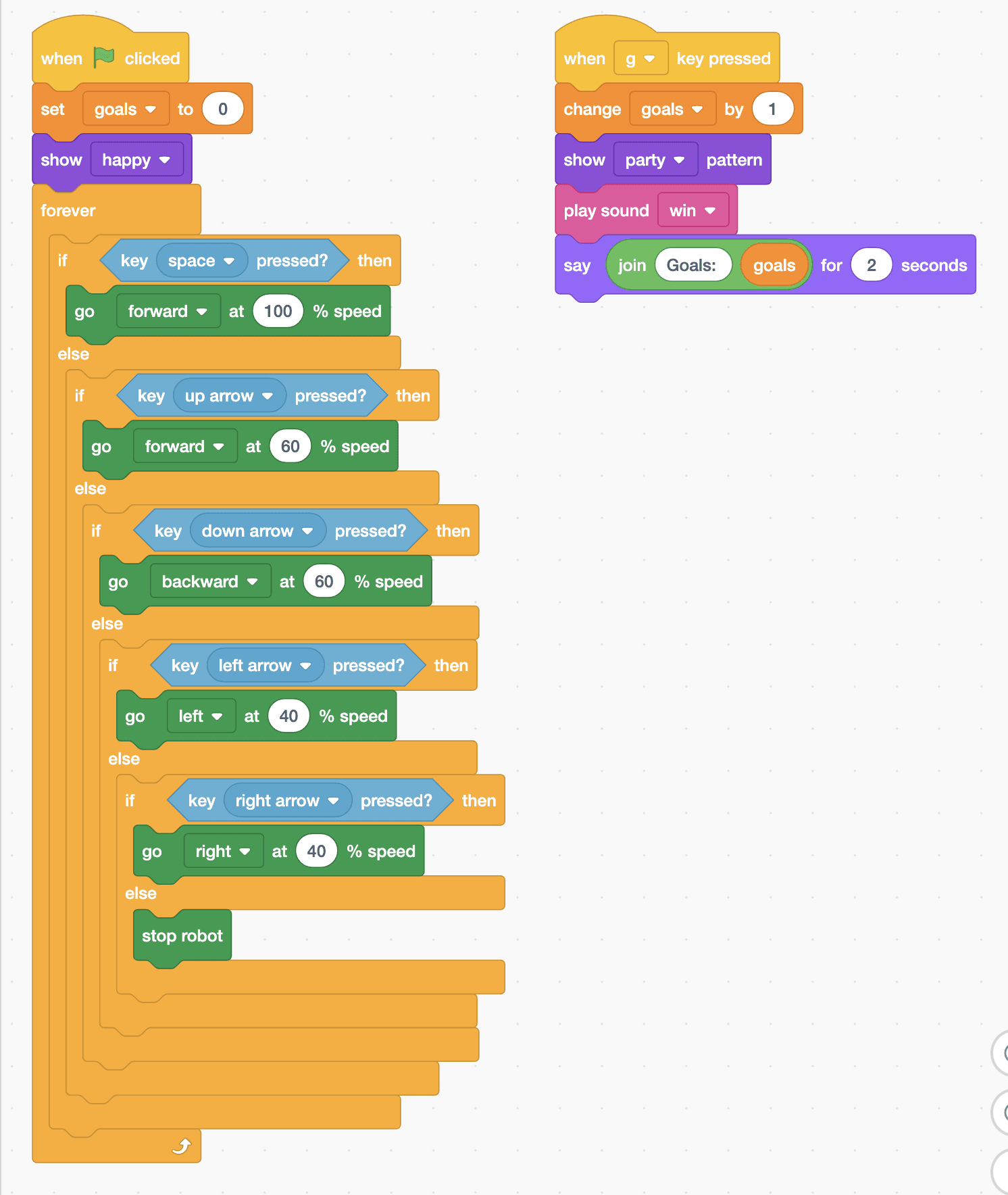
- Start with “when green flag clicked”, “set goals to 0” and “show happy”, then a “forever” loop.
- Inside the loop, add “if … else” with “key space pressed?” and “go forward at 100 % speed” to sprint. Checking space first means it wins over the other keys.
- In the else part, chain the arrow keys: up “go forward at 60 % speed”, down “go backward at 60 % speed”, left “go left at 40 % speed”, right “go right at 40 % speed”, and “stop robot” in the last else.
- Add the goal celebration: “when g key pressed”, “change goals by 1”, “show party pattern”, “play sound win” and “say (join Goals: (goals)) for 2 seconds”.
- Click the green flag, click once on the stage, and kick off!
Arena mode: the program runs on your computer and talks to MIEO live over USB or Bluetooth, so keep MIEO switched on and connected.
when green flag clicked
set [goals v] to (0)
show [happy v]
forever
  if <key [space v] pressed?> then
    go [forward v] at (100) % speed
  else
    if <key [up arrow v] pressed?> then
      go [forward v] at (60) % speed
    else
      if <key [down arrow v] pressed?> then
        go [backward v] at (60) % speed
      else
        if <key [left arrow v] pressed?> then
          go [left v] at (40) % speed
        else
          if <key [right arrow v] pressed?> then
            go [right v] at (40) % speed
          else
            stop robot
          end
        end
      end
    end
  end
end

when [g v] key pressed
change [goals v] by (1)
show [party v] pattern
play sound [win v]
say (join (Goals:) (goals)) for (2) secondsTest it
Click the green flag: the score shows 0 and MIEO smiles. The arrow keys drive and turn it, and letting go stops it. Hold space and it sprints forward at full speed, even if an arrow key is held too, which is how you shoot. Press G after a goal: the score goes up by one, MIEO's display flashes party lights, it plays its win sound and the sprite says the score.
If it doesn't work
- MIEO is hard to line up with the ball? Tap the arrow keys instead of holding them, and turn slowly.
- The ball rolls under the pusher? Use a bigger, lighter ball, or lower the pusher.
- The keys do nothing? Click once on the stage so Robolab is listening to the keyboard.
Make it your own
- Easy: change the sprint speed and the turning speed to suit your pitch.
- Medium: add a match timer that ends the game after two minutes with a final whistle sound.
- Hard: play two against two with four MIEOs, each driven from its own computer, and agree a rule for robots that block the goal.