Remote-Controlled Robotic Arm
Work an arm and gripper with two servos from your keyboard
What you'll build
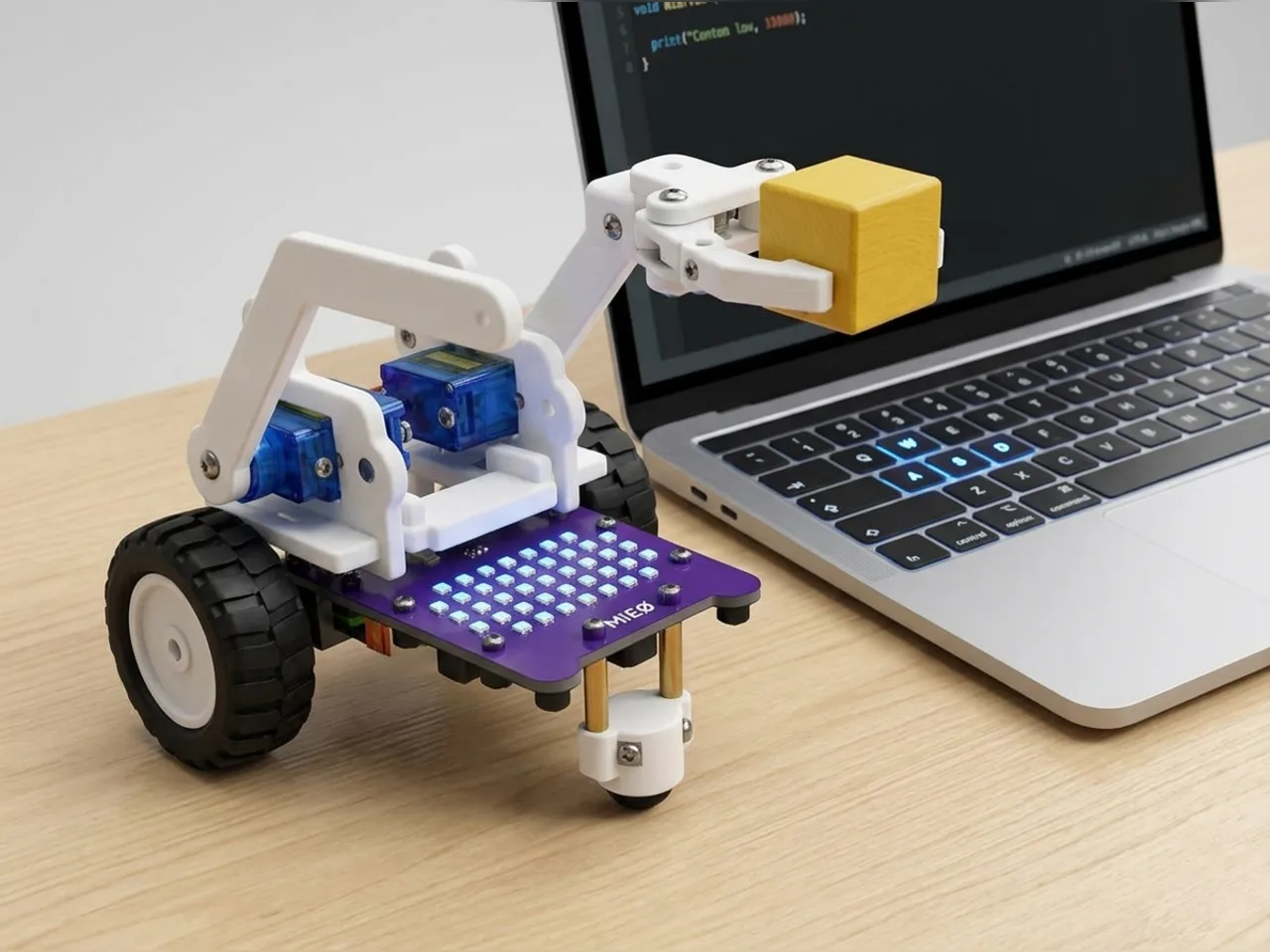
This robotic arm has two jobs to control at once: an arm that lifts and lowers, and a gripper that opens and closes. With your computer keyboard as the controller, the arrow keys move the arm and the O and C keys open and close the gripper. Each servo keeps its own angle in its own variable, inside its own safe limits. Practise until you can pick up a block, lift it and put it down somewhere else: it's harder than it looks!
What you'll learn
- Controlling two servos at once, each with its own variable
- Keeping each part inside safe limits with “and”
- Joining text and numbers to show two readings together
- Why operating a robot arm by hand takes practice
You'll need
- Mieo board
- Two N20 motors and their wheels
- Battery
- 3D-printed mountings
- Caster wheel
- Screws and screwdriver
- Two servo motors, from the MIEO kit
- Gripper arm parts, from the Mieo Pro kit
- A small block, such as a toy brick
- A computer with Bluetooth
- The Robolab app (free)
Stay safe
- Ask an adult to help with the small screws.
- Plug extra parts only into the connector this page names. Wiring a part to the wrong connector can damage it for good.
Build it
- Build the gripper robot from your Mieo Pro kit, as in the Gripper Pick-and-Place Robot.
- With MIEO switched off, plug the gripper servo into connector S1 and the arm servo into connector S2, the right way round.
- Switch MIEO on and connect it to your computer over Bluetooth. Run the program once before tightening the arm, then fit it sticking straight out with the gripper open.
Code it
- Open Robolab, choose Mieo, connect over Bluetooth and set the switch at the top right to Arena. Make two variables, arm and grip.
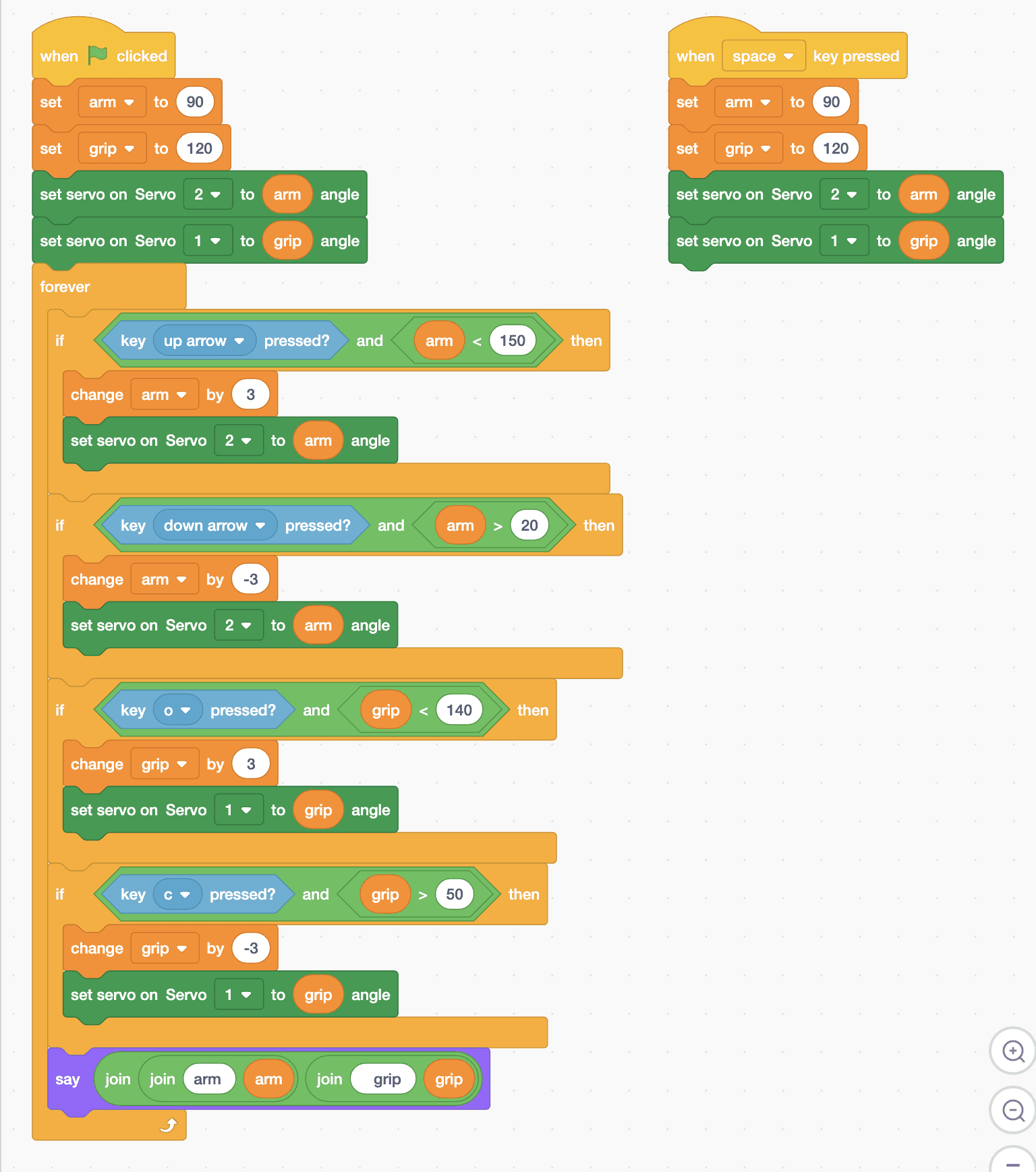
- Start with “when green flag clicked”, “set arm to 90”, “set grip to 120”, and two servo blocks: “set servo on Servo 2 to (arm) angle” and “set servo on Servo 1 to (grip) angle”.
- Add a “forever” loop with four “if … then” blocks. Up arrow and arm < 150 does “change arm by 3” and the Servo 2 block. Down arrow and arm > 20 does “change arm by -3” and the Servo 2 block.
- Key o and grip < 140 does “change grip by 3” and the Servo 1 block; key c and grip > 50 does “change grip by -3” and the Servo 1 block.
- Still in the loop, add “say” with joins reading arm, then the arm variable, then grip, then the grip variable.
- Add “when space key pressed” with the same four blocks as the start, to send everything home. Click the green flag and click once on the stage.
Arena mode: the program runs on your computer and talks to MIEO live over USB or Bluetooth, so keep MIEO switched on and connected.
when green flag clicked
set [arm v] to (90)
set [grip v] to (120)
set servo on Servo [2 v] to (arm) angle
set servo on Servo [1 v] to (grip) angle
forever
  if <<key [up arrow v] pressed?> and <(arm) < (150)>> then
    change [arm v] by (3)
    set servo on Servo [2 v] to (arm) angle
  end
  if <<key [down arrow v] pressed?> and <(arm) > (20)>> then
    change [arm v] by (-3)
    set servo on Servo [2 v] to (arm) angle
  end
  if <<key [o v] pressed?> and <(grip) < (140)>> then
    change [grip v] by (3)
    set servo on Servo [1 v] to (grip) angle
  end
  if <<key [c v] pressed?> and <(grip) > (50)>> then
    change [grip v] by (-3)
    set servo on Servo [1 v] to (grip) angle
  end
  say (join (join (arm) (arm)) (join (grip) (grip)))
end

when [space v] key pressed
set [arm v] to (90)
set [grip v] to (120)
set servo on Servo [2 v] to (arm) angle
set servo on Servo [1 v] to (grip) angleTest it
Click the green flag: the arm moves to 90 and the gripper opens, and the Mieo sprite says “arm 90 grip 120”. Hold the up or down arrow and the arm rises or lowers smoothly, stopping at its limits. Hold C and the gripper closes; hold O and it opens. Press space to send both back home. Try lowering the arm, closing the gripper on a block and lifting it.
If it doesn't work
- The gripper opens when you press C? Swap the 3 and the -3 in the two gripper blocks.
- The gripper can't hold the block? Let it close further by changing the limit 50 to 40, a little at a time.
- The keys do nothing? Click once on the stage so Robolab is listening to the keyboard, and check the menus say o and c.
Make it your own
- Easy: change the home position to suit your desk, such as the arm a little lower.
- Medium: add the left and right arrows to turn MIEO on the spot, so it can carry the block somewhere else.
- Hard: time how long it takes you to move three blocks from one side to the other, using Robolab's timer.