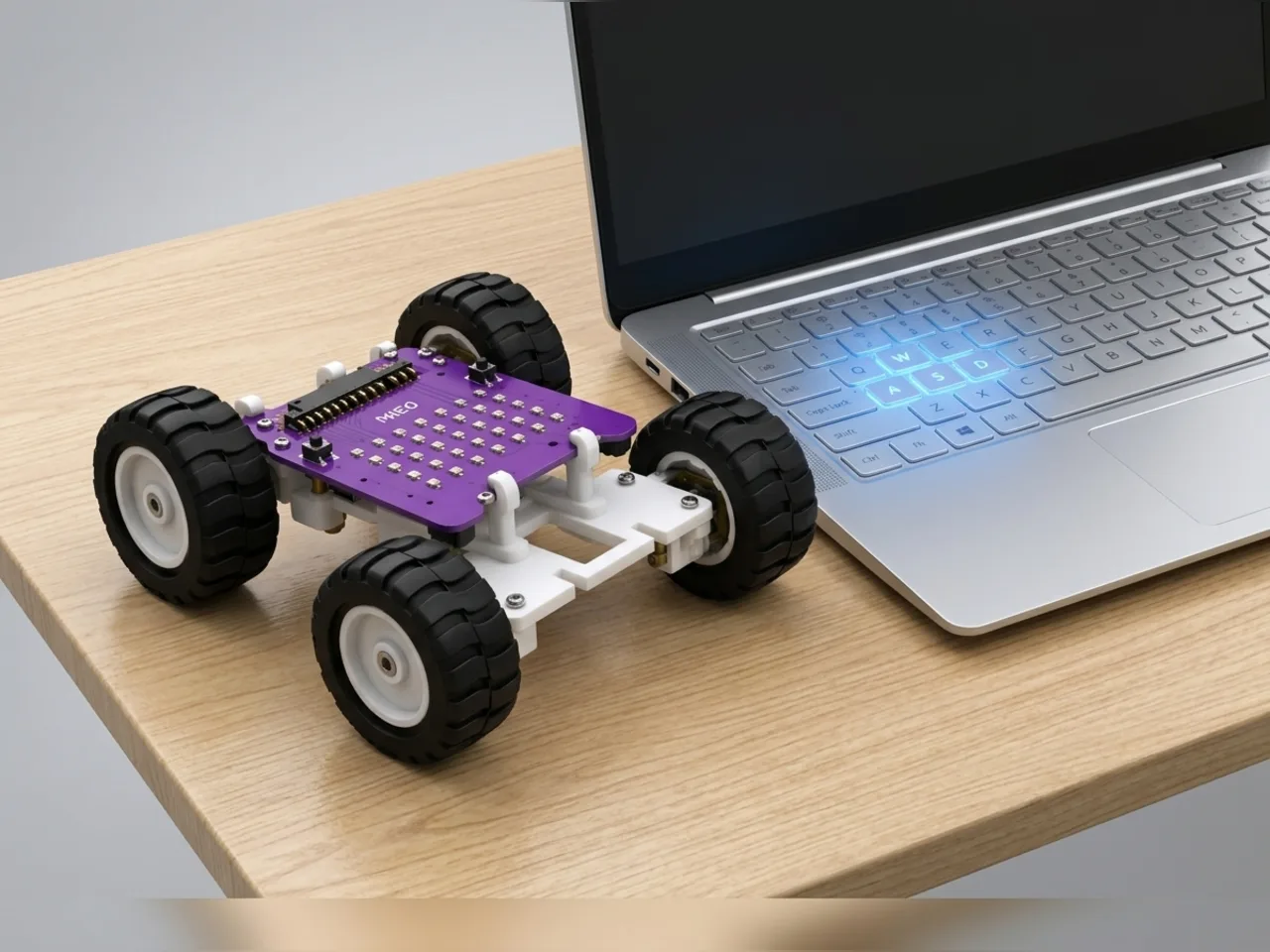
Gamepad Controlled Robot
Drive with W, A, S and D like a gamepad, using your keyboard
What you'll build
Video games often use W, A, S and D to move: W forward, S back, A left and D right. In this project those keys drive a Mieo Pro rover, with your computer keyboard as the controller. Hold W and the rover drives straight. Hold W and A together and it sweeps round a curve to the left, the way a game character turns while running. Hold A on its own and it spins on the spot. Mixing two keys is what makes driving feel smooth.
What you'll learn
- Checking two keys at once, one if block inside another
- Curving by running one wheel slower than the other
- Spinning by running the wheels in opposite directions
- Why the order of your checks decides which key wins
You'll need
- Mieo board
- Two N20 motors and their wheels
- Battery
- 3D-printed mountings
- Screws and screwdriver
- Rover body and wheel parts, from the Mieo Pro kit
- A computer with Bluetooth
- The Robolab app (free)
Stay safe
- Ask an adult to help with the small screws.
- Lift MIEO's wheels off the table before you upload a driving program, so it can't drive off the edge.
Build it
- Build the rover from your Mieo Pro kit, with both N20 motors, their wheels and the battery, as the Mieo Pro build guide shows.
- Clear a driving area on the floor, away from stairs and table edges. A few cups make a good slalom course.
- Switch the rover on and turn on Bluetooth on your computer.
Code it
- Open Robolab, choose Mieo, click the connection button and pick your MIEO from the Bluetooth list. Set the switch at the top right to Arena.
- Start with “when green flag clicked” and “show happy”, then add a “forever” loop with an “if … else” for “key w pressed?”.
- Inside the W part, check the steering keys: “if key a pressed?” runs “run motor 1 20 % motor 2 70 %” for a left curve; otherwise “if key d pressed?” runs 70 and 20 for a right curve; otherwise 70 and 70 drives straight.
- In the else part of the W check, add the other keys in turn: S runs both motors at -50 to reverse, A runs -50 and 50 to spin left, and D runs 50 and -50 to spin right.
- The very last else part is “stop robot”, so the rover stops when you let go.
- Click the green flag, click once on the stage, and drive.
Arena mode: the program runs on your computer and talks to MIEO live over USB or Bluetooth, so keep MIEO switched on and connected.
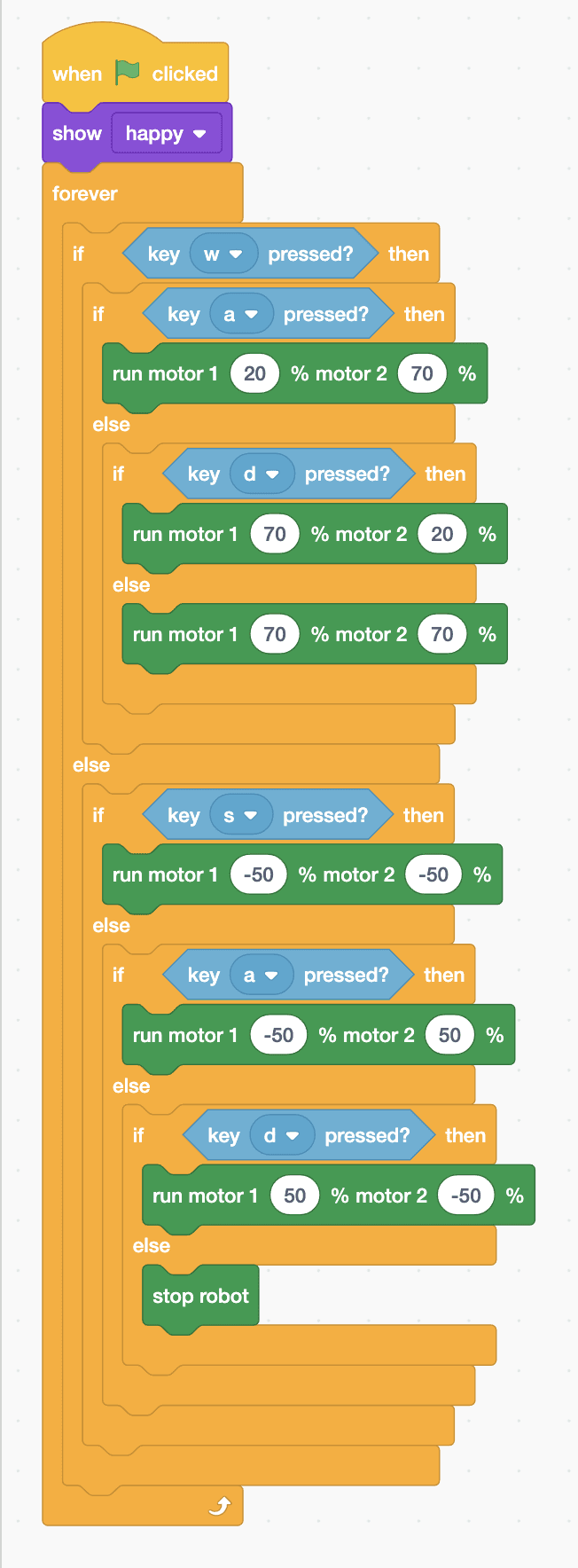
when green flag clicked
show [happy v]
forever
  if <key [w v] pressed?> then
    if <key [a v] pressed?> then
      run motor 1 (20) % motor 2 (70) %
    else
      if <key [d v] pressed?> then
        run motor 1 (70) % motor 2 (20) %
      else
        run motor 1 (70) % motor 2 (70) %
      end
    end
  else
    if <key [s v] pressed?> then
      run motor 1 (-50) % motor 2 (-50) %
    else
      if <key [a v] pressed?> then
        run motor 1 (-50) % motor 2 (50) %
      else
        if <key [d v] pressed?> then
          run motor 1 (50) % motor 2 (-50) %
        else
          stop robot
        end
      end
    end
  end
endTest it
Click the green flag and the rover smiles. Hold W and it drives straight. Hold W with A and it curves smoothly to the left; W with D curves right. S reverses. A or D on its own spins it on the spot. Let go of every key and it stops straight away.
If it doesn't work
- Curves turn the wrong way? Motor 1 is the left wheel and motor 2 the right. The slower wheel is on the inside of the curve.
- The keys do nothing? Click once on the stage first, and check the keys are lower-case w, a, s and d in the menus.
- It spins when you want it to curve? The A and D checks for curving must be inside the W part, not after it.
Make it your own
- Easy: make the curves tighter or wider by changing 20 and 70.
- Medium: let S curve backwards too, with S and A, or S and D, held together.
- Hard: time yourself round a slalom of cups: reset the timer when you press g to go, and say the time when you press f to finish.
What to build next
Robot arms
Remote Servo Arm
Raise and lower a servo arm with your keyboard
Robot arms
Gripper Pick-and-Place Robot
Pick up a block, carry it and put it down in one sequence
Robot arms
Warehouse Picker Robot
Follow a line to a shelf, pick up a box and bring it back