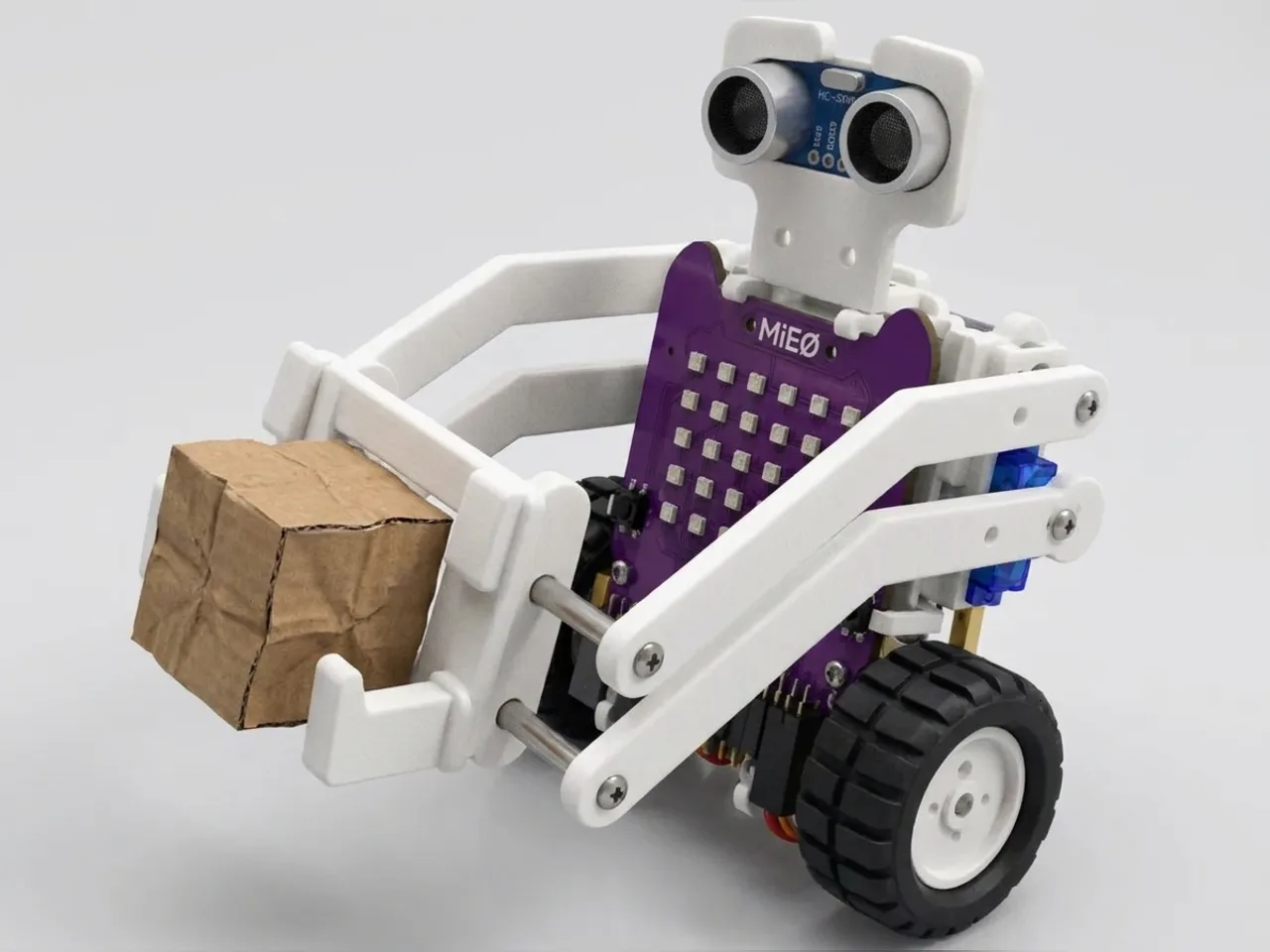
Wall-E Robot
Build a Wall-E with lifting arms and expressive eyes
What you'll build
Wall-E is the little robot from the film who tidies up a whole planet, one cube at a time. With the Mieo Pro kit, MIEO becomes a Wall-E of its own: forklift arms on a servo at the front and the ultrasonic sensor on top as a pair of curious eyes. Press L and Wall-E creeps forward until it finds a cube, looks surprised, scoops the cube up, carries it away, puts it down and shows a heart, proud of a job well done.
What you'll learn
- Combining a sensor, a servo and the motors in one job
- Driving slowly and checking often, so the robot stops in the right place
- Using a flag variable to say when a search is over
- Breaking a job into steps: find, lift, carry, drop
- Giving a robot character with faces and sounds at the right moments
You'll need
- Mieo board
- Two N20 motors and their wheels
- Battery
- 3D-printed mountings
- Caster wheel
- Screws and screwdriver
- Ultrasonic distance sensor and its cable
- A servo motor, from the MIEO kit
- Wall-E forklift and body parts, from the Mieo Pro kit
- A small cardboard cube, about 4 cm across
- A USB cable, or Bluetooth on your computer
- The Robolab app (free)
Stay safe
- Ask an adult to help with the small screws.
- Lift MIEO's wheels off the table before you upload a driving program, so it can't drive off the edge.
- Plug extra parts only into the connector this page names. Wiring a part to the wrong connector can damage it for good.
Build it
- Build the Wall-E body from your Mieo Pro kit, with both N20 motors, their wheels, the caster wheel and the battery, as the Mieo Pro build guide shows.
- With MIEO switched off, plug the forklift servo into connector S1, the right way round, and the ultrasonic sensor's Echo pin into D1 and Trig pin into D2, with its power and ground pins on the matching pins.
- Mount the sensor on top as Wall-E's eyes, looking forward and slightly down so it can see the cube.
- Upload the program once before fitting the forklift arms: the servo turns to 20. Then fit the arms lying flat, just above the floor.
- Switch MIEO on and connect it to your computer with a USB cable or Bluetooth.
Code it
- Open Robolab, choose Mieo, connect and set the switch at the top right to Upload. Make two variables, distance and found.
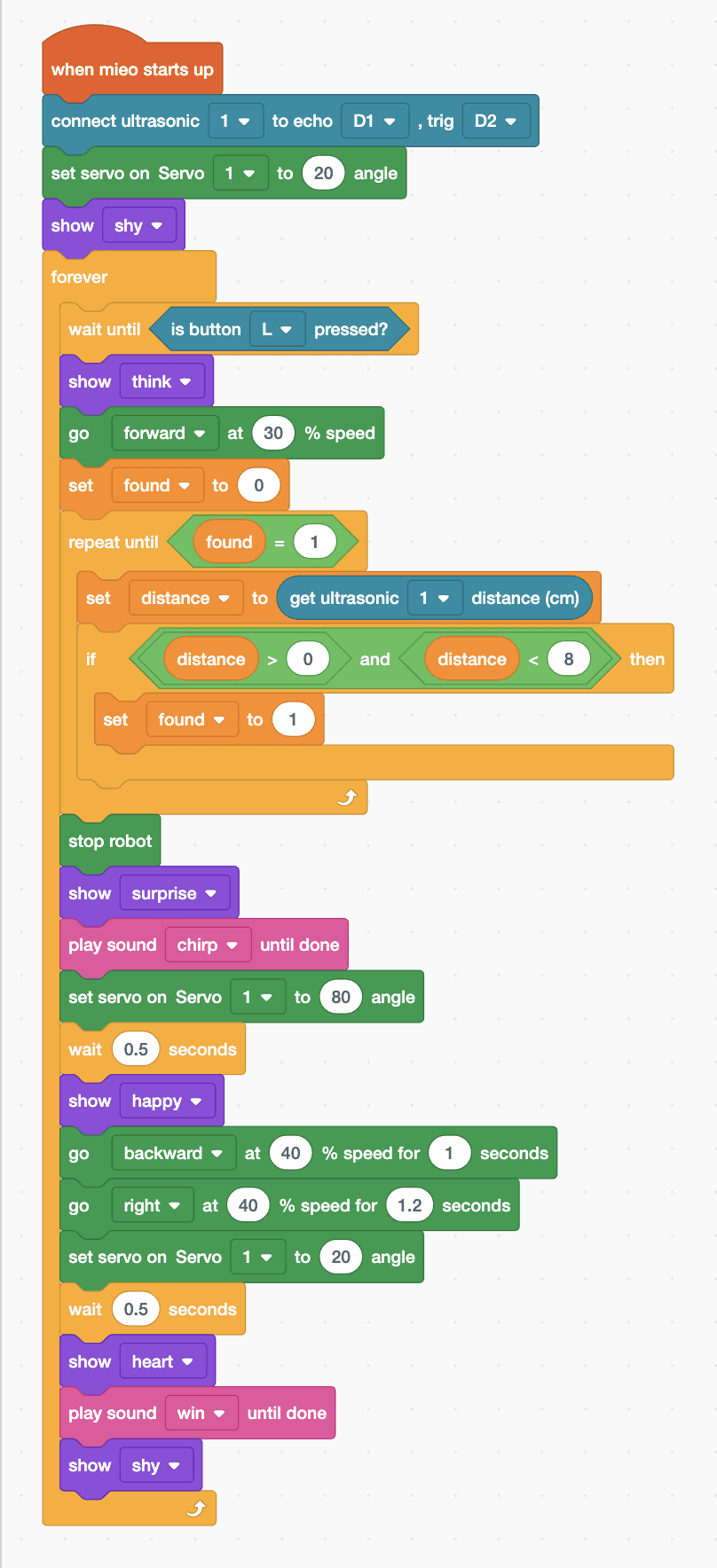
- Start with “when mieo starts up”, “connect ultrasonic 1 to echo D1 , trig D2”, “set servo on Servo 1 to 20 angle” to lower the arms, and “show shy”. Add a “forever” loop with “wait until is button L pressed?” and “show think” inside.
- Find the cube: add “go forward at 30 % speed”, “set found to 0” and “repeat until found = 1”. Inside the repeat, add “set distance to (get ultrasonic 1 distance (cm))” and “if distance > 0 and distance < 8 then set found to 1”. After the repeat, add “stop robot”.
- React: “show surprise”, “play sound chirp until done”, then lift with “set servo on Servo 1 to 80 angle” and “wait 0.5 seconds”.
- Carry it away: “show happy”, “go backward at 40 % speed for 1 seconds” and “go right at 40 % speed for 1.2 seconds” to turn round.
- Drop it off: “set servo on Servo 1 to 20 angle”, “wait 0.5 seconds”, “show heart” and “play sound win until done”, then “show shy” at the end of the loop.
- Lift the wheels and upload. Put the cube about 30 cm in front of Wall-E and press L.
Upload mode: Robolab turns your blocks into MicroPython and sends them to MIEO over USB or Bluetooth. MIEO then runs the program by itself, even after you unplug it.
when mieo starts up
connect ultrasonic [1 v] to echo [D1 v] , trig [D2 v]
set servo on Servo [1 v] to (20) angle
show [shy v]
forever
  wait until <is button [L v] pressed?>
  show [think v]
  go [forward v] at (30) % speed
  set [found v] to (0)
  repeat until <(found) = (1)>
    set [distance v] to (get ultrasonic [1 v] distance (cm))
    if <<(distance) > (0)> and <(distance) < (8)>> then
      set [found v] to (1)
    end
  end
  stop robot
  show [surprise v]
  play sound [chirp v] until done
  set servo on Servo [1 v] to (80) angle
  wait (0.5) seconds
  show [happy v]
  go [backward v] at (40) % speed for (1) seconds
  go [right v] at (40) % speed for (1.2) seconds
  set servo on Servo [1 v] to (20) angle
  wait (0.5) seconds
  show [heart v]
  play sound [win v] until done
  show [shy v]
endSee the MicroPython
# generated by Robolab
import mieo

found = 0
distance = 0

mieo.connectultrasonic(1, 'D1', 'D2')
mieo.setservo('S1', 20)
mieo.showemotion('shy')
while True:
  while not mieo.button('L'):
     pass
  mieo.showemotion('think')
  mieo.run('forward', 30)
  found = 0
  while not found == 1:
    distance = mieo.ultrasonic(1)
    if distance > 0 and distance < 8:
      found = 1
  mieo.stoprobot()
  mieo.showemotion('surprise')
  mieo.playsounduntildone('chirp')
  mieo.setservo('S1', 80)
  mieo.sleep(0.5 * 1000)
  mieo.showemotion('happy')
  mieo.run('backward', 40)
  mieo.sleep(1 * 1000)
  mieo.stoprobot()
  mieo.run('right', 40)
  mieo.sleep(1.2 * 1000)
  mieo.stoprobot()
  mieo.setservo('S1', 20)
  mieo.sleep(0.5 * 1000)
  mieo.showemotion('heart')
  mieo.playsounduntildone('win')
  mieo.showemotion('shy')
Test it
Wall-E lowers its arms and looks shy. Press L: it thinks, then creeps towards the cube. About 8 cm away it stops, looks surprised and chirps, then lifts its arms with the cube on them. It backs away happily, turns round, lowers the cube to the floor, shows a heart and plays its win sound.
If it doesn't work
- Wall-E drives past the cube? The sensor may be looking over it. Tilt the eyes down a little, or use a taller box.
- The arms don't get under the cube? Wall-E must stop closer, so change 8 to 5, and check the arms lie flat at 20.
- The servo buzzes when the arms are up? The cube may be too heavy. Use a lighter cube, or lift to 60 instead of 80.
Make it your own
- Easy: change the faces and sounds to give Wall-E your own idea of its personality.
- Medium: after dropping the cube off, make Wall-E turn round again and go looking for another one.
- Hard: count the cubes Wall-E has tidied in a variable and scroll the number across its display after each one.
What to build next
Expression
Cosmo Robot
A companion robot that reacts with faces, sounds and moves
Remote control
Bluetooth Controlled Jeep
Build a four-wheel jeep and drive it from your keyboard
Remote control
Gamepad Controlled Robot
Drive with W, A, S and D like a gamepad, using your keyboard