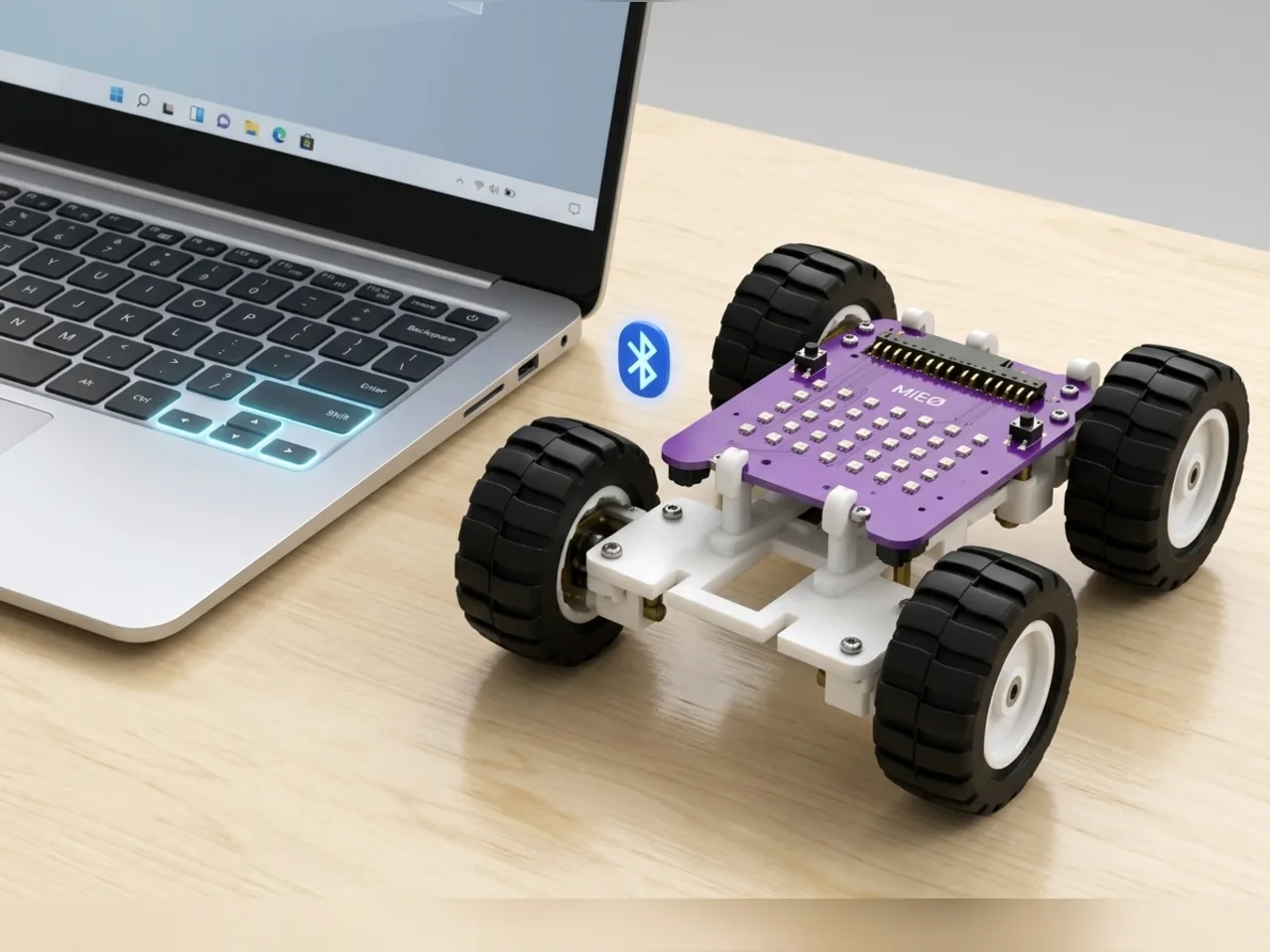
Bluetooth Remote Drive
Drive MIEO over Bluetooth with your computer's arrow keys
What you'll build
In this project MIEO becomes a remote-control car, and your computer keyboard is the controller. Hold the up arrow and MIEO drives forward; hold left or right and it spins; let go and it stops. Press space to honk. The program runs in Arena mode: it runs on your computer, and each command travels to MIEO over Bluetooth the moment it's needed, so there's no cable to trip over.
What you'll learn
- How Arena mode sends commands to MIEO live over Bluetooth
- Checking keys again and again with “key … pressed?”
- Choosing one action out of five with “if … else” inside “if … else”
- Why a remote-control robot should stop as soon as you let go
You'll need
- Mieo board
- Two N20 motors and their wheels
- Battery
- 3D-printed mountings
- Caster wheel
- Screws and screwdriver
- A computer with Bluetooth
- The Robolab app (free)
Stay safe
- Ask an adult to help with the small screws.
- Lift MIEO's wheels off the table before you upload a driving program, so it can't drive off the edge.
Build it
- Build MIEO with both N20 motors, their wheels, the caster wheel and the battery, as in Switch Motor Start.
- Clear a space on the floor to drive in, away from stairs and table edges.
- Switch MIEO on and turn on Bluetooth on your computer. Arena mode keeps talking to MIEO the whole time, so Bluetooth lets it roam without a cable.
Code it
- Open Robolab, choose Mieo, click the connection button and pick your MIEO from the Bluetooth list. Set the switch at the top right to Arena.
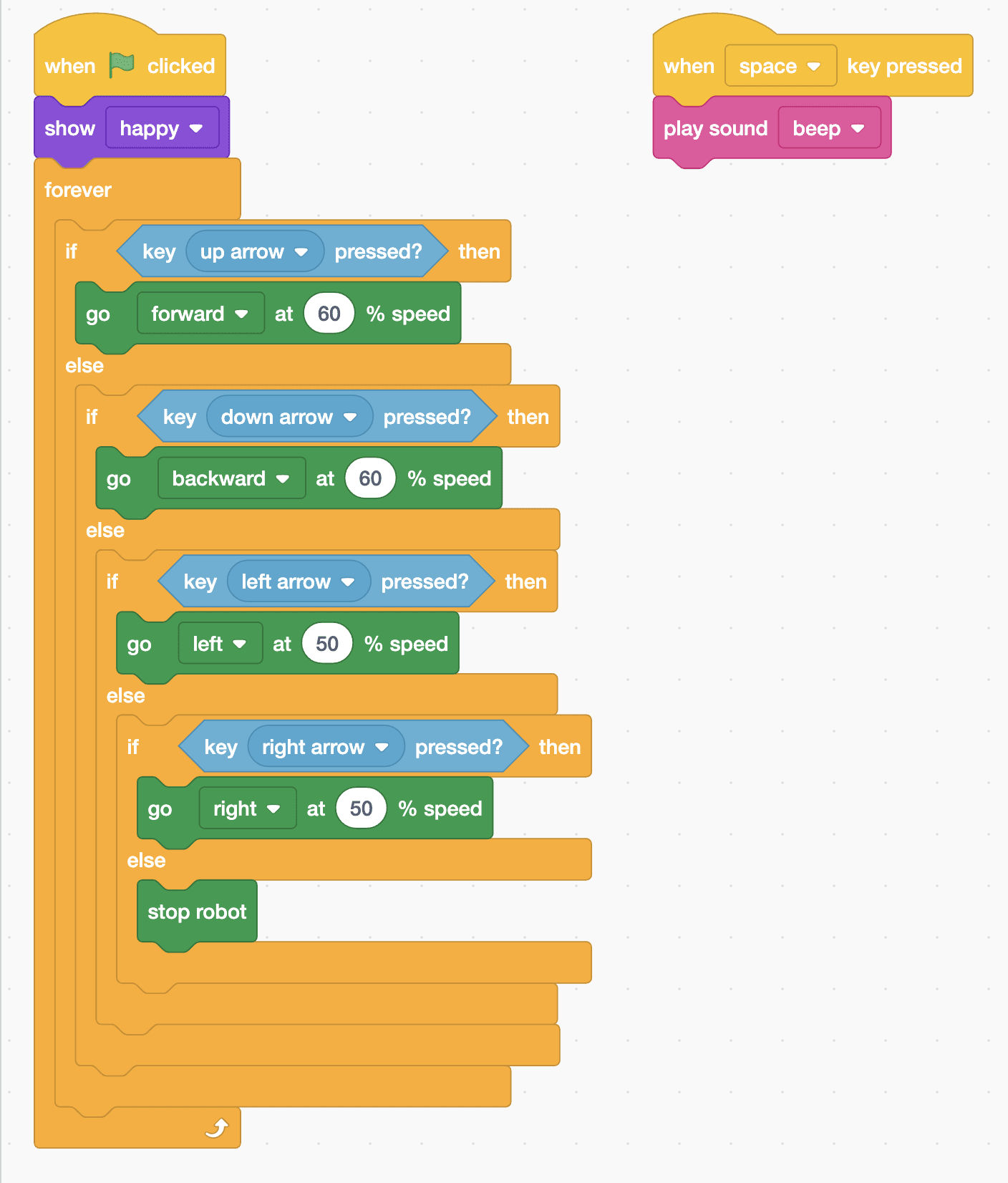
- Start with “when green flag clicked” and “show happy”, then add a “forever” loop.
- Inside the loop, add “if … else” with “key up arrow pressed?” from Sensing. Its top part is “go forward at 60 % speed”.
- In its else part, add another “if … else” for the down arrow, with “go backward at 60 % speed”. Keep going the same way: left arrow with “go left at 50 % speed”, then right arrow with “go right at 50 % speed”.
- In the very last else part, add “stop robot”, so MIEO stops whenever no arrow key is held.
- Start a second script with “when space key pressed” and “play sound beep”: that's the horn.
- Click the green flag, then click once on the stage so Robolab hears your keys. Drive!
Arena mode: the program runs on your computer and talks to MIEO live over USB or Bluetooth, so keep MIEO switched on and connected.
when green flag clicked
show [happy v]
forever
  if <key [up arrow v] pressed?> then
    go [forward v] at (60) % speed
  else
    if <key [down arrow v] pressed?> then
      go [backward v] at (60) % speed
    else
      if <key [left arrow v] pressed?> then
        go [left v] at (50) % speed
      else
        if <key [right arrow v] pressed?> then
          go [right v] at (50) % speed
        else
          stop robot
        end
      end
    end
  end
end

when [space v] key pressed
play sound [beep v]Test it
Click the green flag and MIEO smiles. Hold the up arrow and it drives forward; hold the down arrow and it reverses. Left and right spin it on the spot. Let go of every key and it stops straight away. Tap space and MIEO beeps its horn, even while it's driving.
If it doesn't work
- The keys do nothing? Click once on the stage, so Robolab is listening to the keyboard and not the code area.
- MIEO is slow to react or stops now and then? It's too far from the computer. Stay within a few metres, with nothing big in between.
- It keeps driving after you let go? The last else part must hold “stop robot”.
Make it your own
- Easy: make MIEO faster or slower by changing 60 and 50.
- Medium: show a different face for each direction, such as surprise when reversing.
- Hard: add a turbo key: while z is held as well as the up arrow, drive forward at 100 % instead of 60 %.
What to build next
Remote control
Bluetooth Controlled Jeep
Build a four-wheel jeep and drive it from your keyboard
Remote control
Gamepad Controlled Robot
Drive with W, A, S and D like a gamepad, using your keyboard
Robot arms
Remote Servo Arm
Raise and lower a servo arm with your keyboard