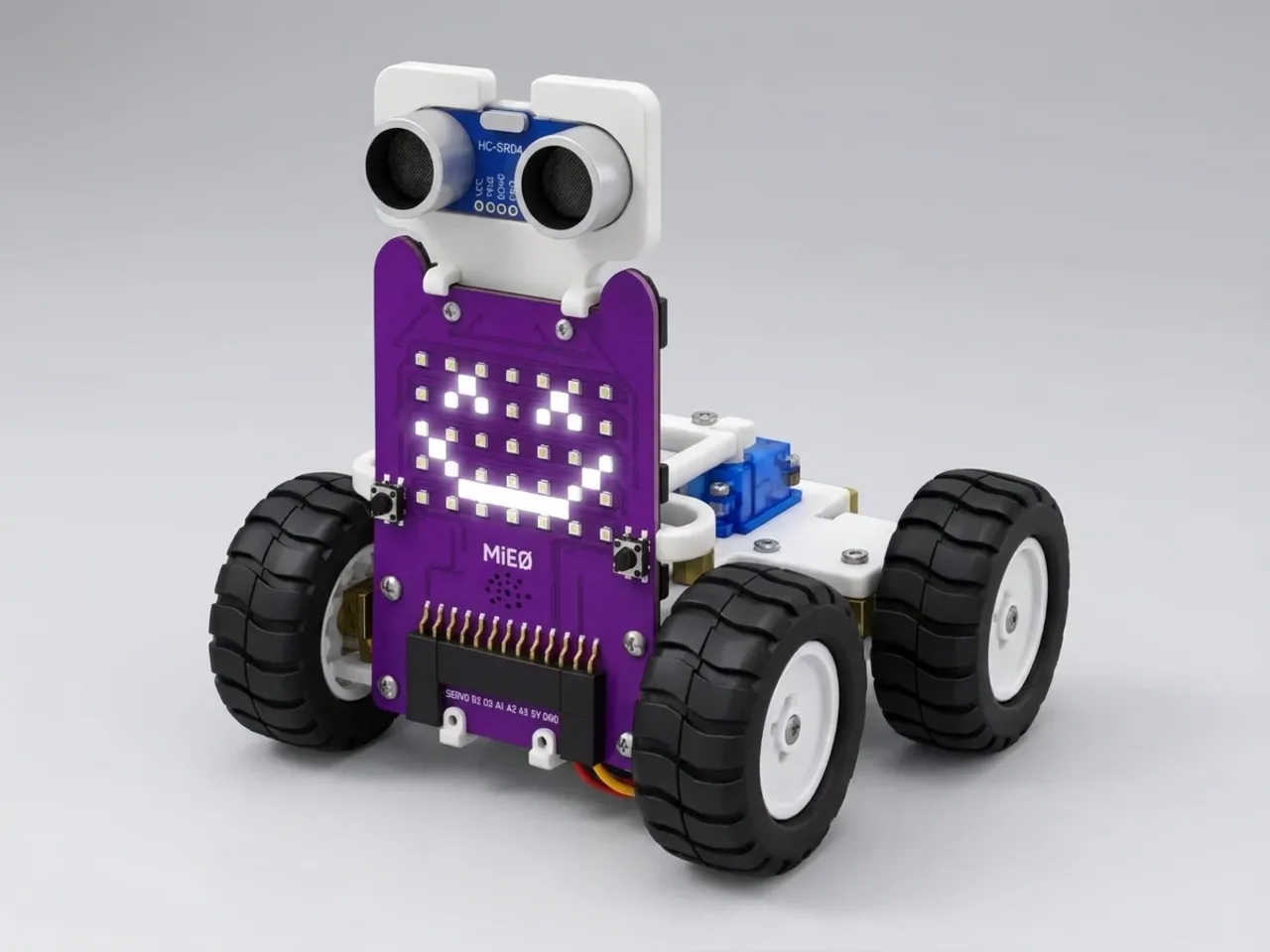
Mood Bot
Happy when it's moving, sad when it gets stuck
What you'll build
Robots don't have feelings, but showing a mood helps people understand what a robot is doing. In this project MIEO drives around happily. When something blocks its way it looks surprised, backs up and turns. If that happens three times, MIEO decides it's stuck and gets sad: it stops, cries and waits for you to cheer it up by touching its T1 pad. Then it's happy again and sets off once more.
What you'll learn
- Showing what a robot is doing through faces and sounds
- Counting events with a variable
- Choosing between a small reaction and a big one with “if … else”
- Waiting for a person to help with “wait until”
You'll need
- Mieo board
- Two N20 motors and their wheels
- Battery
- 3D-printed mountings
- Caster wheel
- Screws and screwdriver
- Ultrasonic distance sensor and its cable
- A USB cable, or Bluetooth on your computer
- The Robolab app (free)
Stay safe
- Ask an adult to help with the small screws.
- Lift MIEO's wheels off the table before you upload a driving program, so it can't drive off the edge.
- Plug extra parts only into the connector this page names. Wiring a part to the wrong connector can damage it for good.
Build it
- Build MIEO with both N20 motors, their wheels, the caster wheel and the battery, as in Switch Motor Start.
- With MIEO switched off, plug in the ultrasonic distance sensor: its Echo pin goes to D1, its Trig pin to D2, and its power and ground pins to the matching pins, as your kit's build guide shows.
- Fix the sensor at the front, facing forward, and make sure you can reach the T1 touch pad.
- Switch MIEO on and connect it to your computer with a USB cable or Bluetooth.
Code it
- Open Robolab, choose Mieo, connect and set the switch at the top right to Upload. Make two variables, distance and bumps.
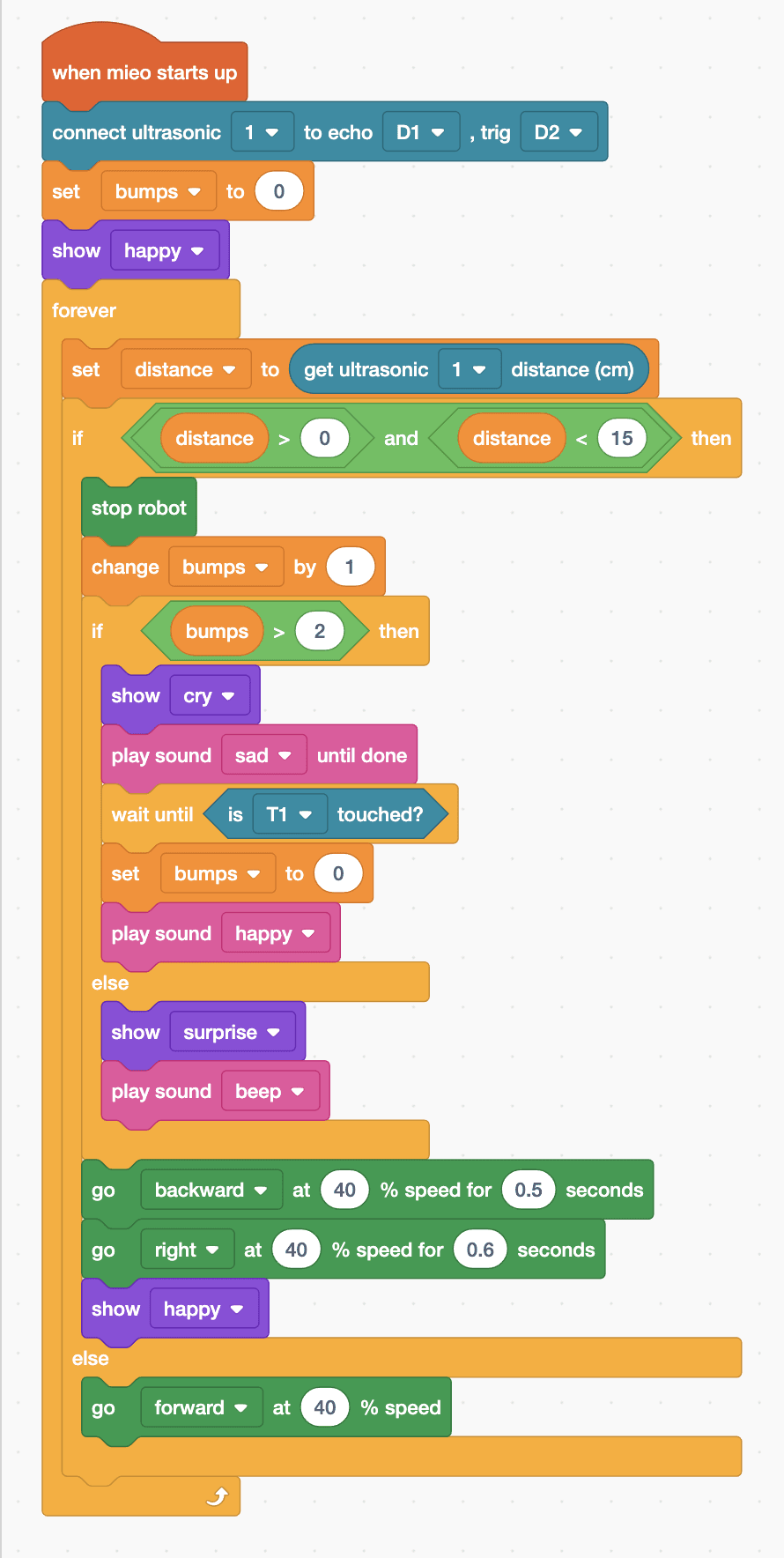
- Start with “when mieo starts up”, “connect ultrasonic 1 to echo D1 , trig D2”, “set bumps to 0” and “show happy”, then add a “forever” loop with “set distance to (get ultrasonic 1 distance (cm))” inside.
- Add “if … else” with “distance > 0 and distance < 15”. In its else part, add “go forward at 40 % speed”.
- In its top part, add “stop robot” and “change bumps by 1”, then another “if … else” with “bumps > 2” as its condition.
- Stuck: in that top part, add “show cry”, “play sound sad until done”, “wait until is T1 touched?”, “set bumps to 0” and “play sound happy”.
- Just a bump: in its else part, add “show surprise” and “play sound beep”. After this inner “if … else”, add “go backward at 40 % speed for 0.5 seconds”, “go right at 40 % speed for 0.6 seconds” and “show happy”.
- Lift the wheels and upload, then let MIEO loose in a room with a few boxes.
Upload mode: Robolab turns your blocks into MicroPython and sends them to MIEO over USB or Bluetooth. MIEO then runs the program by itself, even after you unplug it.
when mieo starts up
connect ultrasonic [1 v] to echo [D1 v] , trig [D2 v]
set [bumps v] to (0)
show [happy v]
forever
  set [distance v] to (get ultrasonic [1 v] distance (cm))
  if <<(distance) > (0)> and <(distance) < (15)>> then
    stop robot
    change [bumps v] by (1)
    if <(bumps) > (2)> then
      show [cry v]
      play sound [sad v] until done
      wait until <is [T1 v] touched?>
      set [bumps v] to (0)
      play sound [happy v]
    else
      show [surprise v]
      play sound [beep v]
    end
    go [backward v] at (40) % speed for (0.5) seconds
    go [right v] at (40) % speed for (0.6) seconds
    show [happy v]
  else
    go [forward v] at (40) % speed
  end
endSee the MicroPython
# generated by Robolab
import mieo

bumps = 0
distance = 0

mieo.connectultrasonic(1, 'D1', 'D2')
bumps = 0
mieo.showemotion('happy')
while True:
  distance = mieo.ultrasonic(1)
  if distance > 0 and distance < 15:
    mieo.stoprobot()
    bumps += 1
    if bumps > 2:
      mieo.showemotion('cry')
      mieo.playsounduntildone('sad')
      while not mieo.touched('T1'):
         pass
      bumps = 0
      mieo.playsound('happy')
    else:
      mieo.showemotion('surprise')
      mieo.playsound('beep')
    mieo.run('backward', 40)
    mieo.sleep(0.5 * 1000)
    mieo.stoprobot()
    mieo.run('right', 40)
    mieo.sleep(0.6 * 1000)
    mieo.stoprobot()
    mieo.showemotion('happy')
  else:
    mieo.run('forward', 40)
Test it
MIEO smiles and drives off. At the first obstacle it stops, looks surprised, beeps, backs up, turns and smiles again. The same happens at the second. At the third, it cries, plays its sad sound and stays still. Touch T1 and it plays its happy sound, backs away, turns, smiles and drives on with a fresh start.
If it doesn't work
- MIEO gets sad at the very first bump? Check “set bumps to 0” is before the loop, and that the inner check is bumps > 2.
- It never cheers up? Touch the T1 pad itself with a dry fingertip, and check the wait block names T1.
- It drives into things without noticing? Check Echo is in D1 and Trig in D2, and test with hard boxes rather than soft cushions.
Make it your own
- Easy: choose your own faces and sounds for each mood.
- Medium: make MIEO get sad after five bumps instead of three.
- Hard: give MIEO a sleepy mood too: if nobody has touched it for a while, show sleep and stop until someone presses L.
What to build next
Expression
Magic Answer Ball
Ask a question, press L, and MIEO thinks before it answers
Remote control
Bluetooth Remote Drive
Drive MIEO over Bluetooth with your computer's arrow keys
Expression
Dancing Robot
Dance to a tune with moves, faces and light patterns