Line Follower Robot
Follow the black line on the line follower chart by itself
What you'll build
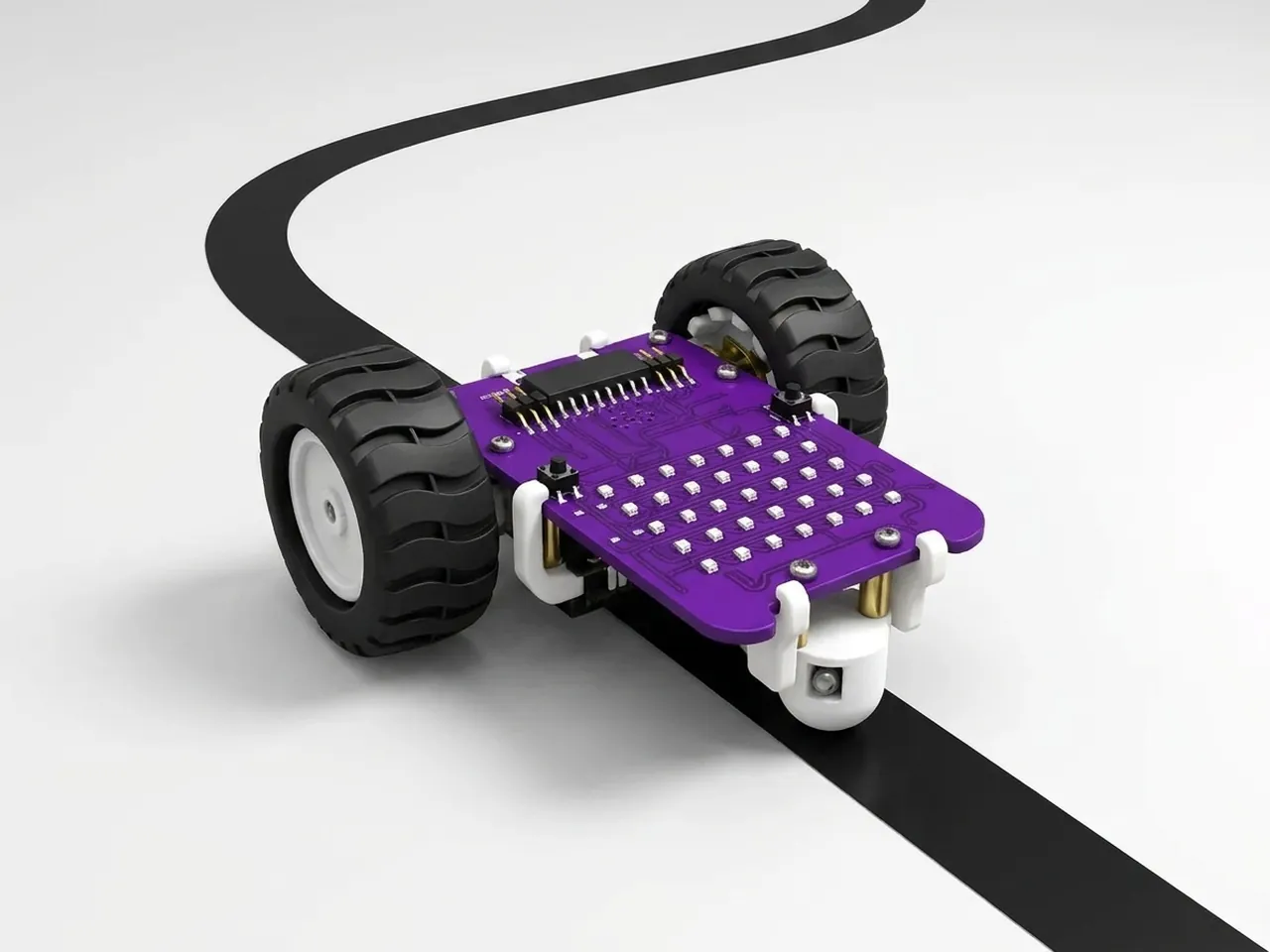
A line follower is a robot that drives itself along a dark line on a light floor. MIEO has two line sensors underneath that can see the black line on the line follower chart from your kit. Robolab has a ready-made “do line following” block that reads both sensors and steers the motors a little each time it runs. Put it inside a forever loop and MIEO follows the line around every curve, all on its own.
What you'll learn
- How line sensors tell a dark line from a light floor
- How a robot steers by changing the speed of each wheel
- Why a loop that runs many times a second makes smooth, self-driving movement
- How to tune the speed and sensor thresholds so the robot stays on the line
You'll need
- Mieo board
- Two N20 motors and their wheels
- Battery
- 3D-printed mountings
- Caster wheel
- Screws and screwdriver
- Line follower chart
- The Robolab app (free)
Stay safe
- Ask an adult to help with the small screws.
- Lift MIEO's wheels off the table before you upload a driving program, so it can't drive off the edge.
Build it
- Fix the two N20 motors into their 3D-printed mountings with the screws, then push a wheel onto each motor.
- Screw the motor mountings to the Mieo board so one wheel sits on each side.
- Fit the caster wheel so MIEO balances on its two wheels and the caster.
- Fit the battery in its mounting, connect it and switch MIEO on.
- Lay the line follower chart flat on the floor or a large table. MIEO's line sensors should face down, just above the paper.
Code it

Want MIEO Bot to guide you?
Robolab's built-in tutor has a lesson on the same idea, “Line Follower”. Open MIEO Bot in Robolab, pick Maker, then Mieo, and it shows you the blocks one at a time and checks your work as you go.
About MIEO Bot's lessons- In Robolab, choose Mieo as your device, connect to it and set the switch at the top right to Upload.
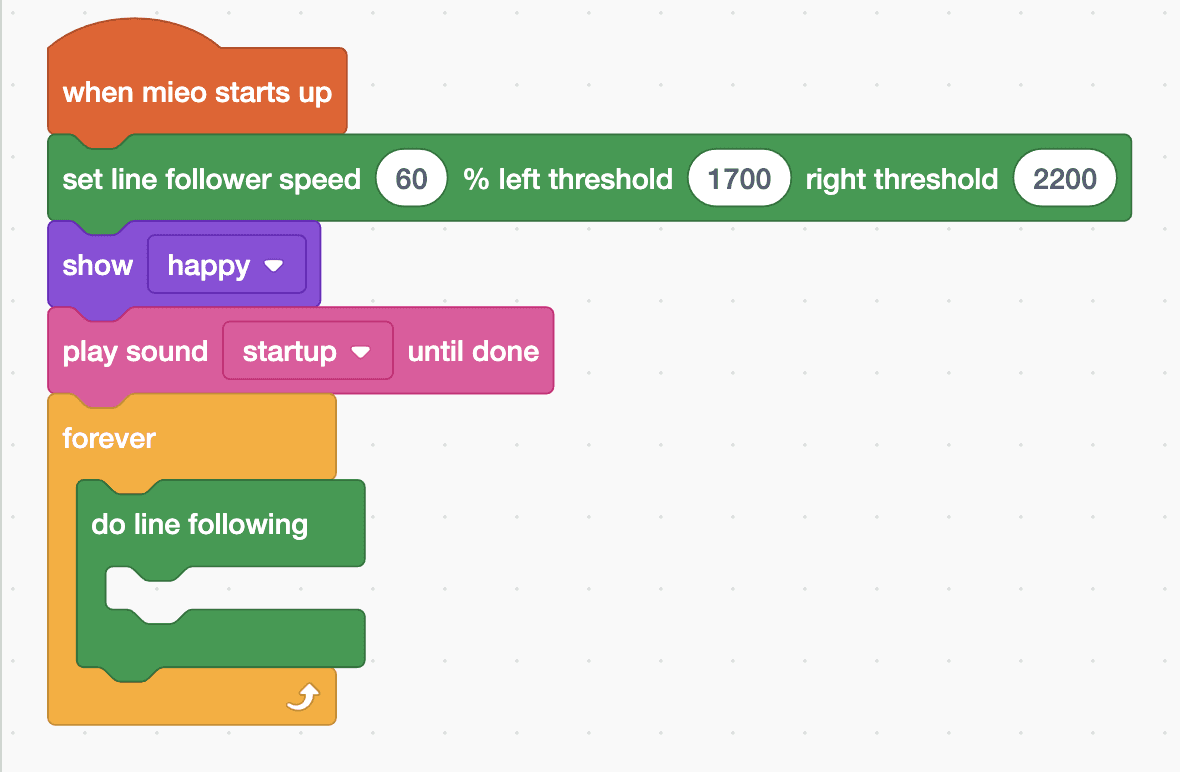
- Start with “when mieo starts up”. From the Robot group, add “set line follower speed 60 % left threshold 1700 right threshold 2200”. These are the app's starting values.
- Add “show happy” and “play sound startup until done”, so you can tell the program has started.
- Add a “forever” loop and put “do line following” inside it. Each time it runs, MIEO reads both sensors and steers a little towards the line. The gap inside “do line following” only runs when both sensors see black at once, so leave it empty for now.
- Upload the program, lift MIEO and put it down on the chart with the black line between its two sensors.
Upload mode: Robolab turns your blocks into MicroPython and sends them to MIEO over USB or Bluetooth. MIEO then runs the program by itself, even after you unplug it.
when mieo starts up
set line follower speed (60) % left threshold (1700) right threshold (2200)
show [happy v]
play sound [startup v] until done
forever
  do line following
  end
endSee the MicroPython
# generated by Robolab
import mieo

mieo.initializelinefollower(1700, 2200, speed=60)
mieo.showemotion('happy')
mieo.playsounduntildone('startup')
while True:
  mieo.followlinestep()
  if mieo.atlinecross():
    pass
Test it
MIEO smiles, plays its start-up sound and then drives along the black line, turning by itself as the line curves. It keeps going until you pick it up or switch it off.
If it doesn't work
- MIEO drives off the line straight away? Start it with the line exactly between the two sensors, and keep bright light from shining straight onto the chart.
- It wobbles from side to side or misses tight curves? Lower the speed from 60 to 40 and upload again.
- It ignores the line completely? The thresholds tell MIEO what counts as dark. Use “get value of IR-L” and “get value of IR-R” in Arena mode to read each sensor over black and over white, then set the thresholds between the two.
Make it your own
- Easy: try speeds of 40, 60 and 80. Which is the fastest that still stays on the line?
- Medium: if your track has a place where two lines cross, put “play sound beep” inside “do line following” so MIEO beeps every time it reaches one.
- Hard: count the crossings with a variable and stop MIEO at the third one. That's the first step towards the Autonomous Delivery Robot.