Line Sensor Response System
MIEO reacts when its line sensors see black or white
What you'll build
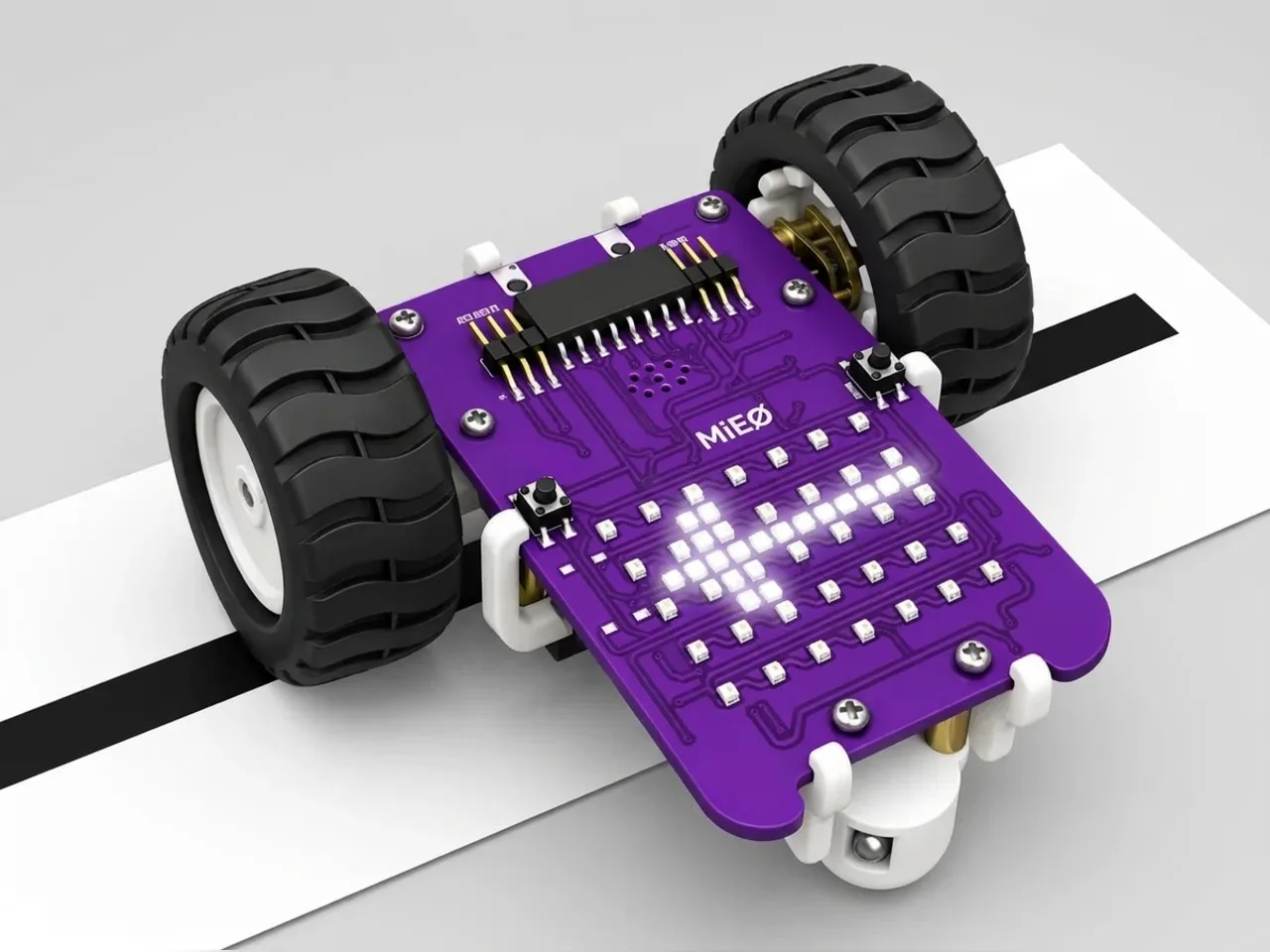
Underneath MIEO are two line sensors. Each one shines invisible infrared light at the floor and measures how much bounces back. A white floor reflects lots of it; a black line soaks most of it up. In this project MIEO shows you what its sensors see: a red bar lights up on the side of the display whose sensor is over the line, both sides light up at a junction, and the display goes dark over plain white paper.
What you'll learn
- How an infrared sensor tells black from white
- What “active” means: the sensor sees light bouncing back from a pale floor
- Covering all four cases with “if … else” inside “if … else”
- Choosing a threshold that suits your floor
You'll need
- Mieo board
- Two N20 motors and their wheels
- Battery
- 3D-printed mountings
- Caster wheel
- Screws and screwdriver
- Line follower chart
- A USB cable, or Bluetooth on your computer
- The Robolab app (free)
Stay safe
- Ask an adult to help with the small screws.
Build it
- Build MIEO with both N20 motors, their wheels, the caster wheel and the battery, as in the Line Follower Robot. The wheels hold the line sensors at the right height above the paper.
- Lay the line follower chart flat on a table and switch MIEO on.
- Connect MIEO to your computer with a USB cable, or turn on Bluetooth on your computer so Robolab can find it.
Code it
- Open Robolab, choose Mieo and connect. To measure, set the switch to Arena, put MIEO on the chart and click “get value of IR-L” in Sense over white paper and then over the black line. Do the same for IR-R. Pick a number between the white and black readings; this page uses 2000.
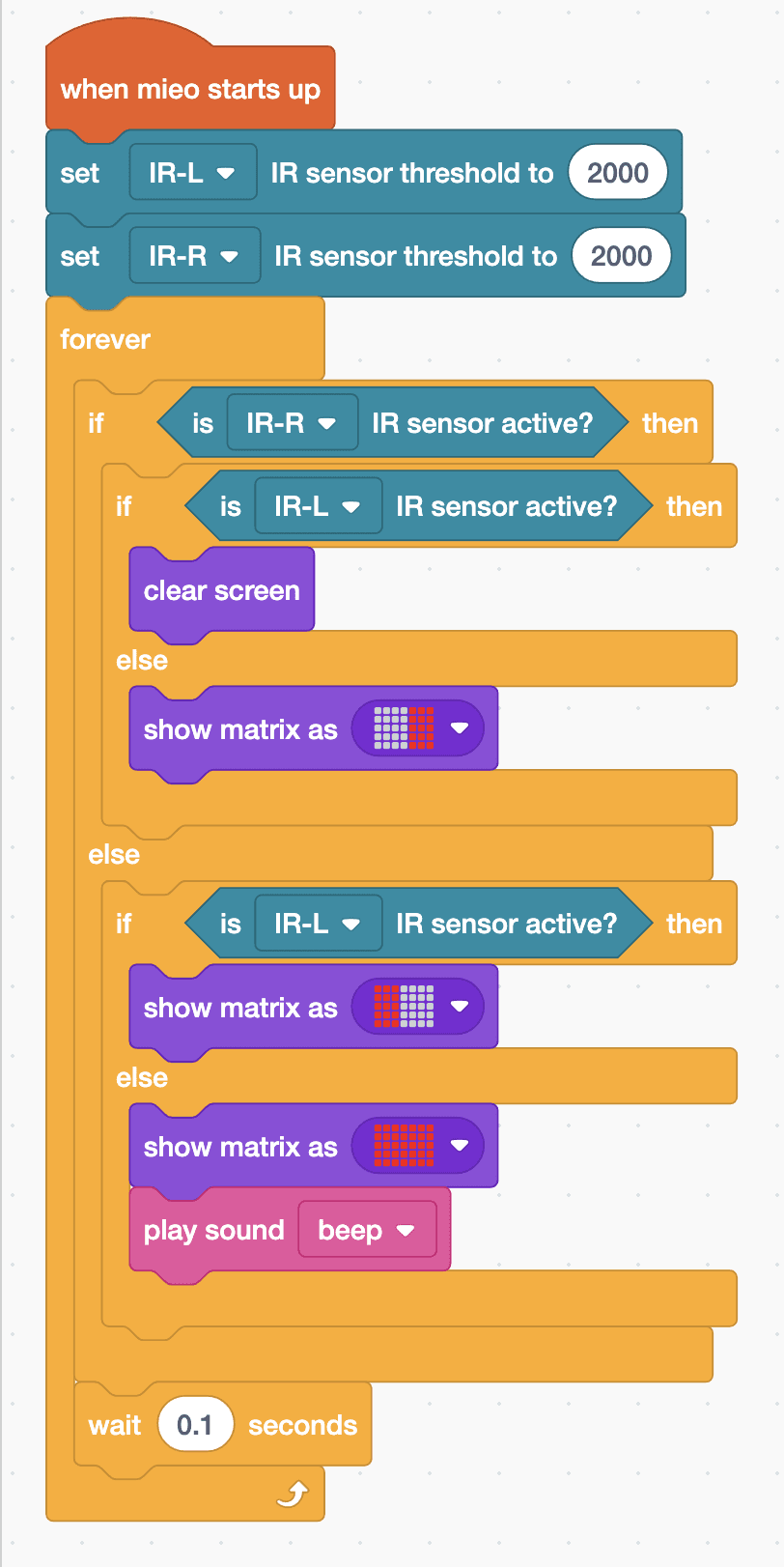
- Set the switch to Upload. Start with “when mieo starts up”, “set IR-L IR sensor threshold to 2000” and “set IR-R IR sensor threshold to 2000”, then add a “forever” loop.
- MIEO's line sensors are plugged in the other way round from their names, so IR-R is the sensor on the left. Inside the loop, add “if … else” with “is IR-R IR sensor active?”: the left sensor sees white.
- In its top part, add another “if … else” with “is IR-L IR sensor active?”. Both see white, so add “clear screen”; in its else part, paint a red bar on the right three columns with “show matrix as”.
- In the first else part, the left sensor sees black. Add “if … else” with “is IR-L IR sensor active?” again: its top part shows a red bar on the left, and its else part fills the whole display red and plays a beep.
- After the if blocks, still in the loop, add “wait 0.1 seconds”. Upload, then slide MIEO slowly across the line by hand.
Upload mode: Robolab turns your blocks into MicroPython and sends them to MIEO over USB or Bluetooth. MIEO then runs the program by itself, even after you unplug it.
when mieo starts up
set [IR-L v] IR sensor threshold to (2000)
set [IR-R v] IR sensor threshold to (2000)
forever
  if <is [IR-R v] IR sensor active?> then
    if <is [IR-L v] IR sensor active?> then
      clear screen
    else
      show matrix as (picture)
    end
  else
    if <is [IR-L v] IR sensor active?> then
      show matrix as (picture)
    else
      show matrix as (picture)
      play sound [beep v]
    end
  end
  wait (0.1) seconds
endSee the MicroPython
# generated by Robolab
import mieo

mieo.setirthreshold('IR-L', 2000)
mieo.setirthreshold('IR-R', 2000)
while True:
  if mieo.iractive('IR-R'):
    if mieo.iractive('IR-L'):
      mieo.clearscreen()
    else:
      mieo.showmatrix('00003330000333000033300003330000333')
  else:
    if mieo.iractive('IR-L'):
      mieo.showmatrix('33300003330000333000033300003330000')
    else:
      mieo.showmatrix('33333333333333333333333333333333333')
      mieo.playsound('beep')
  mieo.sleep(0.1 * 1000)
Test it
With MIEO on white paper the display is dark. Slide it so the black line is under its left side and the left of the display lights up red; move the line under its right side and the right lights up. Sit MIEO square across a thick black patch and the whole display goes red and beeps. That's exactly what a line follower checks, many times a second.
If it doesn't work
- The wrong side lights up? Your MIEO's sensors are plugged in the way their names say. Swap IR-L and IR-R in the three “is … active?” blocks.
- The display is always red? Over black, readings are high. If white also reads above your threshold, raise the threshold.
- Nothing lights up over the line? Your black line reads below the threshold, so lower it a little at a time.
Make it your own
- Easy: choose different colours or pictures for each case.
- Medium: play a different sound for each side, so you can follow the line with your eyes shut.
- Hard: add the wheels: when the left side sees the line, run only the right wheel, and the other way round. You've just written a line follower!
What to build next
Self-driving
Line Follower Robot
Follow the black line on the line follower chart by itself
Self-driving
Line Follow with Stop Detection
Follow the line and stop when something is in the way
Self-driving
Table Edge Guard
MIEO drives on a big book and backs away from every edge