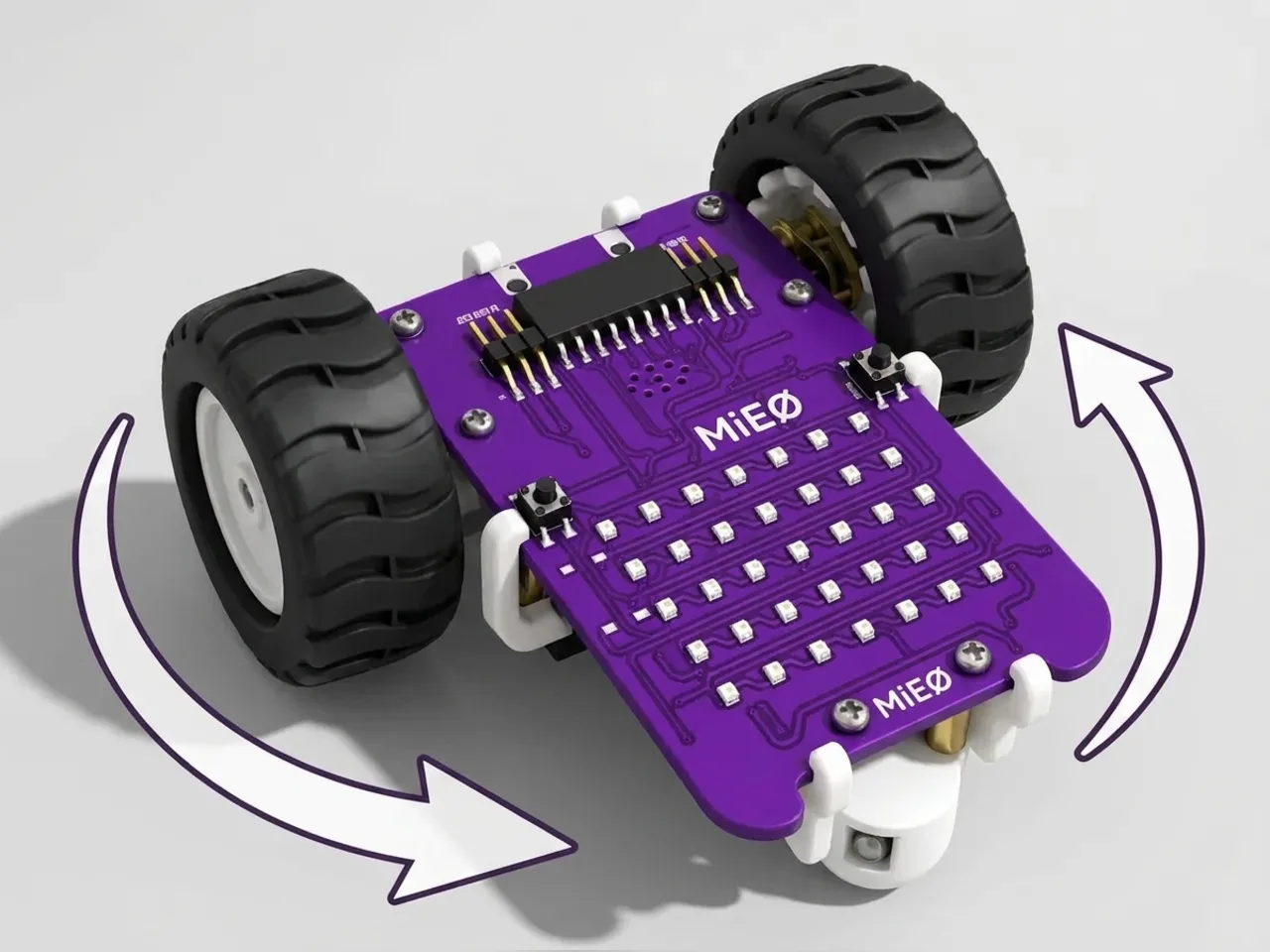
Independent Motor Control
Drive each wheel on its own to spin, curve and turn
What you'll build
Before you can steer a robot, you need to know how it turns. MIEO has two motors, one for each wheel, and every move it makes comes from running them in different ways. In this project each press of the L button runs a small experiment: the left wheel alone, the right wheel alone, both wheels turning opposite ways, and both forward at different speeds. Watch closely each time, and you'll understand every turn MIEO will ever make.
What you'll learn
- Each wheel has its own motor, which you can run on its own
- One wheel alone makes a pivot, and opposite directions make a spin
- Different speeds on each side make a curve
- A minus sign runs a motor backwards
You'll need
- Mieo board
- Two N20 motors and their wheels
- Battery
- 3D-printed mountings
- Caster wheel
- Screws and screwdriver
- A USB cable, or Bluetooth on your computer
- The Robolab app (free)
Stay safe
- Ask an adult to help with the small screws.
- Lift MIEO's wheels off the table before you upload a driving program, so it can't drive off the edge.
Build it
- Build MIEO with both N20 motors, their wheels, the caster wheel and the battery, as in Switch Motor Start.
- Stick a small piece of tape on the floor as a start mark, with about a metre of clear space all round it.
- Connect MIEO to your computer with a USB cable, or turn on Bluetooth on your computer so Robolab can find it.
Code it
- Open Robolab, choose Mieo, connect and set the switch at the top right to Upload. Start with “when mieo starts up” and “show neutral”, then add a “forever” loop.
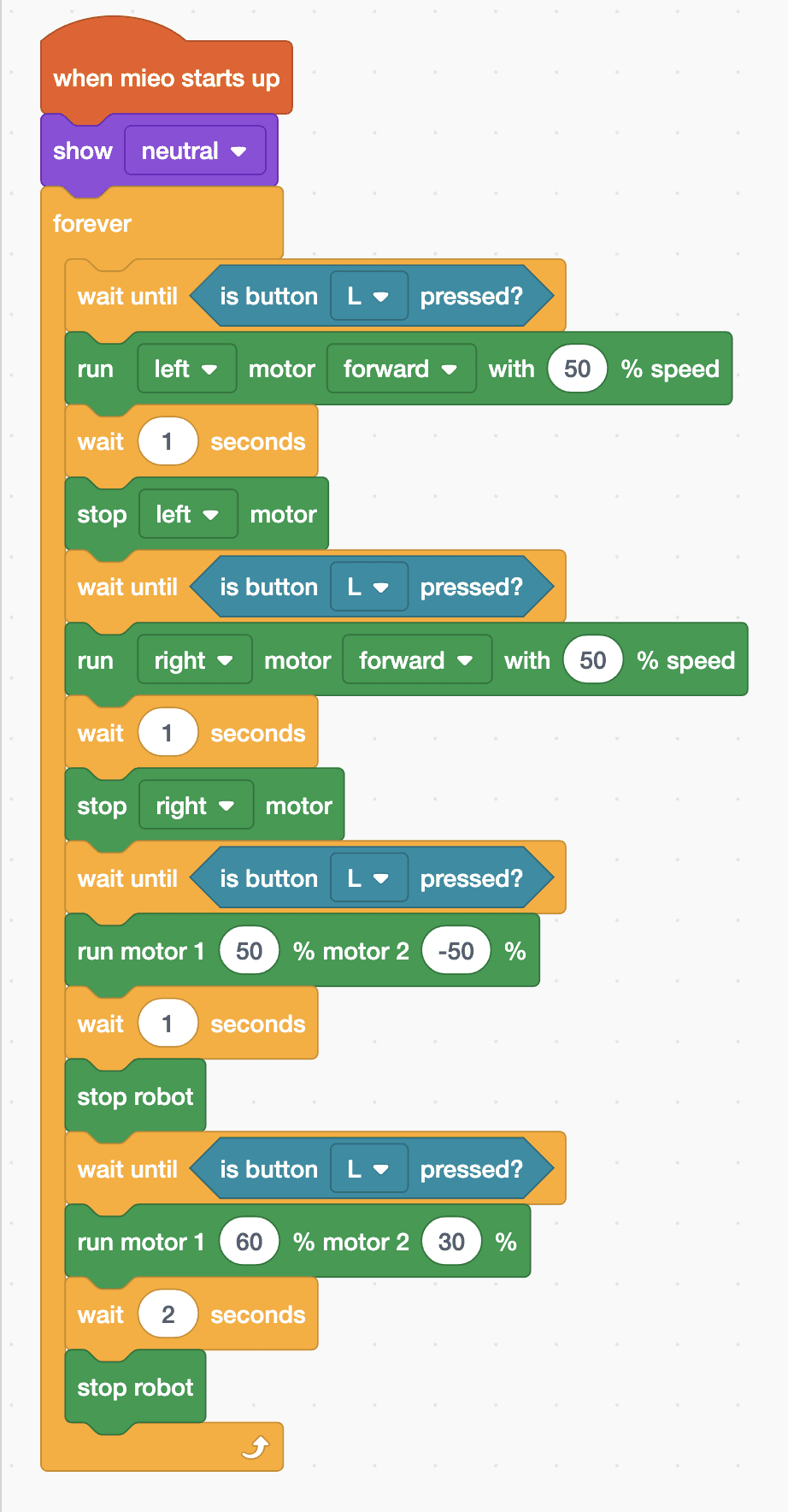
- Experiment 1, inside the loop: “wait until is button L pressed?”, then “run left motor forward with 50 % speed”, “wait 1 seconds” and “stop left motor”.
- Experiment 2: the same four blocks again, but for the right motor.
- Experiment 3: wait for L, then “run motor 1 50 % motor 2 -50 %”, “wait 1 seconds” and “stop robot”.
- Experiment 4: wait for L, then “run motor 1 60 % motor 2 30 %”, “wait 2 seconds” and “stop robot”.
- Lift the wheels and upload. Put MIEO on its start mark and press L four times, letting it stop between presses.
Upload mode: Robolab turns your blocks into MicroPython and sends them to MIEO over USB or Bluetooth. MIEO then runs the program by itself, even after you unplug it.
when mieo starts up
show [neutral v]
forever
  wait until <is button [L v] pressed?>
  run [left v] motor [forward v] with (50) % speed
  wait (1) seconds
  stop [left v] motor
  wait until <is button [L v] pressed?>
  run [right v] motor [forward v] with (50) % speed
  wait (1) seconds
  stop [right v] motor
  wait until <is button [L v] pressed?>
  run motor 1 (50) % motor 2 (-50) %
  wait (1) seconds
  stop robot
  wait until <is button [L v] pressed?>
  run motor 1 (60) % motor 2 (30) %
  wait (2) seconds
  stop robot
endSee the MicroPython
# generated by Robolab
import mieo

mieo.showemotion('neutral')
while True:
  while not mieo.button('L'):
     pass
  mieo.runmotor('L', 'forward', 50)
  mieo.sleep(1 * 1000)
  mieo.stopmotor('L')
  while not mieo.button('L'):
     pass
  mieo.runmotor('R', 'forward', 50)
  mieo.sleep(1 * 1000)
  mieo.stopmotor('R')
  while not mieo.button('L'):
     pass
  mieo.drive(50, -50)
  mieo.sleep(1 * 1000)
  mieo.stoprobot()
  while not mieo.button('L'):
     pass
  mieo.drive(60, 30)
  mieo.sleep(2 * 1000)
  mieo.stoprobot()
Test it
Press 1: only the left wheel turns, so MIEO pivots to the right around its right wheel. Press 2: only the right wheel turns, and it pivots to the left. Press 3: the wheels turn opposite ways and MIEO spins on the spot to the right. Press 4: both wheels go forward, the left one faster, so MIEO drives along a curve to the right. The fifth press starts again with experiment 1.
If it doesn't work
- An experiment turns the wrong way? Motor 1 is the left wheel and motor 2 the right. Check every speed has the right sign.
- Two experiments run from one press? Press L quickly and let go. If you're still holding it when an experiment ends, the next one starts straight away.
- MIEO wanders off too far? Use smaller speeds, such as 30, or shorter waits.
Make it your own
- Easy: change experiment 4 so MIEO curves to the left instead.
- Medium: find the two speeds that make MIEO drive round in a full circle and come back to its start mark.
- Hard: drive a figure of eight on the floor: a curve one way, then a curve the other way, repeated.