Touch-to-Beep System
Touch a pad and MIEO plays a sound
What you'll build
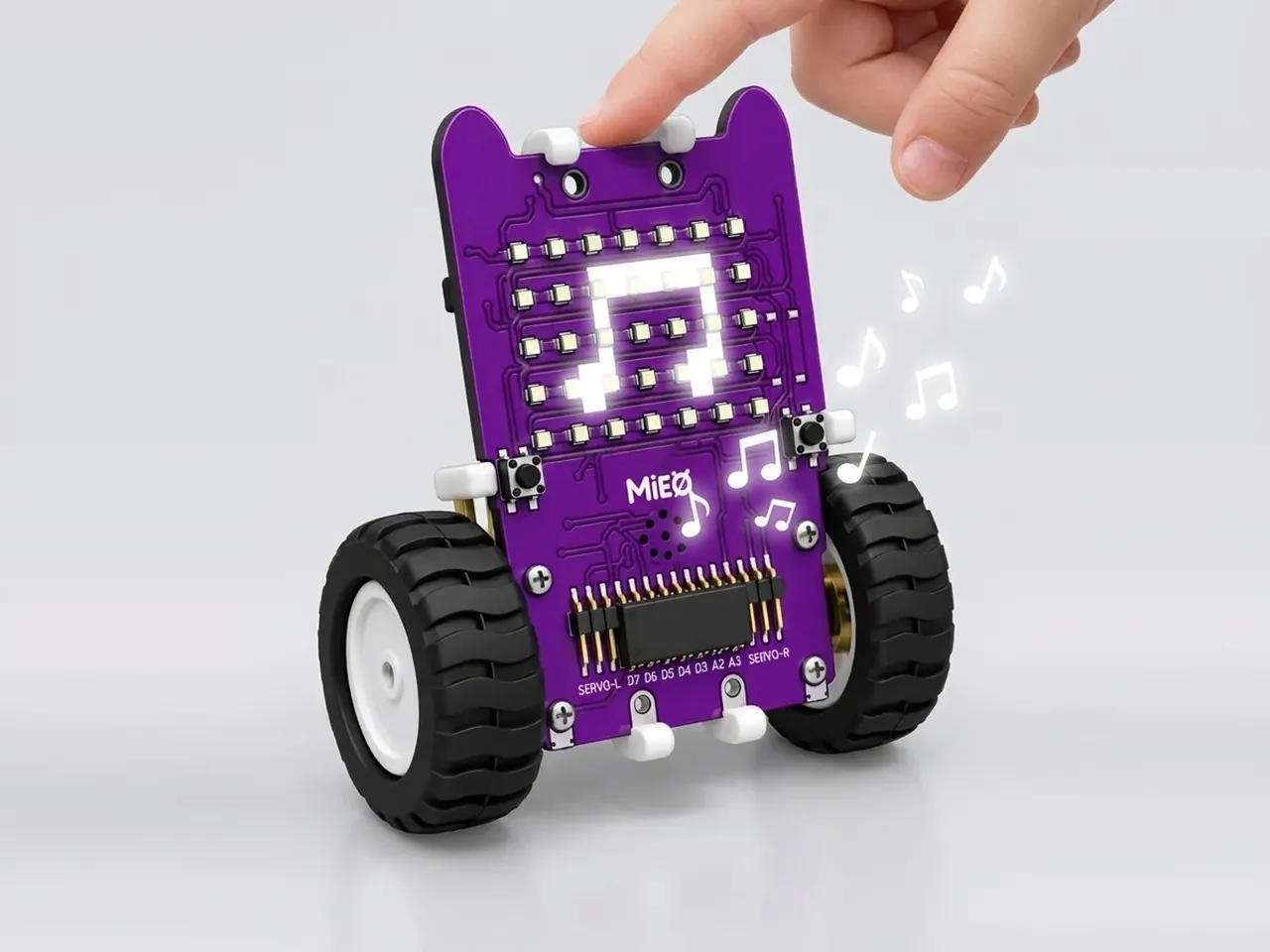
MIEO has four touch pads, labelled T1 to T4 on the board. There's nothing to press: each pad feels the tiny electrical change when your finger lands on it. In this project every pad plays its own sound, which turns MIEO into a little four-key instrument. It's your first program that waits for a person and reacts, and reacting to sensors is what every robot spends its time doing.
What you'll learn
- How a touch pad notices your finger
- Checking a sensor with “if … then”
- Why a forever loop is needed to keep checking
- Giving each input its own job
You'll need
- Mieo board
- Battery
- 3D-printed mountings
- Screws and screwdriver
- A USB cable, or Bluetooth on your computer
- The Robolab app (free)
Stay safe
- Ask an adult to help with the small screws.
Build it
- Fit the battery into its 3D-printed mounting on the back of the Mieo board and fix it in place with the screws. If you built Happy Face Display, your MIEO is ready.
- Connect the battery to the board as shown in your kit's build guide, then switch MIEO on.
- Connect MIEO to your computer with a USB cable, or turn on Bluetooth on your computer so Robolab can find it.
- Find the four touch pads on the board, labelled T1, T2, T3 and T4. Lay MIEO on the table where you can reach them all.
Code it

Want MIEO Bot to guide you?
Robolab's built-in tutor has a lesson on the same idea, “Touch Piano”. Open MIEO Bot in Robolab, pick Explorer, then Mieo, and it shows you the blocks one at a time and checks your work as you go.
About MIEO Bot's lessons- Open Robolab, choose Mieo as the device, connect to your MIEO and set the switch at the top right to Upload.
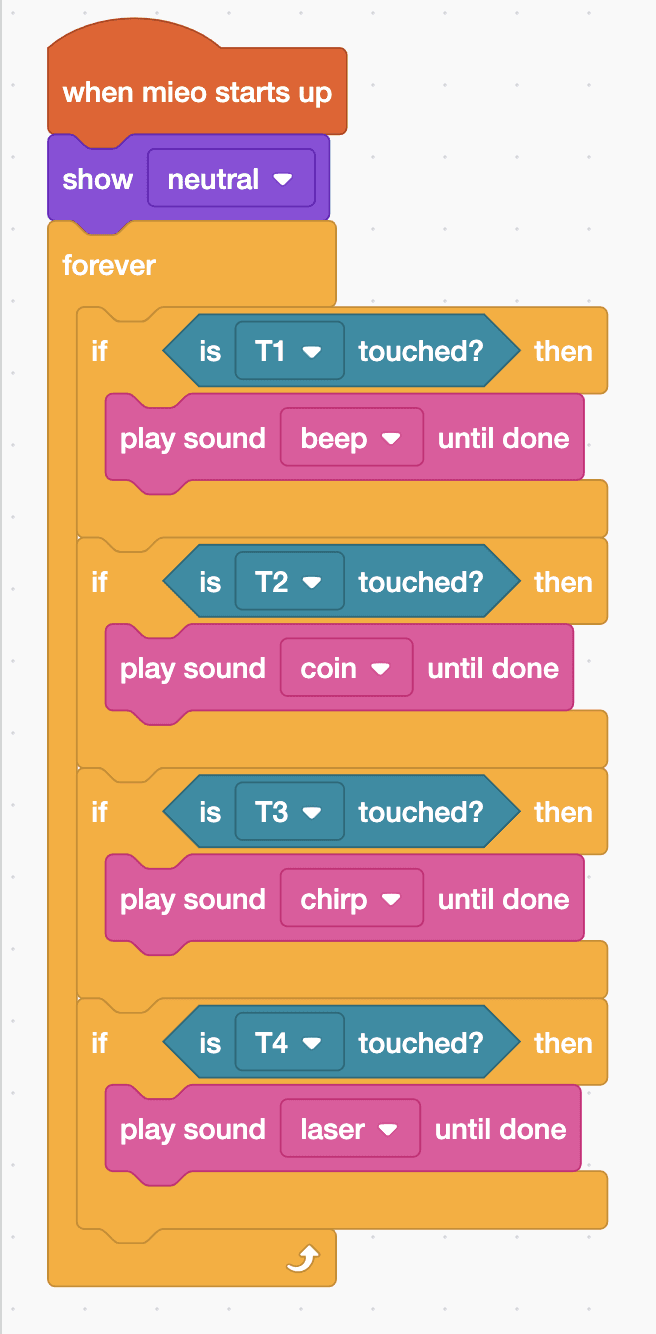
- Start with “when mieo starts up” and add “show neutral” from Display, so you can see the program has started.
- Add a “forever” loop. Inside it, put an “if … then” from Control, with “is T1 touched?” from Sense as its condition and “play sound beep until done” from Speaker inside.
- Add three more “if … then” blocks to the loop, one under the other, for T2, T3 and T4. Give them the sounds coin, chirp and laser.
- Click Upload. When it finishes, touch each pad in turn.
Upload mode: Robolab turns your blocks into MicroPython and sends them to MIEO over USB or Bluetooth. MIEO then runs the program by itself, even after you unplug it.
when mieo starts up
show [neutral v]
forever
  if <is [T1 v] touched?> then
    play sound [beep v] until done
  end
  if <is [T2 v] touched?> then
    play sound [coin v] until done
  end
  if <is [T3 v] touched?> then
    play sound [chirp v] until done
  end
  if <is [T4 v] touched?> then
    play sound [laser v] until done
  end
endSee the MicroPython
# generated by Robolab
import mieo

mieo.showemotion('neutral')
while True:
  if mieo.touched('T1'):
    mieo.playsounduntildone('beep')
  if mieo.touched('T2'):
    mieo.playsounduntildone('coin')
  if mieo.touched('T3'):
    mieo.playsounduntildone('chirp')
  if mieo.touched('T4'):
    mieo.playsounduntildone('laser')
Test it
After the upload MIEO shows a calm face and waits. Touch T1 and it beeps, T2 plays a coin sound, T3 chirps and T4 fires a laser. Keep your finger on a pad and its sound plays again and again until you let go. When nothing is touched, MIEO stays quiet, because none of the if blocks lets its sound through.
If it doesn't work
- A pad does nothing? Touch it with the tip of a dry finger, right on the pad, and check that its if block names the right pad.
- Only the first sound works? All four if blocks must be inside the forever loop, one under the other.
- Sounds play on their own? Anything resting on the pads, like a hand on the board or a metal object, counts as a finger. Keep the pads clear.
Make it your own
- Easy: choose different sounds for each pad. There are twelve in the menu.
- Medium: make each pad show a face as well as play a sound, so MIEO looks happy, surprised, sad or sleepy.
- Hard: turn the pads into a piano. Use “play tone of note” with C4, D4, E4 and F4, and play a tune with your fingers.