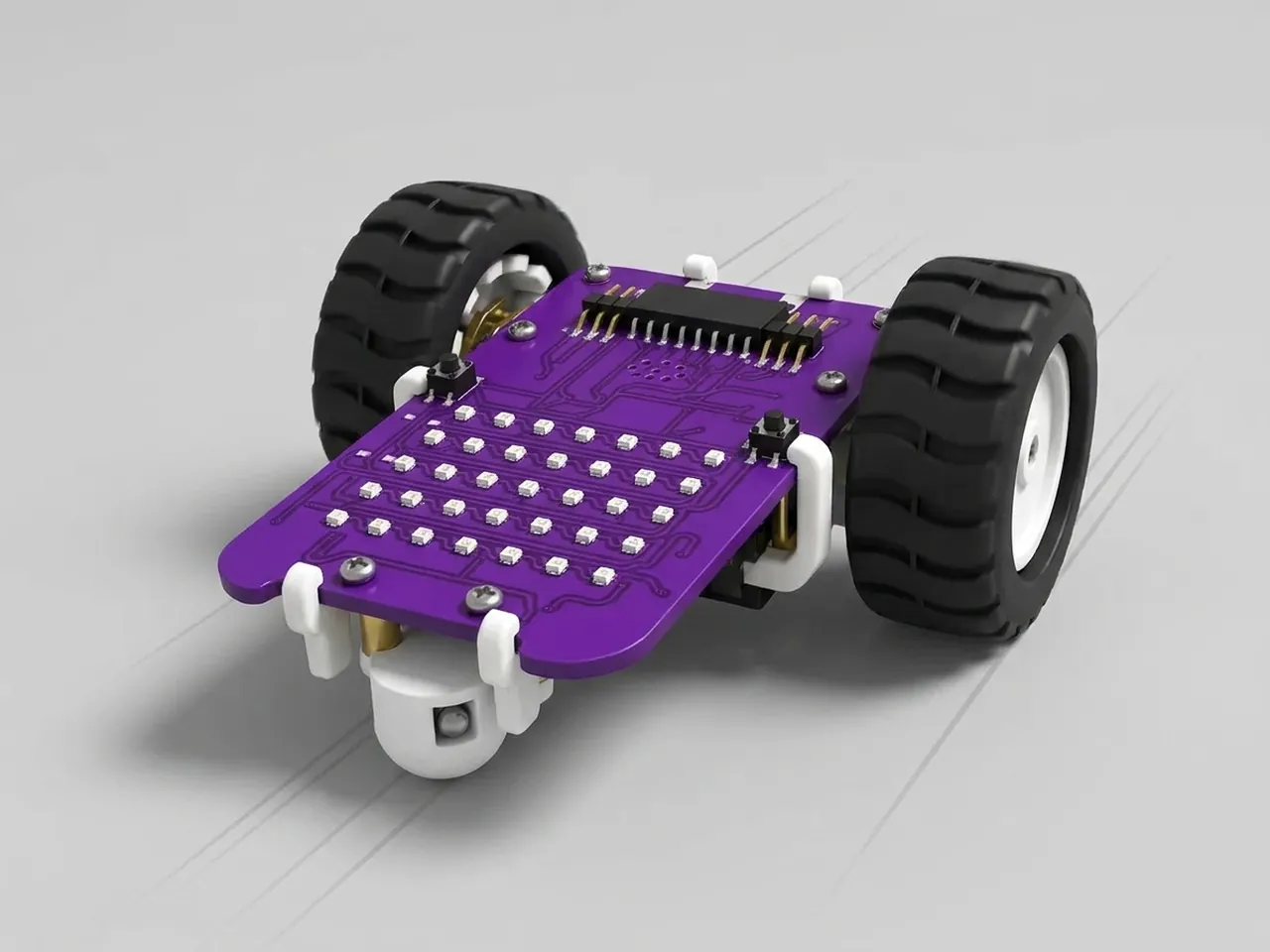
Switch Motor Start
Press a button to make MIEO drive forward
What you'll build
This is the first time MIEO's wheels turn, and you decide when. Press the L button and MIEO wakes up with a smile and drives forward for two seconds. Press R and it backs up. In between it sleeps, so it never sets off on its own. Many real machines work the same way: nothing moves until a person presses the start switch, which keeps everyone around them safe.
What you'll learn
- Using a button as a start switch
- Choosing between two actions with two if blocks
- How “go … for 2 seconds” drives and then stops by itself
- Why a robot should wait for a person before it moves
You'll need
- Mieo board
- Two N20 motors and their wheels
- Battery
- 3D-printed mountings
- Caster wheel
- Screws and screwdriver
- A USB cable, or Bluetooth on your computer
- The Robolab app (free)
Stay safe
- Ask an adult to help with the small screws.
- Lift MIEO's wheels off the table before you upload a driving program, so it can't drive off the edge.
Build it
- Fix the two N20 motors into their 3D-printed mountings with the screws, then push a wheel onto each motor.
- Screw the motor mountings to the Mieo board so one wheel sits on each side.
- Fit the caster wheel so MIEO balances on its two wheels and the caster.
- Fit the battery in its mounting, connect it and switch MIEO on.
- Connect MIEO to your computer with a USB cable, or turn on Bluetooth on your computer so Robolab can find it.
Code it
- Open Robolab, choose Mieo as the device, connect to your MIEO and set the switch at the top right to Upload.
- Start with “when mieo starts up” and “show sleep”, so MIEO looks asleep while it waits.
- Add a “forever” loop. Inside it, add “if … then” with “is button L pressed?” from Sense as its condition.
- Inside that if, add “show happy”, then “go forward at 50 % speed for 2 seconds” from Robot, then “show sleep”.
- Add a second “if … then” for “is button R pressed?”, with “show surprise”, “go backward at 50 % speed for 2 seconds” and “show sleep” inside.
- Lift MIEO's wheels off the table and upload. Then put MIEO on the floor with plenty of space in front and behind.
Upload mode: Robolab turns your blocks into MicroPython and sends them to MIEO over USB or Bluetooth. MIEO then runs the program by itself, even after you unplug it.
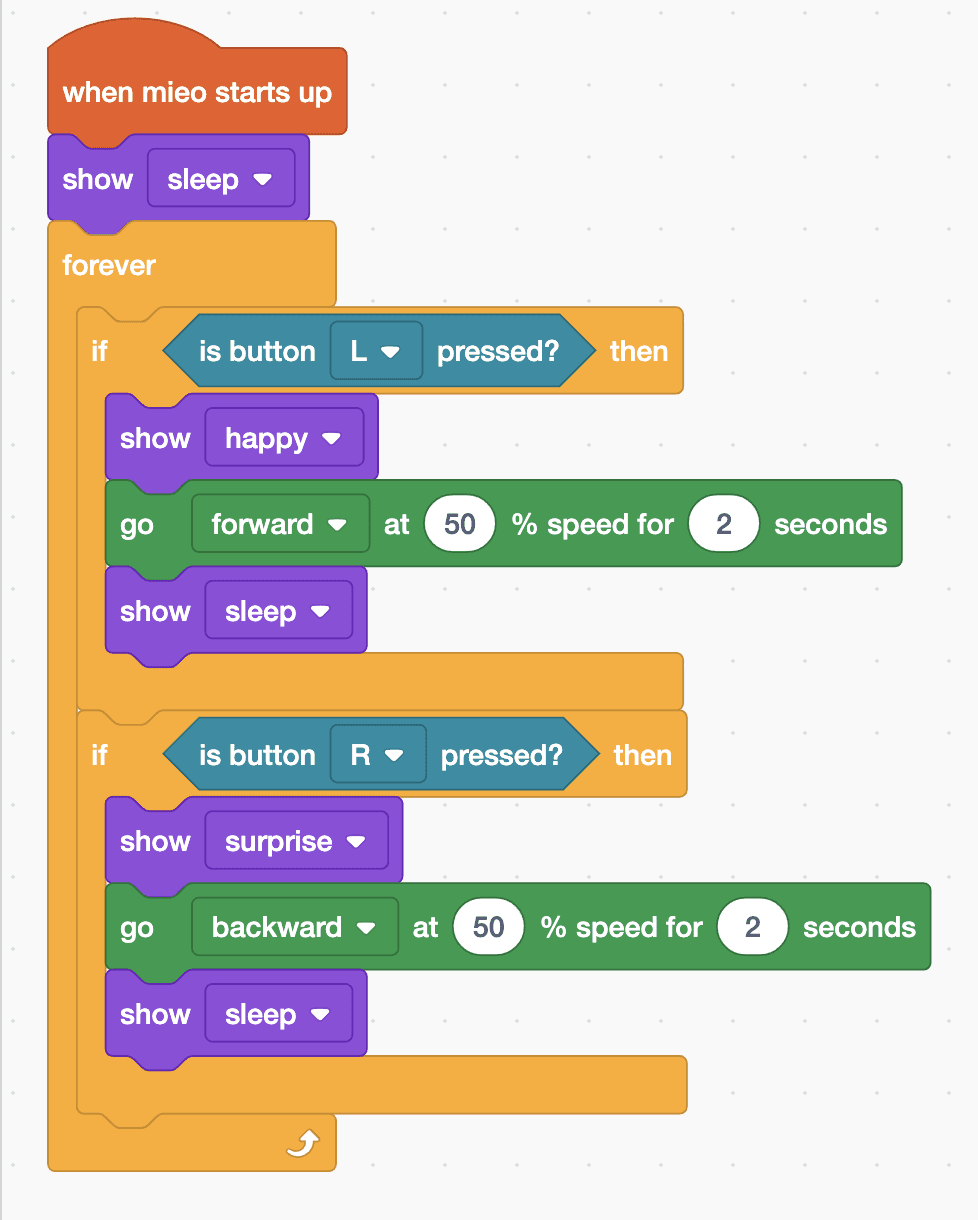
when mieo starts up
show [sleep v]
forever
  if <is button [L v] pressed?> then
    show [happy v]
    go [forward v] at (50) % speed for (2) seconds
    show [sleep v]
  end
  if <is button [R v] pressed?> then
    show [surprise v]
    go [backward v] at (50) % speed for (2) seconds
    show [sleep v]
  end
endSee the MicroPython
# generated by Robolab
import mieo

mieo.showemotion('sleep')
while True:
  if mieo.button('L'):
    mieo.showemotion('happy')
    mieo.run('forward', 50)
    mieo.sleep(2 * 1000)
    mieo.stoprobot()
    mieo.showemotion('sleep')
  if mieo.button('R'):
    mieo.showemotion('surprise')
    mieo.run('backward', 50)
    mieo.sleep(2 * 1000)
    mieo.stoprobot()
    mieo.showemotion('sleep')
Test it
MIEO shows a sleepy face and stays still. Press L: it smiles, drives forward for two seconds, stops and goes back to sleep. Press R: it looks surprised, backs up for two seconds and sleeps again. While MIEO is driving it isn't checking the buttons, so a press only counts once it has stopped.
If it doesn't work
- MIEO turns instead of driving straight? Check that both motor cables are plugged in firmly and that both wheels spin freely.
- Nothing happens when you press a button? Check that the switch at the top right says Upload and your stack starts with “when mieo starts up”.
- Pressing both buttons only drives forward? That's how MIEO's buttons are wired: holding both reads the same as holding L.
Make it your own
- Easy: change the speed and the number of seconds, and measure how far MIEO goes each time.
- Medium: after driving forward, add “go right at 50 % speed for 1 seconds” and change the time until MIEO turns all the way round to face you.
- Hard: count the presses of L in a variable and make MIEO drive one second further each time.