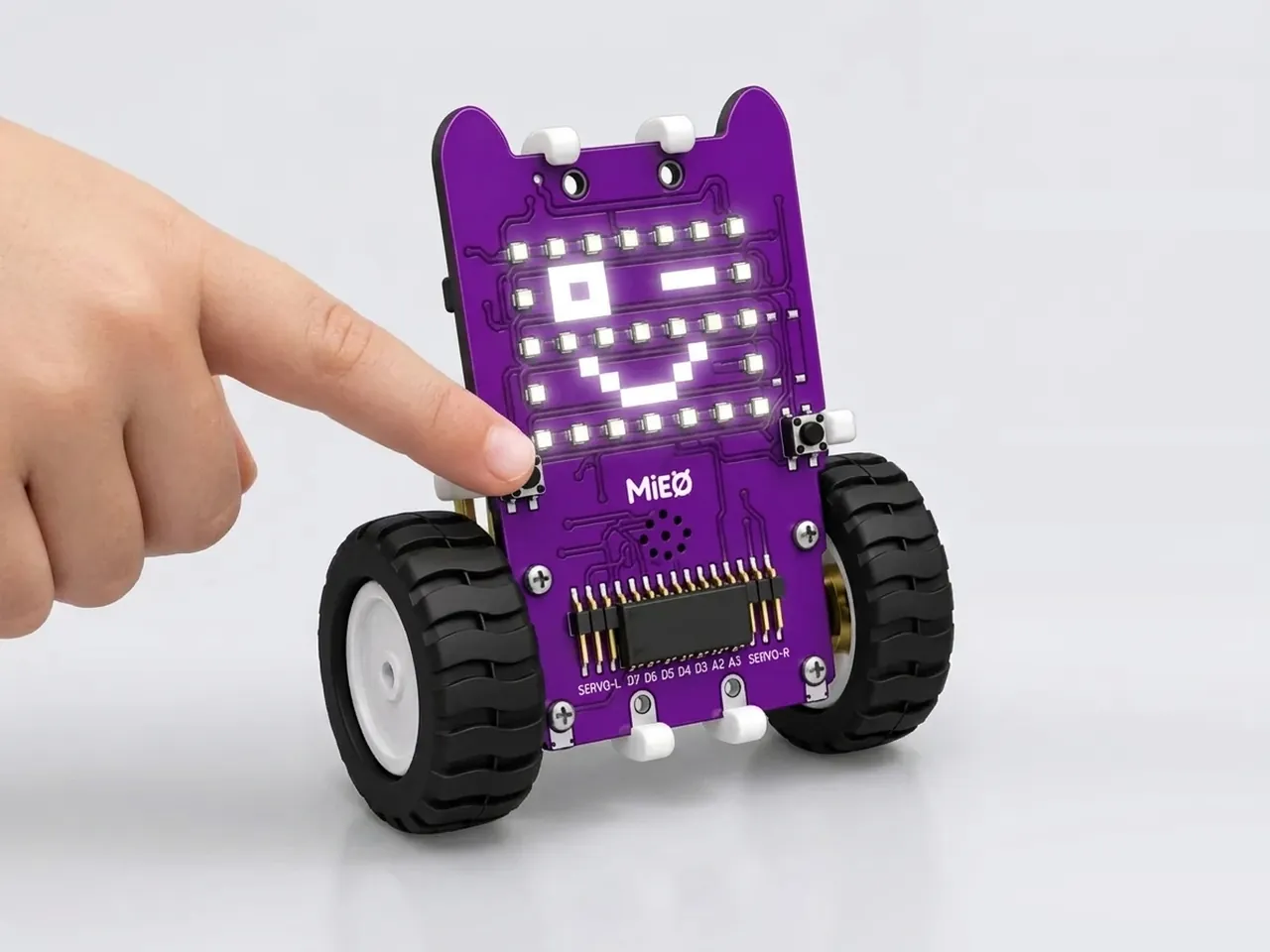
Emoji Changer
Press a button to flip through MIEO's faces
What you'll build
MIEO knows twelve faces, from happy to nerd. In this project the L button flips through four of them, one press at a time, and goes back to the first after the last. To do that, MIEO keeps count in a variable: a box with a name that holds a number. You'll also meet a problem every button programmer runs into. A program checks so fast that one press could count many times over, and you'll fix it with one block.
What you'll learn
- Keeping count with a variable
- Going back to the start once the count gets too big
- Choosing what to show with a row of if blocks
- Why “wait until” stops one press from counting many times
You'll need
- Mieo board
- Battery
- 3D-printed mountings
- Screws and screwdriver
- A USB cable, or Bluetooth on your computer
- The Robolab app (free)
Stay safe
- Ask an adult to help with the small screws.
Build it
- Fit the battery into its 3D-printed mounting on the back of the Mieo board and fix it in place with the screws. If you built Happy Face Display, your MIEO is ready.
- Connect the battery to the board as shown in your kit's build guide, then switch MIEO on.
- Connect MIEO to your computer with a USB cable, or turn on Bluetooth on your computer so Robolab can find it.
Code it

Want MIEO Bot to guide you?
Robolab's built-in tutor has a lesson on the same idea, “Button Faces”. Open MIEO Bot in Robolab, pick Explorer, then Mieo, and it shows you the blocks one at a time and checks your work as you go.
About MIEO Bot's lessons- Open Robolab, choose Mieo, connect and set the switch at the top right to Upload. In the Variables group, click “Make a Variable” and name it face.
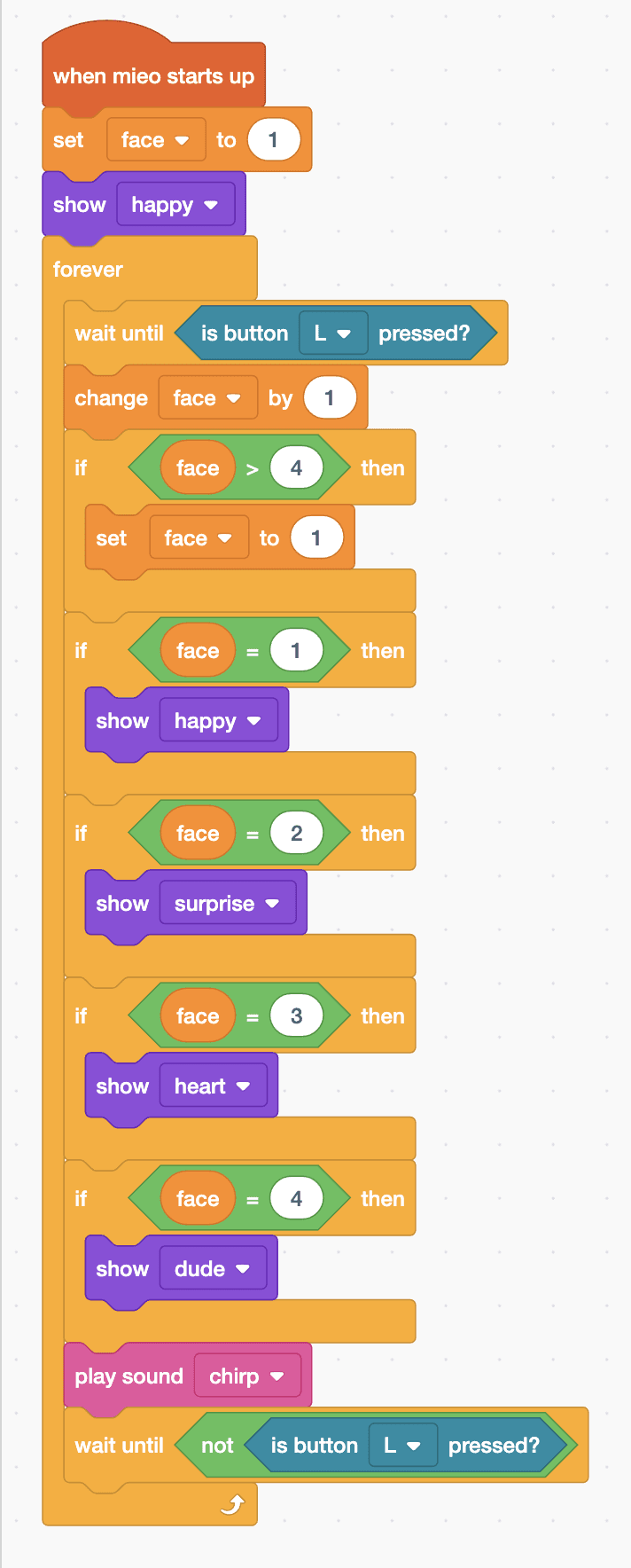
- Start with “when mieo starts up”, “set face to 1” and “show happy”.
- Add a “forever” loop. Its first block is “wait until is button L pressed?”, then “change face by 1”.
- Add “if face > 4 then” with “set face to 1” inside, so after the fourth face it goes back to the first.
- Add four “if … then” blocks: face = 1 shows happy, 2 shows surprise, 3 shows heart and 4 shows dude. Then add “play sound chirp”.
- Finish the loop with “wait until not is button L pressed?”. The “not” block is in Operators. It makes MIEO wait for you to let go before it counts the next press.
- Upload, then press L a few times.
Upload mode: Robolab turns your blocks into MicroPython and sends them to MIEO over USB or Bluetooth. MIEO then runs the program by itself, even after you unplug it.
when mieo starts up
set [face v] to (1)
show [happy v]
forever
  wait until <is button [L v] pressed?>
  change [face v] by (1)
  if <(face) > (4)> then
    set [face v] to (1)
  end
  if <(face) = (1)> then
    show [happy v]
  end
  if <(face) = (2)> then
    show [surprise v]
  end
  if <(face) = (3)> then
    show [heart v]
  end
  if <(face) = (4)> then
    show [dude v]
  end
  play sound [chirp v]
  wait until <not <is button [L v] pressed?>>
endSee the MicroPython
# generated by Robolab
import mieo

face = 0

face = 1
mieo.showemotion('happy')
while True:
  while not mieo.button('L'):
     pass
  face += 1
  if face > 4:
    face = 1
  if face == 1:
    mieo.showemotion('happy')
  if face == 2:
    mieo.showemotion('surprise')
  if face == 3:
    mieo.showemotion('heart')
  if face == 4:
    mieo.showemotion('dude')
  mieo.playsound('chirp')
  while not not mieo.button('L'):
     pass
Test it
After the upload MIEO smiles. Each press of L shows the next face with a chirp: surprise, then a heart, then the dude face, then happy again, round and round. Holding the button down counts as one press. The next face waits until you let go and press again.
If it doesn't work
- The faces flash past when you press? The last block in the loop must be “wait until not is button L pressed?”.
- It gets stuck on one face? Check that the four face blocks check 1, 2, 3 and 4, and that “change face by 1” is inside the loop.
- Nothing happens at all? Check that the switch says Upload and your stack starts with “when mieo starts up”.
Make it your own
- Easy: swap in your favourite faces from the twelve in the menu.
- Medium: use six faces. Change the 4 in “face > 4” to 6 and add two more if blocks.
- Hard: make R go backwards through the faces, taking 1 away with each press and jumping to the last face after the first.
What to build next
First input
Touch-Controlled Display
Each touch pad shows a different face or light pattern
First input
Sensor-Triggered Display
MIEO's display lights up when a sensor notices something
First input
Hot Potato Game
Pass MIEO round until it sounds the alarm: whoever holds it is out