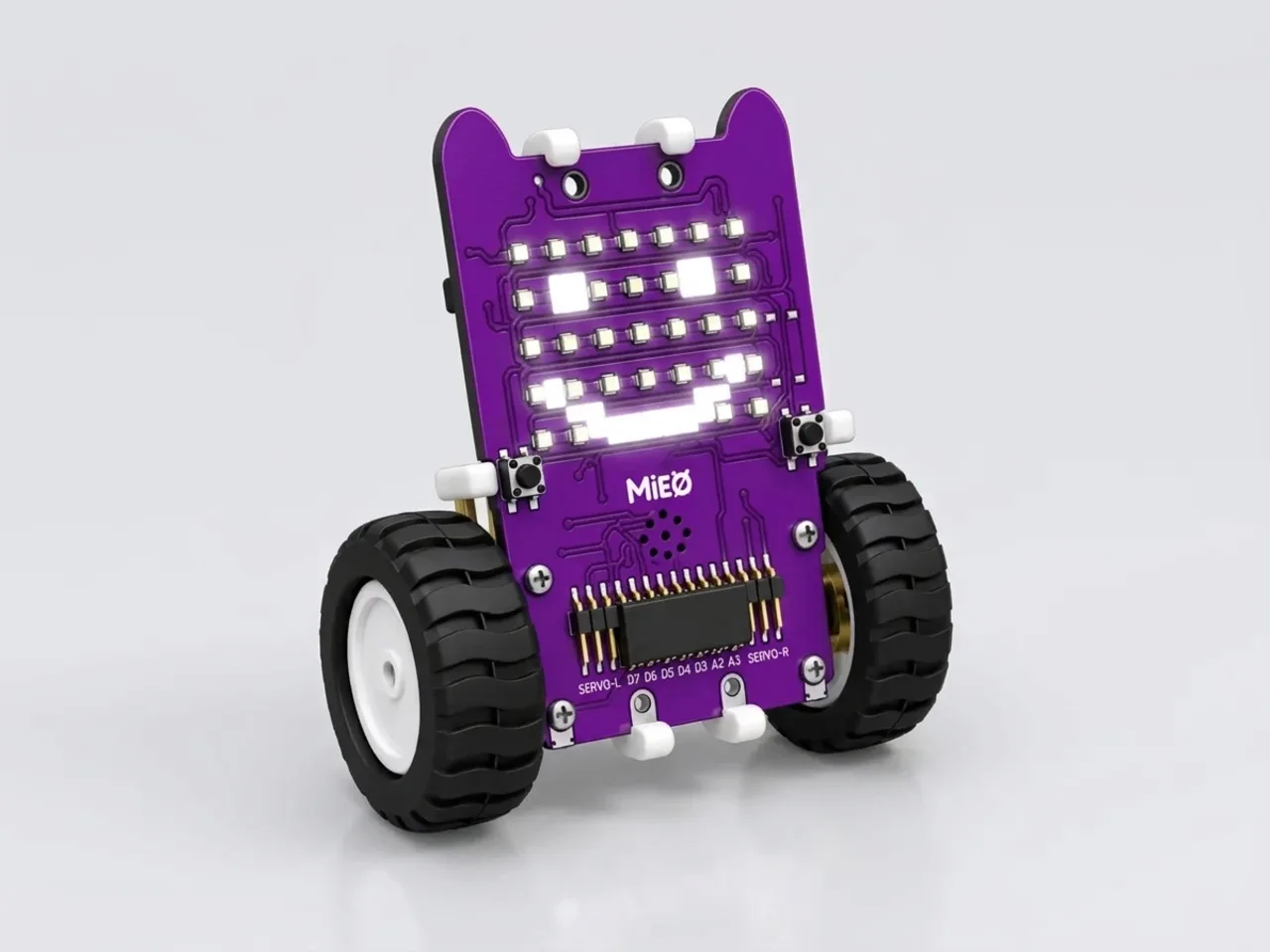
Happy Face Display
Light up a smiling face on MIEO's display
What you'll build
Your first MIEO program makes something happen in the real world. A smiling face lights up on MIEO's 7×5 display, MIEO plays a happy sound, and then the face keeps grinning and blinking for as long as MIEO is switched on. It's a short program, but it uses the same steps as every robot project you will build next: choose the device, stack the blocks in order, and upload them so MIEO can run them on its own.
What you'll learn
- How a hat block like “when mieo starts up” starts a program
- That blocks run in order, from the top of the stack to the bottom
- How a forever loop repeats the blocks inside it
- How to upload a program so MIEO runs it without the computer
You'll need
- Mieo board
- Battery
- 3D-printed mountings
- Screws and screwdriver
- A USB cable, or Bluetooth on your computer
- The Robolab app (free)
Stay safe
- Ask an adult to help with the small screws.
Build it
- Fit the battery into its 3D-printed mounting on the back of the Mieo board and fix it in place with the screws.
- Connect the battery to the board as shown in your kit's build guide, then switch MIEO on.
- Connect MIEO to your computer with a USB cable, or turn on Bluetooth on your computer so Robolab can find it.
Code it

Want MIEO Bot to guide you?
Robolab's built-in tutor has a lesson on the same idea, “Hello, Mieo!”. Open MIEO Bot in Robolab, pick Beginner, then Mieo, and it shows you the blocks one at a time and checks your work as you go.
About MIEO Bot's lessons- Open Robolab, click “No device selected” at the top and choose Mieo. Then click the connection button in the top bar and pick your MIEO.
- Set the switch at the top right to Upload, so your program is sent to MIEO.
- From the Mieo group, drag out “when mieo starts up”. Every program you upload begins with this block.
- From Display, add “show happy”. From Speaker, add “play sound happy until done” underneath it.
- From Control, add a “forever” loop. Inside it, put “show happy animation until done” and “wait 1 seconds”.
- Click the green Upload button above the code panel. When it finishes, MIEO restarts and runs your program.
Upload mode: Robolab turns your blocks into MicroPython and sends them to MIEO over USB or Bluetooth. MIEO then runs the program by itself, even after you unplug it.
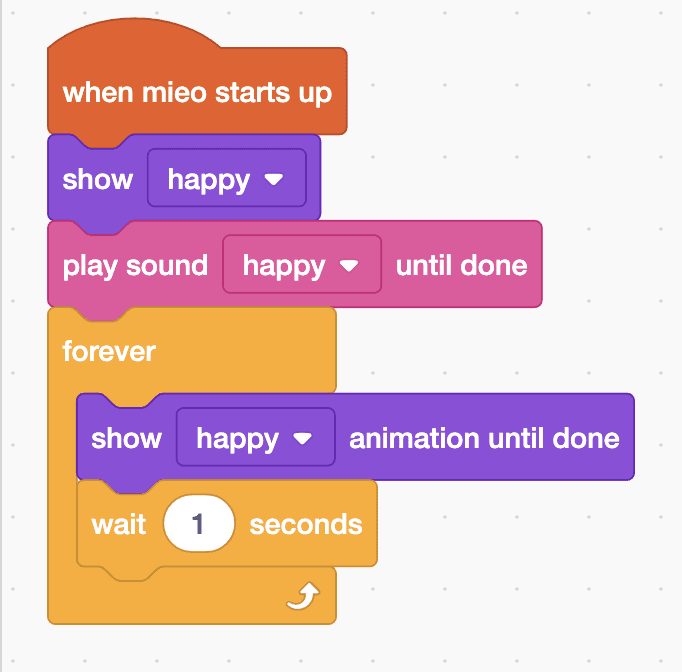
when mieo starts up
show [happy v]
play sound [happy v] until done
forever
  show [happy v] animation until done
  wait (1) seconds
endSee the MicroPython
# generated by Robolab
import mieo

mieo.showemotion('happy')
mieo.playsounduntildone('happy')
while True:
  mieo.showanimationuntildone('happy')
  mieo.sleep(1 * 1000)
Test it
As soon as the upload finishes, MIEO shows a smiling face and plays its happy sound. Then the face keeps animating, with a one-second pause each time, until you switch MIEO off. Switch it off and on again: the program starts by itself, because it is saved on MIEO.
If it doesn't work
- Nothing happens after uploading? Check that the switch at the top right says Upload, not Arena, and that your stack starts with “when mieo starts up”.
- Robolab can't find MIEO? Make sure MIEO is switched on and its battery is charged, then try the USB cable instead of Bluetooth.
- No sound? Check that “play sound happy until done” sits above the forever loop, not inside it after the wait.
Make it your own
- Easy: pick a different face from the menu, like “heart” or “surprise”, and upload again.
- Medium: show three faces one after another, with a “wait 1 seconds” block between each one.
- Hard: use “show matrix as” to draw your own face, light by light, and make it your robot's signature smile.