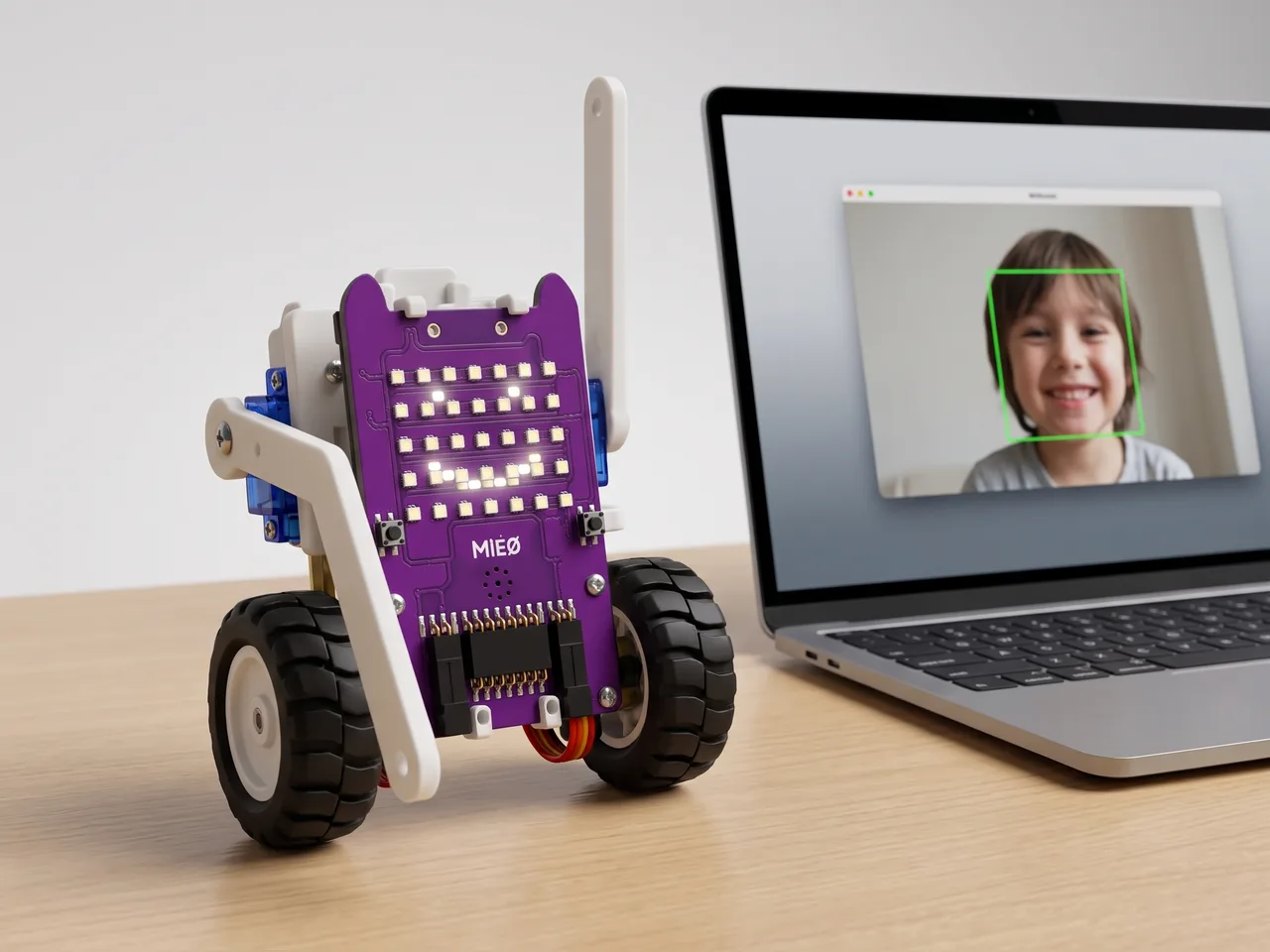
Smile to Open Gate
A servo gate on MIEO that opens only when you smile
What you'll build
Some doors need a key and some need a password. This one needs a smile. You'll fix a card gate to a servo on MIEO and point the computer's webcam at yourself. Face Sense reads your expression, and when it sees a happy face, MIEO cheers, opens the gate and holds it open for three seconds before closing it again. Frown or keep a straight face, and the gate stays shut. Face Sense works on your computer with no internet, so your face never leaves the room.
What you'll learn
- Turning a servo to an exact angle to open and close a gate
- Using Face Sense to check the expression on a face
- Setting a starting position so the program always begins the same way
- Holding an action for a moment with “wait”
You'll need
- Mieo board
- Battery
- 3D-printed mountings
- Screws and screwdriver
- A servo motor, from the MIEO kit
- Card, scissors and tape to make the gate
- A webcam; most laptops have one built in
- A USB cable, or Bluetooth on your computer
- The Robolab app (free)
- A webcam (most laptops have one built in)
Stay safe
- Ask an adult to help with the small screws.
- Plug extra parts only into the connector this page names. Wiring a part to the wrong connector can damage it for good.
- The camera and microphone stay on your computer. Nothing MIEO sees or hears is sent anywhere.
Build it
- Fit the battery into its 3D-printed mounting on the back of the Mieo board and fix it in place with the screws.
- With MIEO switched off, plug the servo into connector S1, the right way round. Check the wire colours against your kit's build guide.
- Tape the servo to the side of MIEO with its shaft pointing outwards.
- Cut a gate bar about 12 cm long out of card. Don't fix it on yet: run the program once first, so the servo turns to its closed angle.
- Push the servo's horn onto the shaft and tape the card bar to it, lying flat in front of MIEO: that's the gate closed.
- Switch MIEO on, connect it to your computer and sit facing the webcam in good light.
Code it

Want MIEO Bot to guide you?
Robolab's built-in tutor has a lesson on the same idea, “Smile to Open”. Open MIEO Bot in Robolab, pick Maker, then Mieo, and it shows you the blocks one at a time and checks your work as you go.
About MIEO Bot's lessons- Open Robolab, choose Mieo, connect and set the switch at the top right to Arena. Add the Face Sense extension.
- Start with “when green flag clicked”, “set servo on Servo 1 to 0 angle” so the gate starts closed, “show neutral” and “turn on video on arena at 0 % transparency”.
- Add a “forever” loop with “analyse picture from camera” inside.
- Under it, add “if … then” with “is expression on face 1 happy ?” in its slot. A smile is the password!
- Inside the if, add “show happy”, “play sound win” and “set servo on Servo 1 to 90 angle” to open the gate.
- Then add “wait 3 seconds”, “set servo on Servo 1 to 0 angle” and “show neutral”, so the gate closes again.
- Click the green flag, allow the camera, keep a straight face, and then smile.
Arena mode: the program runs on your computer and talks to MIEO live over USB or Bluetooth, so keep MIEO switched on and connected.
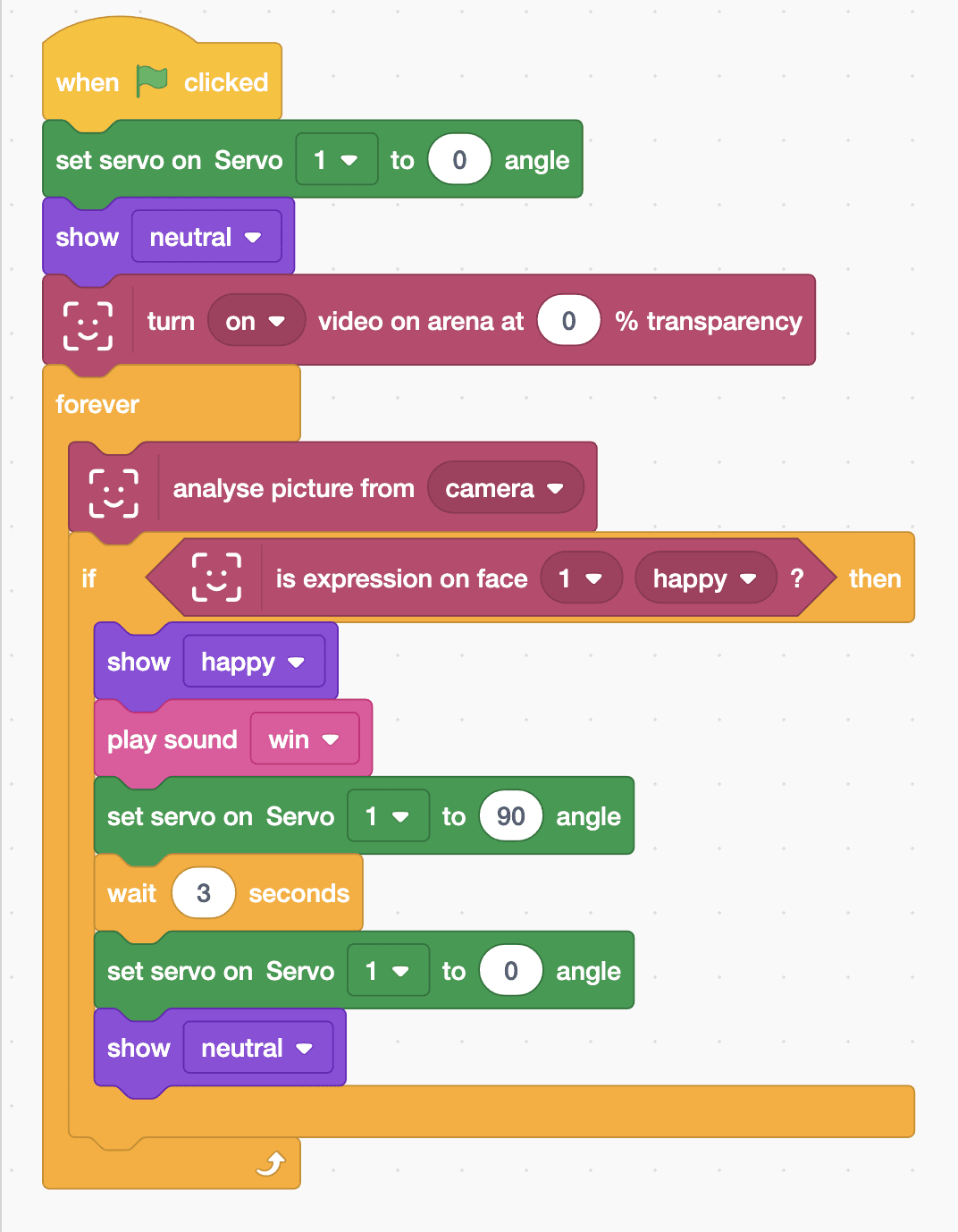
when green flag clicked
set servo on Servo [1 v] to (0) angle
show [neutral v]
turn [on v] video on arena at (0) % transparency
forever
  analyse picture from [camera v]
  if <is expression on face [1 v] [happy v] ?> then
    show [happy v]
    play sound [win v]
    set servo on Servo [1 v] to (90) angle
    wait (3) seconds
    set servo on Servo [1 v] to (0) angle
    show [neutral v]
  end
endTest it
Click the green flag: the gate swings shut and your camera picture appears on the stage. Keep a straight face and nothing happens. Smile widely and MIEO smiles back, plays its win sound and swings the gate open. Three seconds later the gate closes and MIEO waits for the next smile.
If it doesn't work
- The gate opens the wrong way, or not far enough? Take the card bar off, run the program once so the servo is at 0, and tape the bar on again lying flat.
- Your smile isn't noticed? Face the webcam in good light, not too far away, and give it a big, wide smile.
- The servo doesn't move at all? Switch MIEO off and check the servo is plugged into S1 the right way round.
Make it your own
- Easy: keep the gate open longer, or change the cheer to another sound.
- Medium: make a grumpy guard: when Face Sense sees an angry face, show angry and play the error sound, and keep the gate shut.
- Hard: count how many smiles opened the gate with a variable, and play the win sound only on every fifth one.