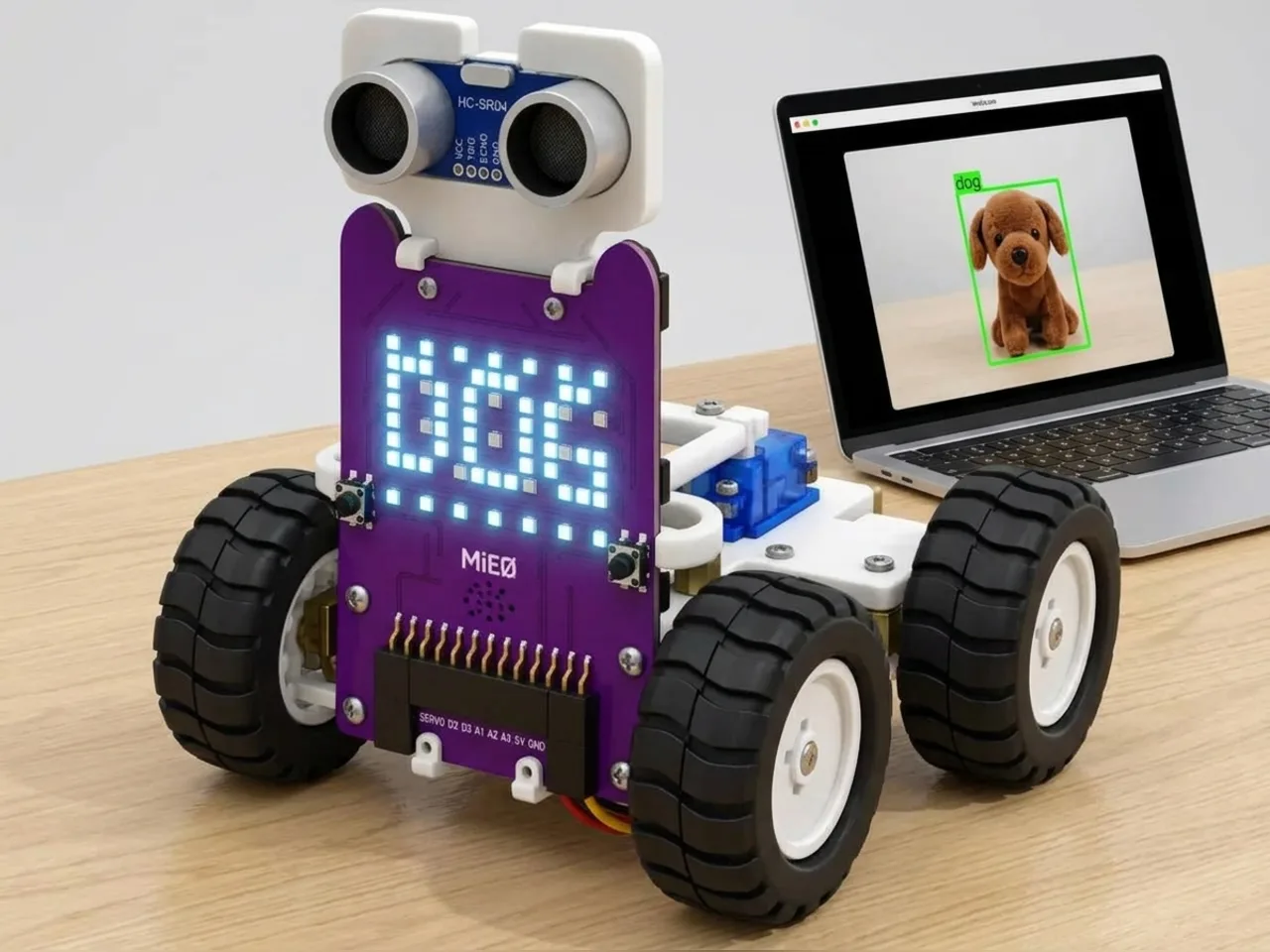
AI Vision-Based Robot
MIEO describes what the camera sees on its display
What you'll build
Object Sense knows 80 kinds of thing. Vision Sense can describe a whole picture with labels such as dog, toy, plant or food. In this project you press space, MIEO counts down from three like a camera timer, and Vision Sense describes the picture it takes. MIEO scrolls its best guess across its display, and the sprite on the stage lists everything it found. It all happens on your computer, with no internet, so your pictures stay private.
What you'll learn
- What image labelling is: describing a whole picture in words
- How sure an AI is about each answer, and why it can be wrong
- Taking a picture on demand with a countdown
- Sending the best answer from the computer to MIEO's display
You'll need
- Mieo board
- Battery
- 3D-printed mountings
- Screws and screwdriver
- A webcam; most laptops have one built in
- A few things to show it: a toy, a plant, some fruit
- A USB cable, or Bluetooth on your computer
- The Robolab app (free)
- A webcam (most laptops have one built in)
Stay safe
- Ask an adult to help with the small screws.
- The camera and microphone stay on your computer. Nothing MIEO sees or hears is sent anywhere.
Build it
- Fit the battery to the Mieo board if it isn't there already, and switch MIEO on.
- Connect MIEO to your computer with a USB cable or over Bluetooth, and stand it beside the screen.
- Collect a few things to show the camera, and find a spot with good light and a plain background.
Code it
- Open Robolab, choose Mieo, connect and set the switch at the top right to Arena. Add the Vision Sense extension.
- Start with “when green flag clicked”, “switch camera on with picture 0 % faded”, “show boxes and names on the stage” and “show think”.
- Start a second script with “when space key pressed” and “show surprise”, then “count down 3 then find picture labels in a camera picture”.
- Add “if … else” with “number of results > 0”.
- In the top part, add “say (everything found, as text)” so the stage lists every label, then “show … with a … at speed normal” with “name of result 1” in the text gap, and “show happy”.
- In the else part, add “say I'm not sure what that is.” and “show think”.
- Click the green flag, hold something up, and press space.
Arena mode: the program runs on your computer and talks to MIEO live over USB or Bluetooth, so keep MIEO switched on and connected.
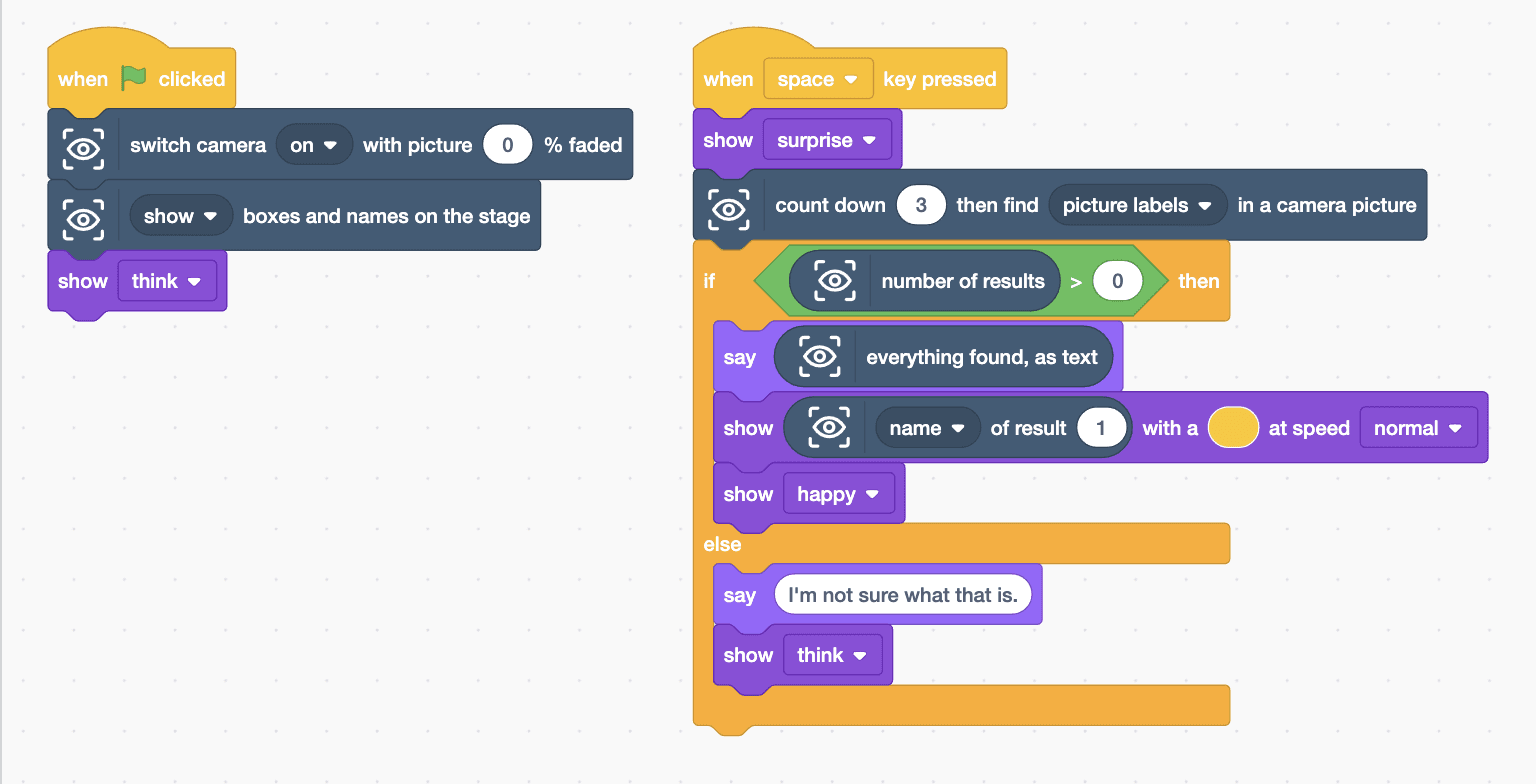
when green flag clicked
switch camera [on v] with picture (0) % faded
[show v] boxes and names on the stage
show [think v]

when [space v] key pressed
show [surprise v]
count down (3) then find [picture labels v] in a camera picture
if <(number of results) > (0)> then
  say (everything found, as text)
  show ([name v] of result (1)) with a (#FFC800) at speed [normal v]
  show [happy v]
else
  say (I'm not sure what that is.)
  show [think v]
endTest it
Click the green flag and the camera picture appears. Hold up a toy dog and press space: MIEO looks surprised while a countdown runs on the stage, then the Mieo sprite lists what Vision Sense found, such as “dog, toy”, and MIEO scrolls the first one across its display before smiling. If nothing is recognised, the sprite says it isn't sure.
If it doesn't work
- The labels are too general, like “room”? Hold the thing closer so it fills most of the picture, against a plain background.
- The countdown starts but nothing is found? Check the camera picture isn't dark, and wait for the countdown to finish before moving.
- MIEO scrolls nothing? Make sure “name of result 1” sits inside the gap of the show block.
Make it your own
- Easy: change the countdown to 5 seconds so you have time to get ready.
- Medium: use “confidence of result 1” to say how sure Vision Sense is, as a percentage.
- Hard: play a guessing game: Vision Sense takes a picture, and MIEO only plays its win sound if “was dog found ?” is true.