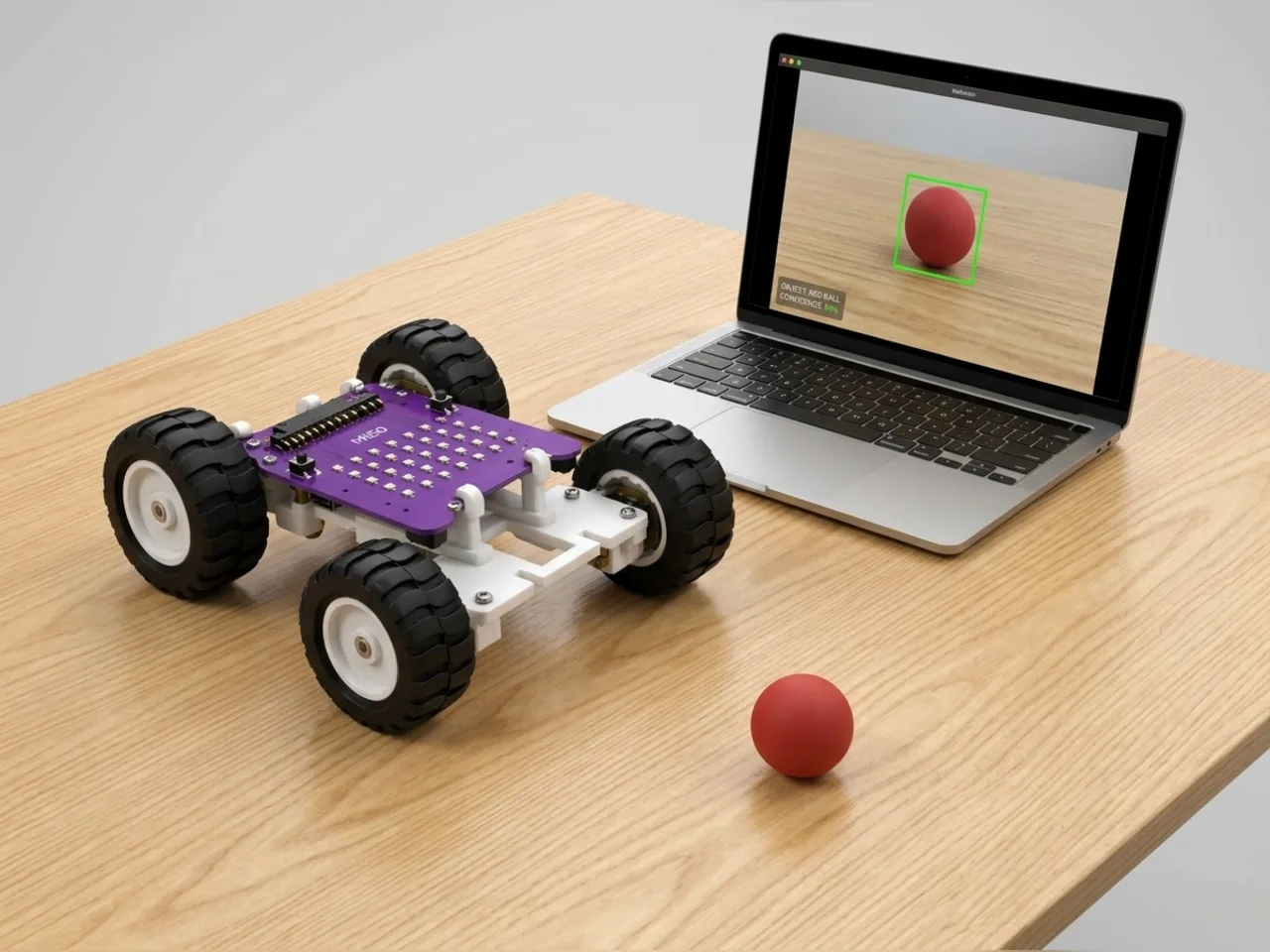
Object Detection and Response Robot
MIEO drives to a chosen object, or away from it
What you'll build
This project puts two senses together. Object Sense looks through your computer's webcam and finds a ball, telling MIEO whether it's to the left, in the middle or to the right. MIEO's own ultrasonic sensor tells it when it's close enough to stop. Press T and MIEO drives towards the ball in short bursts, steering as it goes, then stops just in front of it with a heart. Press A and it backs away from the ball instead. The AI runs on your computer, with no internet.
What you'll learn
- Searching a list of results for the one you want, with a repeat loop
- Steering with maths: working out each wheel's speed from where the ball is
- Combining a camera on the computer with a sensor on the robot
- Moving in short bursts, so the robot can look again before each move
You'll need
- Mieo board
- Two N20 motors and their wheels
- Battery
- 3D-printed mountings
- Caster wheel
- Screws and screwdriver
- Ultrasonic distance sensor and its cable
- A small ball
- A webcam; most laptops have one built in
- A computer with Bluetooth
- The Robolab app (free)
- A webcam (most laptops have one built in)
Stay safe
- Ask an adult to help with the small screws.
- Lift MIEO's wheels off the table before you upload a driving program, so it can't drive off the edge.
- Plug extra parts only into the connector this page names. Wiring a part to the wrong connector can damage it for good.
- The camera and microphone stay on your computer. Nothing MIEO sees or hears is sent anywhere.
Build it
- Build MIEO with both N20 motors, their wheels, the caster wheel and the battery, and plug in the ultrasonic sensor at the front, as in Obstacle Stopper Robot.
- Put MIEO on a table just in front of the laptop, facing the same way as the webcam, so “left” in the picture is MIEO's left too.
- Put the ball on the table about 50 cm ahead, then switch MIEO on and connect it over Bluetooth.
Code it
- Open Robolab, choose Mieo, connect and set the switch at the top right to Arena. Add Object Sense, and make variables called mode, i, ballx, seen and distance.
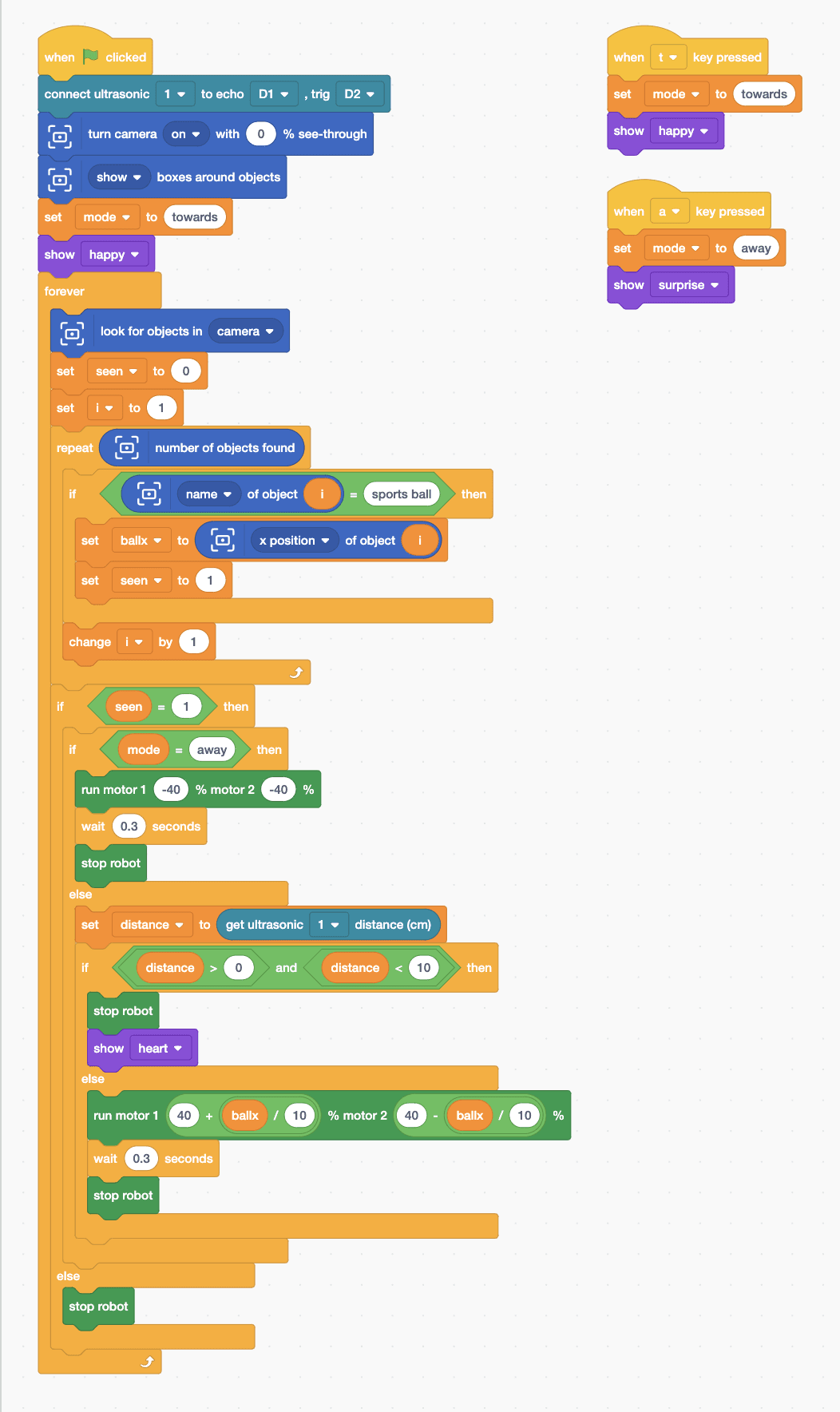
- Start with “when green flag clicked”, “connect ultrasonic 1 to echo D1 , trig D2”, “turn camera on with 0 % see-through”, “show boxes around objects”, “set mode to towards” and “show happy”. Add “when t key pressed” to set mode to towards, and “when a key pressed” to set it to away.
- Add a “forever” loop with “look for objects in camera”, “set seen to 0” and “set i to 1”. Then “repeat (number of objects found)”: if “name of object i = sports ball”, set ballx to “x position of object i” and seen to 1; then change i by 1.
- Add “if … else” with “seen = 1”; its else part is “stop robot”. Inside the top part, add “if … else” with “mode = away”: away runs both motors at -40 for a moment.
- Towards: “set distance to (get ultrasonic 1 distance (cm))”. If “distance > 0 and distance < 10”, stop and “show heart”. Otherwise steer with one block: “run motor 1 (40 + ballx / 10) % motor 2 (40 - ballx / 10) %”. A ball on the left makes ballx negative, so the left wheel slows and MIEO curves left.
- Every move is a short burst: run the motors, “wait 0.3 seconds”, then “stop robot”.
- Click the green flag, allow the camera, and roll the ball into view.
Arena mode: the program runs on your computer and talks to MIEO live over USB or Bluetooth, so keep MIEO switched on and connected.
when green flag clicked
connect ultrasonic [1 v] to echo [D1 v] , trig [D2 v]
turn camera [on v] with (0) % see-through
[show v] boxes around objects
set [mode v] to (towards)
show [happy v]
forever
  look for objects in [camera v]
  set [seen v] to (0)
  set [i v] to (1)
  repeat (number of objects found)
    if <([name v] of object (i)) = (sports ball)> then
      set [ballx v] to ([x position v] of object (i))
      set [seen v] to (1)
    end
    change [i v] by (1)
  end
  if <(seen) = (1)> then
    if <(mode) = (away)> then
      run motor 1 (-40) % motor 2 (-40) %
      wait (0.3) seconds
      stop robot
    else
      set [distance v] to (get ultrasonic [1 v] distance (cm))
      if <<(distance) > (0)> and <(distance) < (10)>> then
        stop robot
        show [heart v]
      else
        run motor 1 ((40) + ((ballx) / (10))) % motor 2 ((40) - ((ballx) / (10))) %
        wait (0.3) seconds
        stop robot
      end
    end
  else
    stop robot
  end
end

when [t v] key pressed
set [mode v] to (towards)
show [happy v]

when [a v] key pressed
set [mode v] to (away)
show [surprise v]Test it
Click the green flag. When the ball is in the camera picture, a box appears round it labelled sports ball. MIEO creeps towards it in short bursts, curving left or right when the ball is off to one side, and stops about 10 cm away with a heart. Press A and MIEO looks surprised and backs away from the ball; press T to go back towards it. Hide the ball and MIEO stops.
If it doesn't work
- MIEO steers the wrong way? It must face the same way as the webcam. If it still turns away, swap the + and - blocks between the two wheels.
- The ball isn't found? Use a round ball with a plain colour, in good light, and keep it fully in the picture.
- MIEO never stops in front of the ball? The ultrasonic sensor must be low enough to see it. Check Echo is in D1 and Trig in D2.
Make it your own
- Easy: make MIEO celebrate with a sound when it reaches the ball.
- Medium: chase a different object, such as a cup or a teddy bear, by changing sports ball.
- Hard: when MIEO reaches the ball, make it push the ball gently forward like a footballer.