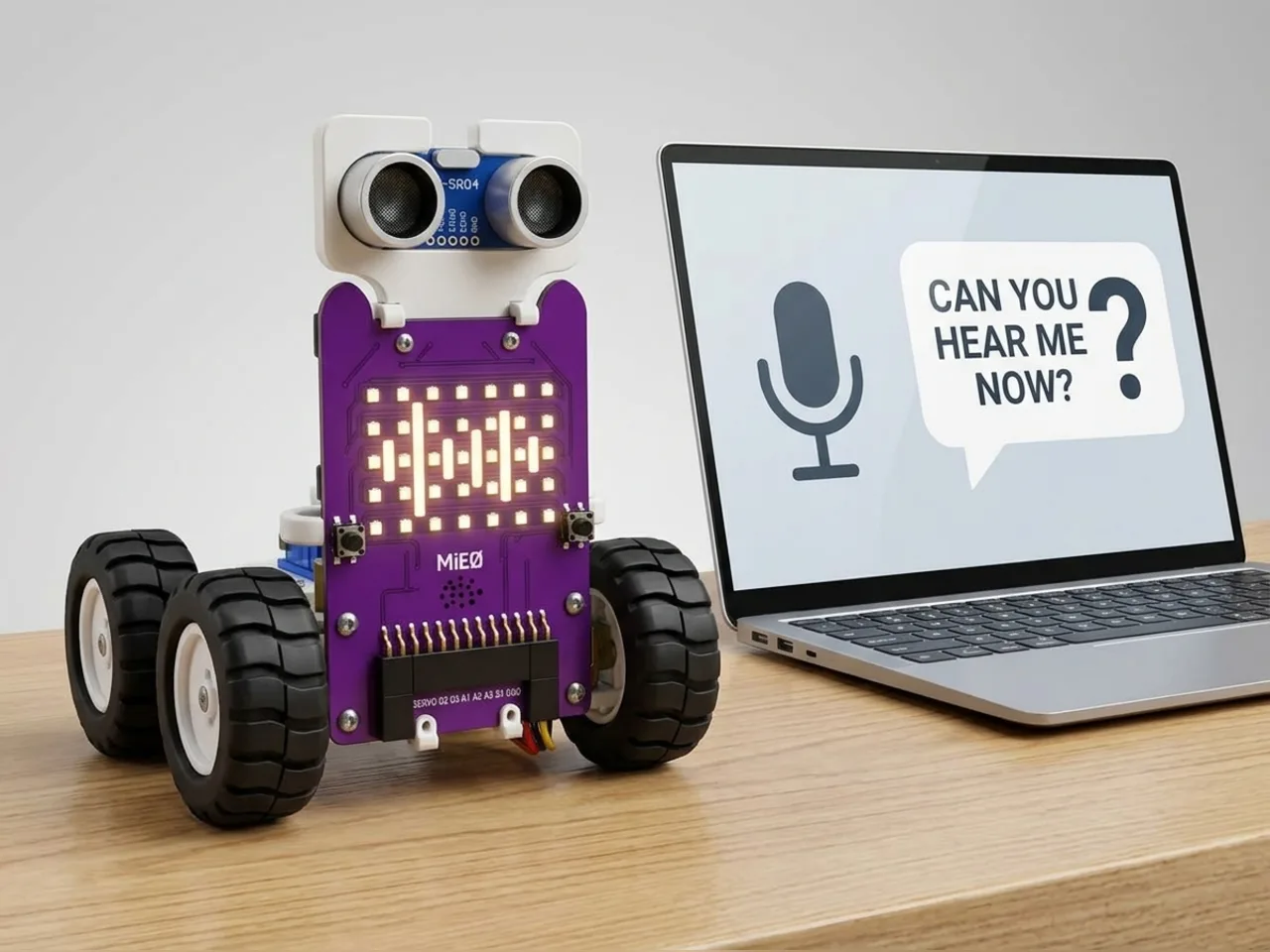
Voice Assistant Robot
Ask MIEO questions and it answers with words and sounds
What you'll build
Voice assistants wait for you to ask, listen to your question, pick out what you want and answer. In this project MIEO works the same way. Press the space bar, and MIEO shows a listening face. Ask “what time is it?”, “what day is it?”, “roll a dice” or “tell me a joke”, and MIEO answers in a speech bubble on the stage with a matching face and sound. Speech Sense listens on your computer, with no internet, so your questions stay in the room.
What you'll learn
- How an assistant works: listen, find the key word, answer
- Reading the computer's clock with “current hour” and “current minute”
- Using a list to turn a day number into a day name
- Why a push-to-talk button stops an assistant hearing things by mistake
You'll need
- Mieo board
- Battery
- 3D-printed mountings
- Screws and screwdriver
- A computer with a microphone
- A USB cable, or Bluetooth on your computer
- The Robolab app (free)
- A microphone (most laptops have one built in)
Stay safe
- Ask an adult to help with the small screws.
- The camera and microphone stay on your computer. Nothing MIEO sees or hears is sent anywhere.
Build it
- Fit the battery to the Mieo board if it isn't there already, and switch MIEO on.
- Connect MIEO to your computer with a USB cable or over Bluetooth, and stand it beside the screen.
- Check your computer's microphone works, and find a quiet spot.
Code it
- Open Robolab, choose Mieo, connect and set the switch at the top right to Arena. Add Speech Sense, make a variable called question and a list called days.
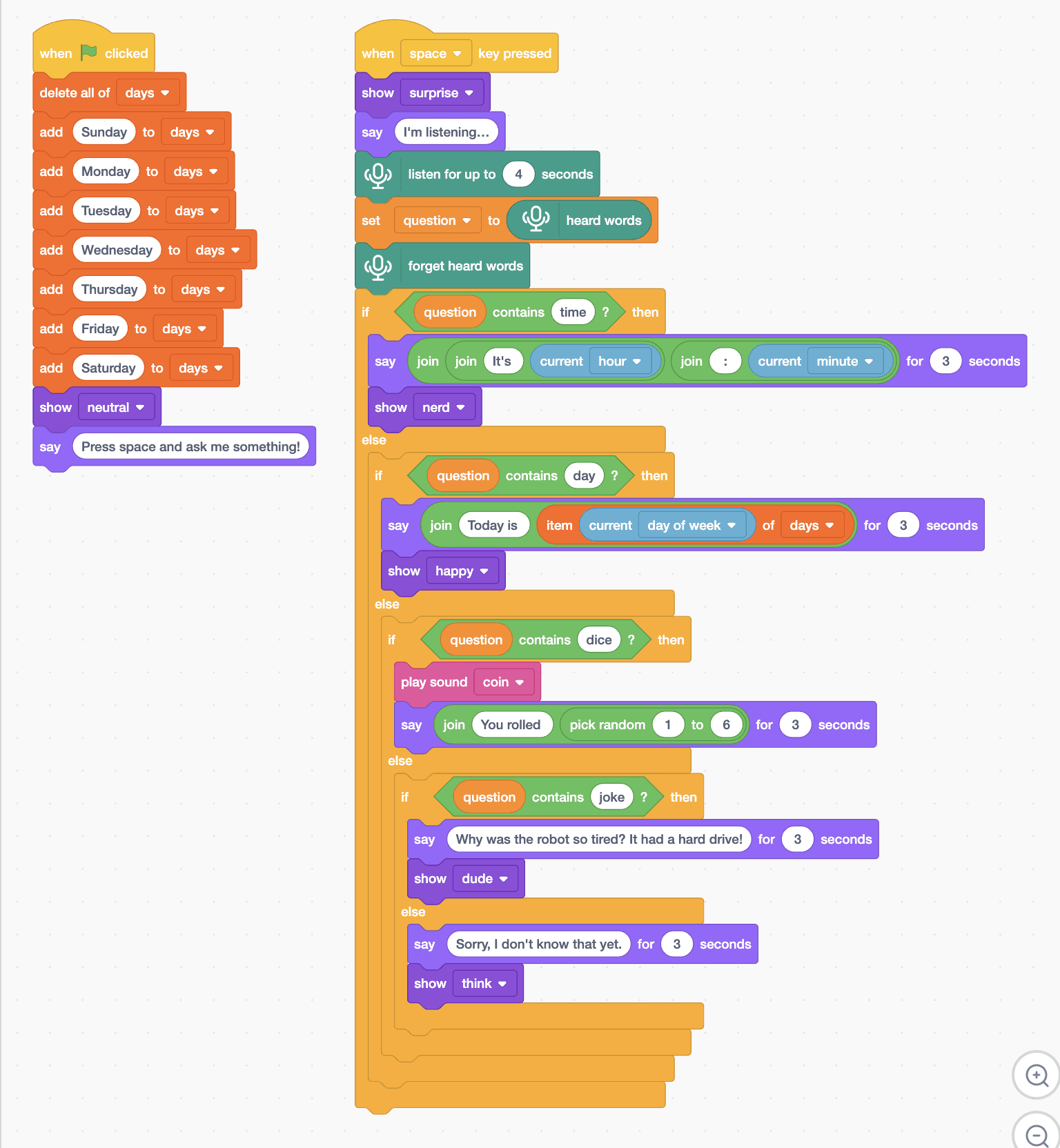
- Start with “when green flag clicked”, “delete all of days”, then “add Sunday to days” and the other six days in order. Add “show neutral” and “say Press space and ask me something!”.
- Start a second script with “when space key pressed”, “show surprise”, “say I'm listening…”, “listen for up to 4 seconds”, “set question to (heard words)” and “forget heard words”.
- Add a chain of “if … else” blocks using “question contains …?”. Time: say “It's”, then “current hour”, then “:”, then “current minute”, joined, and “show nerd”.
- Day: say “Today is” joined with “item (current day of week) of days”, and “show happy”. Dice: say the result of “pick random 1 to 6” and play the coin sound.
- Joke: “say Why was the robot so tired? It had a hard drive!” and “show dude”. The last else says “Sorry, I don't know that yet.” with “show think”.
- Click the green flag, press space and ask a question.
Arena mode: the program runs on your computer and talks to MIEO live over USB or Bluetooth, so keep MIEO switched on and connected.
when green flag clicked
delete all of [days v]
add (Sunday) to [days v]
add (Monday) to [days v]
add (Tuesday) to [days v]
add (Wednesday) to [days v]
add (Thursday) to [days v]
add (Friday) to [days v]
add (Saturday) to [days v]
show [neutral v]
say (Press space and ask me something!)

when [space v] key pressed
show [surprise v]
say (I'm listening…)
listen for up to (4) seconds
set [question v] to (heard words)
forget heard words
if <(question) contains (time) ?> then
  say (join (join (It's) (current [hour v])) (join (:) (current [minute v]))) for (3) seconds
  show [nerd v]
else
  if <(question) contains (day) ?> then
    say (join (Today is) (item (current [day of week v]) of [days v])) for (3) seconds
    show [happy v]
  else
    if <(question) contains (dice) ?> then
      play sound [coin v]
      say (join (You rolled) (pick random (1) to (6))) for (3) seconds
    else
      if <(question) contains (joke) ?> then
        say (Why was the robot so tired? It had a hard drive!) for (3) seconds
        show [dude v]
      else
        say (Sorry, I don't know that yet.) for (3) seconds
        show [think v]
      end
    end
  end
endTest it
Click the green flag and the Mieo sprite invites you to ask something. Press space: MIEO looks surprised and the sprite says it's listening. Ask “what time is it?” and it tells you the time from your computer's clock. “What day is it?” gets today's name, “roll a dice” a number from 1 to 6 with a coin sound, and “tell me a joke” a joke. Anything else gets a polite “Sorry”.
If it doesn't work
- It always says sorry? Ask during the four seconds after “I'm listening”, and make sure your question has one of the key words: time, day, dice or joke.
- The time shows 9:5 instead of 9:05? The minute block doesn't add a zero. That's a challenge for you below.
- It gives the wrong day? Check the seven days are added in order, starting with Sunday.
Make it your own
- Easy: add more jokes, and give MIEO a different face for each answer.
- Medium: put a 0 in front of minutes under 10, using “if current minute < 10”.
- Hard: add a timer: when you say “timer”, MIEO waits a minute and then plays its alarm sound.
What to build next
AI
Voice-Activated Robotic Car
Wake MIEO with the word robot, then drive with speed words
AI
AI-Powered Interactive Robot
MIEO sees your face, hears your voice and chats back
AI
IoT-Connected Robotics System
Send MIEO's sensor readings to the cloud and read them back