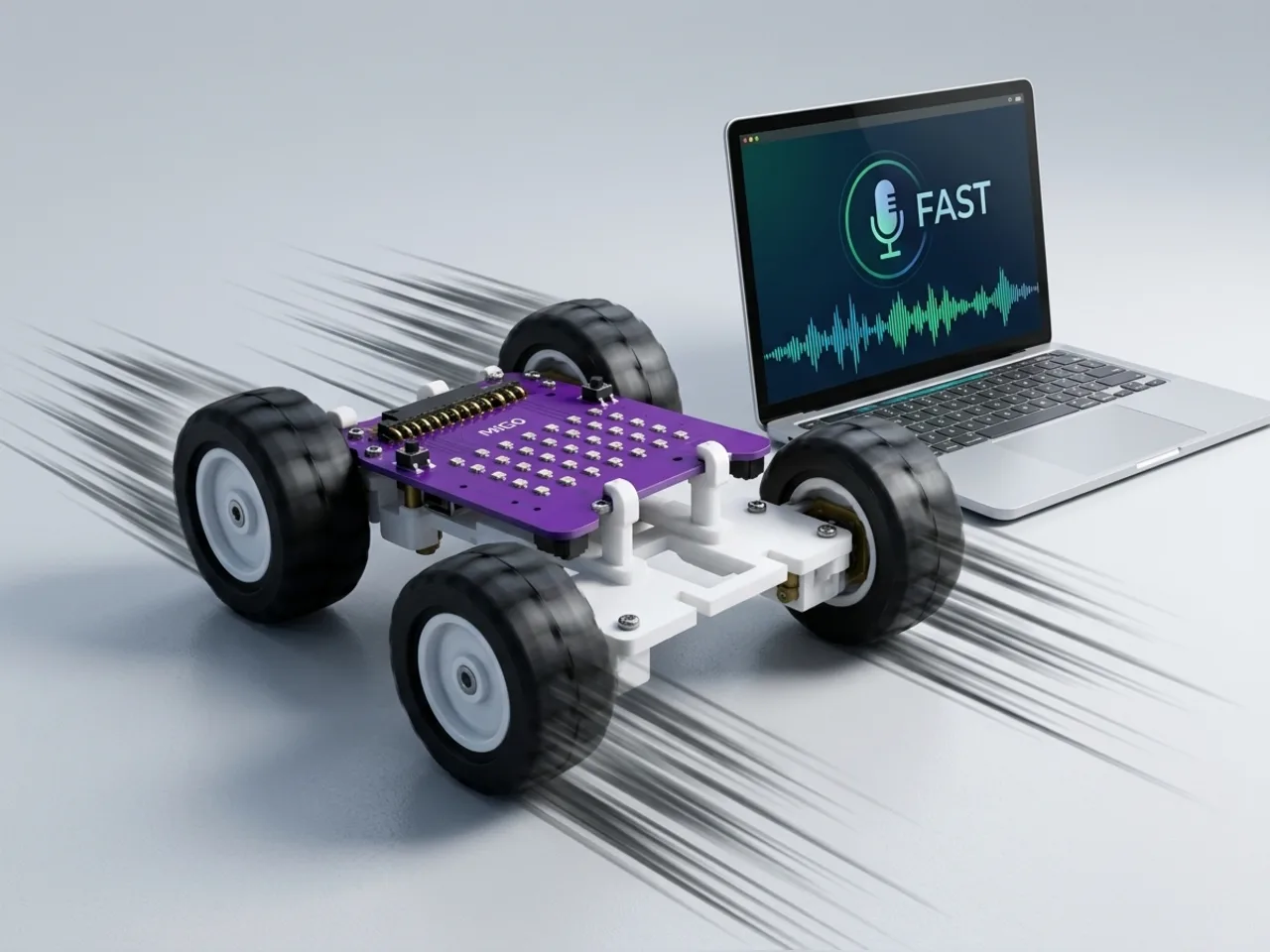
Voice-Activated Robotic Car
Wake MIEO with the word robot, then drive with speed words
What you'll build
Voice assistants wait for a wake word before they listen to commands, so they don't react to everything people say. In this project MIEO does the same. It sleeps until you say “robot”. Then it wakes up and obeys driving words: go, fast, slow, left, right and stop. Saying stop also sends MIEO back to sleep, so it needs waking again before it moves. Speech Sense listens on your computer, with no internet.
What you'll learn
- What a wake word is, and why assistants use one
- Remembering whether MIEO is awake in a variable
- Changing a speed variable with spoken words
- Building in safety: stop always works, and sleep needs a fresh wake word
You'll need
- Mieo board
- Two N20 motors and their wheels
- Battery
- 3D-printed mountings
- Caster wheel
- Screws and screwdriver
- A computer with Bluetooth and a microphone
- The Robolab app (free)
- A microphone (most laptops have one built in)
Stay safe
- Ask an adult to help with the small screws.
- Lift MIEO's wheels off the table before you upload a driving program, so it can't drive off the edge.
- The camera and microphone stay on your computer. Nothing MIEO sees or hears is sent anywhere.
Build it
- Build MIEO with both N20 motors, their wheels, the caster wheel and the battery, as in Switch Motor Start.
- Clear a driving area on the floor, away from stairs and table edges, and find a quiet room.
- Switch MIEO on and connect it to your computer over Bluetooth.
Code it
- Open Robolab, choose Mieo, connect and set the switch at the top right to Arena. Add Speech Sense and make two variables, awake and speed.
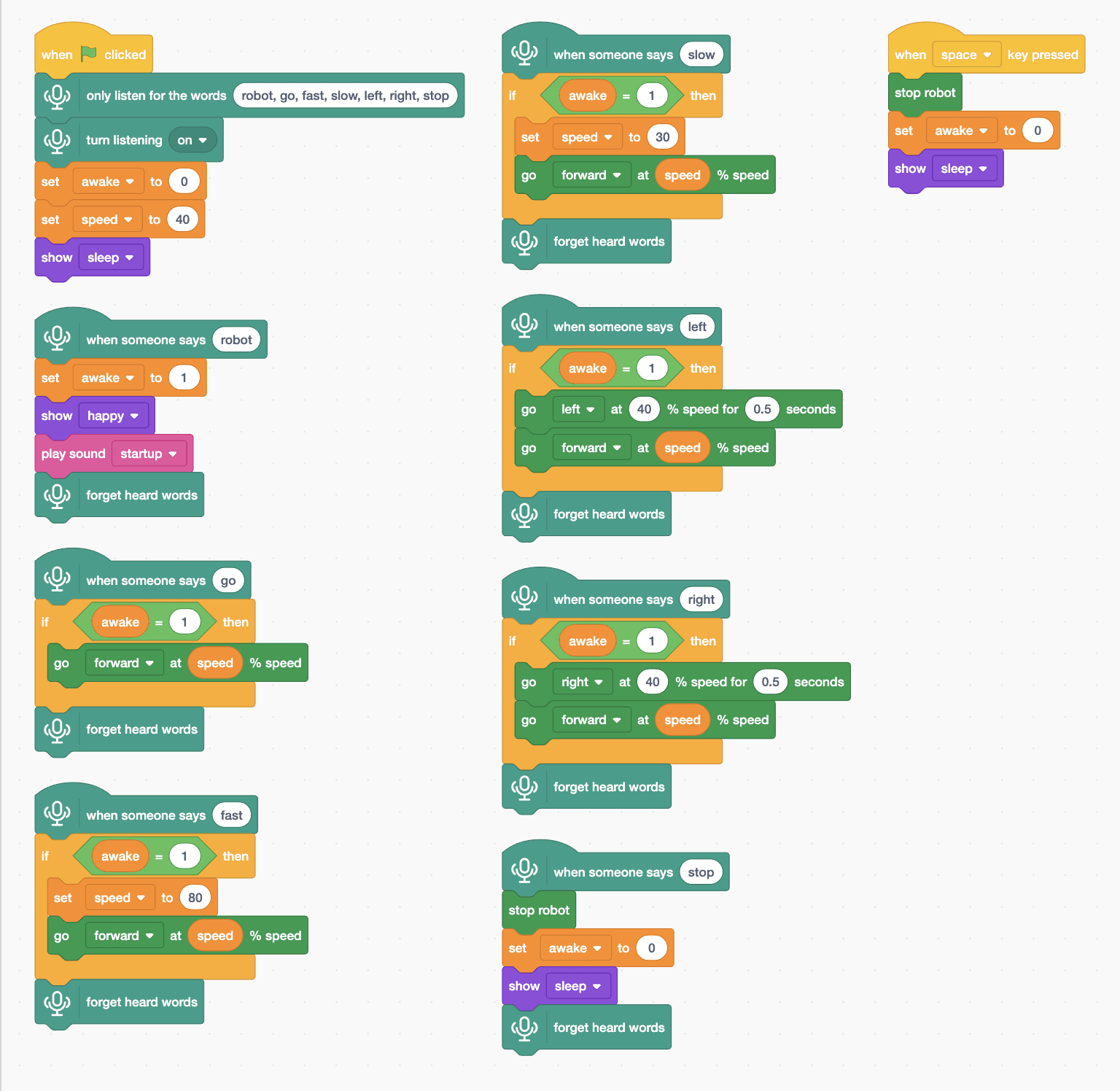
- Start with “when green flag clicked”, “only listen for the words robot, go, fast, slow, left, right, stop”, “turn listening on”, “set awake to 0”, “set speed to 40” and “show sleep”.
- Add “when someone says robot” with “set awake to 1”, “show happy” and “play sound startup”, then “forget heard words”.
- For each driving word, add “when someone says …” with “if awake = 1 then” inside, and “forget heard words” at the end. Go does “go forward at (speed) % speed”.
- Fast sets speed to 80 and slow sets it to 30, each followed by “go forward at (speed) % speed”. Left and right turn for 0.5 seconds, then go forward again.
- Stop doesn't need the if: “stop robot”, “set awake to 0” and “show sleep”. Add the same three blocks to “when space key pressed”, as an emergency stop.
- Click the green flag, allow the microphone, say “robot”, then “go”.
Arena mode: the program runs on your computer and talks to MIEO live over USB or Bluetooth, so keep MIEO switched on and connected.
when green flag clicked
only listen for the words (robot, go, fast, slow, left, right, stop)
turn listening [on v]
set [awake v] to (0)
set [speed v] to (40)
show [sleep v]

when someone says (robot)
set [awake v] to (1)
show [happy v]
play sound [startup v]
forget heard words

when someone says (go)
if <(awake) = (1)> then
  go [forward v] at (speed) % speed
end
forget heard words

when someone says (fast)
if <(awake) = (1)> then
  set [speed v] to (80)
  go [forward v] at (speed) % speed
end
forget heard words

when someone says (slow)
if <(awake) = (1)> then
  set [speed v] to (30)
  go [forward v] at (speed) % speed
end
forget heard words

when someone says (left)
if <(awake) = (1)> then
  go [left v] at (40) % speed for (0.5) seconds
  go [forward v] at (speed) % speed
end
forget heard words

when someone says (right)
if <(awake) = (1)> then
  go [right v] at (40) % speed for (0.5) seconds
  go [forward v] at (speed) % speed
end
forget heard words

when someone says (stop)
stop robot
set [awake v] to (0)
show [sleep v]
forget heard words

when [space v] key pressed
stop robot
set [awake v] to (0)
show [sleep v]Test it
Click the green flag and MIEO sleeps. Say “go”: nothing happens, because it's asleep. Say “robot” and it wakes with a smile and its start-up sound. Now “go” drives it forward, “fast” speeds it up, “slow” slows it down, and “left” and “right” turn it before it carries on. Say “stop” and it stops and falls asleep again. Space stops it at any time.
If it doesn't work
- MIEO won't wake up? Say “robot” clearly, on its own, close to the microphone.
- It reacts to the wrong word? Keep to the seven words in the list, with a short pause between them.
- It's too fast for the room? Make fast 60 instead of 80.
Make it your own
- Easy: change the wake word to one you like, in both the word list and the robot script.
- Medium: make MIEO fall asleep by itself if it hears nothing for twenty seconds.
- Hard: add the word “back”, and make “fast” and “slow” keep MIEO going in whichever direction it was already driving.
What to build next
AI
AI-Powered Interactive Robot
MIEO sees your face, hears your voice and chats back
AI
IoT-Connected Robotics System
Send MIEO's sensor readings to the cloud and read them back
AI
AI-Based Smart Robotics System
A capstone robot that sees, hears and decides for itself