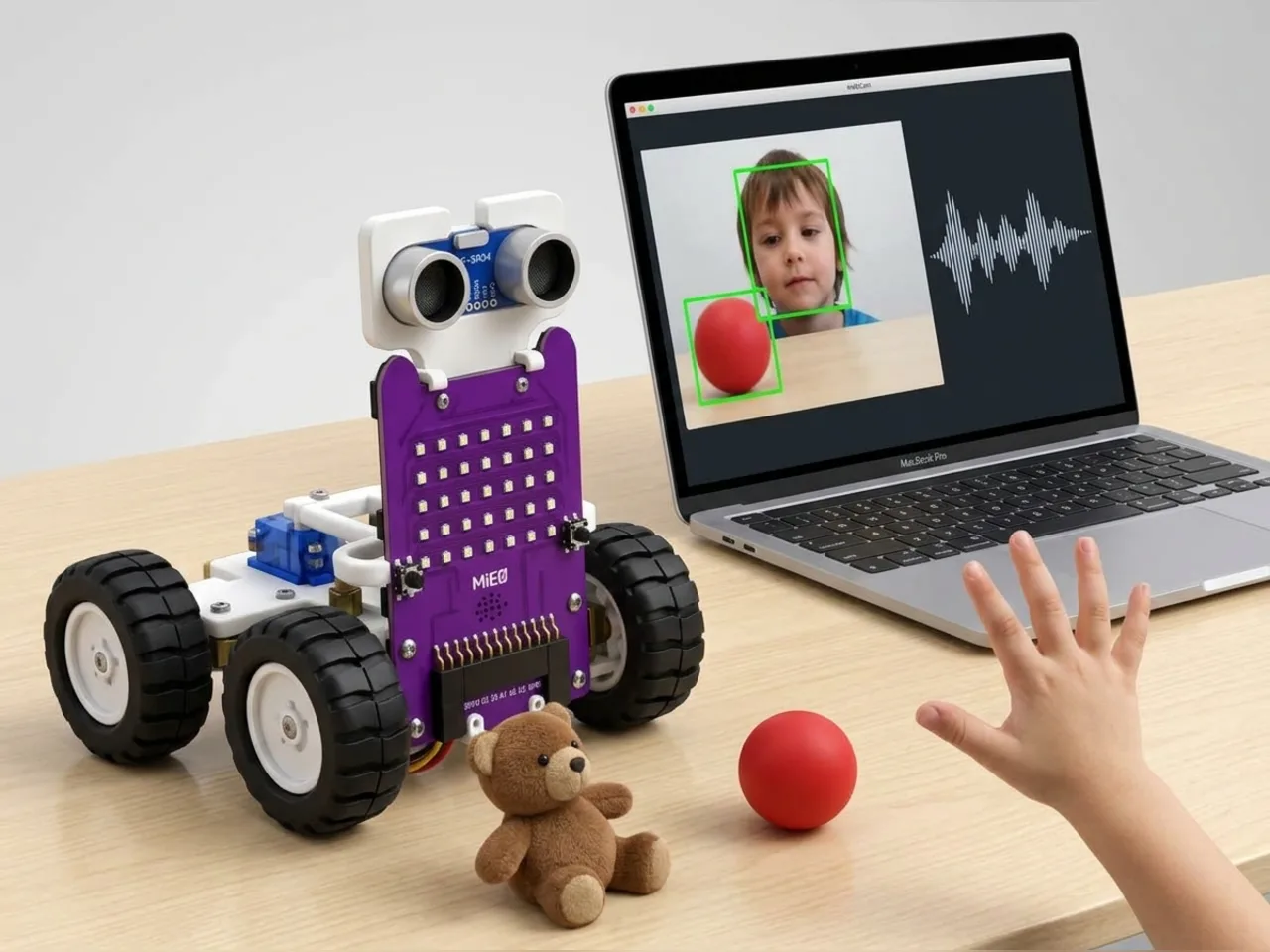
AI-Based Smart Robotics System
A capstone robot that sees, hears and decides for itself
What you'll build
This capstone brings everything together. You tell MIEO which job to do by voice, and then it watches the camera and decides for itself. In guard mode, it watches a doorway and sounds the alarm with red lights when a person appears. In play mode, it spins for joy whenever it sees a ball. In sleep mode, it rests. A variable called mode remembers the job, which is how real robots switch between tasks. Speech Sense and Object Sense both run on your computer, with no internet.
What you'll learn
- Modes: one variable that decides which behaviour runs
- Combining a voice command with what the camera sees
- Letting a robot decide for itself while it does a job
- Planning a bigger program in parts before building it
You'll need
- Mieo board
- Two N20 motors and their wheels
- Battery
- 3D-printed mountings
- Caster wheel
- Screws and screwdriver
- A small ball
- A webcam and a microphone; most laptops have both built in
- A computer with Bluetooth
- The Robolab app (free)
- A webcam (most laptops have one built in)
- A microphone (most laptops have one built in)
Stay safe
- Ask an adult to help with the small screws.
- Lift MIEO's wheels off the table before you upload a driving program, so it can't drive off the edge.
- The camera and microphone stay on your computer. Nothing MIEO sees or hears is sent anywhere.
Build it
- Build MIEO with both N20 motors, their wheels, the caster wheel and the battery, as in Switch Motor Start.
- Put MIEO beside your computer, with room to spin, away from the table edge.
- Switch MIEO on and connect it over Bluetooth. For guard mode, point the laptop's camera at a doorway.
Code it
- Open Robolab, choose Mieo, connect and set the switch at the top right to Arena. Add Speech Sense and Object Sense, and make a variable called mode.
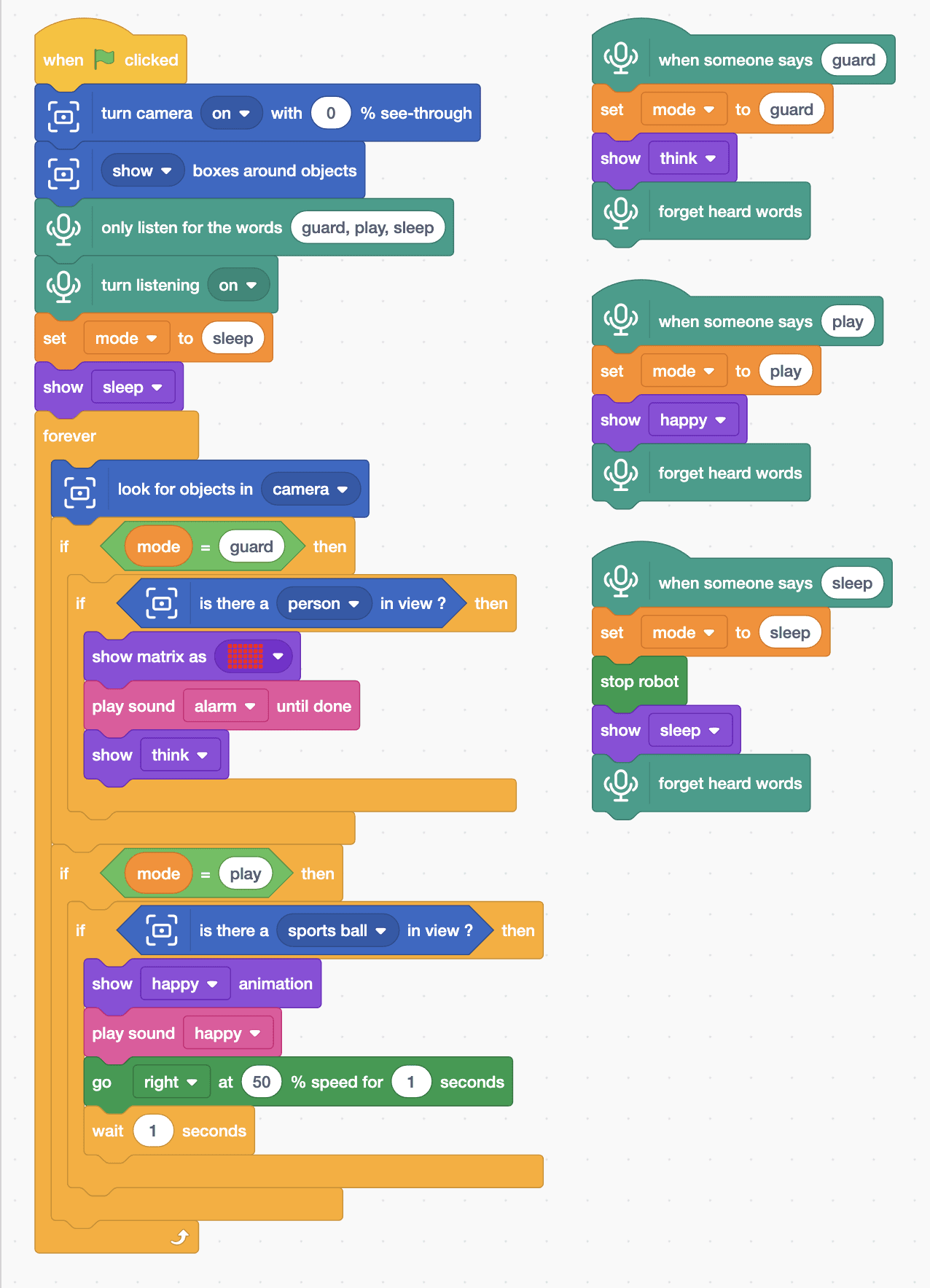
- Start with “when green flag clicked”, “turn camera on with 0 % see-through”, “show boxes around objects”, “only listen for the words guard, play, sleep”, “turn listening on”, “set mode to sleep” and “show sleep”.
- Add a script for each word. “when someone says guard”: “set mode to guard”, “show think”, “forget heard words”. Play shows happy. Sleep also adds “stop robot” and “show sleep”.
- Back in the main script, add a “forever” loop with “look for objects in camera” inside.
- Guard: “if mode = guard then”, with “if is there a person in view ? then” inside: paint the display red with “show matrix as”, “play sound alarm until done”, then “show think”.
- Play: “if mode = play then”, with “if is there a sports ball in view ? then” inside: “show happy animation”, “play sound happy”, “go right at 50 % speed for 1 seconds” and “wait 1 seconds”.
- Click the green flag, allow the camera and microphone, and say “play”.
Arena mode: the program runs on your computer and talks to MIEO live over USB or Bluetooth, so keep MIEO switched on and connected.
when green flag clicked
turn camera [on v] with (0) % see-through
[show v] boxes around objects
only listen for the words (guard, play, sleep)
turn listening [on v]
set [mode v] to (sleep)
show [sleep v]
forever
  look for objects in [camera v]
  if <(mode) = (guard)> then
    if <is there a [person v] in view ?> then
      show matrix as (picture)
      play sound [alarm v] until done
      show [think v]
    end
  end
  if <(mode) = (play)> then
    if <is there a [sports ball v] in view ?> then
      show [happy v] animation
      play sound [happy v]
      go [right v] at (50) % speed for (1) seconds
      wait (1) seconds
    end
  end
end

when someone says (guard)
set [mode v] to (guard)
show [think v]
forget heard words

when someone says (play)
set [mode v] to (play)
show [happy v]
forget heard words

when someone says (sleep)
set [mode v] to (sleep)
stop robot
show [sleep v]
forget heard wordsTest it
Click the green flag and MIEO sleeps, ignoring the camera. Say “play” and it smiles; roll a ball into the camera picture and MIEO spins for joy. Say “guard”, turn the camera to the doorway and step out of view: when someone walks in, the display flashes red and MIEO sounds its alarm. Say “sleep” and it stops and rests.
If it doesn't work
- Guard mode keeps going off? It can see you! Point the camera at the doorway and stay out of the picture.
- Play mode ignores the ball? Use a round ball with a plain colour, in good light, fully in the picture.
- MIEO doesn't change mode? Say the mode word clearly on its own, close to the microphone.
Make it your own
- Easy: choose different faces and sounds for each mode.
- Medium: add a fourth mode, “follow”, that drives towards a ball like Object Detection and Response Robot.
- Hard: in guard mode, count the visitors in a variable and say how many came when you switch back to play.