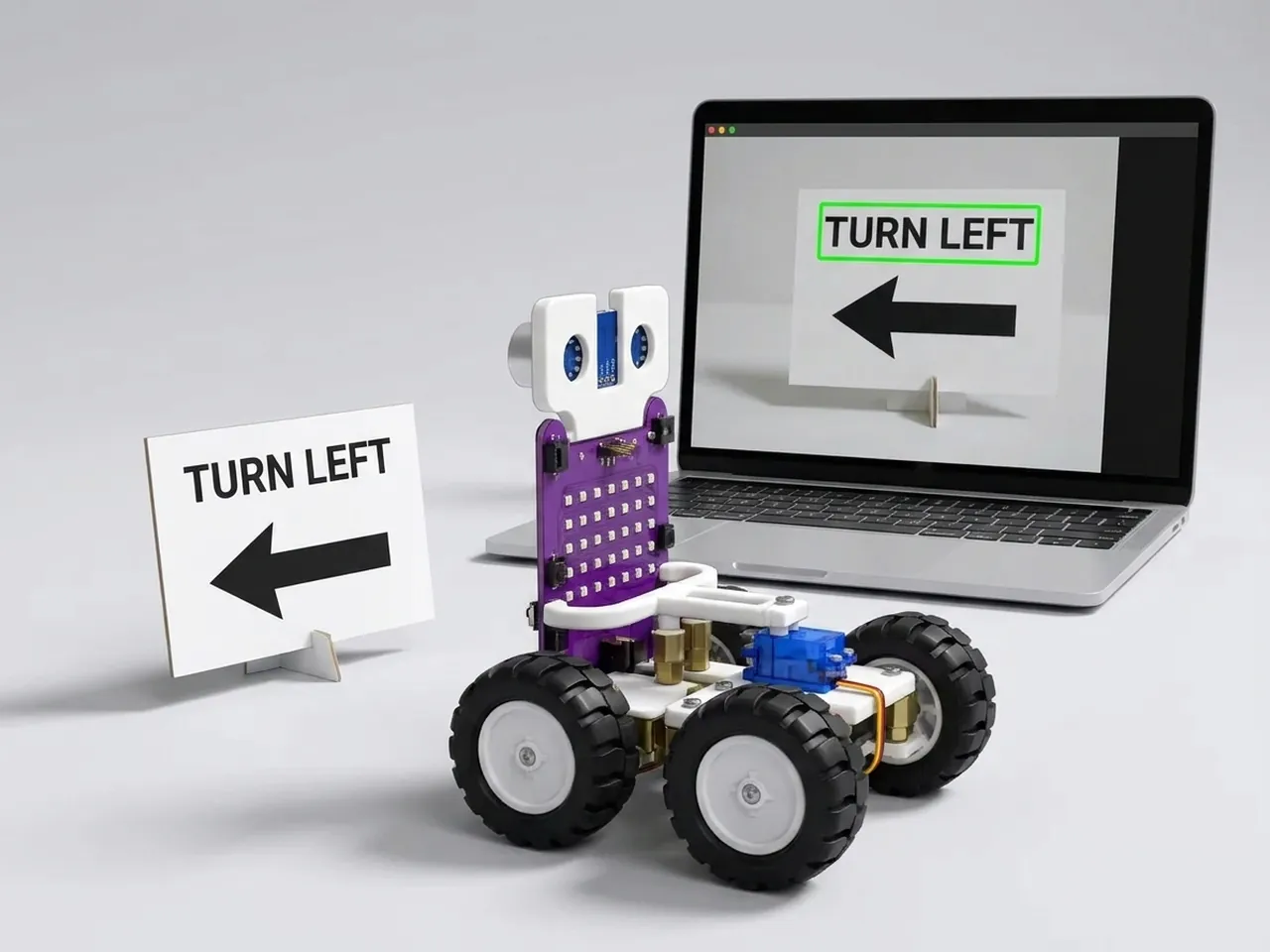
Printed Text Recognition System
Hold up a printed word and MIEO reads and obeys it
What you'll build
Self-driving cars have to read road signs. In this project MIEO reads signs too. Vision Sense looks at a picture from your computer's webcam and reads any printed words in it, on your computer and with no internet. Hold up a sign saying GO and MIEO drives forward; LEFT and RIGHT turn it; DANCE starts a light show and a spin. MIEO only obeys a sign once, then waits for a new one, so it doesn't run away while you're still holding the card up.
What you'll learn
- What text recognition is: turning printed letters in a picture into words
- Why big, bold, plain letters are easiest for a computer to read
- Checking whether a word was found and choosing what to do
- Remembering what was read last, so each sign is obeyed once
You'll need
- Mieo board
- Two N20 motors and their wheels
- Battery
- 3D-printed mountings
- Caster wheel
- Screws and screwdriver
- Four signs on card saying GO, LEFT, RIGHT and DANCE
- A webcam; most laptops have one built in
- A computer with Bluetooth
- The Robolab app (free)
- A webcam (most laptops have one built in)
Stay safe
- Ask an adult to help with the small screws.
- Lift MIEO's wheels off the table before you upload a driving program, so it can't drive off the edge.
- The camera and microphone stay on your computer. Nothing MIEO sees or hears is sent anywhere.
Build it
- Build MIEO with both N20 motors, their wheels, the caster wheel and the battery, as in Switch Motor Start.
- Make four signs: write GO, LEFT, RIGHT and DANCE in big, thick capital letters, one word per card, dark on white.
- Clear a driving space, then switch MIEO on and connect it to your computer over Bluetooth.
Code it

Want MIEO Bot to guide you?
Robolab's built-in tutor has a lesson on the same idea, “Mieo Reads Your Sign”. Open MIEO Bot in Robolab, pick Explorer, then Mieo, and it shows you the blocks one at a time and checks your work as you go.
About MIEO Bot's lessons- Open Robolab, choose Mieo, connect and set the switch at the top right to Arena. Add the Vision Sense extension and make two variables, words and last.
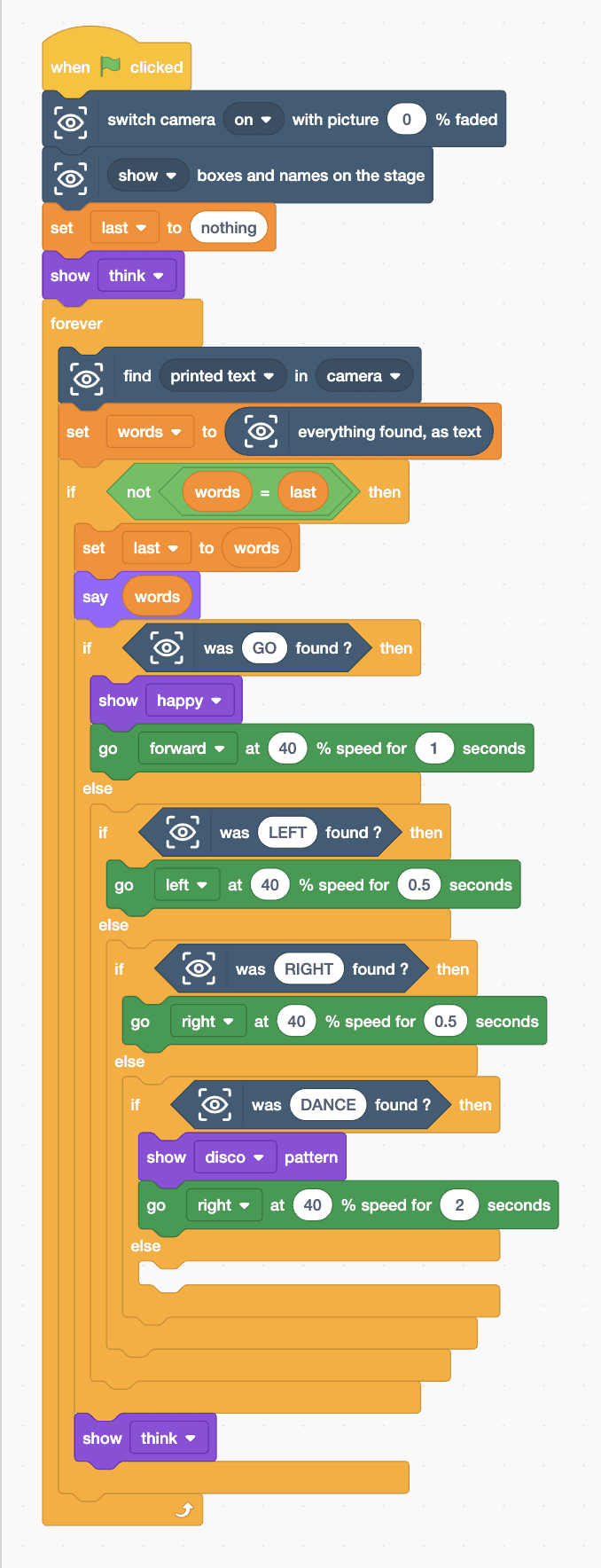
- Start with “when green flag clicked”, “switch camera on with picture 0 % faded”, “show boxes and names on the stage”, “set last to nothing” and “show think”.
- Add a “forever” loop with “find printed text in camera” and “set words to (everything found, as text)” inside.
- Add “if not words = last then” with “set last to (words)” and “say (words)” inside, so each new sign is read once.
- Inside it too, add a chain of “if … else” blocks. “was GO found ?” does “show happy” and “go forward at 40 % speed for 1 seconds”. LEFT and RIGHT do “go left” or “go right” for 0.5 seconds.
- “was DANCE found ?” does “show disco pattern” and “go right at 40 % speed for 2 seconds”. End every command with “show think”.
- Click the green flag, allow the camera, and hold the GO sign up to it.
Arena mode: the program runs on your computer and talks to MIEO live over USB or Bluetooth, so keep MIEO switched on and connected.
when green flag clicked
switch camera [on v] with picture (0) % faded
[show v] boxes and names on the stage
set [last v] to (nothing)
show [think v]
forever
  find [printed text v] in [camera v]
  set [words v] to (everything found, as text)
  if <not <(words) = (last)>> then
    set [last v] to (words)
    say (words)
    if <was (GO) found ?> then
      show [happy v]
      go [forward v] at (40) % speed for (1) seconds
    else
      if <was (LEFT) found ?> then
        go [left v] at (40) % speed for (0.5) seconds
      else
        if <was (RIGHT) found ?> then
          go [right v] at (40) % speed for (0.5) seconds
        else
          if <was (DANCE) found ?> then
            show [disco v] pattern
            go [right v] at (40) % speed for (2) seconds
          else
          end
        end
      end
    end
    show [think v]
  end
endTest it
Click the green flag and the camera picture fills the stage. Hold up the GO sign: a box appears round the word, the Mieo sprite says “GO”, and MIEO smiles and drives forward for a second. Lower the sign and hold up LEFT or RIGHT to turn, or DANCE for disco lights and a spin. Holding a sign up for longer doesn't repeat it; show a different one, or take it away and show it again.
If it doesn't work
- It doesn't read the sign? Use big, thick capitals, hold the card flat and still, and fill about half the picture with it.
- It reads extra words from things behind you? Hold the sign close, in front of a plain wall.
- It's slow to react? Reading text takes a moment each time. Hold each sign up for a second or two.
Make it your own
- Easy: add a BACK sign that makes MIEO reverse.
- Medium: add a STOP sign, and change GO so MIEO keeps driving until it reads STOP.
- Hard: write a sign with a number, such as 3, and make MIEO beep that many times.