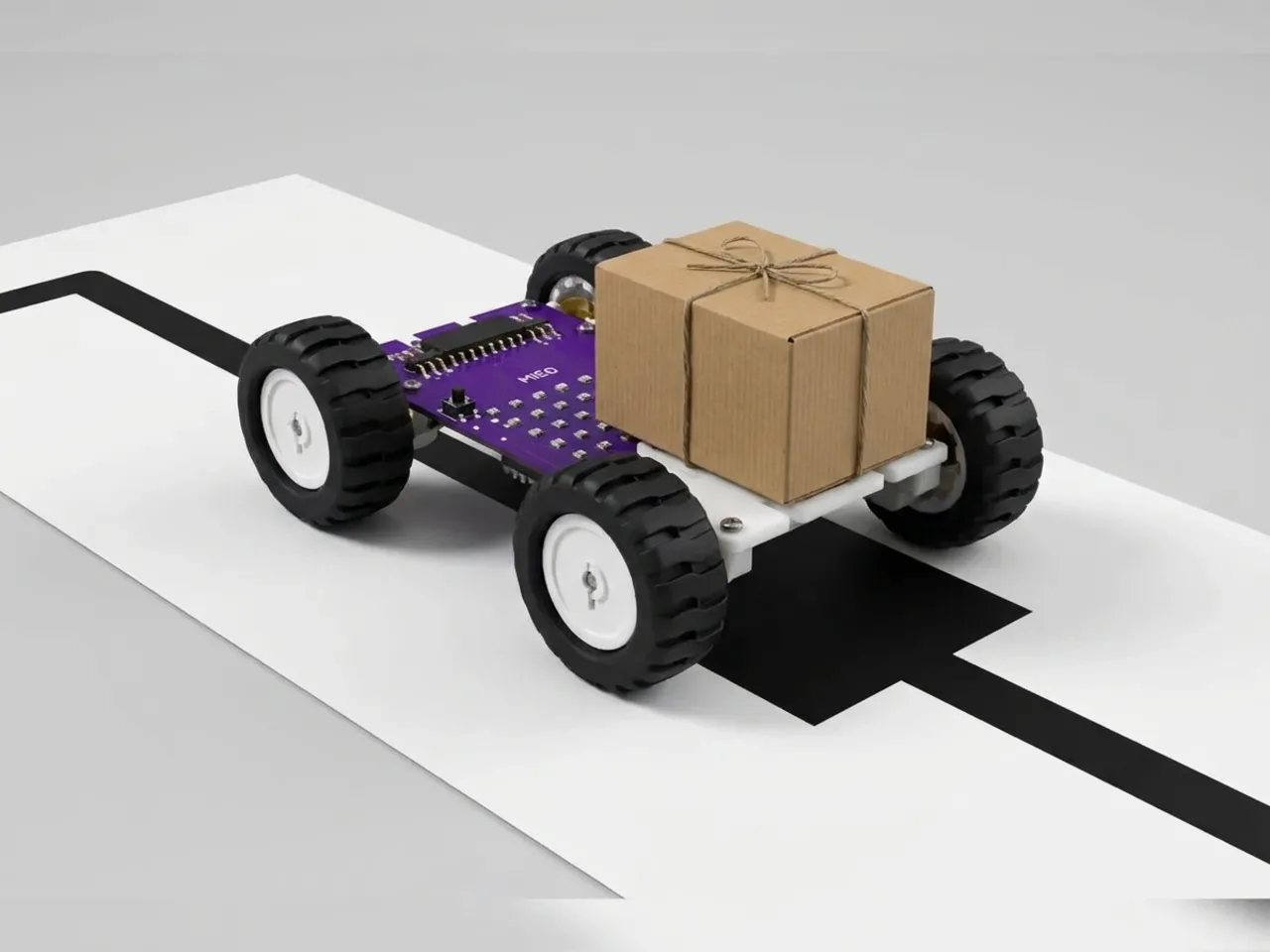
Autonomous Delivery Robot
Follow the chart's line and stop at each drop-off point
What you'll build
The Delivery Bot drives a route by timing every move, so it slowly drifts off course. Real delivery robots in warehouses follow lines or markers on the floor instead, and stop at each delivery point all by themselves. In this project MIEO follows the black line on its chart. Each time it reaches a drop-off mark, a strip of black tape across the line, it stops, plays a sound and waits while you unload. After the third drop-off it celebrates and stops for good.
What you'll learn
- Spotting a drop-off mark: both line sensors see black at once
- Using the gap inside “do line following” to react at a mark
- Counting stops with a variable and finishing with “repeat until”
- Why following a line is more reliable than a timed route
You'll need
- Mieo board
- Two N20 motors and their wheels
- Battery
- 3D-printed mountings
- Caster wheel
- Screws and screwdriver
- Delivery Bot parts, from the Mieo Pro kit
- Line follower chart
- Black tape for the drop-off marks
- A small parcel, such as a matchbox
- A USB cable, or Bluetooth on your computer
- The Robolab app (free)
Stay safe
- Ask an adult to help with the small screws.
- Lift MIEO's wheels off the table before you upload a driving program, so it can't drive off the edge.
Build it
- Build the Delivery Bot from your Mieo Pro kit, with both N20 motors, their wheels, the caster wheel and the battery, as the Mieo Pro build guide shows. Check the line sensors underneath sit just above the paper.
- Lay the line follower chart flat. Stick three short strips of black tape across the line at different places, each a little wider than MIEO. These are the drop-off marks.
- Switch MIEO on and connect it to your computer with a USB cable or Bluetooth.
Code it

Want MIEO Bot to guide you?
Robolab's built-in tutor has a lesson on the same idea, “Count the Crosses”. Open MIEO Bot in Robolab, pick Pro, then Mieo, and it shows you the blocks one at a time and checks your work as you go.
About MIEO Bot's lessons- Open Robolab, choose Mieo, connect and set the switch at the top right to Upload. Make a variable called drops.
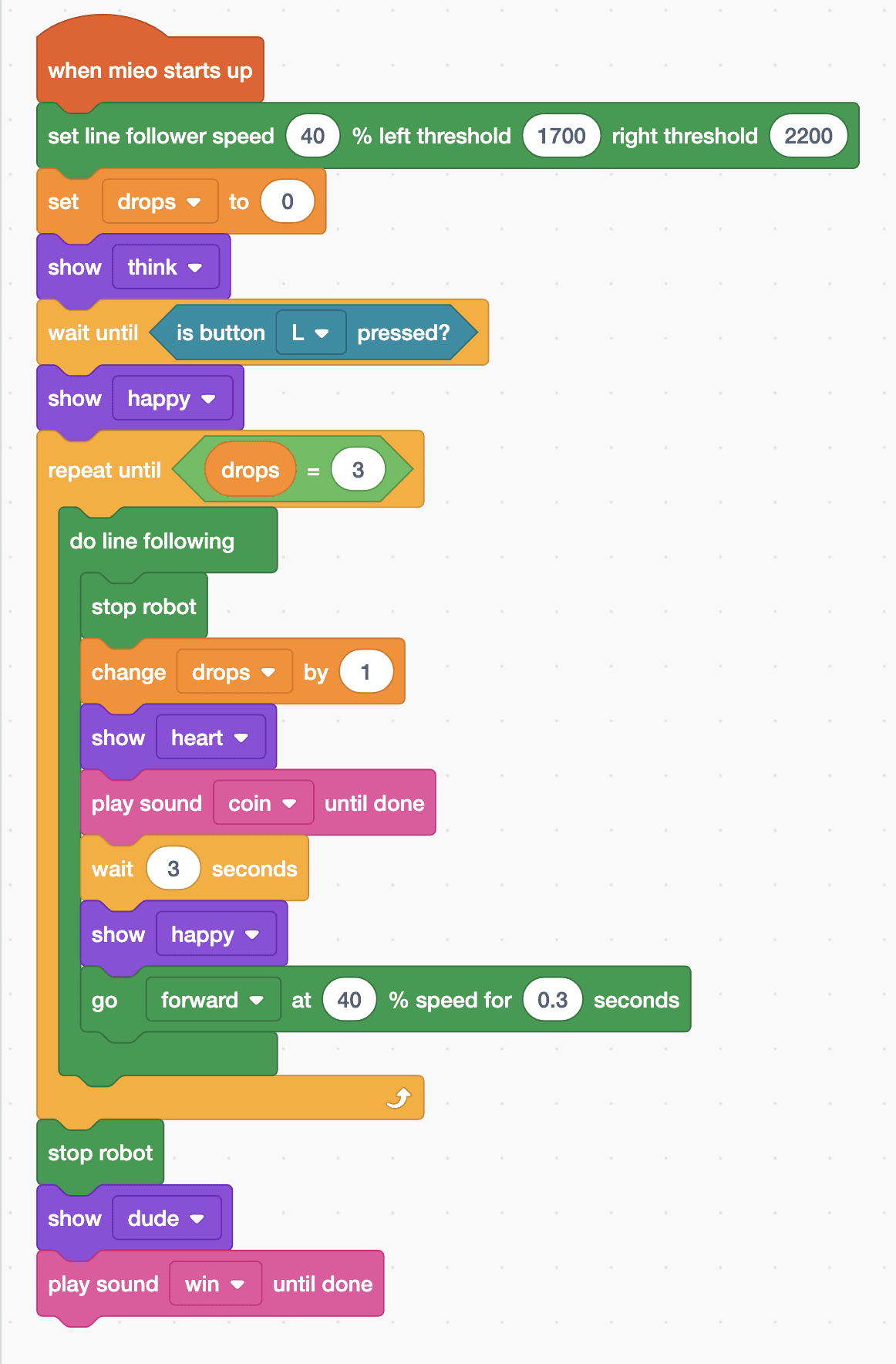
- Start with “when mieo starts up” and “set line follower speed 40 % left threshold 1700 right threshold 2200”. Add “set drops to 0”, “show think”, “wait until is button L pressed?” and “show happy”.
- Add “repeat until drops = 3” and put “do line following” inside it. The gap inside “do line following” runs only when both sensors see black, which is exactly what happens at a drop-off mark.
- In that gap, add “stop robot”, “change drops by 1”, “show heart”, “play sound coin until done” and “wait 3 seconds” to unload.
- Still in the gap, add “show happy” and “go forward at 40 % speed for 0.3 seconds”, so MIEO drives off the mark before it starts following again.
- After the repeat, add “stop robot”, “show dude” and “play sound win until done”. Lift the wheels, upload, put MIEO on the line, load the parcel and press L.
Upload mode: Robolab turns your blocks into MicroPython and sends them to MIEO over USB or Bluetooth. MIEO then runs the program by itself, even after you unplug it.
when mieo starts up
set line follower speed (40) % left threshold (1700) right threshold (2200)
set [drops v] to (0)
show [think v]
wait until <is button [L v] pressed?>
show [happy v]
repeat until <(drops) = (3)>
  do line following
    stop robot
    change [drops v] by (1)
    show [heart v]
    play sound [coin v] until done
    wait (3) seconds
    show [happy v]
    go [forward v] at (40) % speed for (0.3) seconds
  end
end
stop robot
show [dude v]
play sound [win v] until doneSee the MicroPython
# generated by Robolab
import mieo

drops = 0

mieo.initializelinefollower(1700, 2200, speed=40)
drops = 0
mieo.showemotion('think')
while not mieo.button('L'):
   pass
mieo.showemotion('happy')
while not drops == 3:
  mieo.followlinestep()
  if mieo.atlinecross():
    mieo.stoprobot()
    drops += 1
    mieo.showemotion('heart')
    mieo.playsounduntildone('coin')
    mieo.sleep(3 * 1000)
    mieo.showemotion('happy')
    mieo.run('forward', 40)
    mieo.sleep(0.3 * 1000)
    mieo.stoprobot()
mieo.stoprobot()
mieo.showemotion('dude')
mieo.playsounduntildone('win')
Test it
Press L and MIEO follows the line around the chart. At the first strip of tape it stops, shows a heart, plays a coin sound and waits three seconds, then drives off the mark and carries on. The same happens at the second mark. At the third, it delivers, drives off the mark, then stops for good, shows its dude face and plays its win sound.
If it doesn't work
- MIEO stops twice at the same mark? The mark is wider than 0.3 seconds of driving. Make the forward time longer, such as 0.5, or the tape narrower.
- It drives straight over a mark? The tape must cross the whole line and be wide enough for both sensors to see it at the same moment.
- It wobbles off the line? Lower the speed from 40 to 30, and check the thresholds as in the Line Follower Robot.
Make it your own
- Easy: change the number of drop-offs to two or four by changing the 3 in “repeat until”.
- Medium: show the number of deliveries so far on the display at each mark, using “show … with a … at speed” and the drops variable.
- Hard: make MIEO skip the second mark, delivering only at the first and third, using an “if” on the drops variable.