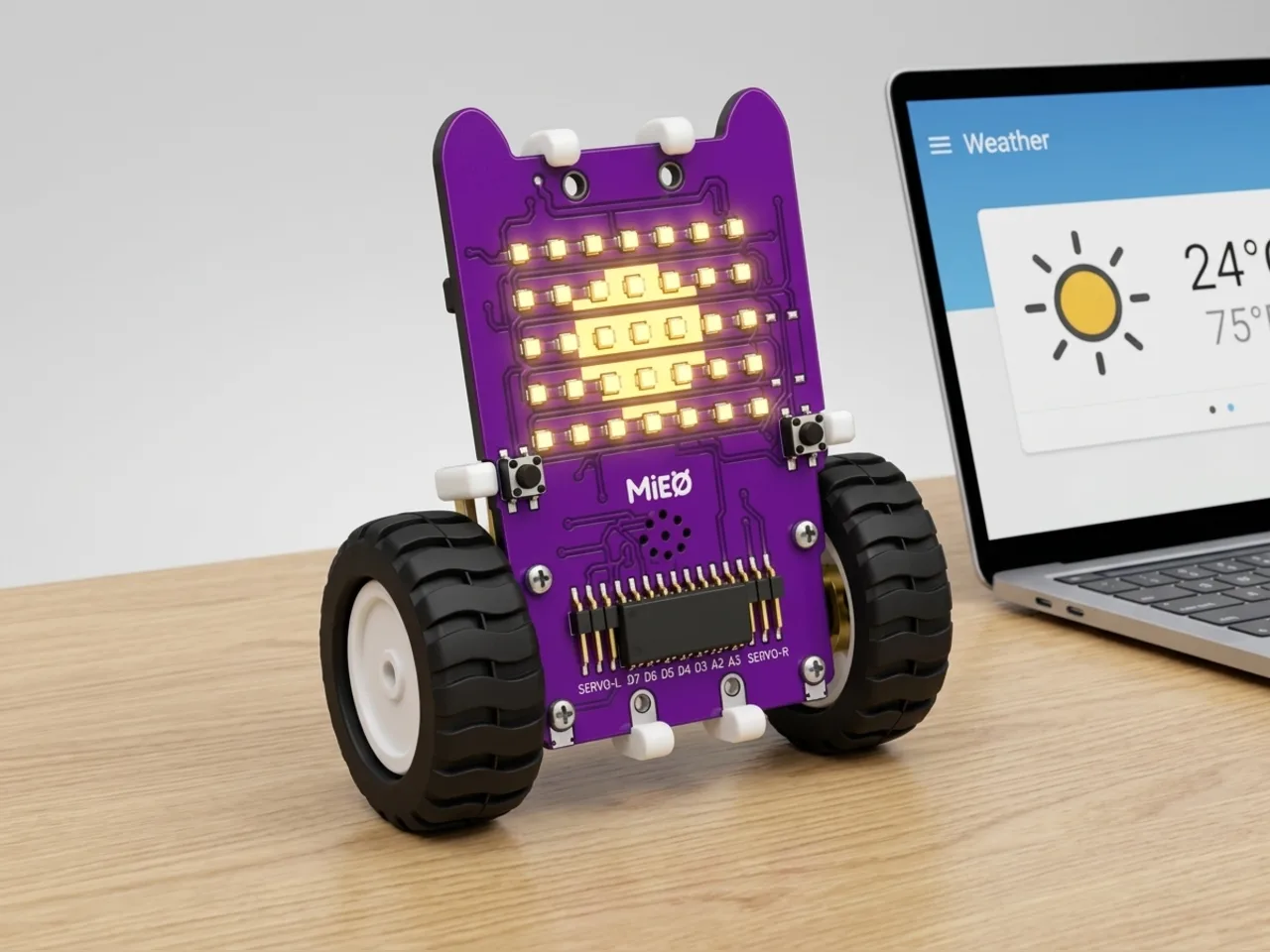
Weather Monitoring Robot
MIEO shows today's weather for your city on its display
What you'll build
Should you take an umbrella today? MIEO can tell you. Weather Sense looks up the weather for any city over the internet. In this project MIEO shows a picture of the weather on its display, a yellow sun, a white cloud or blue rain, and scrolls the temperature across. It checks again every ten minutes, so you can leave it on your desk as a little weather station. You'll need a free key from the weather service, which an adult can get for you.
What you'll learn
- How a program can fetch live information from the internet
- What a key is, and why you keep it private
- Choosing a picture with a chain of “if … else”
- Repeating a job every few minutes with “wait”
You'll need
- Mieo board
- Battery
- 3D-printed mountings
- Screws and screwdriver
- An internet connection
- A free weather service key from OpenWeatherMap, set up by an adult
- A USB cable, or Bluetooth on your computer
- The Robolab app (free)
- An internet connection and a free account
Stay safe
- Ask an adult to help with the small screws.
Build it
- Fit the battery to the Mieo board if it isn't there already, and switch MIEO on.
- Connect MIEO to your computer with a USB cable or over Bluetooth.
- Ask an adult to make a free account at openweathermap.org and copy its key. Keep the key private: don't share it or post it online.
Code it
- Open Robolab, choose Mieo, connect and set the switch at the top right to Arena. Add the Weather Sense extension.
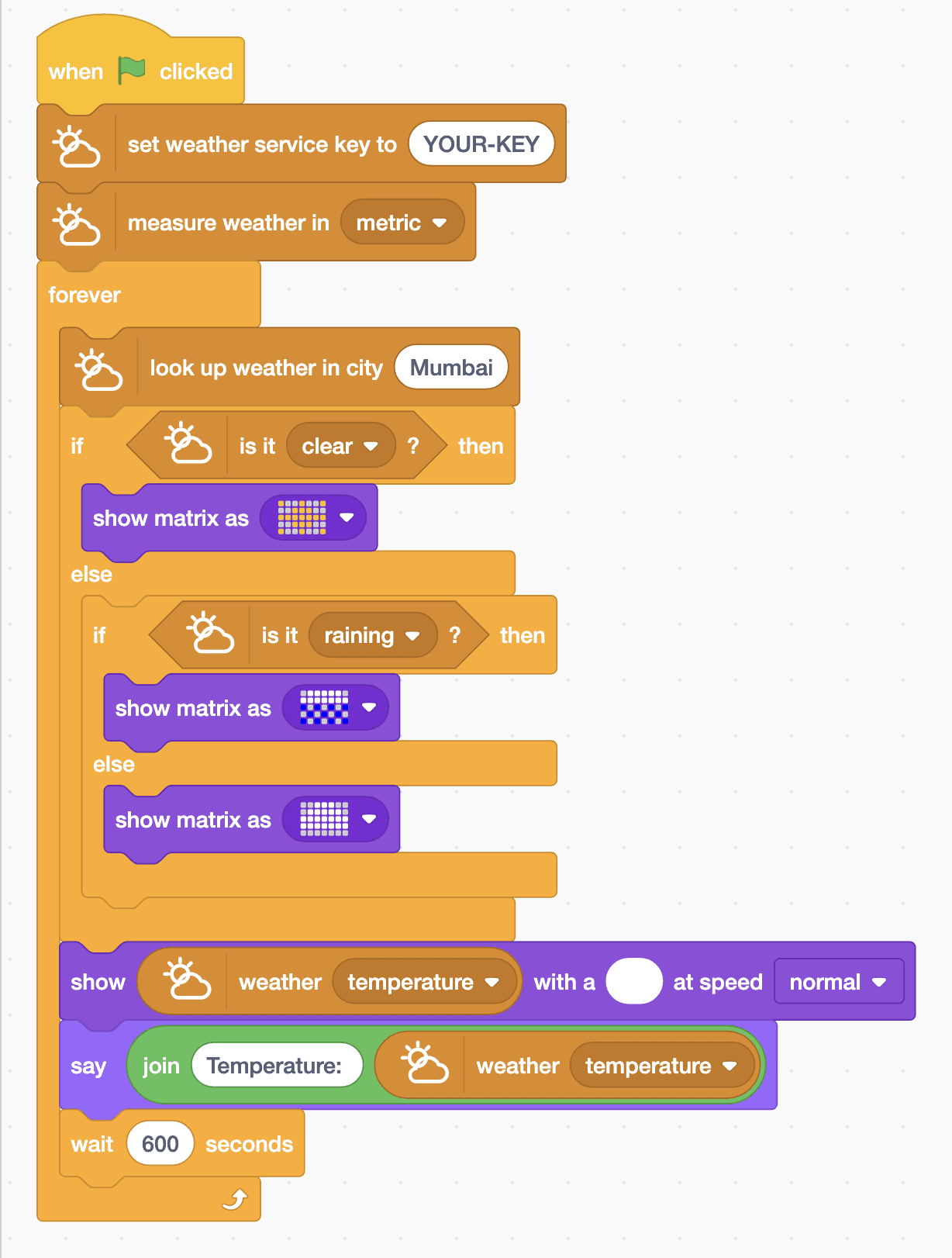
- Start with “when green flag clicked”, “set weather service key to” with your key pasted in place of YOUR-KEY, and “measure weather in metric”.
- Add a “forever” loop with “look up weather in city” inside. Type your own city in place of Mumbai.
- Add “if … else” with “is it clear ?” and paint a yellow sun with “show matrix as”. In the else part, add “if … else” with “is it raining ?” and paint blue rain under a white cloud.
- In that else part, paint a white cloud. Then, after the if blocks, add “show … with a … at speed normal” with “weather temperature” in its text gap.
- Finish the loop with “say” and “join Temperature: (weather temperature)”, then “wait 600 seconds”, which is ten minutes.
- Click the green flag.
Arena mode: the program runs on your computer and talks to MIEO live over USB or Bluetooth, so keep MIEO switched on and connected.
when green flag clicked
set weather service key to (YOUR-KEY)
measure weather in [metric v]
forever
  look up weather in city (Mumbai)
  if <is it [clear v] ?> then
    show matrix as (picture)
  else
    if <is it [raining v] ?> then
      show matrix as (picture)
    else
      show matrix as (picture)
    end
  end
  show (weather [temperature v]) with a (#FFF) at speed [normal v]
  say (join (Temperature:) (weather [temperature v]))
  wait (600) seconds
endTest it
Click the green flag. After a moment MIEO's display shows the weather: a yellow sun when it's clear, blue rain under a cloud when it's raining, or a white cloud otherwise. Then the temperature scrolls across in degrees Celsius, and the Mieo sprite says it on the stage. Ten minutes later MIEO looks again and updates.
If it doesn't work
- Nothing appears? Check the key is pasted exactly, with no spaces, and that the computer is online. A new key can take a little while to start working.
- It shows the wrong place? Type your city's name in full, and add the country if there are two places with that name.
- The temperature looks too high? Check the block says metric, for degrees Celsius.
Make it your own
- Easy: look up a city on the other side of the world and compare its weather with yours.
- Medium: add pictures for snow and storms using “is it snowing ?” and “is it stormy ?”.
- Hard: use “will it be raining in 6 hours ?” to make MIEO play a warning sound when rain is on the way.