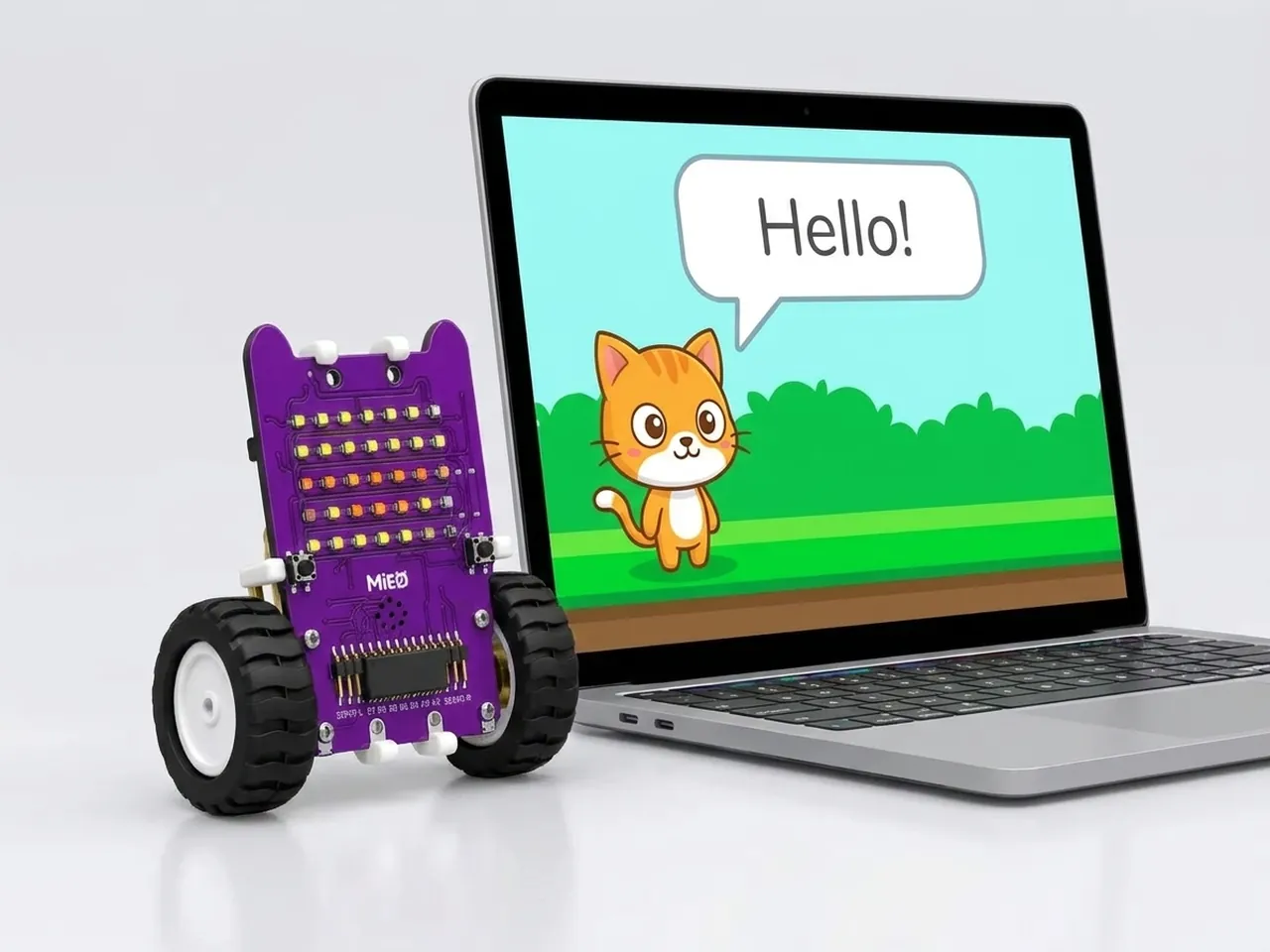
Sprite Hello
Make a sprite say hello with your name in a speech bubble
What you'll build
Roby the cat is the first sprite in every new Robolab project, and in this project Roby learns to talk. Click the green flag and Roby says hello, asks for your name, then greets you with the name you typed. Click Roby and you get a giggle back. It's a short program, but it shows how scripts start, how blocks run in order and how a program can use something you tell it.
What you'll learn
- How “when green flag clicked” and “when this sprite clicked” start scripts
- That blocks run in order, from the top of the stack to the bottom
- Showing words in speech and thought bubbles
- Asking a question and using the answer
- Joining pieces of text together
You'll need
Set up the stage
- Open Robolab. A new project starts with Roby the cat in the middle of the stage. Leave “No device selected” as it is, because this project runs on screen.
- Click the “Choose a Backdrop” button at the bottom right of the screen and pick Blue Sky.
- Click Roby in the sprite list under the stage, so the blocks you add belong to Roby.
Code it
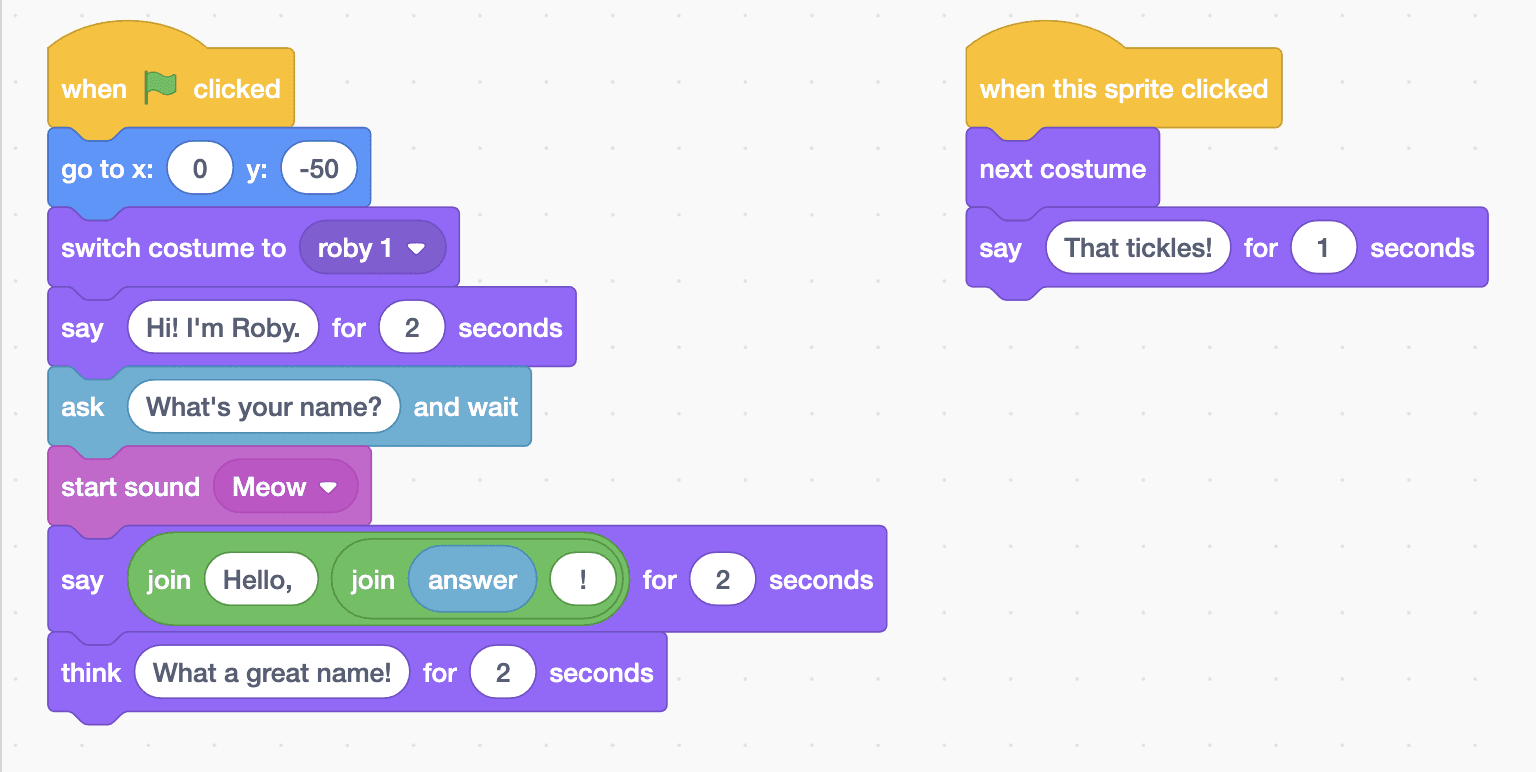
- From Events, drag out “when green flag clicked”. From Motion, add “go to x: 0 y: -50” to stand Roby near the bottom, then from Looks add “switch costume to roby 1”.
- Add “say Hi! I'm Roby. for 2 seconds” from Looks.
- From Sensing, add “ask What's your name? and wait”. When it runs, a box appears on the stage for you to type in.
- From Sound, add “start sound Meow”. Then add another “say … for 2 seconds”. Drop a “join” block from Operators into its first gap and a second “join” into the second gap of the first one, so it reads Hello, then the “answer” block from Sensing, then !
- Finish the script with “think What a great name! for 2 seconds”.
- Start a second script with “when this sprite clicked”. Add “next costume” and “say That tickles! for 1 seconds”.
This project runs on screen in Robolab, so you don't need MIEO for it.
when green flag clicked
go to x: (0) y: (-50)
switch costume to [roby 1 v]
say (Hi! I'm Roby.) for (2) seconds
ask (What's your name?) and wait
start sound [Meow v]
say (join (Hello,) (join (answer) (!))) for (2) seconds
think (What a great name!) for (2) seconds

when this sprite clicked
next costume
say (That tickles!) for (1) secondsTest it
Click the green flag. Roby stands under the blue sky, says “Hi! I'm Roby.” and then asks your name. Type it in the box and press Enter. Roby meows and greets you, for example “Hello, Mia!”, then thinks “What a great name!”. Click Roby at any time and it switches costume and says “That tickles!”.
If it doesn't work
- Roby says “Hello, !” with no name? The “answer” block must sit inside the second join, and you need to type your name before pressing Enter.
- Nothing happens when you click Roby? Check that the second script starts with “when this sprite clicked”, and click on Roby, not on the empty stage.
- No meow? Turn up your computer's volume and check that the sound menu says Meow.
Make it your own
- Easy: change what Roby says and thinks, and try a different backdrop.
- Medium: ask a second question, such as “What's your favourite food?”, and make Roby use that answer too.
- Hard: use “if … then” to check the answer. If it's your own name, make Roby say something special.