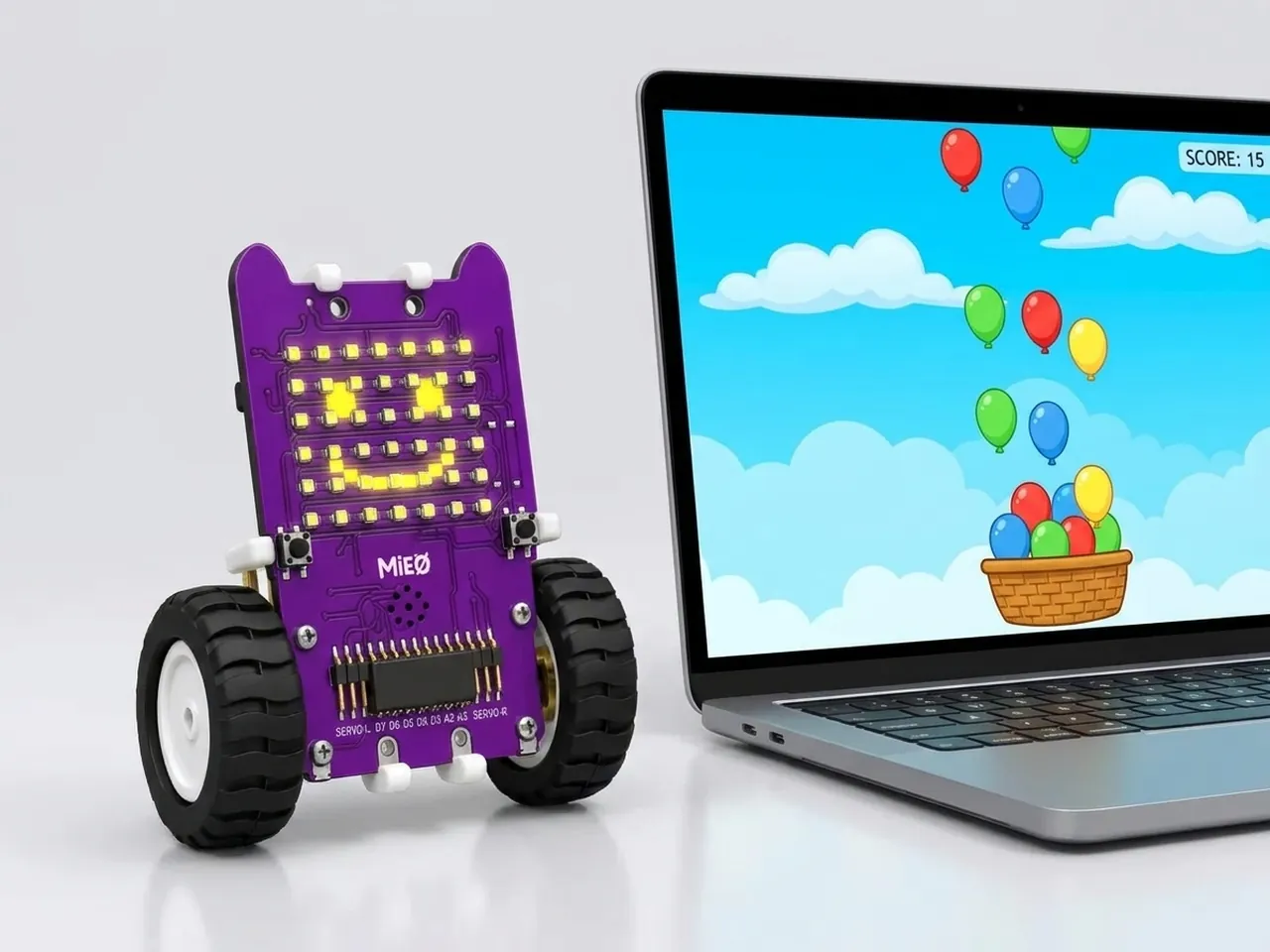
Balloon Catcher
Move Roby with the arrow keys to catch falling balloons
What you'll build
In this game, balloons fall from the top of the screen and you move Roby the cat left and right with the arrow keys to catch them. Every catch adds a point to your score and sends a new balloon down from a random spot. You don't need MIEO for this one, because it runs on screen. That makes it the perfect place to learn how events, loops and conditions work before you program a real robot.
What you'll learn
- How “when green flag clicked” starts every script at the same time
- Using x and y positions to place and move sprites on the stage
- How “if … then” and “key pressed?” make a sprite react to you
- Keeping score with a variable
- Picking a random number so every game is different
You'll need
Set up the stage
- Open Robolab. A new project starts with one sprite, Roby the cat. Leave “No device selected” as it is, because this game runs on screen.
- Click the “Choose a Sprite” button under the stage and pick Balloon1 from the library.
- In the Variables group, click “Make a Variable”, name it score and tick its box so the score shows on the stage.
Code it
- Click Roby in the sprite list. Start a script with “when green flag clicked” and “go to x: 0 y: -130” to put Roby at the bottom of the stage, then add a “forever” loop.
- Inside the loop, add two “if … then” blocks. The first checks “key right arrow pressed?” and does “change x by 10”. The second checks “key left arrow pressed?” and does “change x by -10”.
- Click Balloon1. Start its script with “when green flag clicked” and “set score to 0”, then send it to the top with “go to x: (pick random -200 to 200) y: 180”.
- Add a “forever” loop with “change y by -4”, so the balloon falls a little at a time.
- Inside the loop, add “if touching roby? then”: change score by 1, start sound Pop, and send the balloon back to a random spot at the top.
- Add one more “if”: when “y position < -170” the balloon has reached the bottom, so send it back to the top too. Click the green flag to play.
This project runs on screen in Robolab, so you don't need MIEO for it.
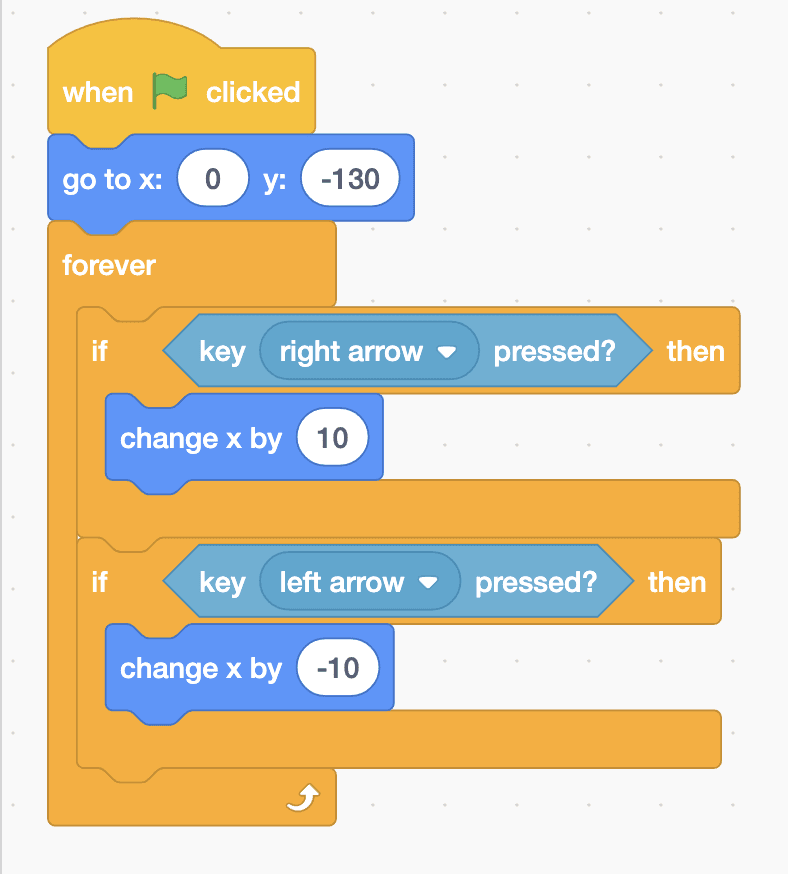
when green flag clicked
go to x: (0) y: (-130)
forever
  if <key [right arrow v] pressed?> then
    change x by (10)
  end
  if <key [left arrow v] pressed?> then
    change x by (-10)
  end
end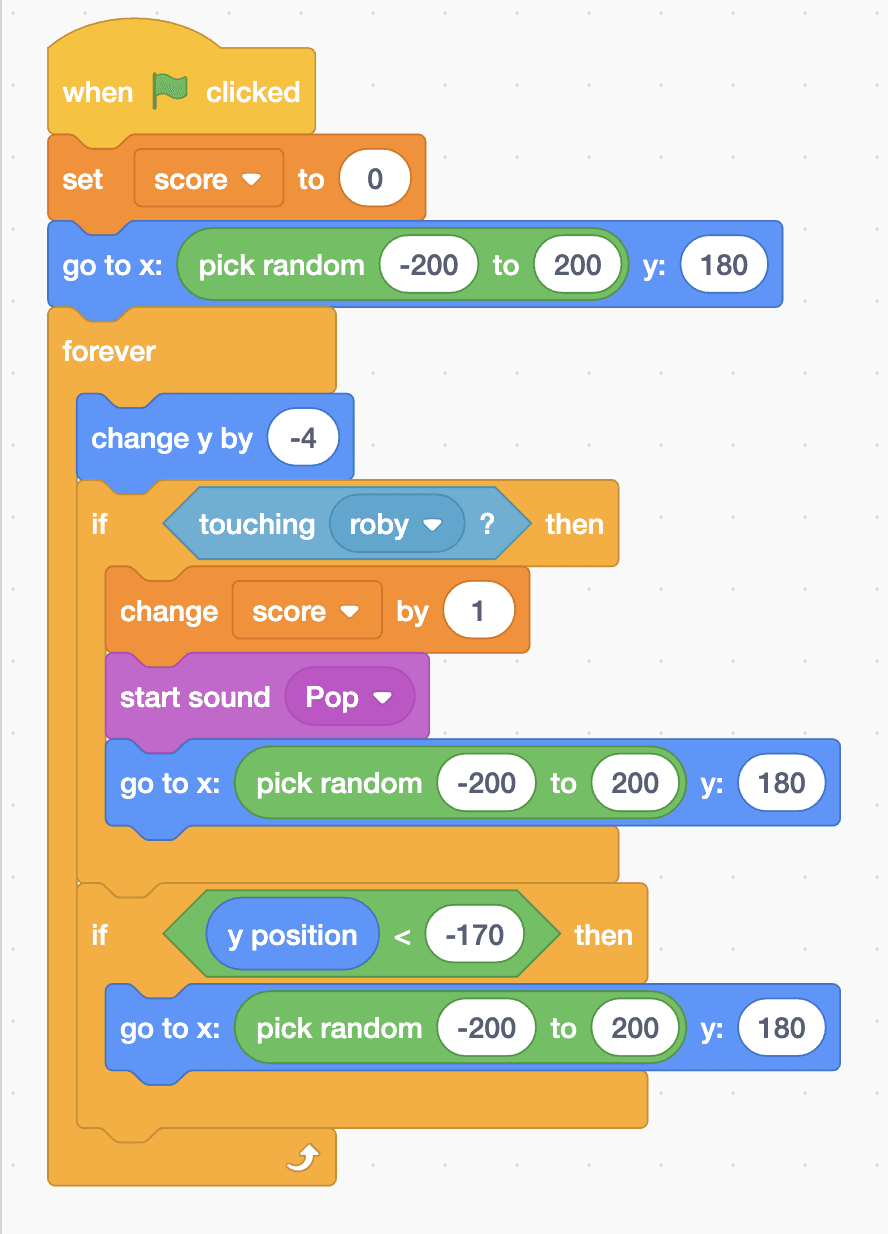
when green flag clicked
set [score v] to (0)
go to x: (pick random (-200) to (200)) y: (180)
forever
  change y by (-4)
  if <touching [roby v] ?> then
    change [score v] by (1)
    start sound [Pop v]
    go to x: (pick random (-200) to (200)) y: (180)
  end
  if <(y position) < (-170)> then
    go to x: (pick random (-200) to (200)) y: (180)
  end
endTest it
When you click the green flag, the score goes back to 0 and a balloon starts falling from a random place at the top. The right and left arrow keys slide Roby along the bottom. Catch a balloon and you hear a pop, the score goes up by one and a new balloon falls. Miss it and it simply starts again from the top.
If it doesn't work
- Roby doesn't move? Click on the stage first so Robolab is listening to your keyboard, then check the key names in both “key pressed?” blocks.
- The score never goes up? The touching block must say roby, and the balloon has to really touch Roby, so try catching it in the middle.
- The balloon falls too fast or too slow? Change the -4 in “change y by -4”. A smaller number makes it slower.
Make it your own
- Easy: make Roby quicker by changing 10 and -10 to 15 and -15.
- Medium: make the game speed up as you play. Store the falling speed in a second variable and change it each time you score.
- Hard: add lives. Start with 3, lose one each time a balloon reaches the bottom, and stop the game when none are left.