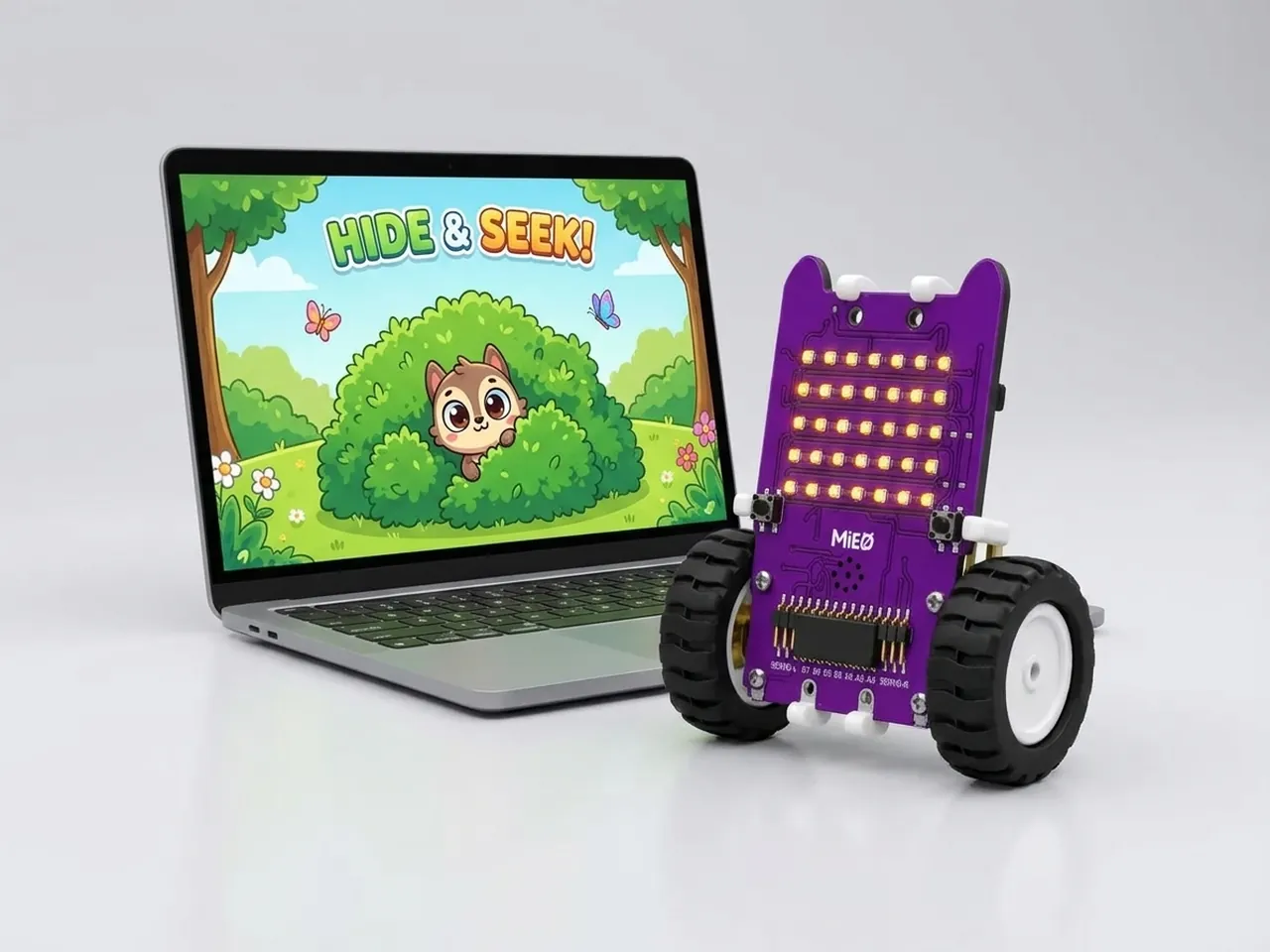
Hide and Seek
Click to find a character hiding behind the scenery
What you'll build
A hedgehog hides in the forest, behind the trees or behind the rocks. Sometimes its nose peeks out and sometimes it's completely out of sight. Click where you think it is. Every time you find it, it pops out, says so and runs off to hide again. Find it five times and the game tells you how many seconds you took, so you can try to beat your time.
What you'll learn
- Picking a random hiding place with “pick random” and “if … else”
- Using layers so one sprite can hide behind another
- Waiting for the player with “wait until”, and joining two checks with “and”
- Counting with a variable and repeating until you reach a goal
- Timing a game with Robolab's timer
You'll need
Set up the stage
- Open Robolab and leave “No device selected” as it is, because this game runs on screen.
- Click the “Choose a Sprite” button and add three sprites from the library, one at a time: Hedgehog, Trees and Rocks.
- Delete Roby: right-click Roby in the sprite list and choose delete.
- Click the “Choose a Backdrop” button and pick Forest.
- Drag Trees and Rocks to two places near the bottom of the stage, apart from each other. They are the hiding places.
- In the Variables group, click “Make a Variable” and name it found.
Code it
- Click Hedgehog. Start with “when green flag clicked”, then add “set size to 50 %” and “go to back layer” from Looks, so the hedgehog is small enough to hide and sits behind the scenery.
- Add “set found to 0”, then “reset timer” from Sensing.
- Add “repeat until” from Control. For its condition, use “found = 5”.
- Inside the loop, add “if … else”. Its condition is “pick random 1 to 2 = 1”. Put “go to Trees” in the top part and “go to Rocks” in the bottom part.
- Under it, add “change x by” with “pick random -40 to 40” in its gap, then “change y by -40”. Now the hedgehog sometimes peeks out at the side.
- Add “wait until” with “touching mouse-pointer? and mouse down?” as its condition. Below it, add “change found by 1”, “start sound pop” and “say You found me! for 1 seconds”.
- After the loop, add “say” with join blocks so it reads All 5 found in, then “round timer”, then seconds!
This project runs on screen in Robolab, so you don't need MIEO for it.
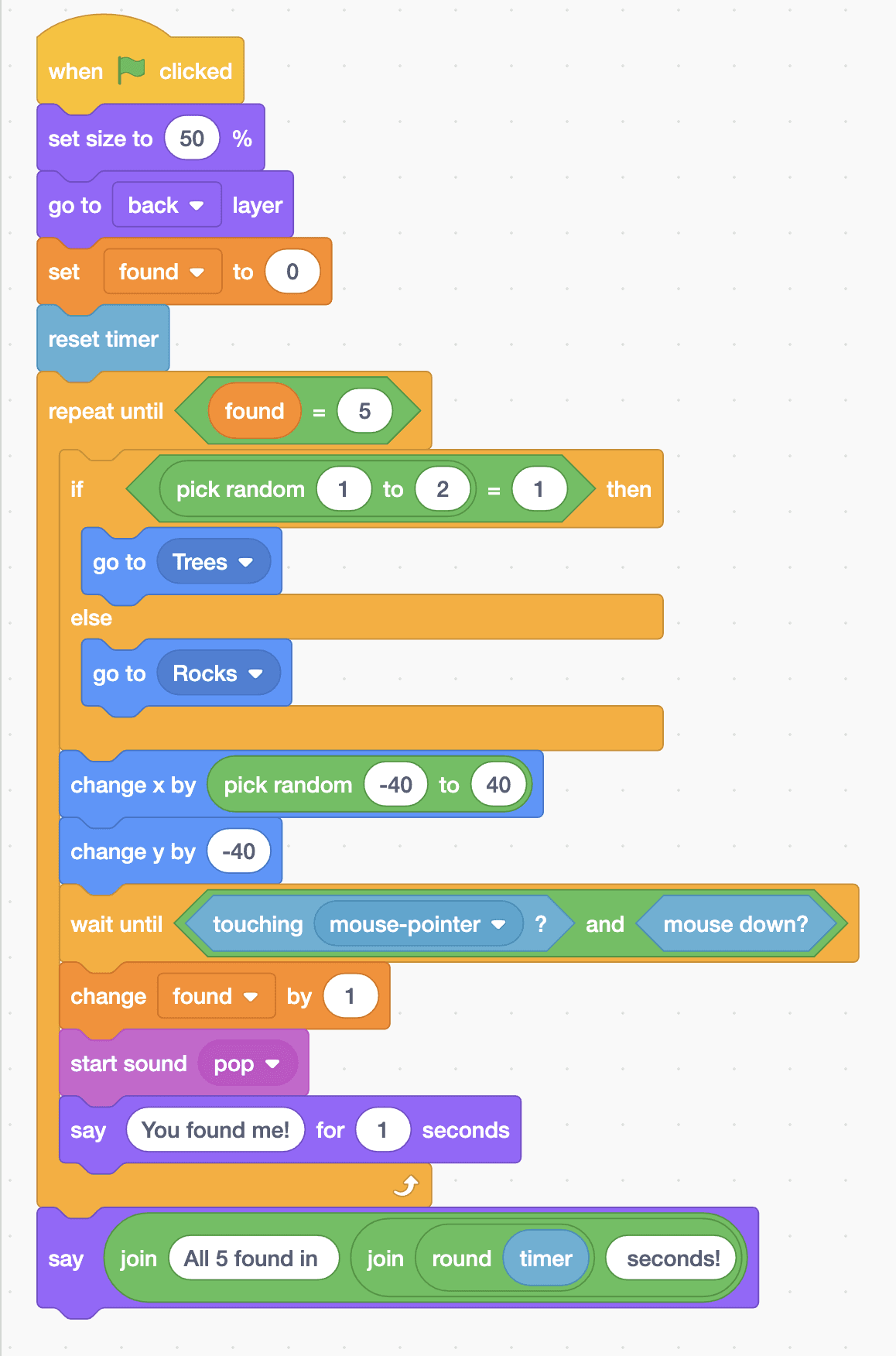
when green flag clicked
set size to (50) %
go to [back v] layer
set [found v] to (0)
reset timer
repeat until <(found) = (5)>
  if <(pick random (1) to (2)) = (1)> then
    go to [Trees v]
  else
    go to [Rocks v]
  end
  change x by (pick random (-40) to (40))
  change y by (-40)
  wait until <<touching [mouse-pointer v] ?> and <mouse down?>>
  change [found v] by (1)
  start sound [pop v]
  say (You found me!) for (1) seconds
end
say (join (All 5 found in) (join (round (timer)) (seconds!)))Test it
Click the green flag. The hedgehog shrinks and hides behind the trees or the rocks. Look closely: sometimes a nose or a spiky back sticks out. Click where you think it is. Clicking on the hedgehog counts even when it's behind the scenery: you hear a pop, it says “You found me!” and then hides somewhere new. After five finds it tells you how many seconds you took.
If it doesn't work
- The hedgehog sits in front of the trees? Check that “go to back layer” comes before the loop.
- Clicking doesn't count? Click right where the hedgehog is hiding; clicking another part of the scenery won't find it. Also check that the “and” block holds both checks.
- The game never ends? The “repeat until” must check found = 5, and “change found by 1” must be inside the loop.
Make it your own
- Easy: make it harder by changing -40 and 40 to -20 and 20, so the hedgehog peeks out less often.
- Medium: add a third hiding place. Add the Tree1 sprite, use “pick random 1 to 3” and put another “if … else” inside the bottom part of the first.
- Hard: keep a best time in a second variable, and show it at the end of every game.