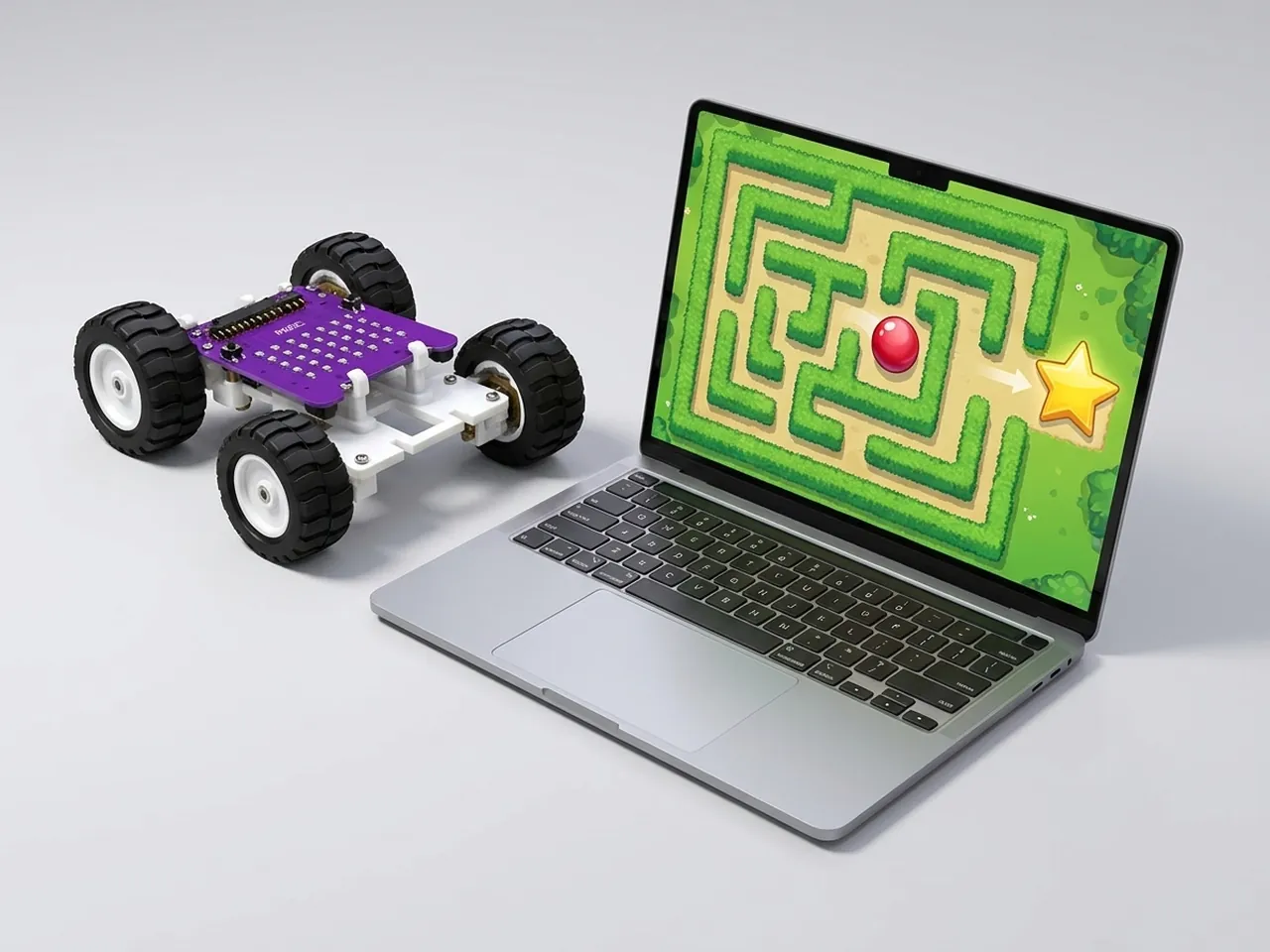
Ball Maze Game
Steer a ball through a maze without touching the walls
What you'll build
Steer a ball through a maze with the arrow keys and reach the star in the far corner. Touch a wall and you bounce straight back to the start. The clever part is the maze itself: it's one Line sprite that copies itself into five walls using clones. You place every wall with x and y coordinates, so once it works you can design mazes of your own.
What you'll learn
- Placing sprites exactly with x and y coordinates
- Using clones to make many walls from one sprite
- Steering a sprite with the arrow keys and “if … then”
- Spotting collisions with “touching”
- Ending a game with “stop all”
You'll need
Set up the stage
- Open Robolab and leave “No device selected” as it is, because this game runs on screen.
- Click the “Choose a Sprite” button and add three sprites from the library: Ball, Line and Star.
- Delete Roby: right-click Roby in the sprite list and choose delete.
Code it
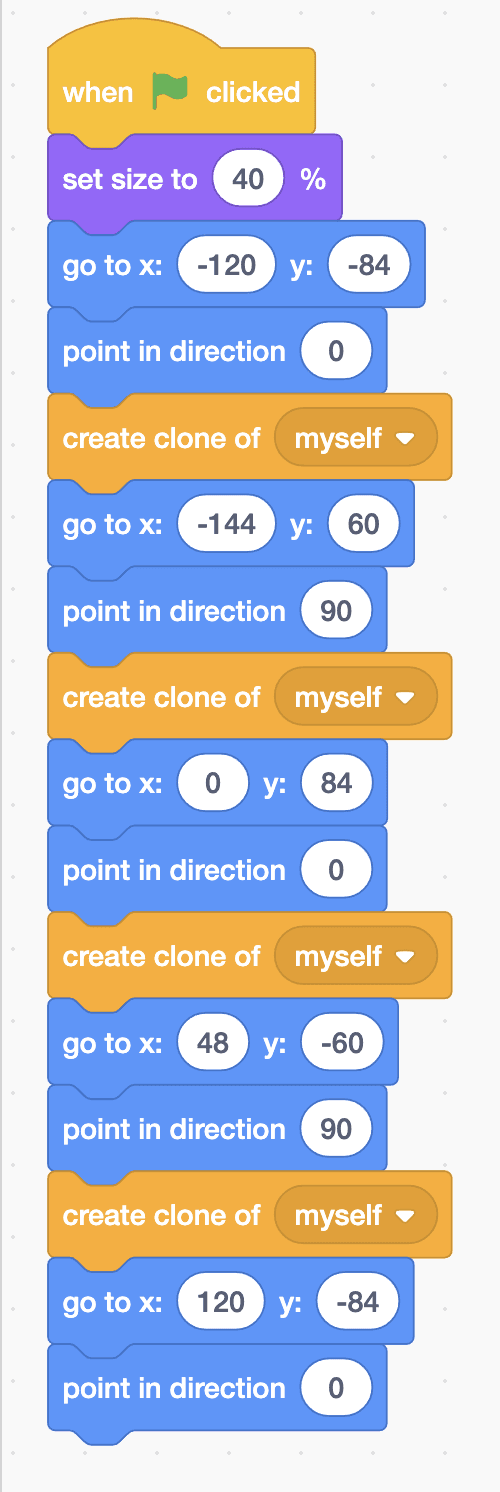
- Click Line. A full line stretches right across the stage, which is too long for a wall, so start with “when green flag clicked” and “set size to 40 %”.
- Build the walls. For each one, add “go to x: y:”, “point in direction” and “create clone of myself”. Direction 0 makes an upright wall and 90 a flat one. Use x -120, y -84 at 0; x -144, y 60 at 90; x 0, y 84 at 0; and x 48, y -60 at 90.
- For the fifth wall, add “go to x: 120 y: -84” and “point in direction 0” with no clone after them: the Line sprite itself stays there.
- Click Star. Add “when green flag clicked” and “go to x: 200 y: 140”. That's the finish.
- Click Ball. Add “when green flag clicked”, “set size to 40 %” and “go to x: -200 y: -150”, the start.
- Add a “forever” loop with four “if … then” blocks, one for each arrow key. Up does “change y by 3”, down “change y by -3”, right “change x by 3” and left “change x by -3”.
- Add “if touching Line? then” with “start sound Boing” and “go to x: -200 y: -150” inside. Then add “if touching Star? then” with “say I made it! for 2 seconds” and “stop all” inside.
This project runs on screen in Robolab, so you don't need MIEO for it.
when green flag clicked
set size to (40) %
go to x: (-120) y: (-84)
point in direction (0)
create clone of [myself v]
go to x: (-144) y: (60)
point in direction (90)
create clone of [myself v]
go to x: (0) y: (84)
point in direction (0)
create clone of [myself v]
go to x: (48) y: (-60)
point in direction (90)
create clone of [myself v]
go to x: (120) y: (-84)
point in direction (0)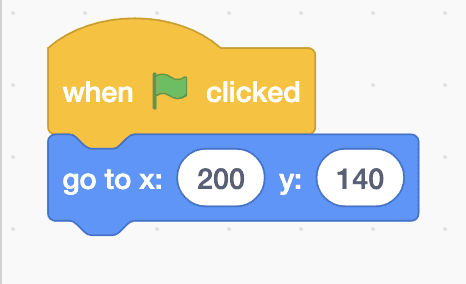
when green flag clicked
go to x: (200) y: (140)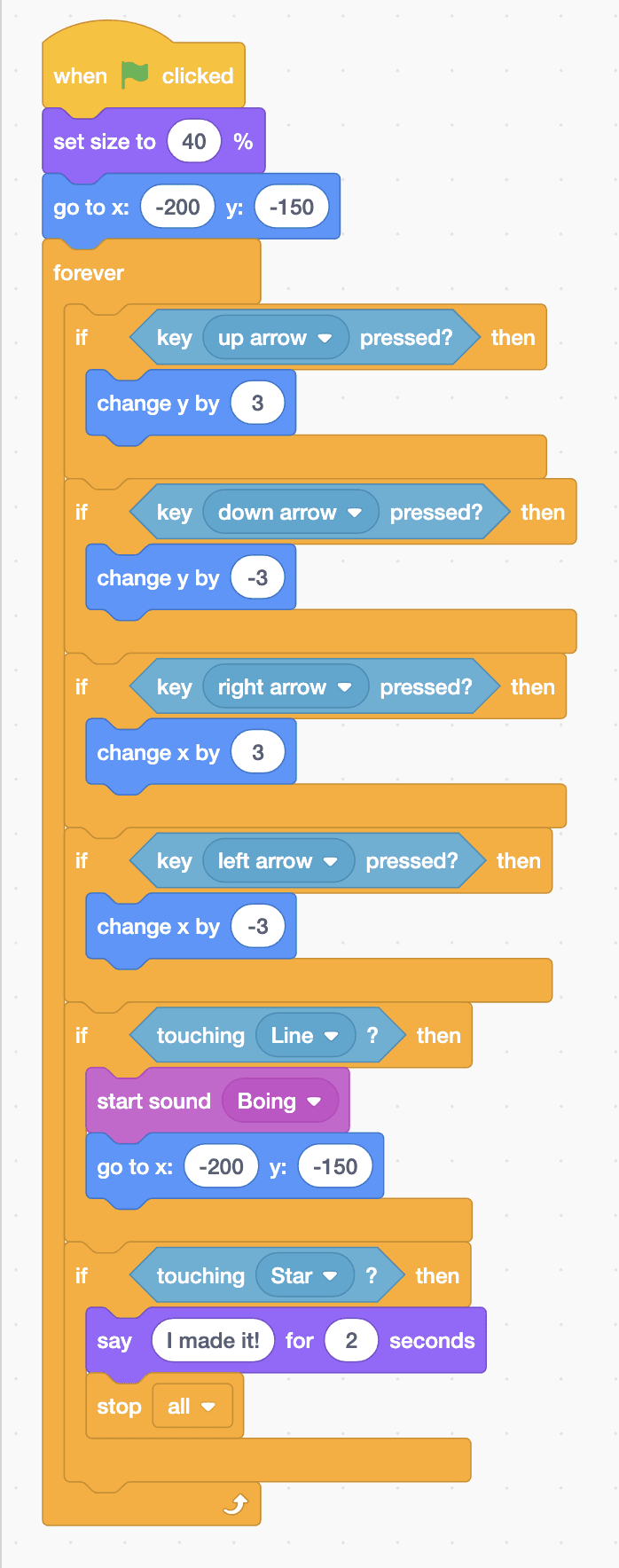
when green flag clicked
set size to (40) %
go to x: (-200) y: (-150)
forever
  if <key [up arrow v] pressed?> then
    change y by (3)
  end
  if <key [down arrow v] pressed?> then
    change y by (-3)
  end
  if <key [right arrow v] pressed?> then
    change x by (3)
  end
  if <key [left arrow v] pressed?> then
    change x by (-3)
  end
  if <touching [Line v] ?> then
    start sound [Boing v]
    go to x: (-200) y: (-150)
  end
  if <touching [Star v] ?> then
    say (I made it!) for (2) seconds
    stop [all v]
  end
endTest it
Click the green flag. Five walls appear and the ball waits in the bottom left corner. Steer up, through the gap above the first wall, then down and under the middle wall, then up and round the last wall to the star. Touch any wall and you hear a boing as the ball jumps back to the start. Reach the star and the ball says “I made it!” before the game stops.
If it doesn't work
- A wall is missing or in the wrong place? Check each “go to” and “point in direction” pair, and that every wall except the last ends with “create clone of myself”.
- The arrow keys do nothing? Click on the stage once so Robolab is listening to your keyboard.
- Too hard to squeeze through the gaps? Change all the 3s in the arrow blocks to 2 to slow the ball down.
Make it your own
- Easy: move the star somewhere else and check the maze can still be solved.
- Medium: add more walls with more “go to”, “point in direction” and “create clone of myself” blocks to make your own maze.
- Hard: reset the timer at the start and make the ball say how many seconds it took when it reaches the star.
What to build next
Screen first
Space Shooter
Fly a ship, fire lasers and score points against falling rocks
Screen first
Snake Game
Grow a snake by eating apples without hitting your own tail
Screen first
Parkour Platformer
Run and jump across platforms with gravity and scrolling