Hand Tracking Robot
Move your hand left or right and MIEO steers to match
What you'll build
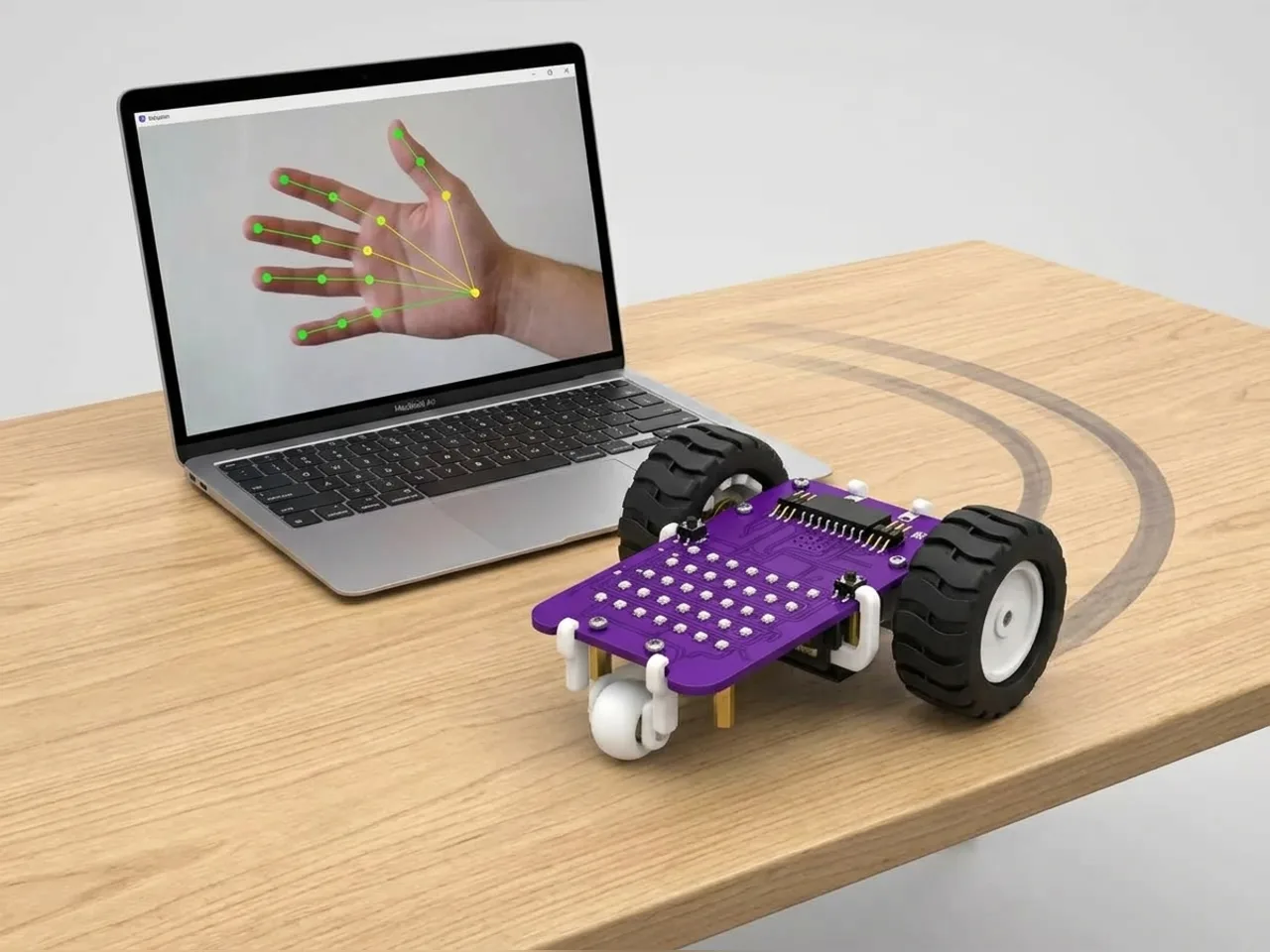
Hold your hand up to the webcam and you're holding an invisible steering wheel. Body Sense finds your hand in the picture and says how far left or right it is. Move your hand to the left and MIEO curves left; move it to the right and MIEO curves right; keep it in the middle and MIEO drives straight. Take your hand away and MIEO stops. It all runs on your computer, with no internet.
What you'll learn
- Using a position in a picture as a steering input
- Dividing the picture into left, middle and right zones
- Curving by running one wheel slower than the other
- Sending a new command only when the zone changes
You'll need
- Mieo board
- Two N20 motors and their wheels
- Battery
- 3D-printed mountings
- Caster wheel
- Screws and screwdriver
- A webcam; most laptops have one built in
- A computer with Bluetooth
- The Robolab app (free)
- A webcam (most laptops have one built in)
Stay safe
- Ask an adult to help with the small screws.
- Lift MIEO's wheels off the table before you upload a driving program, so it can't drive off the edge.
- The camera and microphone stay on your computer. Nothing MIEO sees or hears is sent anywhere.
Build it
- Build MIEO with both N20 motors, their wheels, the caster wheel and the battery, as in Switch Motor Start.
- Clear a driving space on the floor, away from stairs and table edges.
- Switch MIEO on and connect it to your computer over Bluetooth. Sit facing the webcam.
Code it
- Open Robolab, choose Mieo, connect and set the switch at the top right to Arena. Add the Body Sense extension and make two variables, x and zone.
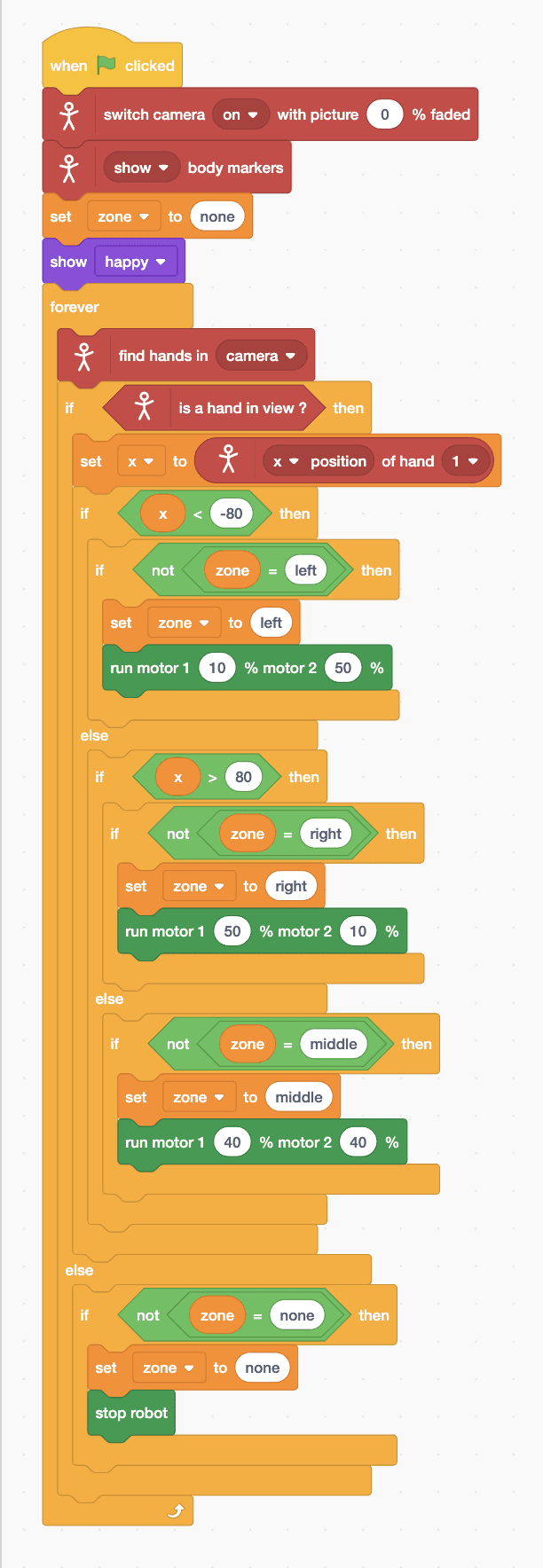
- Start with “when green flag clicked”, “switch camera on with picture 0 % faded”, “show body markers”, “set zone to none” and “show happy”.
- Add a “forever” loop with “find hands in camera” inside, then “if … else” with “is a hand in view ?”.
- In the else part, when no hand is in view: “if not zone = none then” with “set zone to none” and “stop robot”.
- In the top part, add “set x to (x position of hand 1)”. The middle of the picture is 0, the left edge -240 and the right edge 240.
- Then add a chain of “if … else”: x < -80 means the left zone, so “if not zone = left then set zone to left” and “run motor 1 10 % motor 2 50 %”. x > 80 is the right zone, with 50 and 10. Otherwise it's the middle zone, with 40 and 40.
- Click the green flag, allow the camera, and hold your hand up in the middle.
Arena mode: the program runs on your computer and talks to MIEO live over USB or Bluetooth, so keep MIEO switched on and connected.
when green flag clicked
switch camera [on v] with picture (0) % faded
[show v] body markers
set [zone v] to (none)
show [happy v]
forever
  find hands in [camera v]
  if <is a hand in view ?> then
    set [x v] to ([x position v] of hand [1 v])
    if <(x) < (-80)> then
      if <not <(zone) = (left)>> then
        set [zone v] to (left)
        run motor 1 (10) % motor 2 (50) %
      end
    else
      if <(x) > (80)> then
        if <not <(zone) = (right)>> then
          set [zone v] to (right)
          run motor 1 (50) % motor 2 (10) %
        end
      else
        if <not <(zone) = (middle)>> then
          set [zone v] to (middle)
          run motor 1 (40) % motor 2 (40) %
        end
      end
    end
  else
    if <not <(zone) = (none)>> then
      set [zone v] to (none)
      stop robot
    end
  end
endTest it
Click the green flag: the camera picture shows your hand with dots on it. Hold it in the middle and MIEO drives straight ahead. Move it to the left of the picture and MIEO curves left; move it to the right and MIEO curves right. Drop your hand out of view and MIEO stops.
If it doesn't work
- MIEO turns the opposite way? The picture is a mirror. Swap the speeds in the left and right zones.
- MIEO stops and starts? Body Sense is losing your hand. Keep it open, facing the camera, in good light.
- The turns are too sharp? Make the slower wheel faster, such as 25 instead of 10.
Make it your own
- Easy: make the middle zone wider by changing -80 and 80 to -120 and 120.
- Medium: use the y of your hand too: high means fast and low means slow.
- Hard: add sharp left and sharp right zones at the edges of the picture, where MIEO spins on the spot.