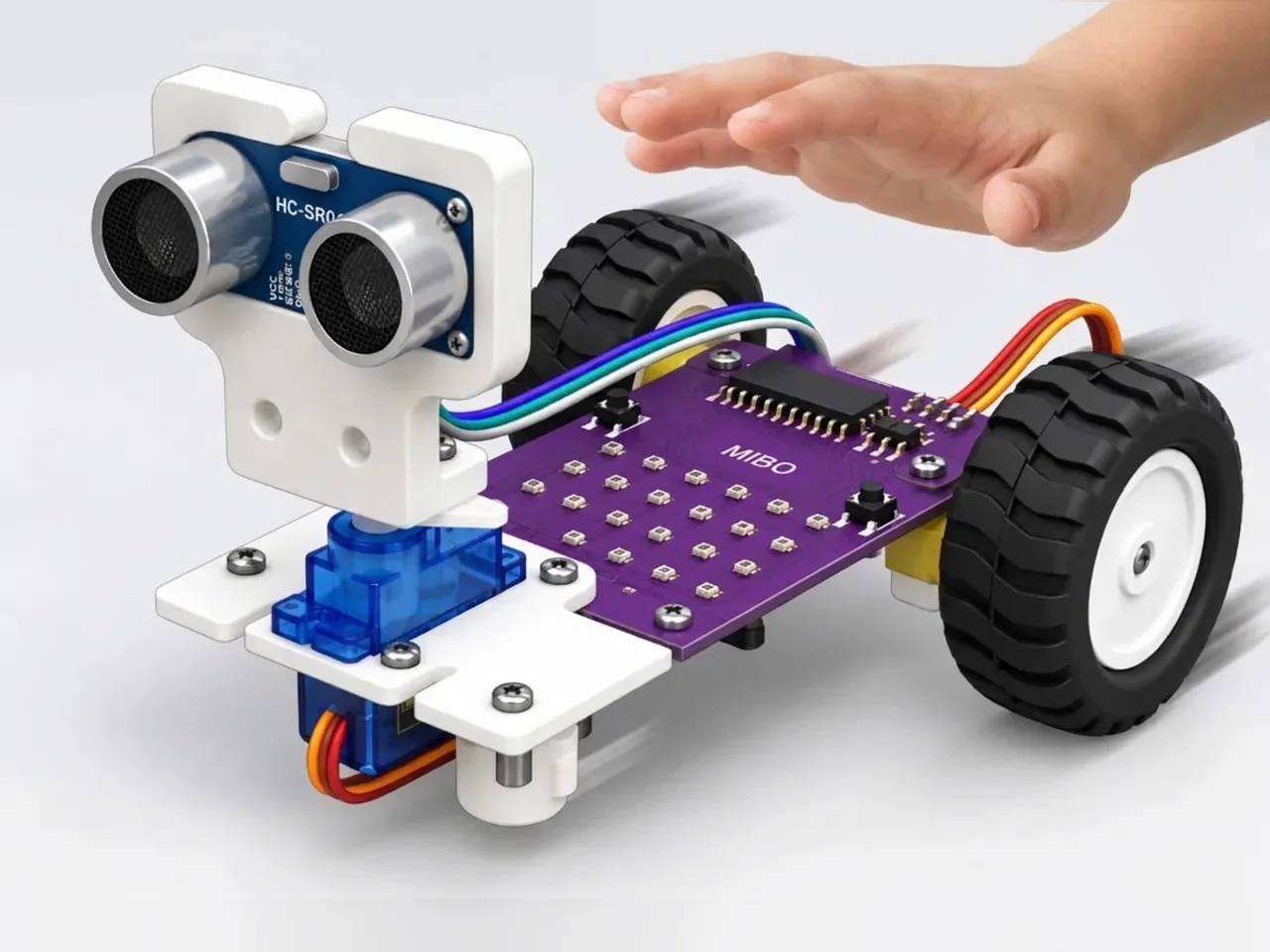
Follow My Hand Robot
MIEO keeps a set distance from your hand and follows it
What you'll build
Hold your hand in front of MIEO and walk it slowly backwards: MIEO follows you like a puppy on a lead. Bring your hand towards it and MIEO backs away. The trick is three zones. Too close, MIEO reverses; just right, it waits; a little too far, it drives forward to catch up. Robots that follow a person, a car or a shelf all keep to a zone like this, measuring and correcting many times a second.
What you'll learn
- Keeping to a target distance by measuring and correcting
- Dividing distances into three zones with “if … else”
- Why a robot should stop when it can't see anything
- How a self-driving robot decides for itself what to do next
You'll need
- Mieo board
- Two N20 motors and their wheels
- Battery
- 3D-printed mountings
- Caster wheel
- Screws and screwdriver
- Ultrasonic distance sensor and its cable
- Self-driving robot parts, from the Mieo Pro kit
- A USB cable, or Bluetooth on your computer
- The Robolab app (free)
Stay safe
- Ask an adult to help with the small screws.
- Lift MIEO's wheels off the table before you upload a driving program, so it can't drive off the edge.
- Plug extra parts only into the connector this page names. Wiring a part to the wrong connector can damage it for good.
Build it
- Build the self-driving robot from your Mieo Pro kit, with both N20 motors, their wheels, the caster wheel and the battery, as the Mieo Pro build guide shows.
- With MIEO switched off, plug in the ultrasonic distance sensor: its Echo pin goes to D1, its Trig pin to D2, and its power and ground pins to the matching pins.
- Fix the sensor at the front, facing forward at about the height of your hand when you kneel beside MIEO.
- Switch MIEO on and connect it to your computer with a USB cable or Bluetooth.
Code it
- Open Robolab, choose Mieo, connect and set the switch at the top right to Upload. Make a variable called distance.
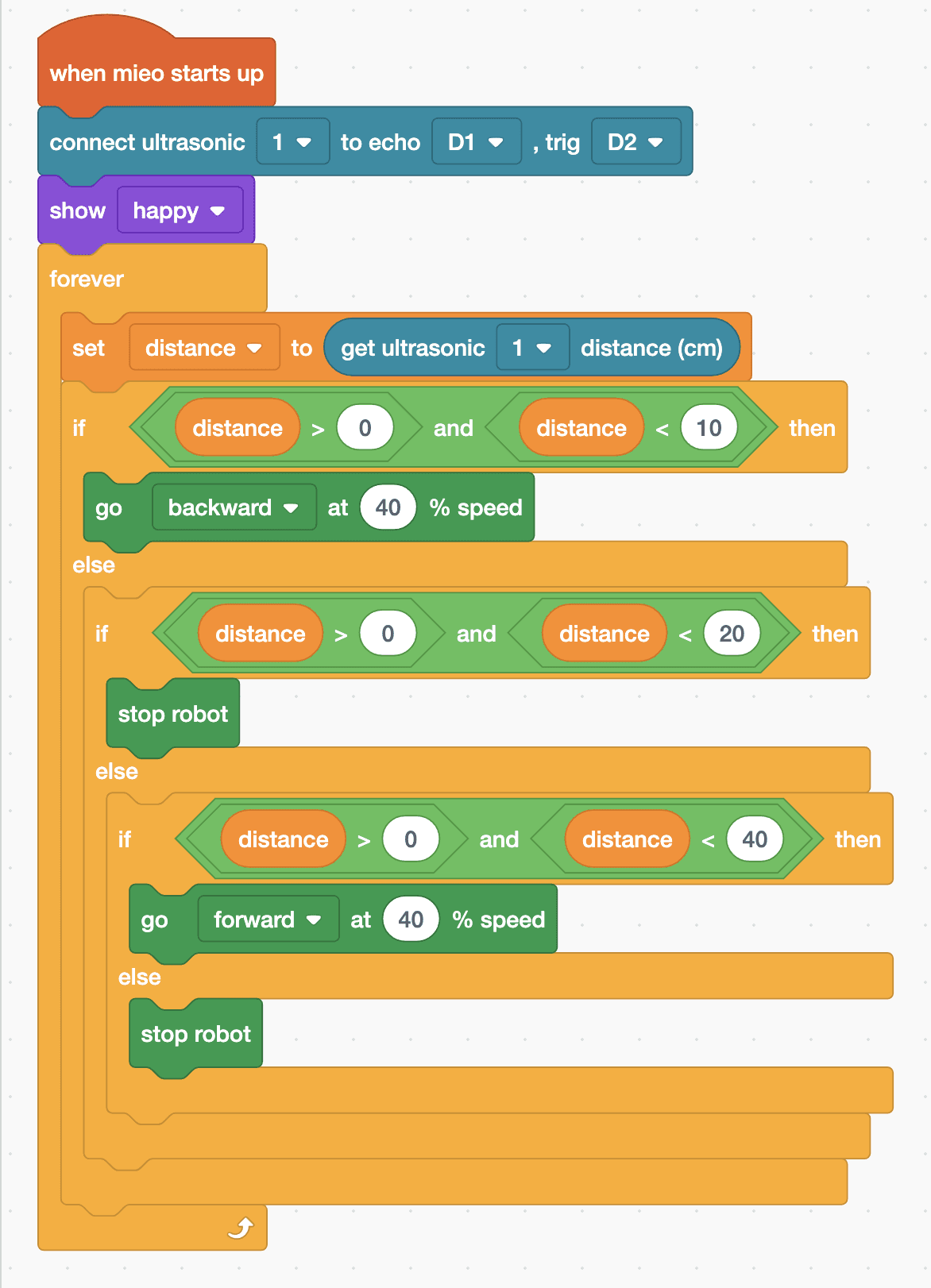
- Start with “when mieo starts up”, “connect ultrasonic 1 to echo D1 , trig D2” and “show happy”, then add a “forever” loop with “set distance to (get ultrasonic 1 distance (cm))” inside.
- Add “if … else” for “distance > 0 and distance < 10”. Too close: put “go backward at 40 % speed” in its top part.
- In the else part, add “if … else” for “distance > 0 and distance < 20”. Just right: “stop robot” goes in its top part.
- In that else part, add one more “if … else” for “distance > 0 and distance < 40”. A little far: “go forward at 40 % speed”. Its else part is “stop robot”, for when MIEO sees nothing at all.
- Lift the wheels and upload. Put MIEO on the floor and hold your open hand about 15 cm in front of the sensor.
Upload mode: Robolab turns your blocks into MicroPython and sends them to MIEO over USB or Bluetooth. MIEO then runs the program by itself, even after you unplug it.
when mieo starts up
connect ultrasonic [1 v] to echo [D1 v] , trig [D2 v]
show [happy v]
forever
  set [distance v] to (get ultrasonic [1 v] distance (cm))
  if <<(distance) > (0)> and <(distance) < (10)>> then
    go [backward v] at (40) % speed
  else
    if <<(distance) > (0)> and <(distance) < (20)>> then
      stop robot
    else
      if <<(distance) > (0)> and <(distance) < (40)>> then
        go [forward v] at (40) % speed
      else
        stop robot
      end
    end
  end
endSee the MicroPython
# generated by Robolab
import mieo

distance = 0

mieo.connectultrasonic(1, 'D1', 'D2')
mieo.showemotion('happy')
while True:
  distance = mieo.ultrasonic(1)
  if distance > 0 and distance < 10:
    mieo.run('backward', 40)
  else:
    if distance > 0 and distance < 20:
      mieo.stoprobot()
    else:
      if distance > 0 and distance < 40:
        mieo.run('forward', 40)
      else:
        mieo.stoprobot()
Test it
With your hand about 15 cm in front of the sensor, MIEO waits. Move your hand slowly away and MIEO drives after it; bring your hand closer than 10 cm and MIEO backs off. Take your hand away altogether, or move it more than 40 cm away, and MIEO stops and waits for you to come back.
If it doesn't work
- MIEO doesn't react to your hand? Keep your hand flat and at the same height as the sensor, and check Echo is in D1 and Trig in D2.
- It chases the wall instead of your hand? The wall is within 40 cm. Start in open space, or make the far zone smaller.
- It rocks back and forth? Make the just-right zone wider, for example from 10 to 25 cm.
Make it your own
- Easy: change 40 % to a slower speed so MIEO follows more gently.
- Medium: show a different face in each zone: surprise when too close, happy when just right, and think while catching up.
- Hard: make MIEO drive faster the further away your hand is, by working out its speed from the distance.